Change Password
Navigation
-
Log in to the Kitchen365 dashboard.
-
Go to the top-right corner of the page where your name is displayed..
-
Click on your name to open the dropdown menu.
-
In the dropdown, you’ll see the following options:
- User Profile
- Change Password ✅
- Log out
-
Click on “Change Password”.
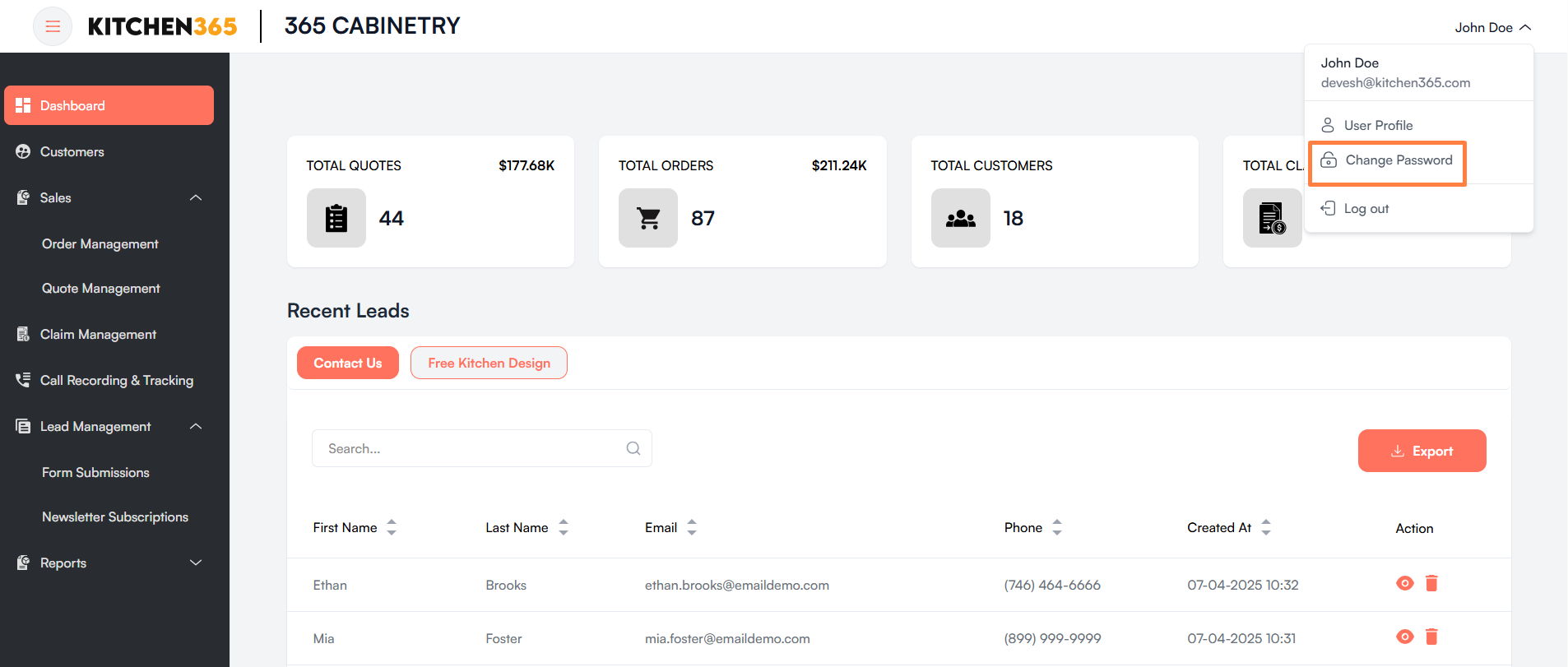
Once you click on the Change password, you will be redirected to the screen shown below.
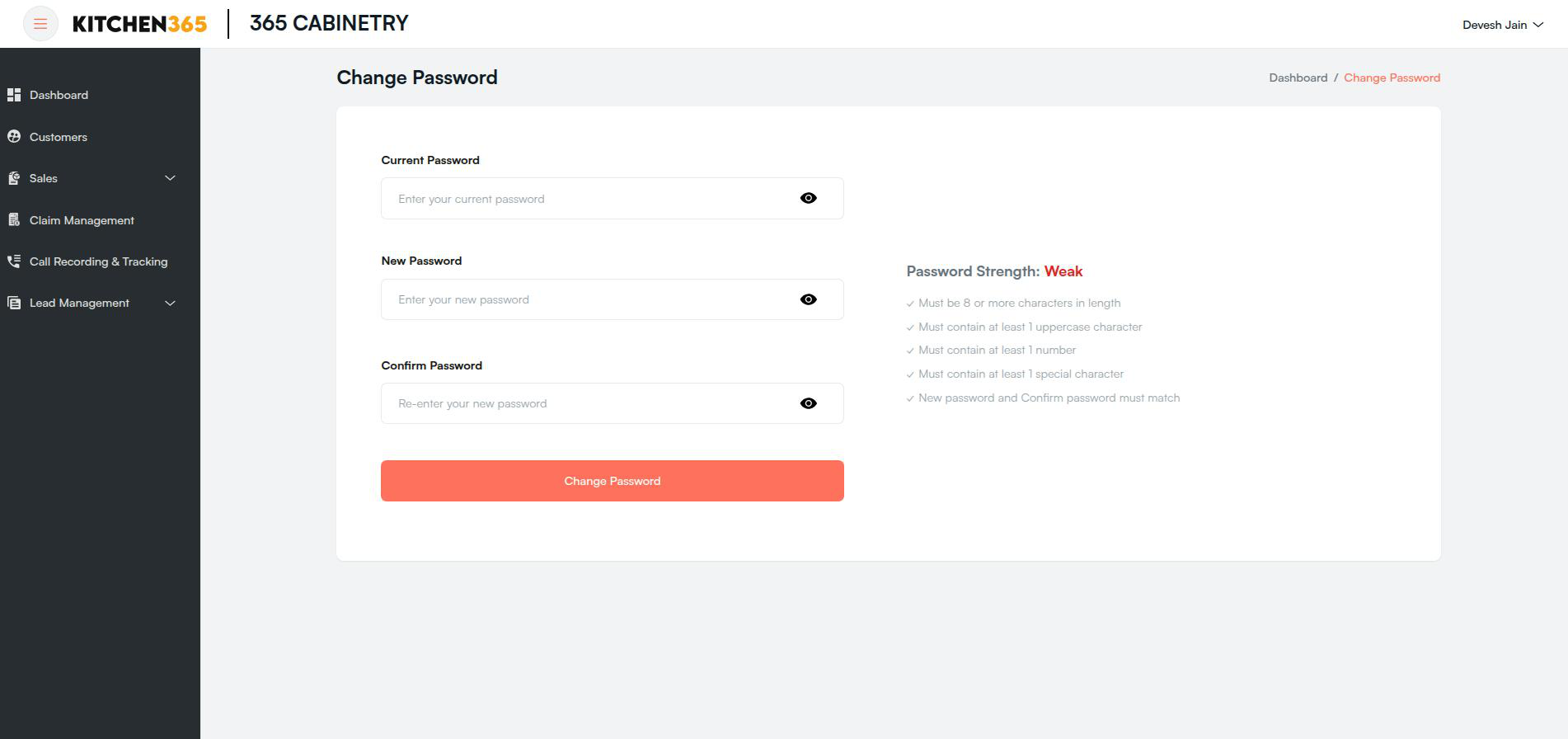
- To change the password, enter your current password, followed by the new password, and confirm the new password.
- On the right side, you'll see password strength criteria. Make sure your new password meets all the listed requirements.
- Once all conditions are satisfied, click on the 'Change Password' button to update your password.