User Profile
Navigation
-
Log in to the Kitchen365 dashboard.
-
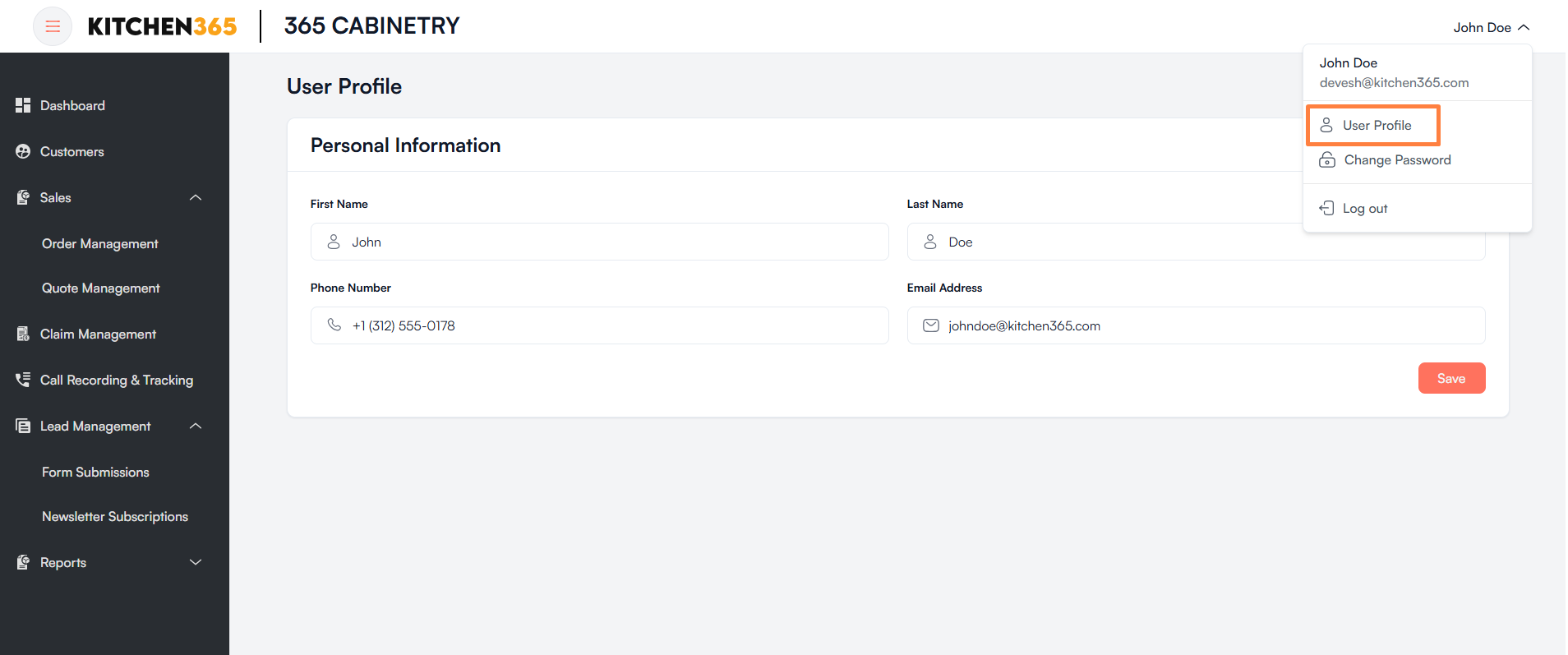
Go to the top-right corner of the page where your name is displayed..
-
Click on your name to open the dropdown menu.
-
In the dropdown, you’ll see the following options:
- User Profile ✅
- Change Password
- Log out
-
Click on “User Profile”.
Purpose
- View your registered email ID and user information.
- Useful for verifying your login credentials and identity.
Once you click on the User Profile, you will be redirected to the screen shown below.
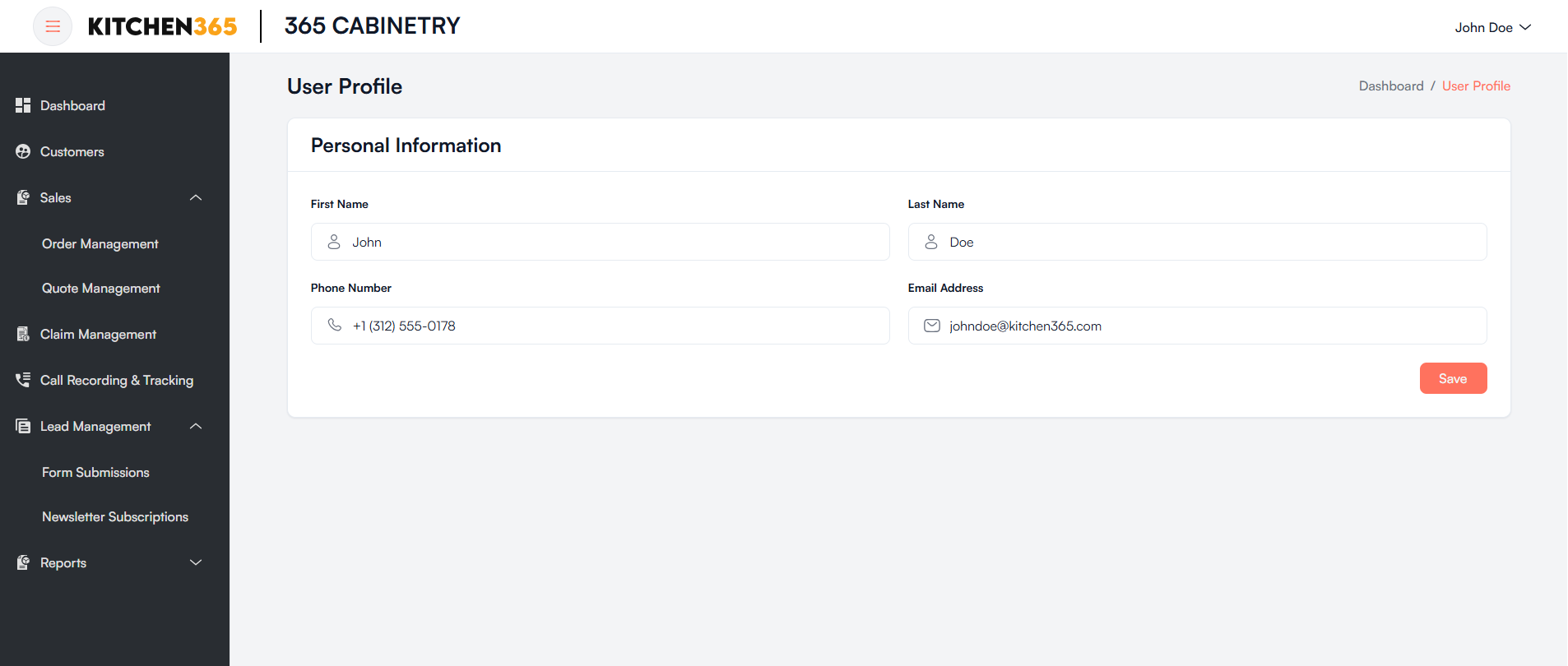
- In the User Profile, the admin can view their personal information and update it, except for the email address, which is not editable.
- To save any changes, click on the 'Save' button.