Claim Management
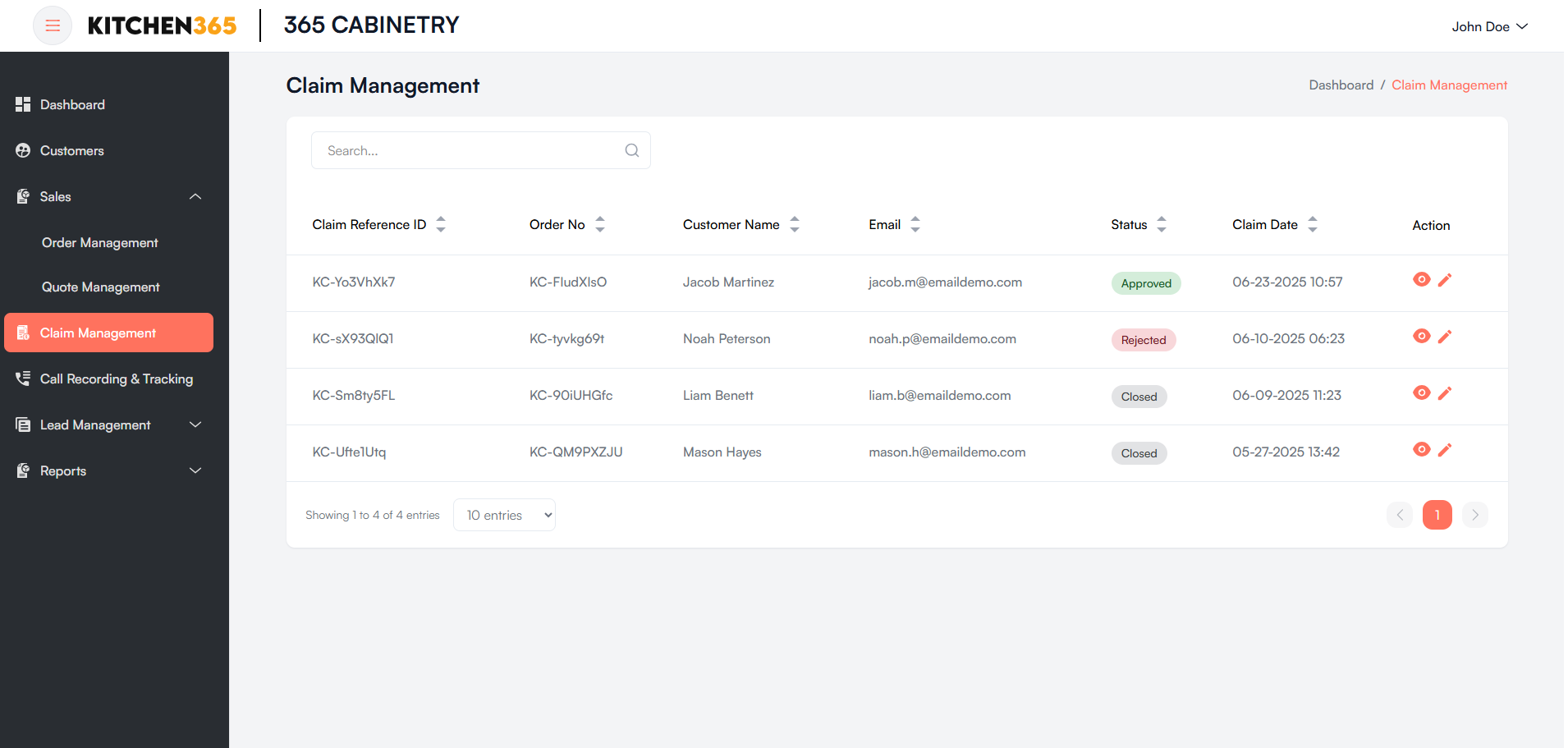
The Claim Management screen allows admin users to view, track, and manage claims submitted by customers related to their orders. It helps ensure issues such as damaged goods, missing items, or other complaints are tracked and resolved efficiently.
a. Claim List
You can view all the claims submitted by users from the frontend website in the console under the Claim Management section.
| Column | Description |
|---|---|
| Claim Reference ID | Unique identifier for each claim created in the system. |
| Order No. | Linked order number against which the claim is raised. |
| Customer Name | Name of the customer who raised the claim. |
| Customer’s email address used for communication and claim reference. | |
| Status | Current claim status (e.g., Open, Closed). Displayed with a label chip. |
| Claim Date | The date and time when the claim was submitted. |
| Action | Icons to view 🔍 or edit ✏️ the claim. |
You can search quotes using the bar above the table by Quote ID, PO No., or customer names.
Search & Pagination
- Search Bar: Allows admin to filter claims by keywords (such as customer name, email, Order No, or claim ID).
- Pagination: Controls the number of entries shown per page (default is 10). Navigate through pages using the arrow controls at the bottom right.
b. Claim View
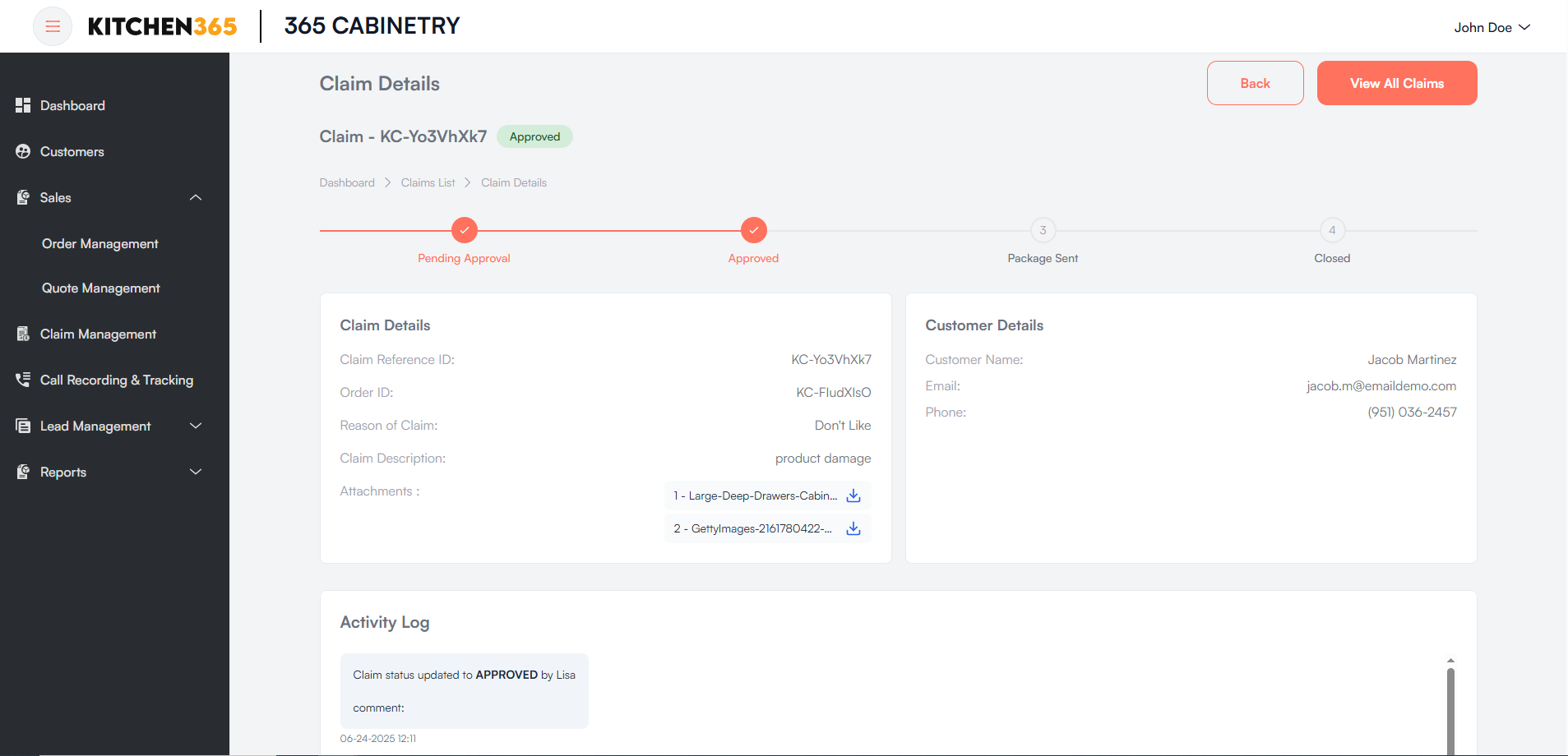
The Claim Details page allows users to view the status and information of a specific customer claim regarding an order. This includes customer contact details, the reason for the claim, attachments (If any) and a timeline of the claim's progress.
-
Claim Status Tracker
-
A visual timeline displays the stages of the claim:
- Pending Approval
- Approved
- Package Sent
- Closed
-
✅ Each step is marked with a check icon once completed.
-
-
Claim Details Section
-
This section displays all claim-related information:
- Claim Reference ID: Unique ID for the claim
- Order ID: Original order ID
- Reason of Claim: Description of the issue (e.g., Wrong Color)
- Attachments: Files related to the claim (e.g., images or documents). Users can download the attached files.
-
Customer Details Section: Displays the contact details of the customer who raised the claim.
-
Activity Log:
- Shows the complete timeline of actions taken on the claim:
- Each entry contains:
- Status update (e.g., CLOSED, PACKAGE_SENT, REJECTED)
- Timestamp
- Action Performed by
- Optional comments
- Each entry contains:
This helps track who made which change and when.
- Navigation Buttons
- Back: Returns to the previous page.
- View All Claims: Navigates back to the full list of claims.
c. Claim Edit
Upon clicking the edit icon in the respective claim entry, a popup will open allowing you to edit the claim status.
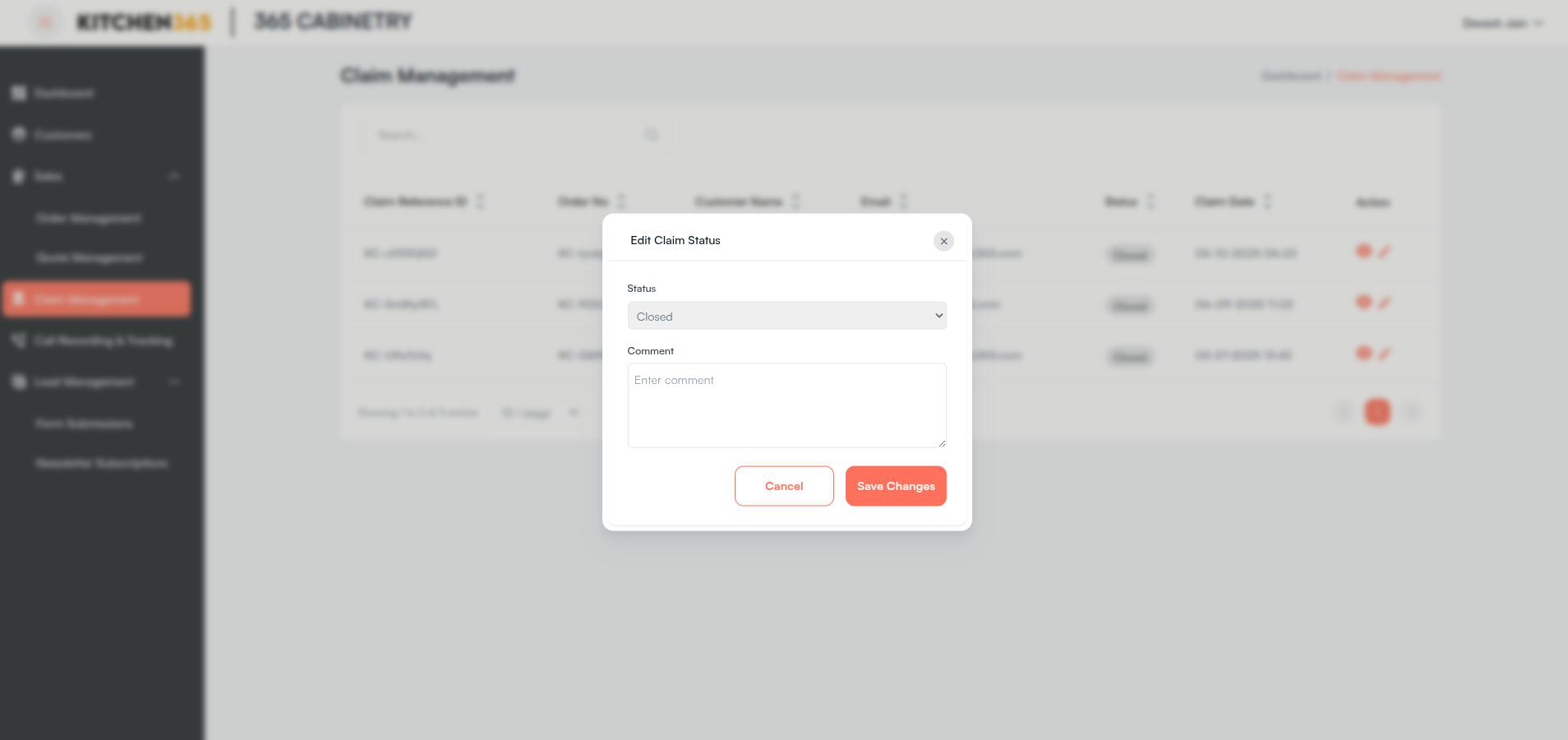
Here, you can update the claim status and add or edit comments.
Actions & Buttons
- Cancel: Closes the popup without saving changes.
- Save Changes: Saves the updated claim status and comment