Order Management
The Order Management page provides a centralized interface to view, track, and manage all customer orders. Admins can monitor order and payment statuses, view details, and edit order statuses.
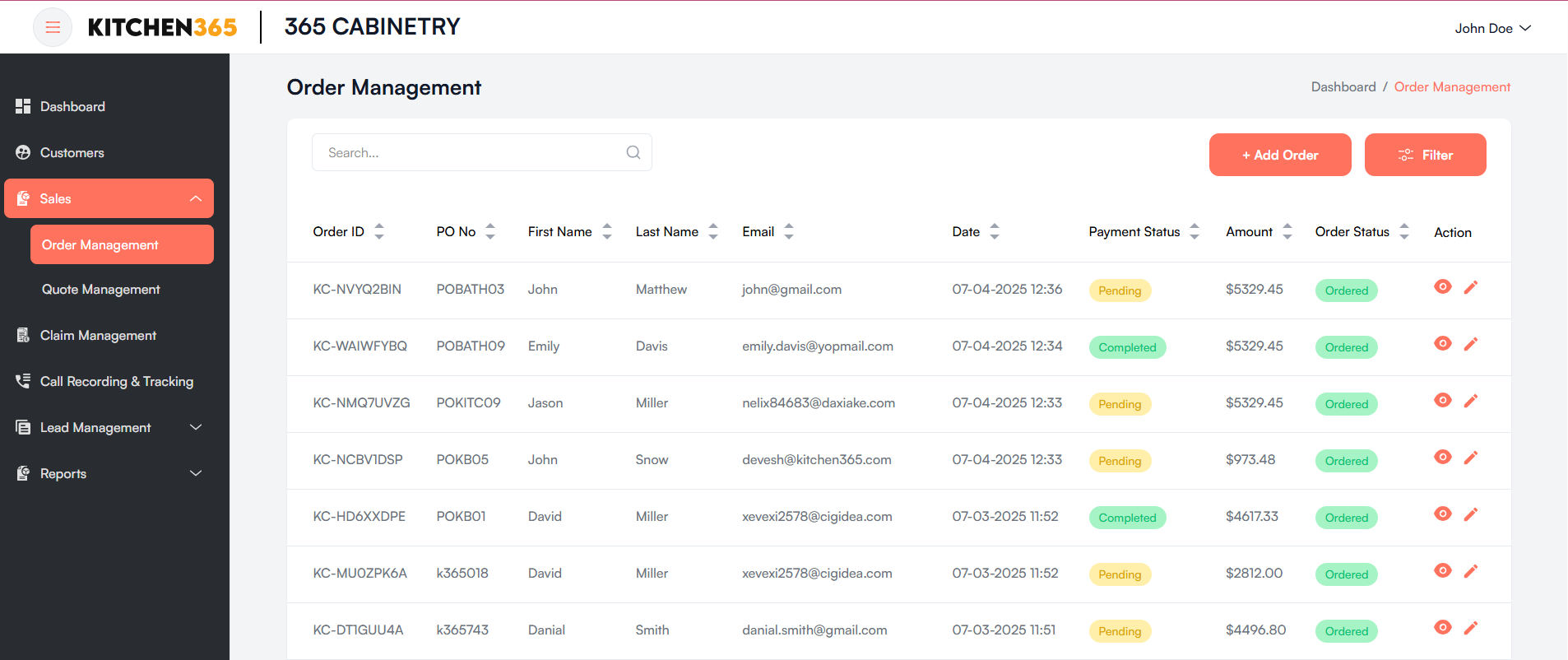
You can access this by navigating to:
- Go to the left-side navigation menu.
- Click on Sales > Order Management
This section allows you to manage customer orders including tracking, and status updates.
Search Bar
- Located at the top of the order list.
- Allows quick searching by Order ID, PO No., Customer Name, or Email.
a. Order Listing
Displays a numbered list of all orders with sortable columns. Each row represents a unique order with the following columns:
| Column | Description |
|---|---|
| Order ID | Unique identifier auto generated for each order. |
| PO No. | Customer’s Purchase Order number. |
| First Name | Customer’s first name. |
| Last Name | Customer’s last name. |
| Customer’s email address. | |
| Date | Timestamp when the order was generated. |
| Payment Status | Indicates whether the payment is Completed or Pending. |
| Amount | Total value of the order. |
| Order Status | Status of the order – usually Ordered or Completed. |
| Action | Icons to view 👁️ or edit ✏️ the order. |
i. 📘 Status Tags
-
Payment Status
- Completed: Payment has been successfully completed.
- Pending: Payment not yet received or processed.
-
Order Status
- Ordered: Order is placed but not yet fulfilled.
- Completed: Order has been fulfilled and closed.
ii. Pagination
- Located at the bottom of the table.
- Allows navigation through multiple pages of orders.
- Each page displays up to 10 orders.
iii. Actions
Under the "Action" column, you'll find:
- 👁️ View Order: Opens a detailed view of the selected order including product, shipping, and payment information.
- ✏️ Edit Order: Opens the order in edit mode where details such as shipping address, order items, and payment status can be modified.
b. Order Edit
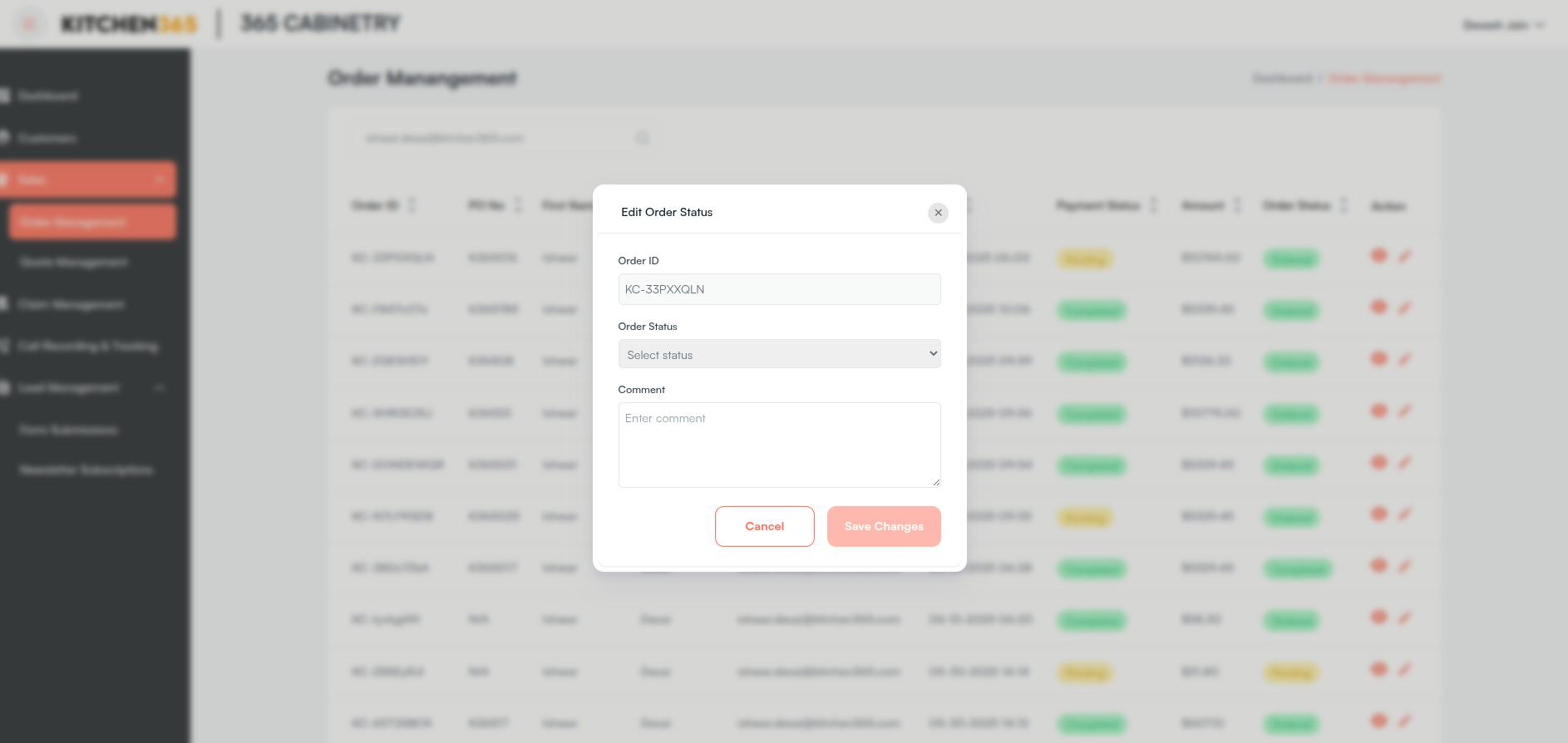
The Edit Order Status popup is used to manually update the order status and add related comments.
How to Access
- Navigate to Sales > Order Management from the left panel.
- Click on the ✏️ Edit icon in the Action column of a specific order row.
- The Edit Order Status popup will appear as shown in the screenshot.
Action Buttons
- Cancel: Closes the popup without saving changes.
- Save Changes: Saves the updated order status and comment.
c. Order Details
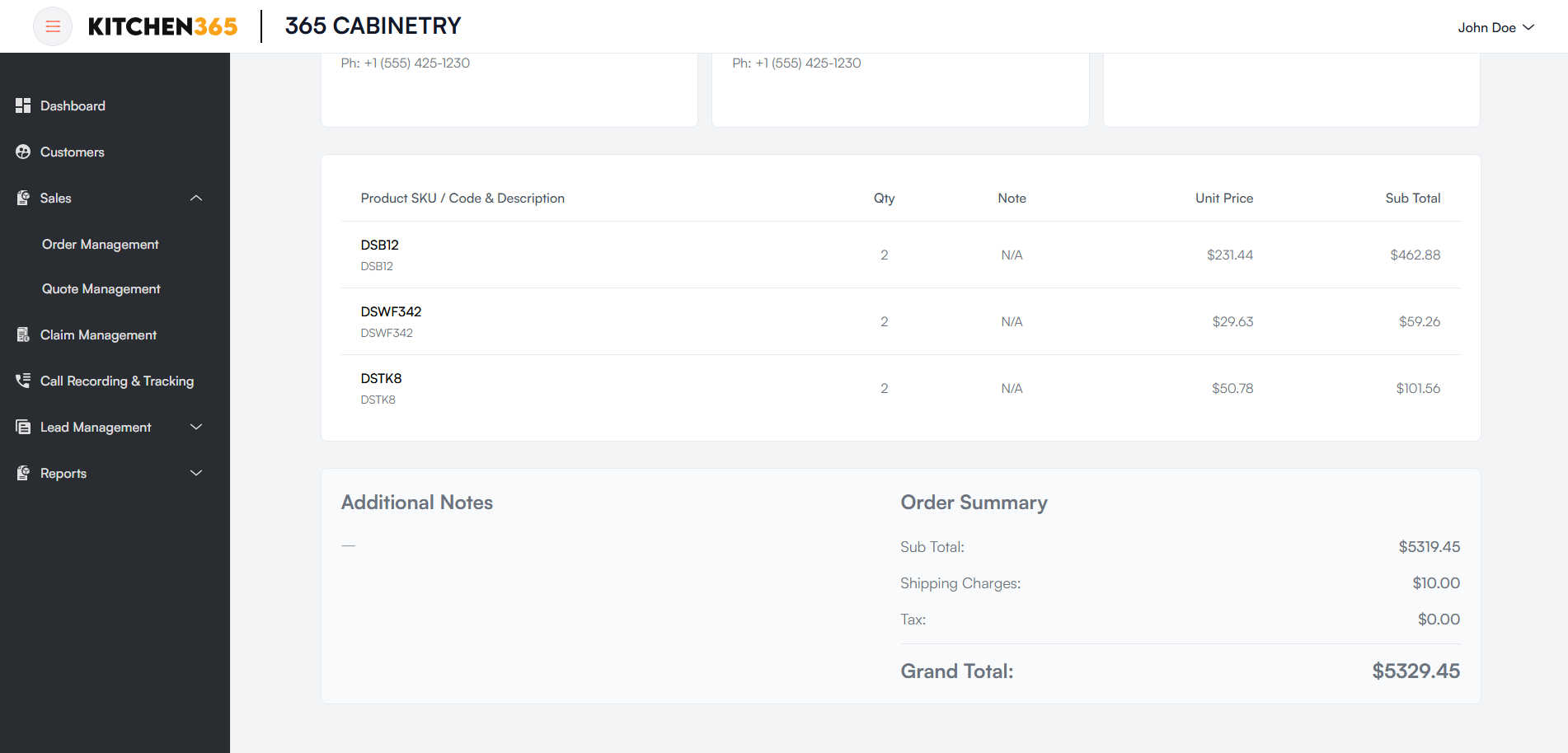
The Order Details screen displays a comprehensive breakdown of a selected order. This includes customer information, shipping and billing addresses, itemized product lists, and payment details. It allows administrators to view all critical order data in one place.
- Click on 👁️ View Order under the Action column to open and see the full details of a order.
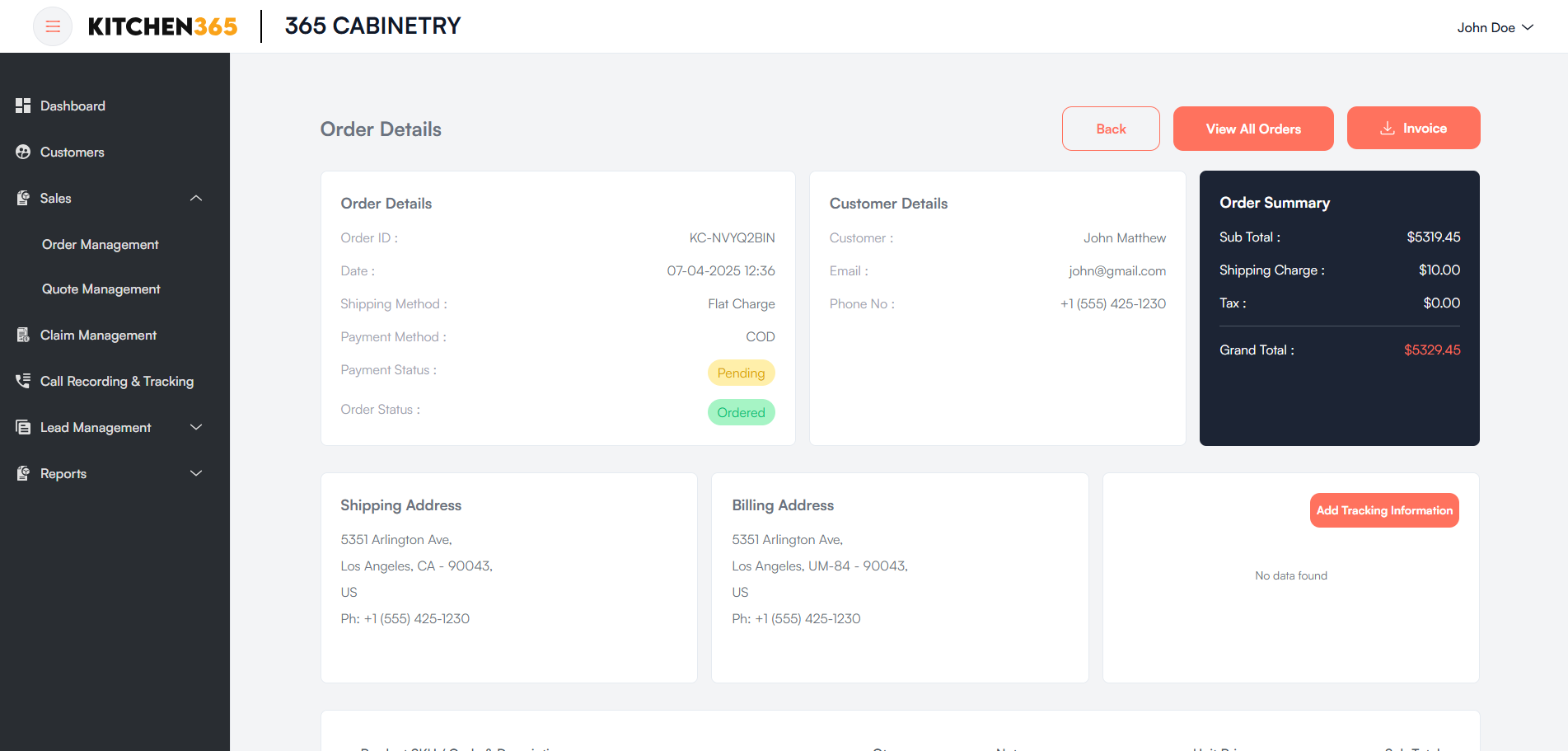
📦 Add Tracking Information Button: This popup allows the admin to add shipping tracking information for an order. Once submitted, it updates the order with the tracking number and carrier name. This enables order tracking visibility for both internal and customer use. Upon adding the tracking information, a system generated email notification will be triggered to the customer to notify about the tracking information.
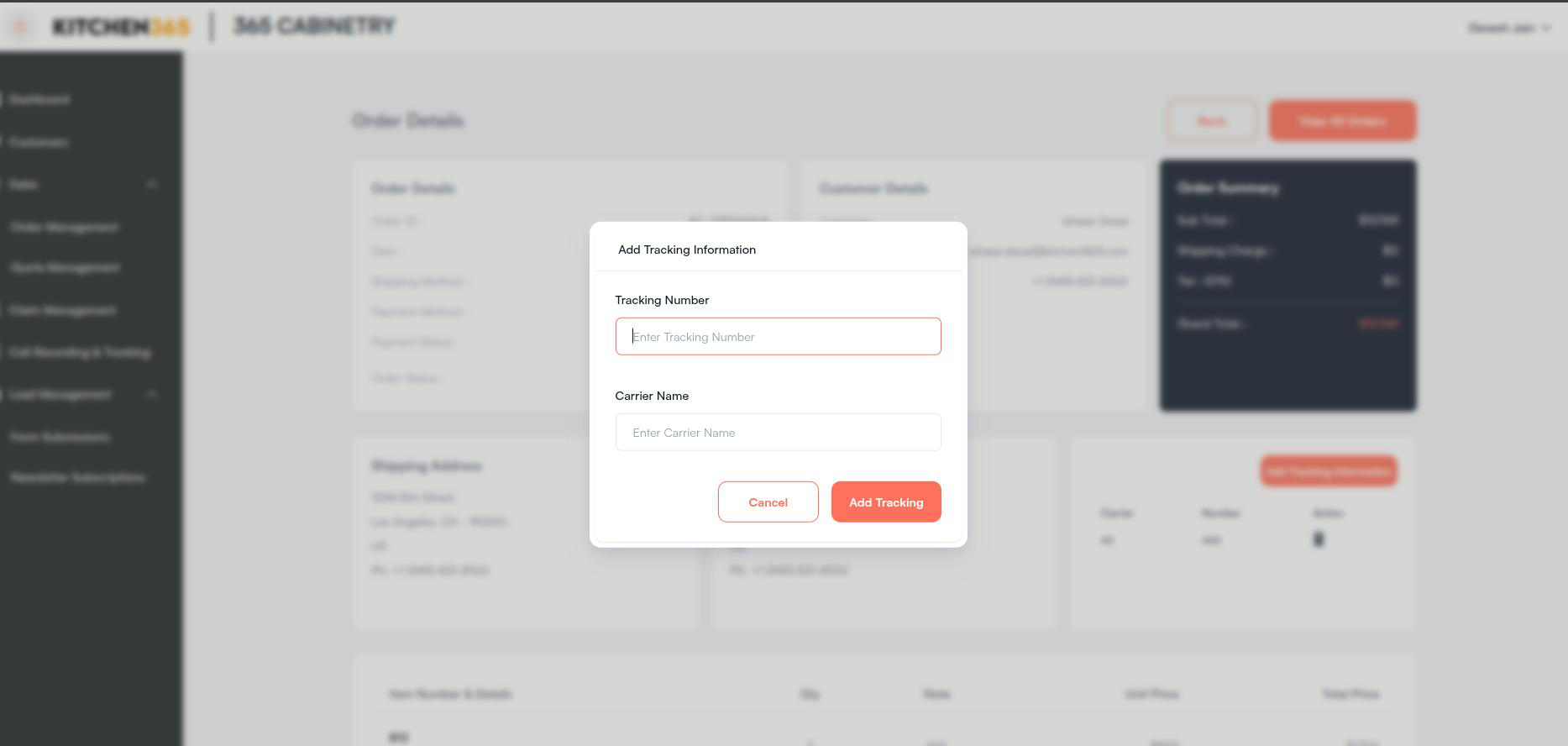
Flow of Action
- Click Add Tracking Information on the Order Details page.
- Enter the Tracking Number and Carrier Name in the popup.
- Click Add Tracking to confirm and update the order.
Once you add the tracking, it will be visible in the order details as shown in the screenshot below. You can also delete it by clicking on the delete icons.
If you click on the delete icon, a confirmation popup will appear asking if you're sure you want to delete the tracking information. In this popup, you will have two options: Cancel to close the popup without making any changes, or Confirm to proceed with the deletion.
Navigation Buttons
- Back: Returns to the Order Management list view.
- View All Orders: Navigates directly to the main order listing page.