Lead Management
The Lead Management module allows users to view, track, and manage leads generated through different sources such as Contact Us and Free Kitchen Design forms.
a. Form Submission
Navigation
- Log in to the Kitchen365 dashboard.
- In the left sidebar, click on Lead Management > Form Submissions.
- You will see two buttons at the top: (These filter leads based on the form source.)
a. Contact Us
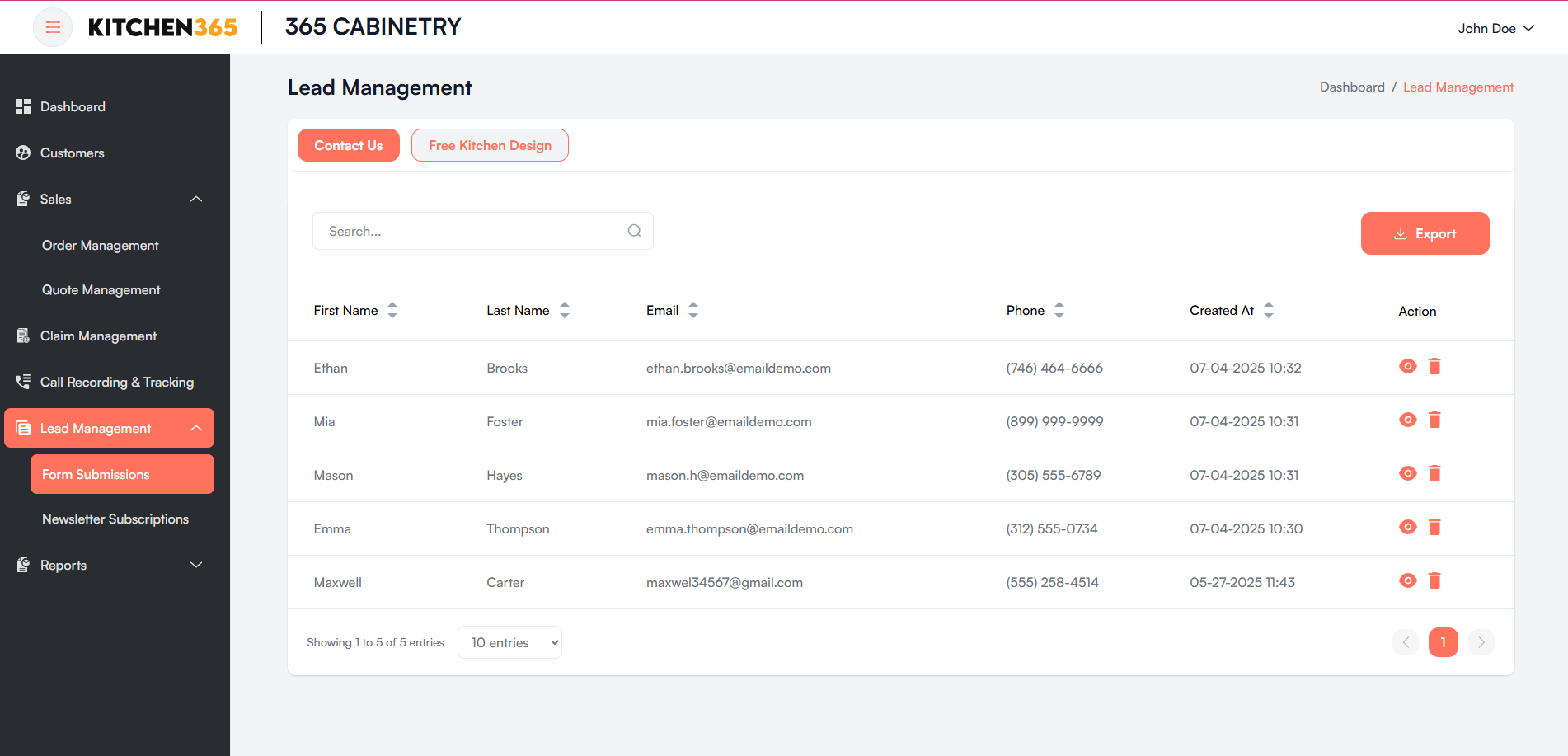
In this section, you can view all the records submitted by customers through the Contact Us form on the frontend website.
Displays a numbered list of all orders with sortable columns. Each row represents a unique order with the following columns:
| Column | Description |
|---|---|
| First Name | Lead’s first name. |
| Last Name | Lead’s last name. |
| Lead’s email address. | |
| Phone | Contact number submitted. |
| Created At | Timestamp of lead submission. |
| Action | Icons to view 👁️ or edit ✏️ the lead details. |
Action
-
View Lead Details
-
Click the 👁️ Eye icon under the Action column.
-
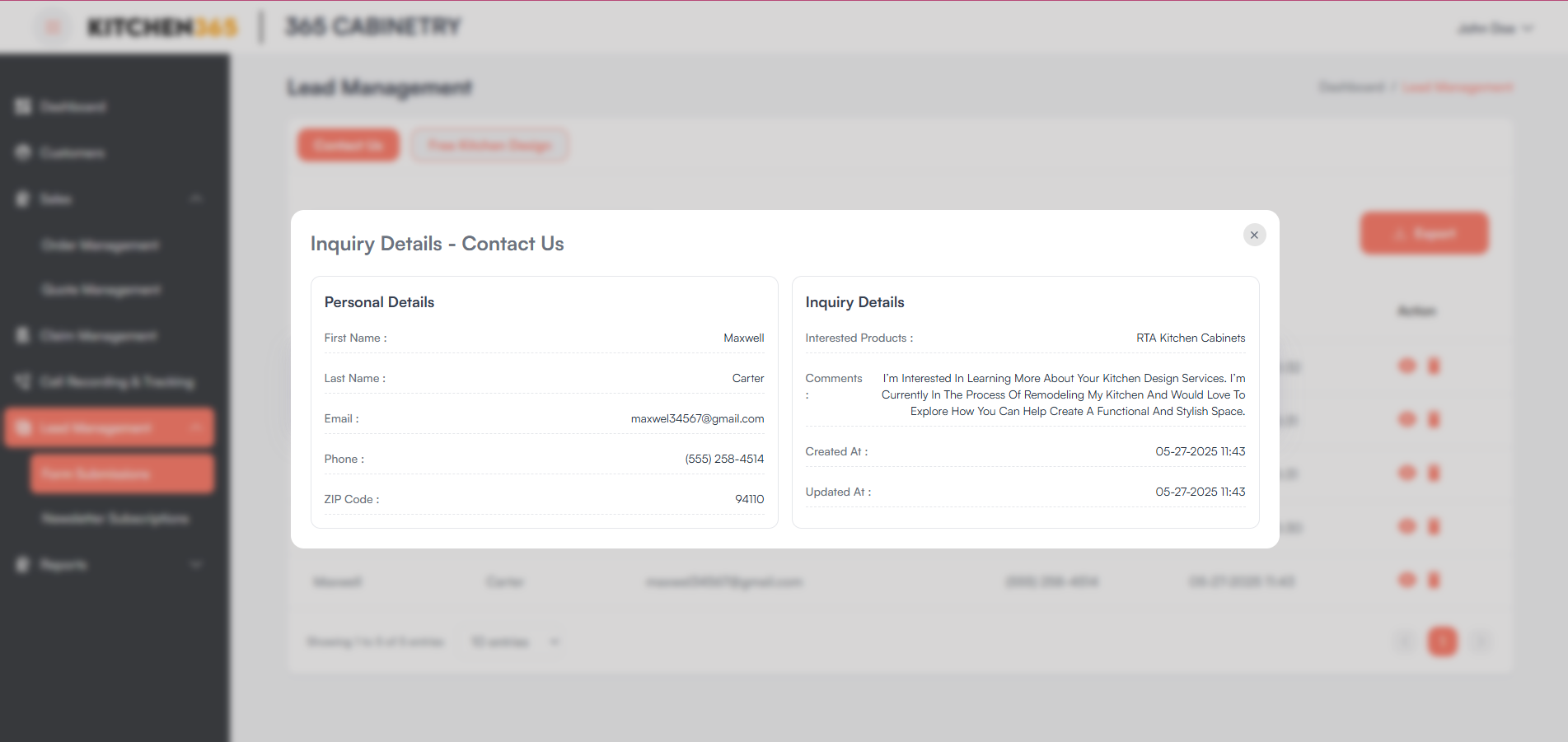
This opens a detailed view of the selected lead.
-
In this section, you will be able to see the details submitted by the customer through the frontend website.
- Personal Details
- Inquiry Details
-
-
-
Pagination
- Use the navigation arrows (bottom right) to move between pages if there are multiple leads.
a. Free Kitchen Design
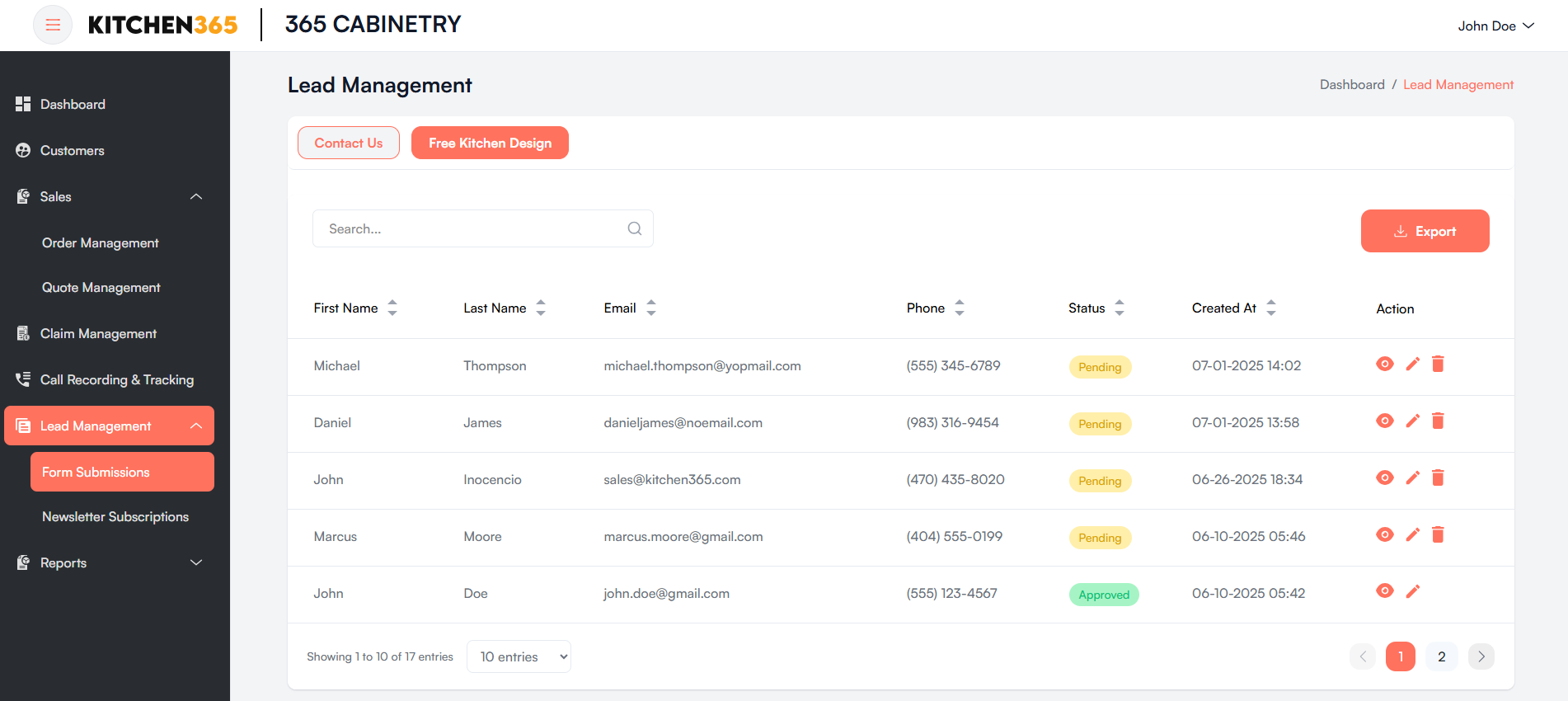
In this section, you can view all the records submitted by customers through the Free kitchen Design form on the frontend website.
| Column | Description |
|---|---|
| First Name | First name of the lead. |
| Last Name | Last name of the lead. |
| Submitted email ID. | |
| Phone | Submitted contact number. |
| Status | Indicates lead status: default is Pending. |
| Created At | Timestamp of form submission. |
| Action | Icons to view 👁️ or edit ✏️ lead details. |
Actions
- View Lead Details
- Click the 👁️ Eye icon under the Action column.
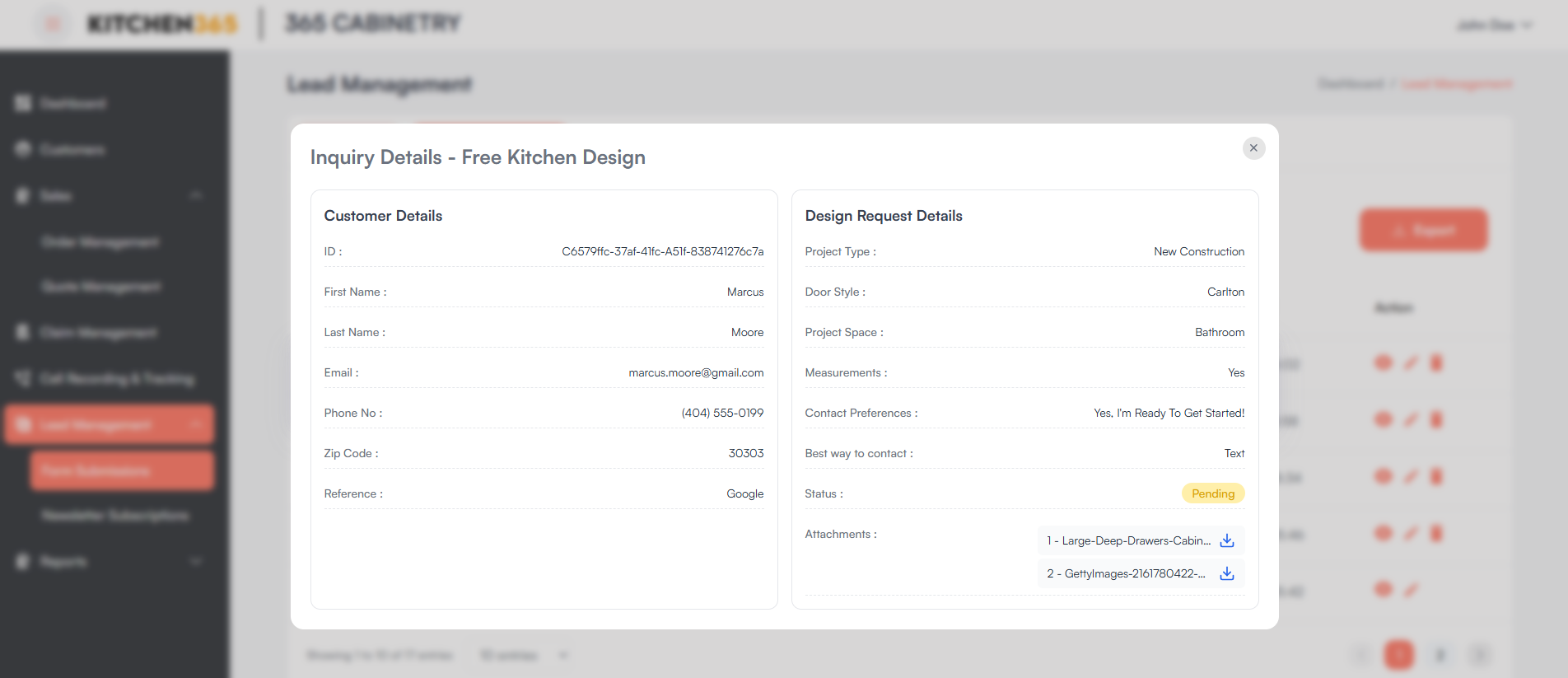
- This opens a detailed view of the selected lead.
- In this section, you will be able to see the details submitted by the customer through the frontend website.
- Customer Details
- Design Request Details
- Here, you can download the attachment provided by the customer.
- In this section, you will be able to see the details submitted by the customer through the frontend website.
- Edit Lead
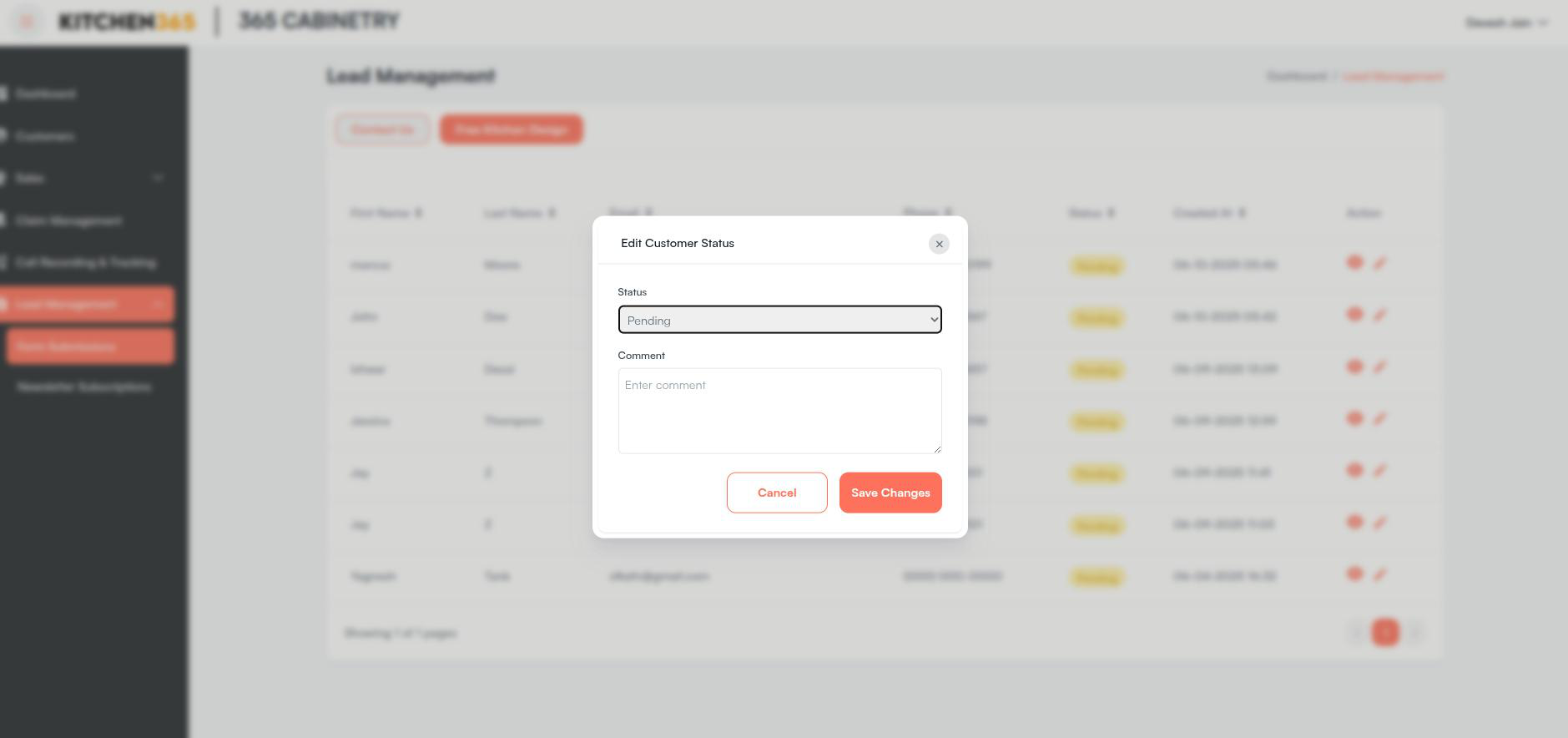
- Click the edit icon (✏️) to edit lead status.
- By clicking on this, a popup will open to edit the free kitchen design lead status. Here, you can update the status and add comments.
- To cancel the changes, click on 'Cancel'
- To save the changes, click on 'Save Changes'
- By clicking on this, a popup will open to edit the free kitchen design lead status. Here, you can update the status and add comments.
- Click the edit icon (✏️) to edit lead status.
b. Newsletter Subscriptions
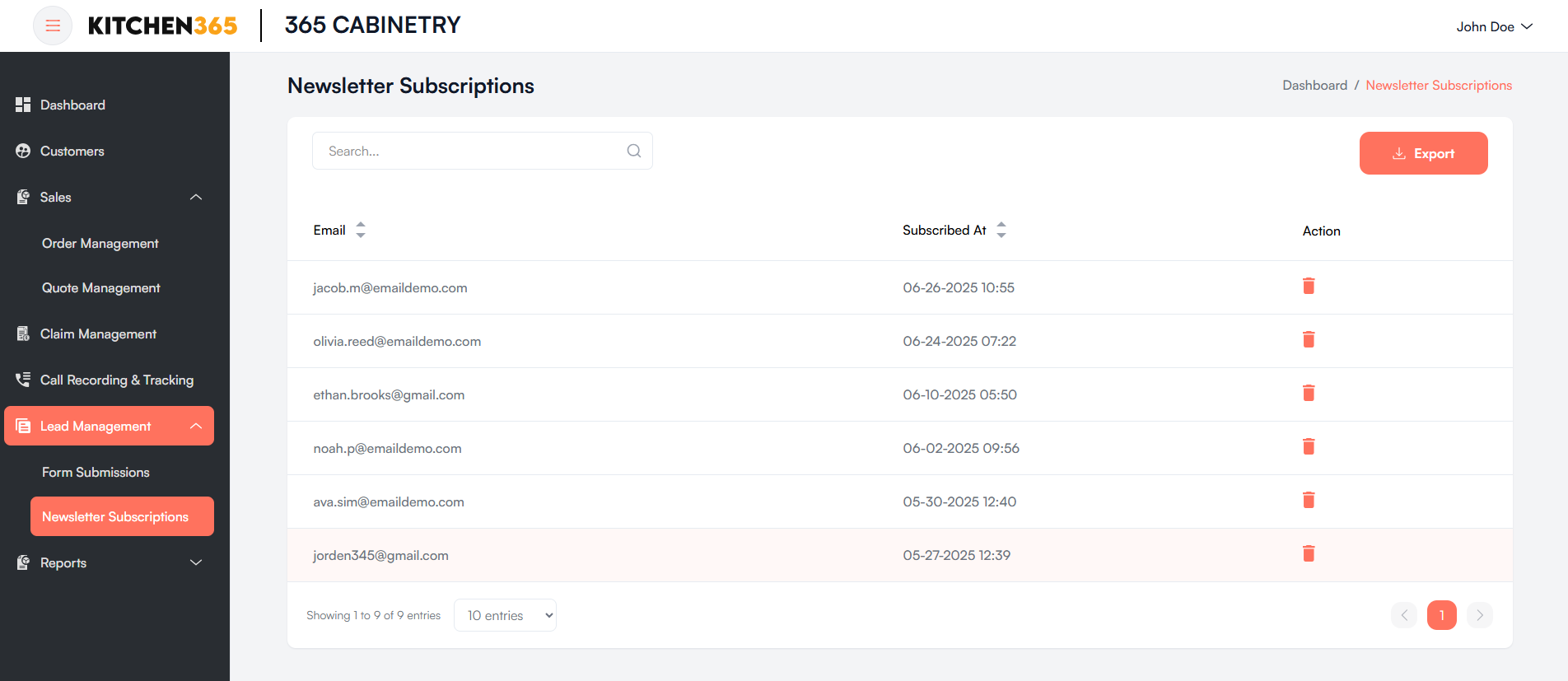
The Newsletter Subscription feature allows administrators to view a list of customers who have subscribed through the company’s website. The subscribed email addresses are collected from the frontend and stored in the backend dashboard for review and management.
Functionality:
- Admins can view a list of all newsletter subscribers.
- Each entry includes: -Email address -Subscription timestamp
Features
- Search Bar: Allows filtering by email address.
- Sortable Columns: Emails and timestamps can be sorted.
- Pagination: Controls to navigate through pages of subscriber records.