Customers
The Customers page is a dedicated place within the Admin Console that allows users to view, add, and manage all customer records. This page lists all registered or manually added customers, along with their contact information and creation timestamps.
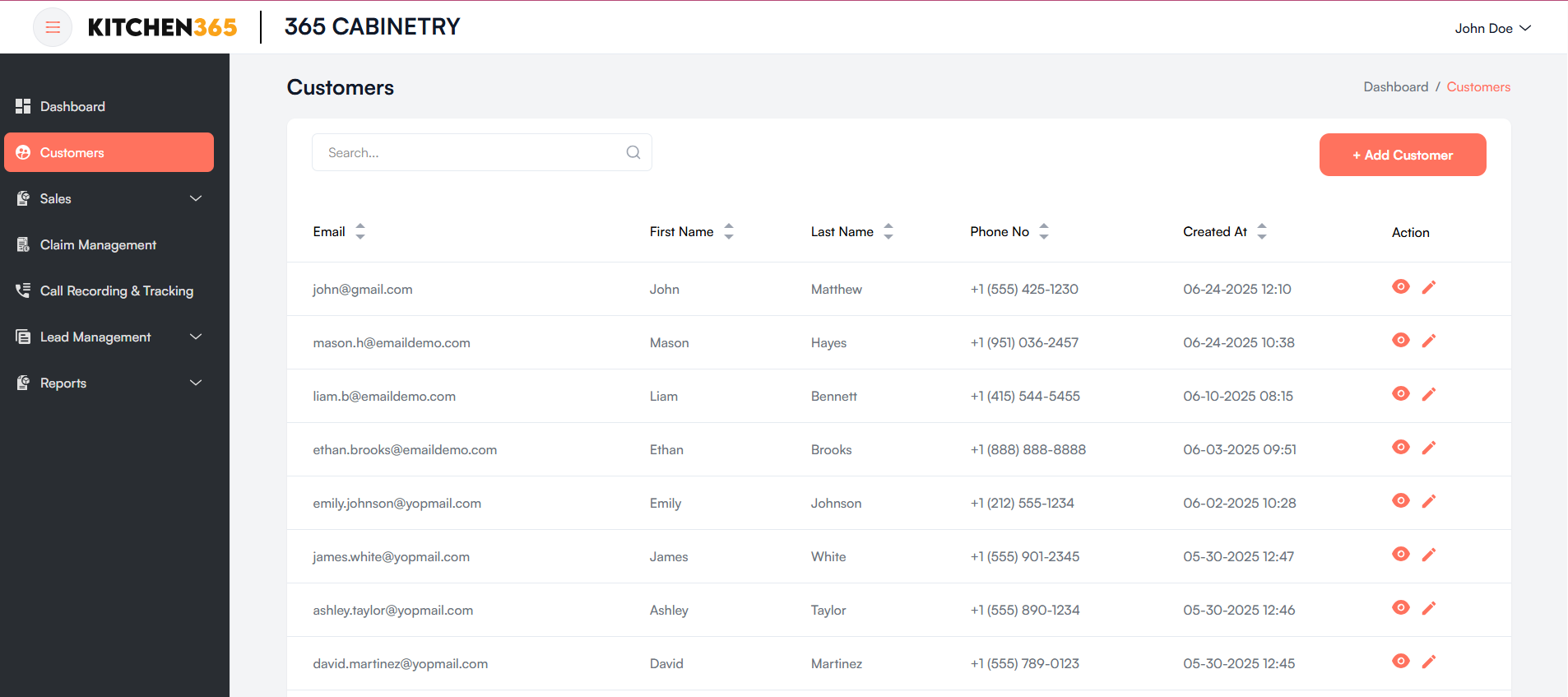
a. Customer List
1. Customer List Table
This is the main content of the screen and displays all customer records in a structured format with the following columns:
| Column | Description |
|---|---|
| The customer's email address. | |
| First Name | Customer’s first name. |
| Last Name | Customer’s last name. |
| Phone No. | Contact number of the customer. |
| Created At | The date and time when the customer record was created. |
| Action | 👁️ (View icon) – Will take the user to customer detail page having all the customer information along with the Orders & Quotes associated with the customer popup |
| ✏️ (Edit icon) – This opens an edit popup to update customer information. |
- All columns are sortable; click the column headers to sort ascending/descending.
2. Add Customer Button
- + Add Customer – Opens a popup form for adding a new customer manually. You will be required to fill in details like email, name, phone number, etc. (To create a customer). Located at the top right corner:
3. Search Bar
Positioned at the top-left of the table:
- Allows quick filtering of customers by email or name. Start typing to filter matching entries in real time.
4. Pagination Control
Located at the bottom-right:
- Shows how many entries are displayed per page (default is 10).
- You can switch pages using the left/right arrows.
- You can also adjust the number of entries shown per page using the dropdown menu.
b. Edit Customer
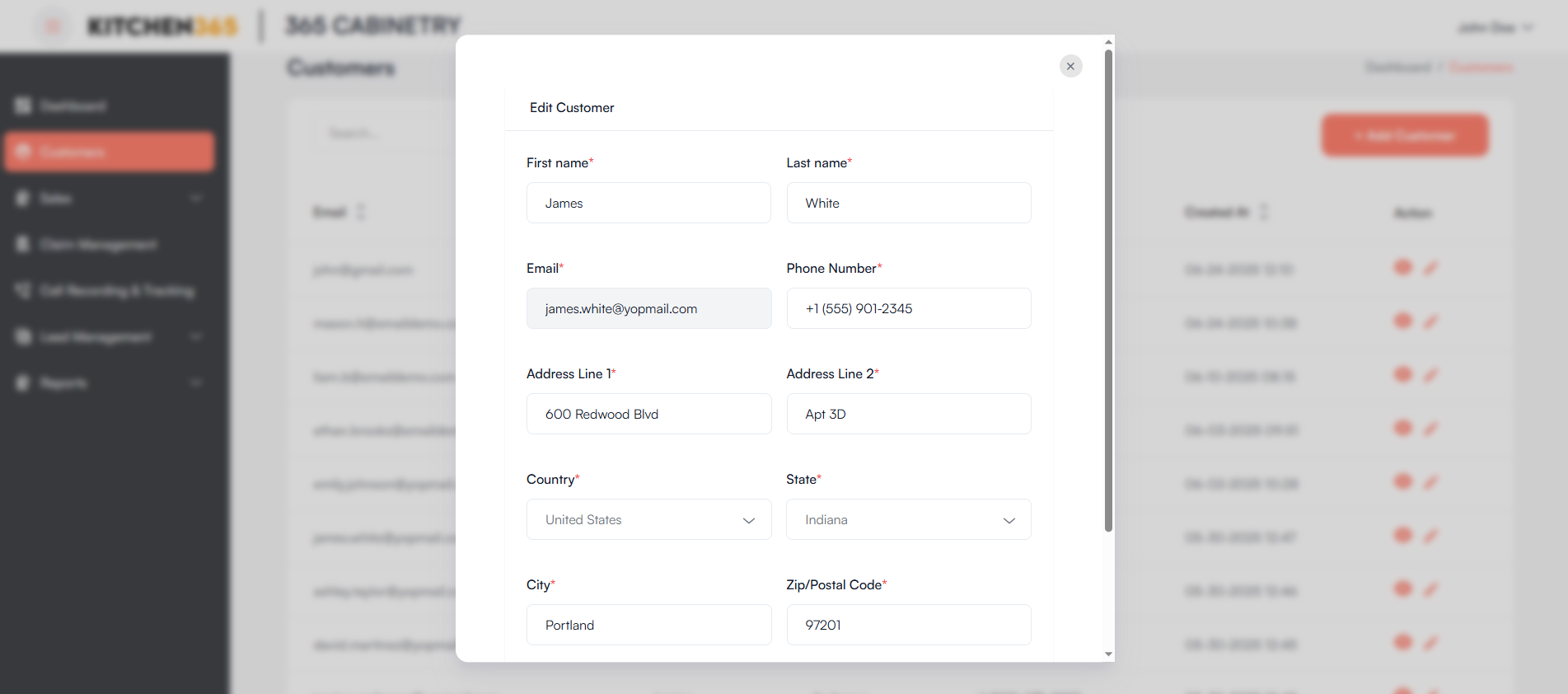
To edit the customer details, click on the edit icon next to the respective entry. This will open a popup with the editable form.
You can edit any value except the email. To update the data, click on the 'Update' button.
c. Add Customer
The Add Customer popup allows admin users to manually add new customers into the system. This is useful for onboarding new customers, preparing quotes, or entering customer data received through another channel.
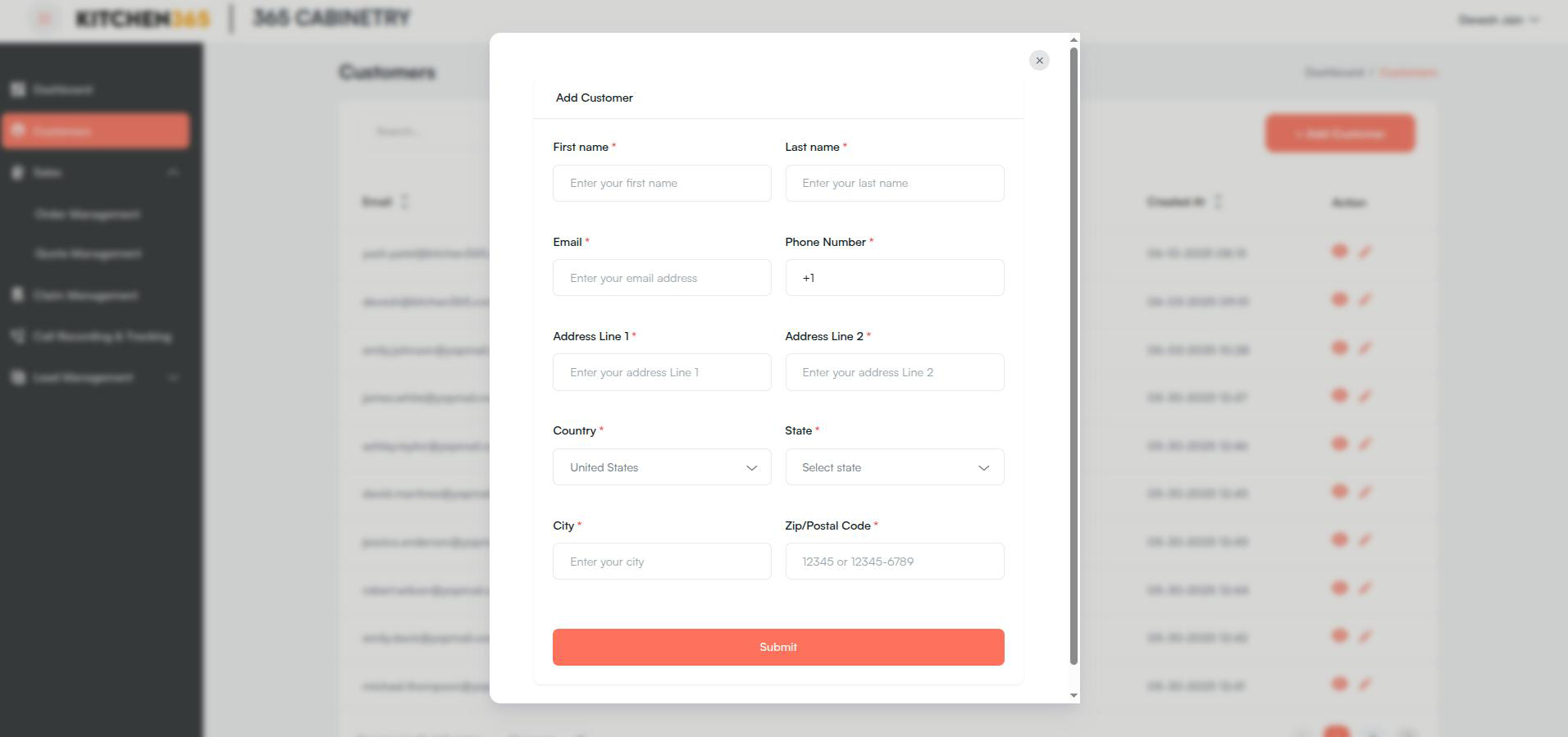
Accessing This Popup
- Navigate to the Customers section from the left-hand sidebar.
- Click on the + Add Customer button located in the top-right corner.
- The "Add Customer" form will open as a popup.
Form Field Descriptions
All fields marked with a red asterisk (*) are mandatory.
| Field Name | Description |
|---|---|
| First Name | Enter the customer's first name. |
| Last Name | Enter the customer's last name. |
| Provide a valid email address. This will be used for communication. | |
| Phone Number | Enter a valid contact number. The country code (+1 by default) is shown. |
| Address Line 1 | Enter the primary address line (e.g., street address or building number). |
| Address Line 2 | Optional: Additional address info such as apartment or suite number. |
| Country | Select the customer's country (default: United States). |
| State | Select the state from the dropdown based on the selected country. |
| City | Enter the city/town of the customer. |
| Zip/Postal Code | Enter a valid postal code (e.g., 12345 or 12345-6789). |
After filling in all the details, click on the 'Submit' button to add the customer.
Once you create the customer you will be able to see the record in the listing.
d. View Customer Details
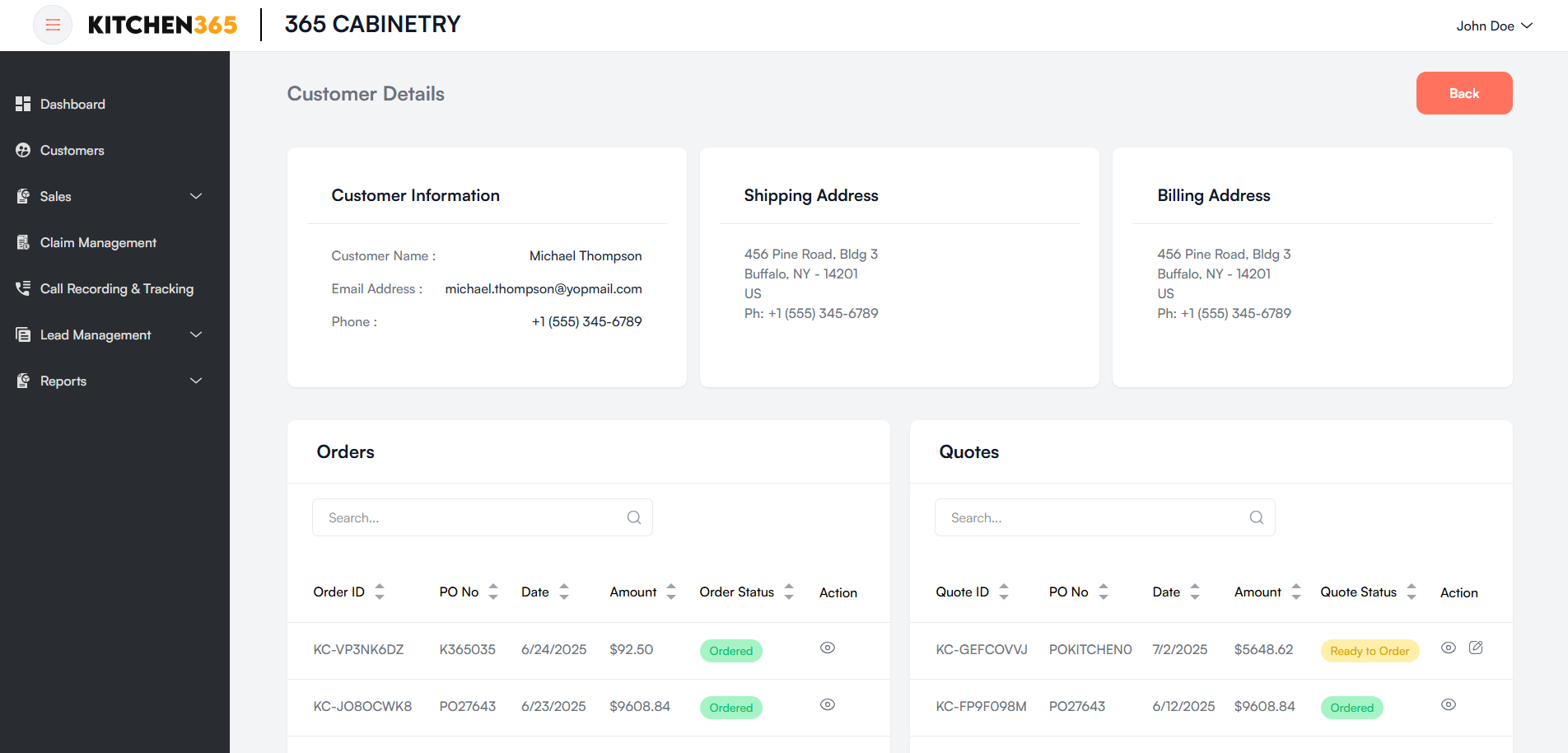
The Customer Details page provides a comprehensive view of an individual customer's profile. This includes contact information, shipping and billing addresses, and a history of all associated orders and quotes.
This interface helps admins and sales teams manage customer data and track transactions quickly.
Navigation
- Go to the Customers section from the left-side navigation panel.
- Locate the desired customer in the customer list.
- Click on the view icon (👁️) in the "Action" column to open the Customer Detail page.
Customer Information
- Displays the core contact details of the selected customer.
Shipping Address
- Shows the customer’s shipping location. Includes:
- Full address (street, city, state, postal code)
- Country
- Phone number
Billing Address
- Displays the billing location. This may be the same or different from the shipping address and includes the same details:
- Full billing address
- Country
- Phone number
Orders Section
- Displays a list of all orders placed by the customer.
| Column | Description |
|---|---|
| Order ID | System-generated unique order identifier. |
| PO No. | Purchase Order number. |
| Date | Order creation date. |
| Amount | Total order value. |
| Order Status | Status of the order (e.g., Processing, Unknown). |
| Action | 👁️ Eye icon to view details. Redirects to the order details page. |
Quotes Section
- Displays all quotes created for the customer.
| Column | Description |
|---|---|
| Quote ID | Unique identifier for each quote. |
| PO No. | Related purchase order number. |
| Date | Quote creation date. |
| Amount | Total quoted amount. |
| Order Status | Status of the quote (e.g., Draft, Ordered, Approved). |
| Action | View details (👁️ icon) – Redirects to the quote details page. |
Action Buttons
- Back Button: Located at the top right, this button returns the user to the main customer listing page.