Catalog Management
The Catalog Management module in the Kitchen365 Console v2.0.0 lets admin users manage the product catalog for a tenant website. It includes Categories, Products, Attributes, and Custom Options Templates.
Access
How to open Catalog Management
- Log in to the Kitchen365 Console.
- In the left sidebar, open Catalog Management (tenant website) or Master Catalog Management (platform catalog).
Catalog management is available in two contexts:
| Context | Navigation Path | Purpose |
|---|---|---|
| Master Catalog | Master Catalog Management | Platform-level catalog imported from distributors. View and edit only. |
| Tenant Website Catalog | Catalog Management | Website-specific catalog. Full create, edit, and bulk-update support. |
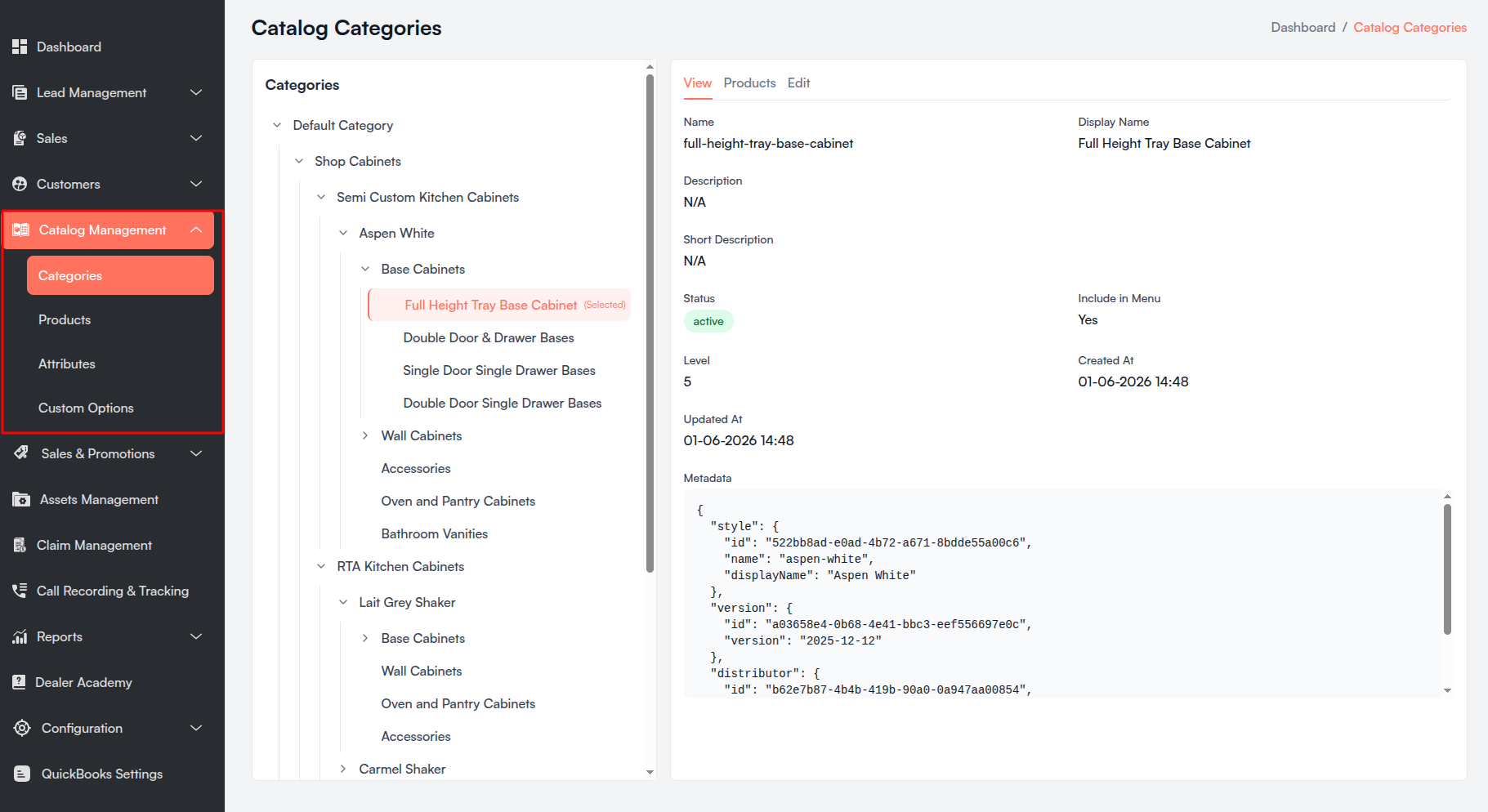
The Catalog Management sidebar menu (tenant) includes:
- Categories
- Products
- Attributes
- Custom Options
a. Catalog Categories
The Catalog Categories section lets admin users browse the category hierarchy, view category details, see linked products, and update category information. The Console provides a split-panel layout with a category tree on the left and View, Products, and Edit tabs on the right.
Categories are not created manually in the Console UI. They are loaded from the Master Catalog (via style import) or synced to a tenant website catalog.
Access
| Context | Navigation Path |
|---|---|
| Master Catalog | Master Catalog Management > Categories |
| Tenant Website Catalog | Catalog Management > Categories |
Viewing categories requires list/read permissions. Updating a category requires edit permission on the corresponding catalog.
i. Category Tree
The left panel displays all categories in a hierarchical tree.
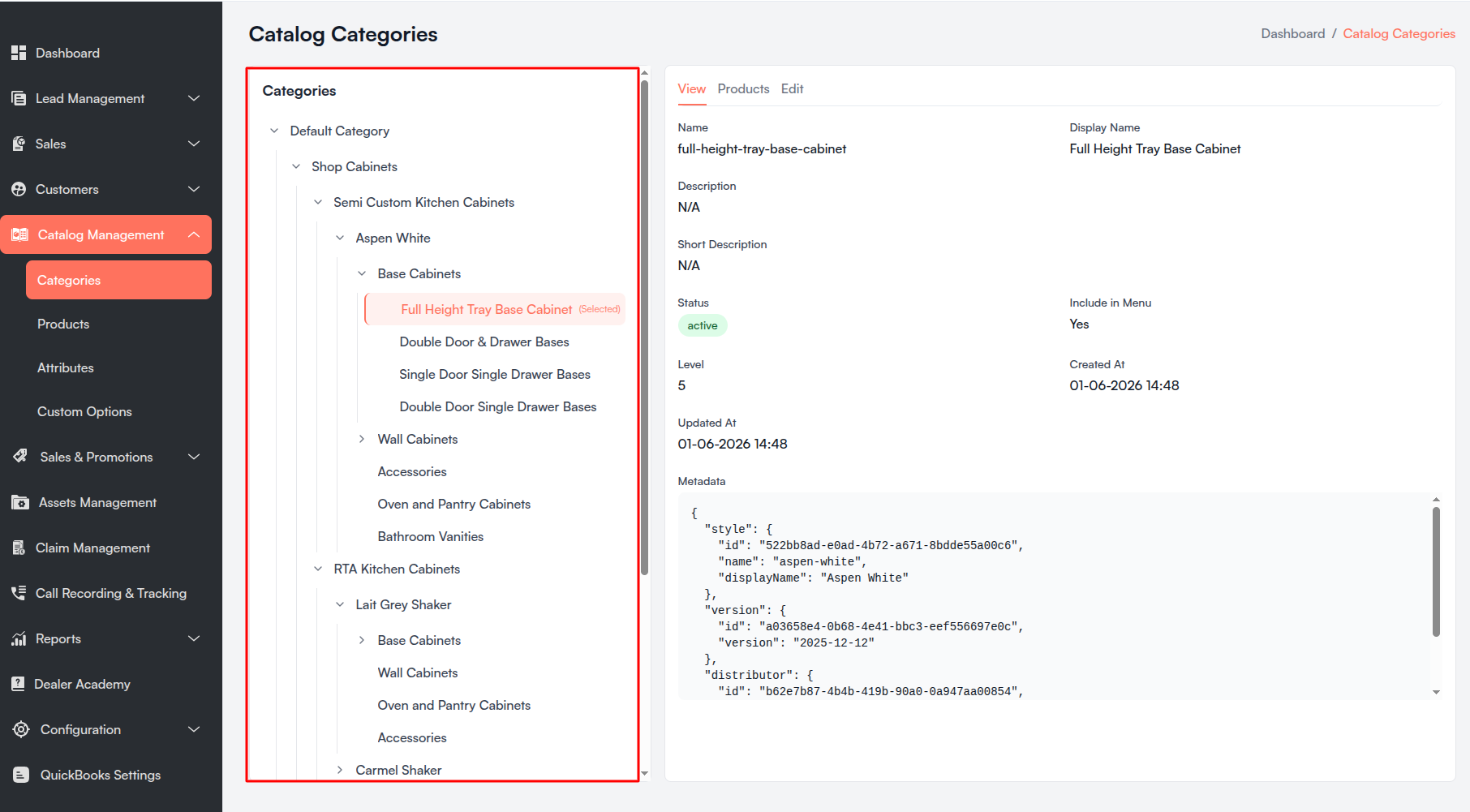
Master Catalog Tree
- Categories are grouped under Distributor nodes (folder icons).
- Distributor nodes expand/collapse but are not selectable.
- Click a category or subcategory to load its details in the right panel.
- The selected category is highlighted with a (Selected) label.
Tenant Catalog Tree
- Root categories load first; child categories load lazily when a node is expanded.
- Click any category to select it and open the View, Products, and Edit tabs.
- If no category is selected, the right panel shows: "Click on a category to view and edit its details".
ii. View Category
Select a category in the tree, then open the View tab to see read-only details.
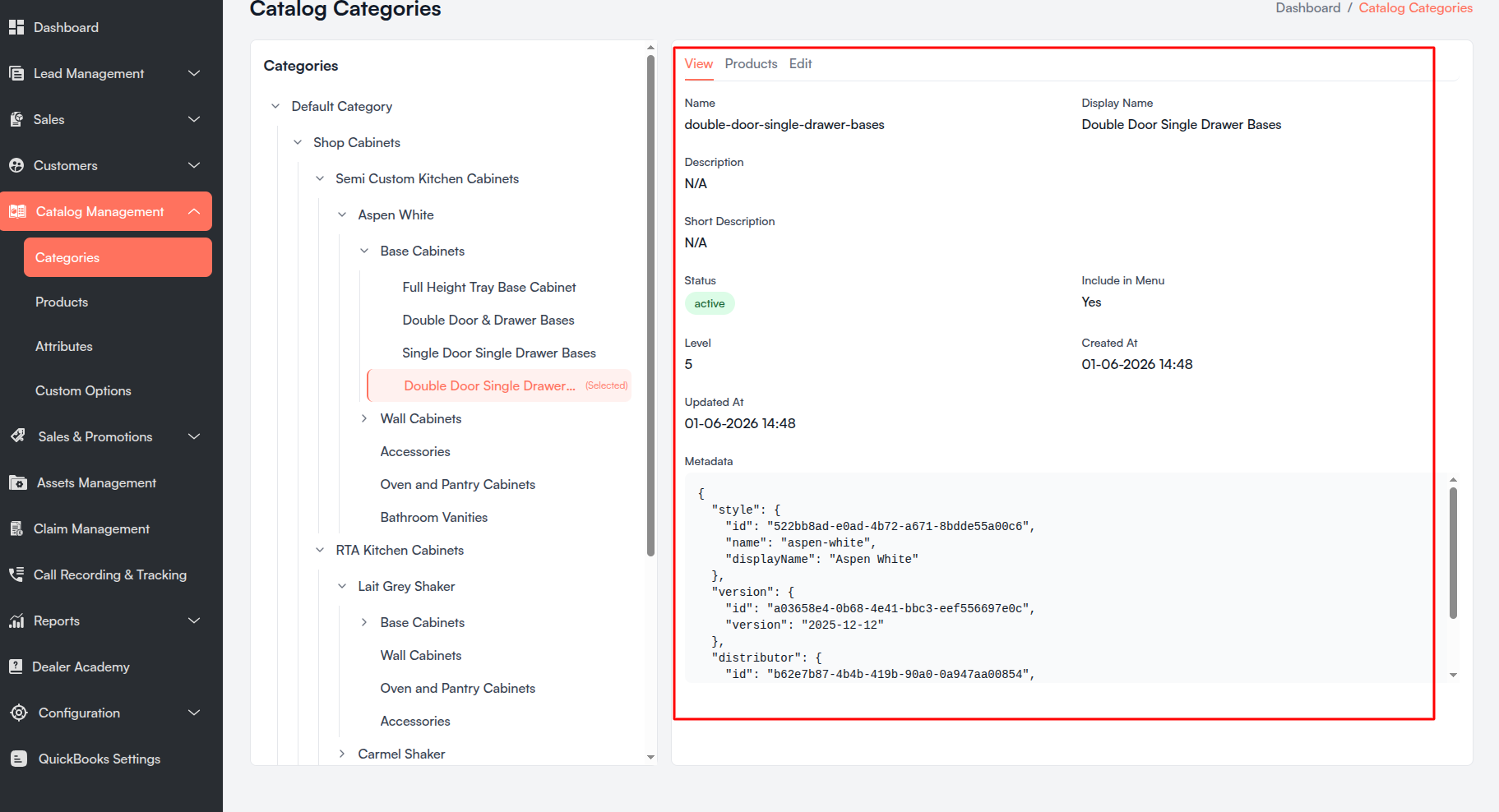
Master Catalog — View Fields
| Field | Description |
|---|---|
| Name | Internal category name/code. |
| Display Name | Name shown on the storefront. |
| Description | Full category description. |
| Short Description | Brief summary text. |
| Status | active (green) or inactive (red). |
| Include in Menu | Yes if the category appears in site navigation. |
| Level | Depth level in the hierarchy. |
| Parent Category | Parent display name, or None for root categories. |
| Distributor | Linked distributor name (when present). |
| Style | Linked catalog style name (when present). |
| Created At / Updated At | Timestamps (EST). |
| Metadata | JSON metadata block (when present). |
Tenant Catalog — View Fields
| Field | Description |
|---|---|
| Name | Internal category name/code. |
| Display Name | Storefront display name. |
| Description / Short Description | Category text fields. |
| Status | active or inactive. |
| Include in Menu | Navigation menu flag. |
| Level | Hierarchy depth. |
| Created At / Updated At | Timestamps (EST). |
| Metadata | JSON metadata (when present). |
iii. Category Products Tab
Open the Products tab to see products assigned to the selected category.
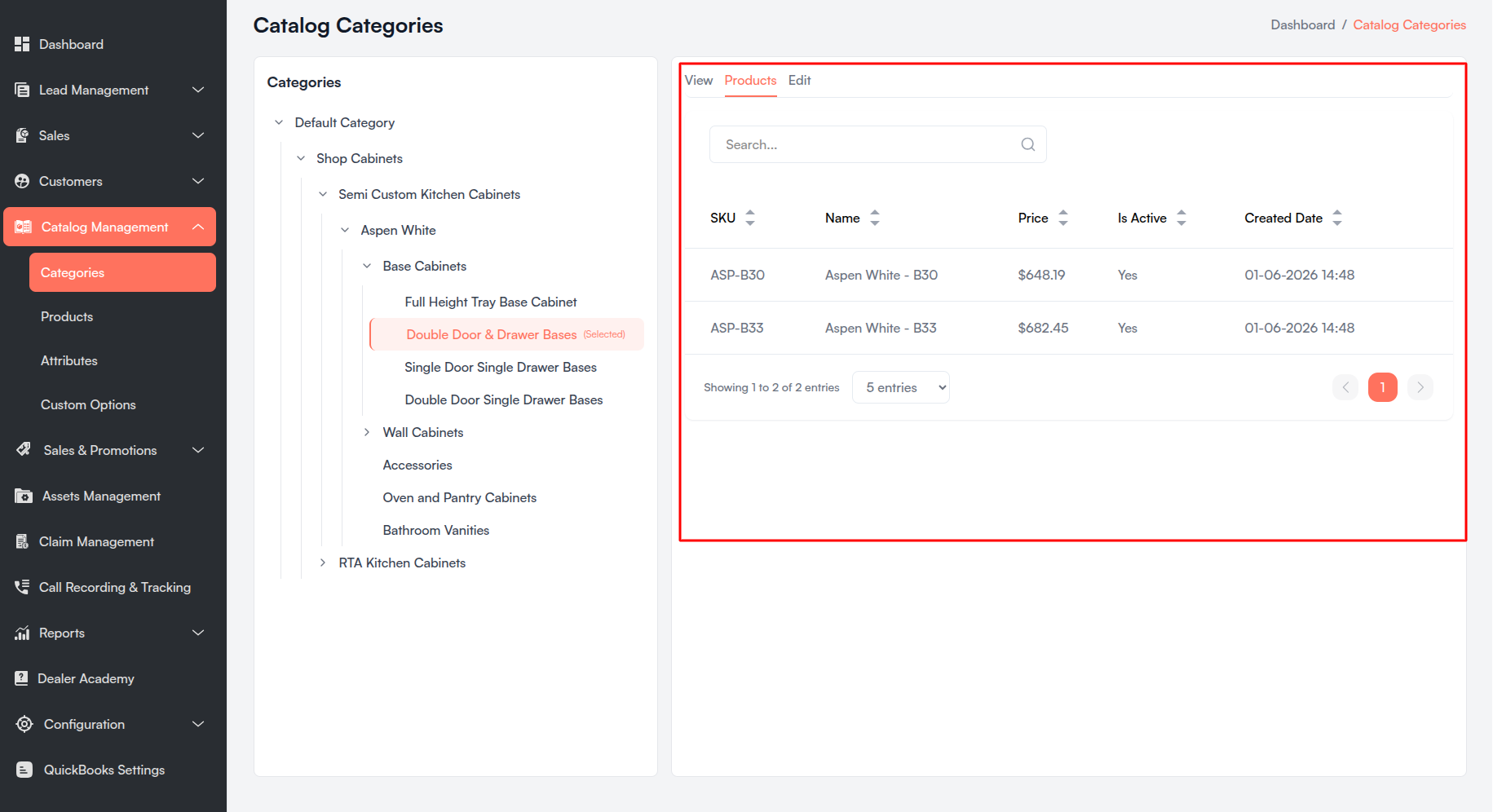
Master Catalog
| Column | Description |
|---|---|
| SKU / Name | Product identifiers. |
| Category | Comma-separated category display names. |
| Price | Formatted currency (e.g., $99.00). |
| Is Active | Yes or No. |
| Created Date | EST timestamp. |
| Action | Edit icon — opens product edit page. |
Tenant Catalog
| Column | Description |
|---|---|
| SKU / Name | Product identifiers. |
| Price | Formatted currency. |
| Is Active | Yes or No. |
| Created Date | EST timestamp. |
Default pagination: 5 entries per page (options: 5, 10, 20).
iv. Edit Category
Select a category in the tree, open the Edit tab, and click Submit to save.
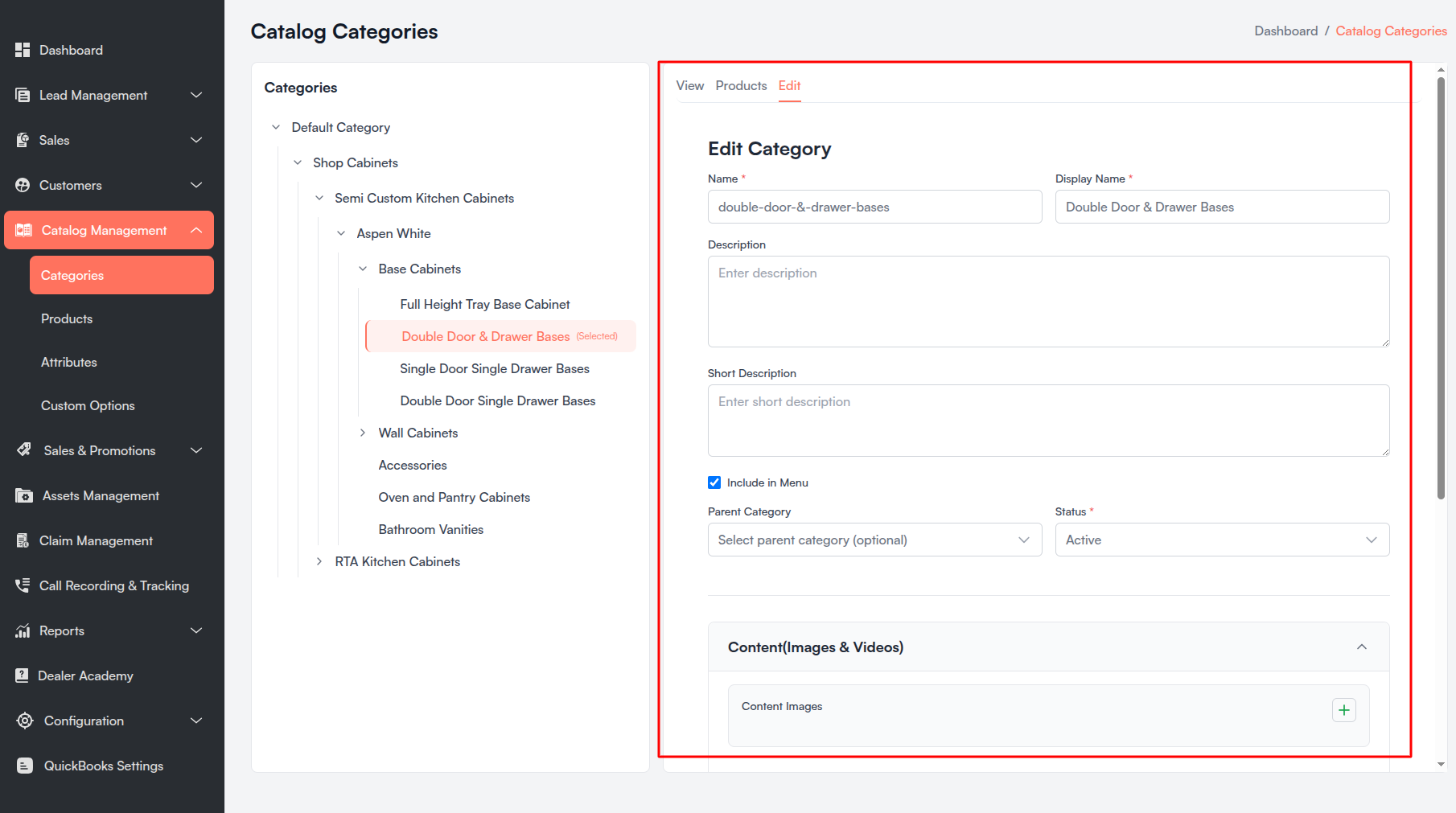
All fields marked with a red asterisk (*) are mandatory.
Master Catalog — Edit Fields
| Field Name | Description |
|---|---|
| Name * | Internal name. Max 100 characters. |
| Display Name * | Storefront name. Max 100 characters. |
| Description | Max 500 characters. |
| Short Description | Max 200 characters. |
| Include in Menu | Checkbox. |
| Parent Category | Optional searchable dropdown (Display Name (Style Name)). |
| Status * | Active or Inactive. |
| Metadata | JSON editor. |
Tenant Catalog — Edit Fields
Core fields match the master catalog, plus:
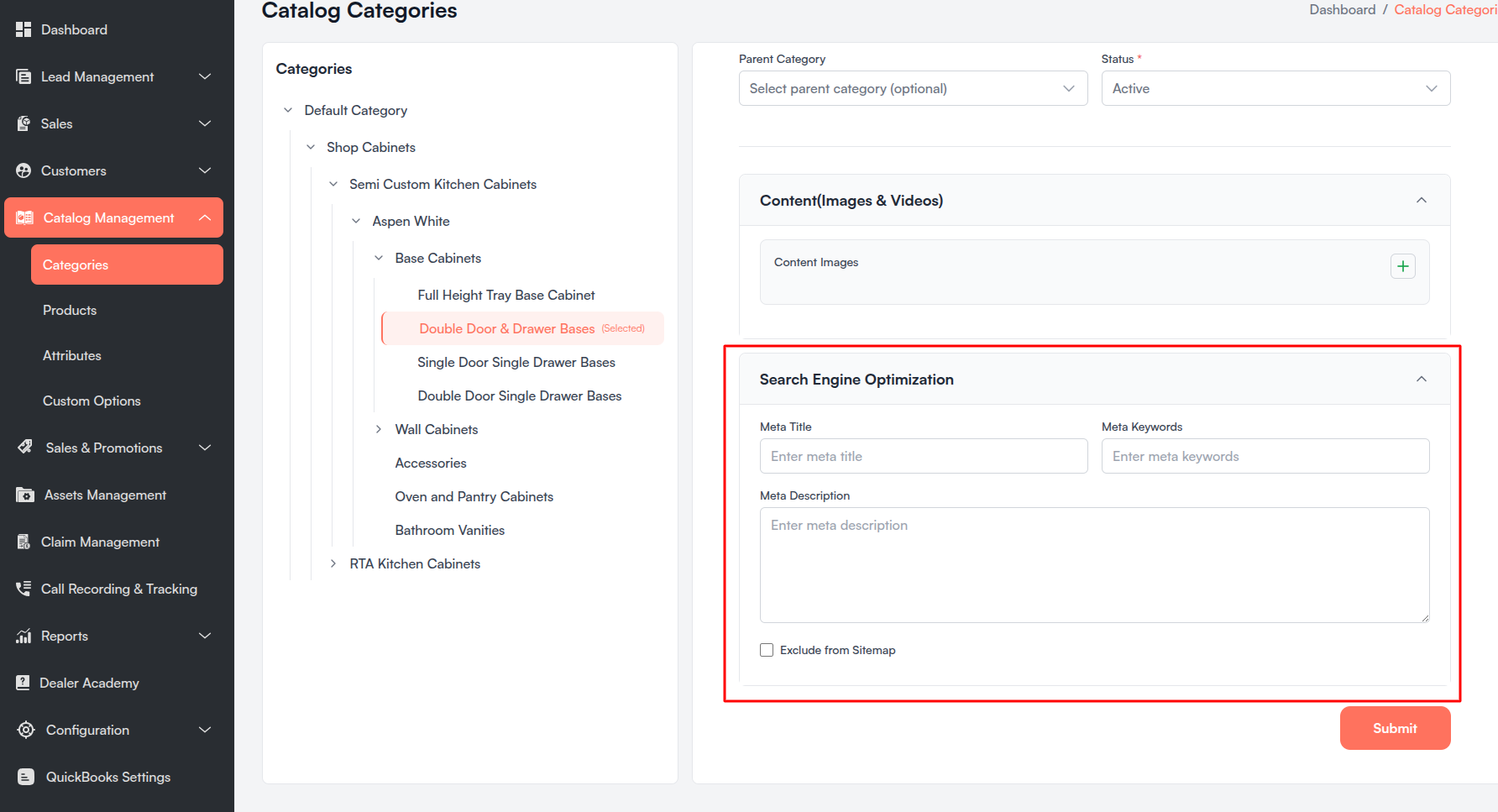
Content (Images & Videos) — each image card:
| Field Name | Description |
|---|---|
| Image | Upload public image or PDF. |
| Label / Sort Order | Display label and order. |
| Type | Base, Small, Thumbnail, Swatch, Gallery, Icon, Detail, or Sample. |
Search Engine Optimization
| Field Name | Description |
|---|---|
| Meta Title / Meta Keywords / Meta Description | SEO fields. |
| Exclude from Sitemap | Checkbox. |
Custom Attributes — dynamic fields from Catalog Attributes configuration appear on the edit form.
b. Catalog Products
The Catalog Products section lets admin users browse, create, and edit products. The tenant catalog supports full product management including CSV bulk price updates. The master catalog supports listing and editing imported products.
Access
| Context | Navigation Path |
|---|---|
| Master Catalog | Master Catalog Management > Products |
| Tenant Website Catalog | Catalog Management > Products |
i. Product List
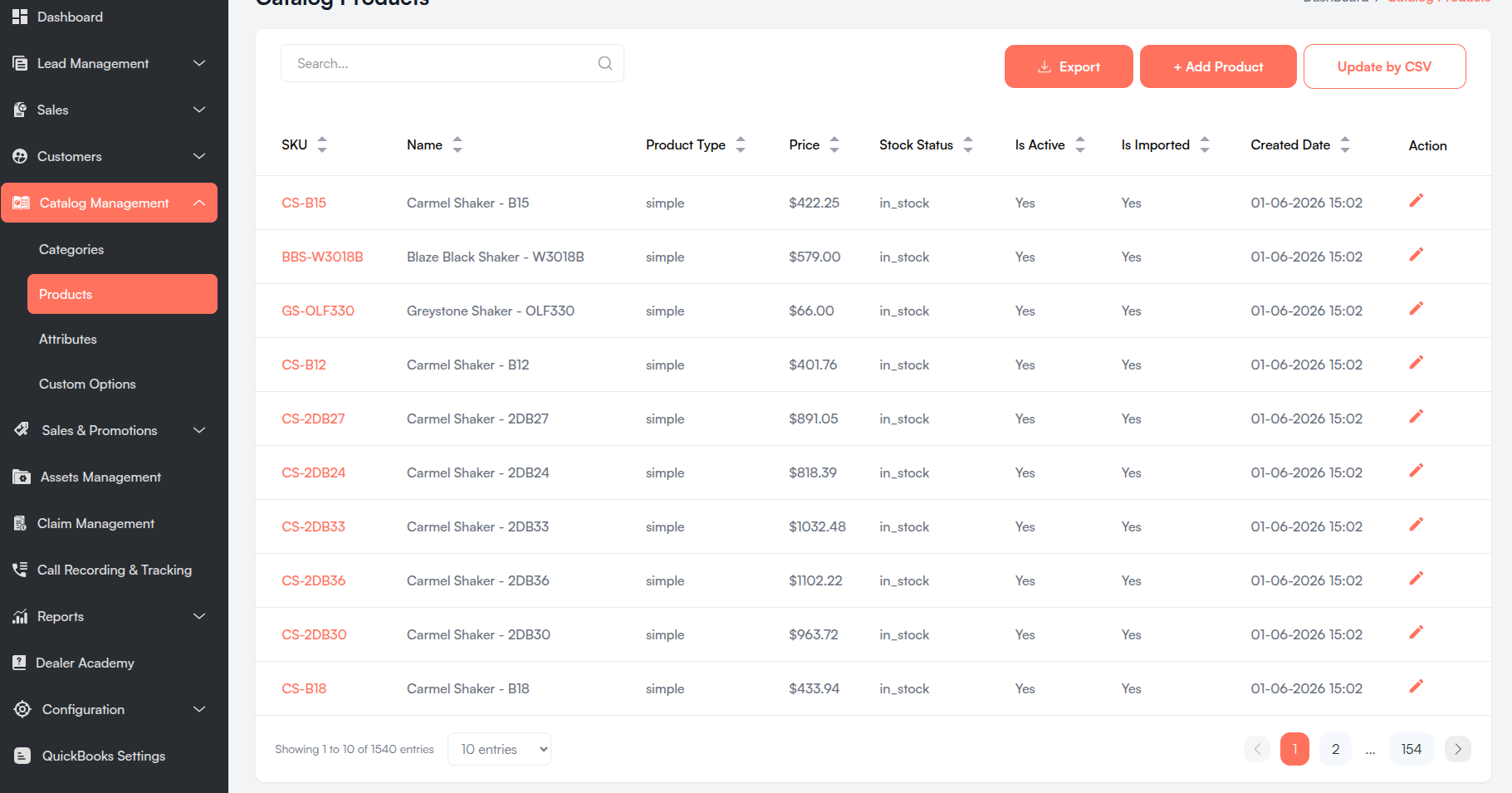
Master Catalog Products
| Column | Description |
|---|---|
| SKU / Name | Product identifiers. |
| Category | Comma-separated category display names. |
| Price | Formatted currency. |
| Is Active | Yes or No. |
| Created Date | EST timestamp. |
| Action | Edit icon. |
Pagination: 10 / 25 / 50 / 75 / 100 entries.
Tenant Catalog Products
| Column | Description |
|---|---|
| SKU | Clickable link to edit page. |
| Name | Product name. |
| Product Type | simple, bundle, or configurable. |
| Price / Stock Status | Price and stock state. |
| Is Active / Is Imported | Enabled flag; import source flag. |
| Created Date | EST timestamp. |
| Action | Edit icon. |
Header Actions (Tenant)
| Button | Description |
|---|---|
| + Add Product | Opens Create Product form. |
| Update by CSV | Bulk price update modal. |
The tenant list also supports CSV download of SKU and Price columns.
ii. Create Product (Tenant)
Master catalog products are imported via Styles > Import Style or Tenant Styles > Import. No + Add Product button on the master list.
- Navigate to Catalog Management > Products.
- Click + Add Product.
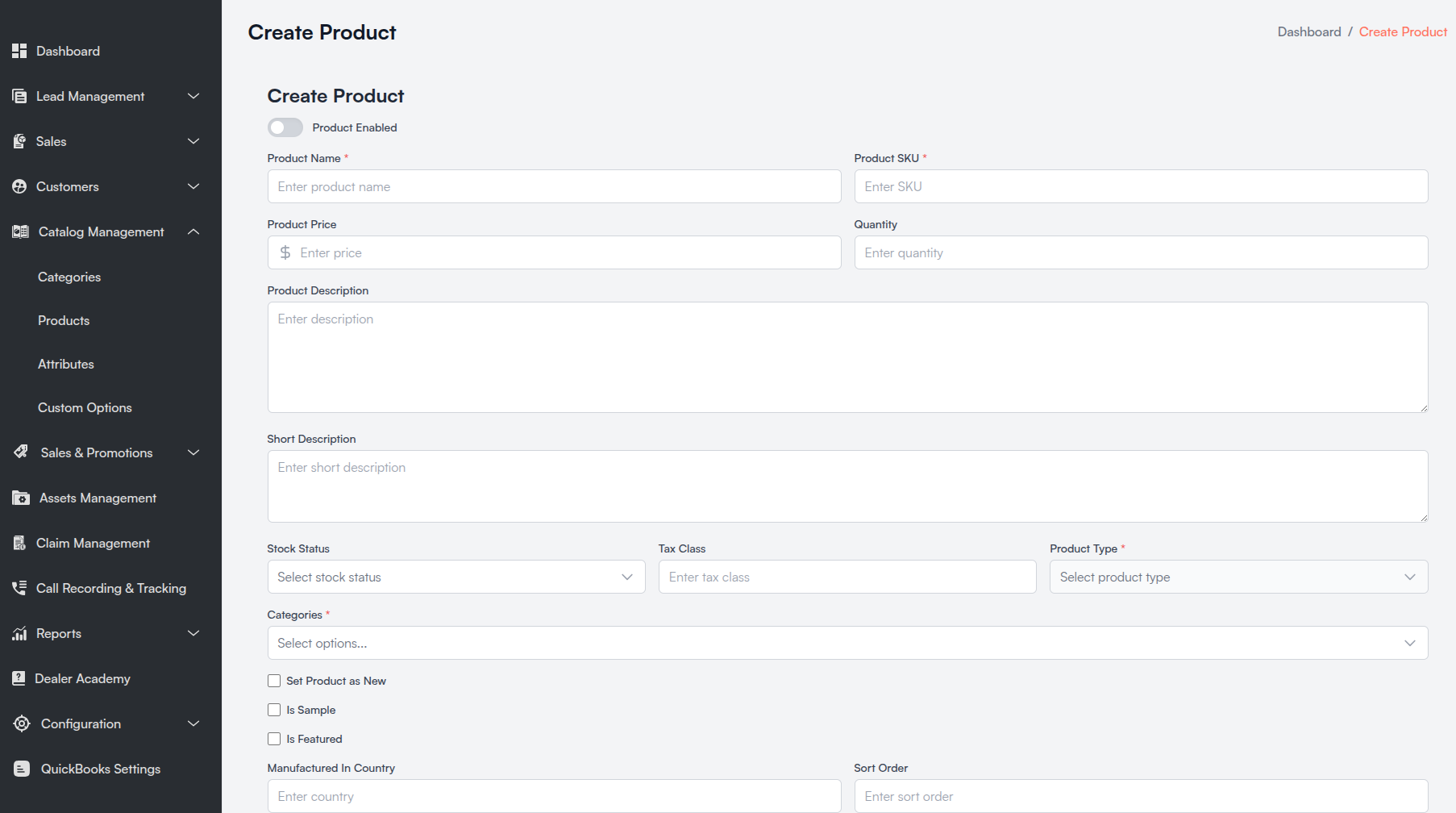
All fields marked with a red asterisk (*) are mandatory.
General Fields
| Field Name | Description |
|---|---|
| Product Enabled | Toggle. Defaults to enabled. |
| Product Name * | Display name. |
| Product SKU * | Unique SKU. |
| Product Price | Currency, 2 decimal places. |
| Quantity | Inventory. Defaults to 999. |
| Product Description / Short Description | Textareas. |
| Stock Status | In Stock or Out of Stock. |
| Tax Class | Tax class identifier. |
| Product Type * | Simple, Bundle, or Configurable. |
| Categories * | Multi-select. At least one required. |
| Set Product as New | Checkbox with optional From/To dates. |
| Is Sample / Is Featured | Checkboxes. |
| Manufactured In Country / Sort Order | Optional fields. |
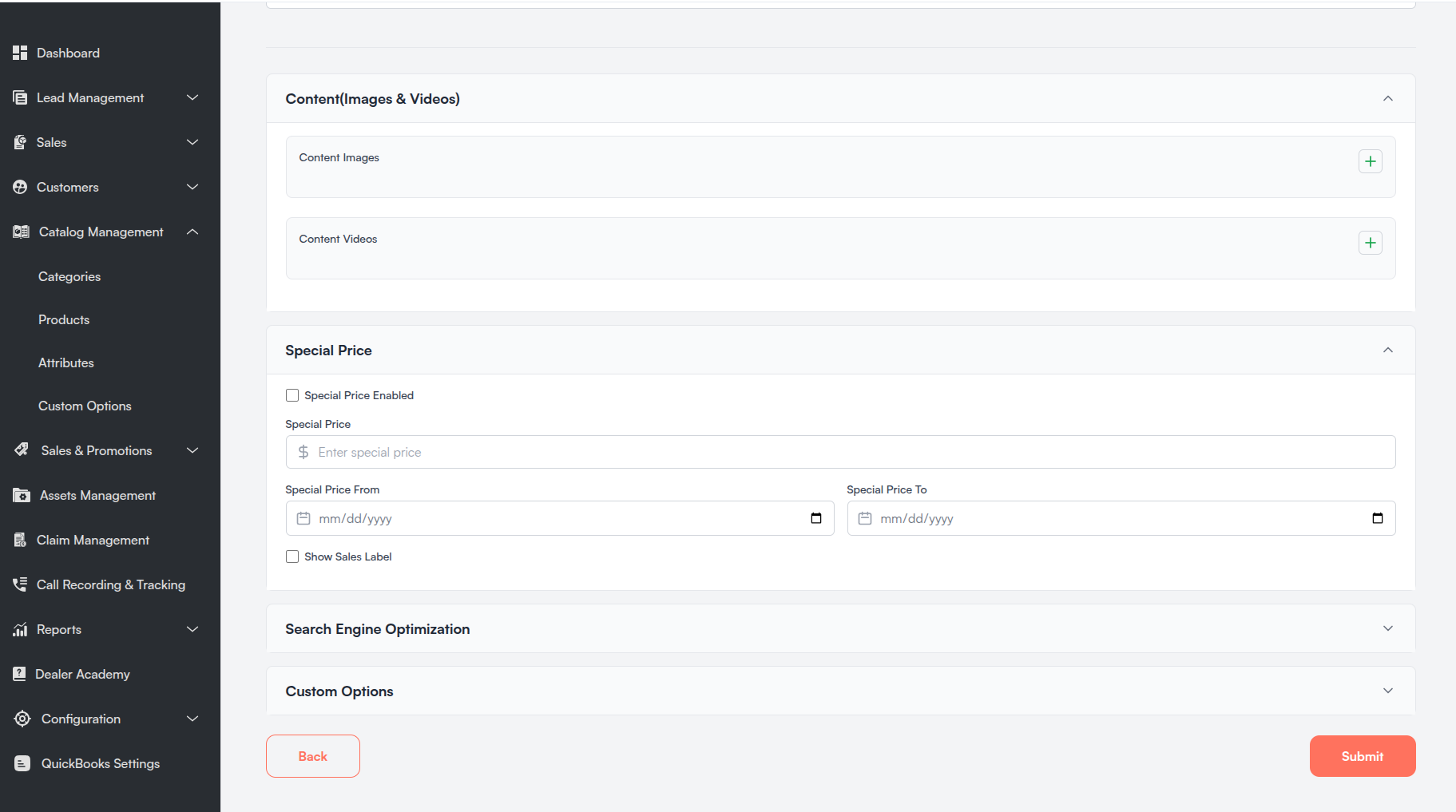
Content (Images & Videos) — image cards (Image, Label, Sort Order, Type) and video cards (Video URL, Label, Provider, Sort Order).
Special Price — enabled toggle, price, date range, sales label.
Search Engine Optimization — Meta Title, Keywords, Description, Exclude from Sitemap.
Custom Options — product-level options (see Custom Options Templates).
Custom Attributes — dynamic fields from attribute configuration.
Click Submit to create. Redirects to product list on success.
iii. Edit Product
Master Catalog
Click the Edit icon on a product row.
Fields include SKU, Name, Descriptions, Categories, Price, Tax Class, Quantity, Stock Status, and JSON fields for Special Price, Content, SEO, Custom Options, Specification, Metadata, plus dynamic attributes.
Tenant Catalog
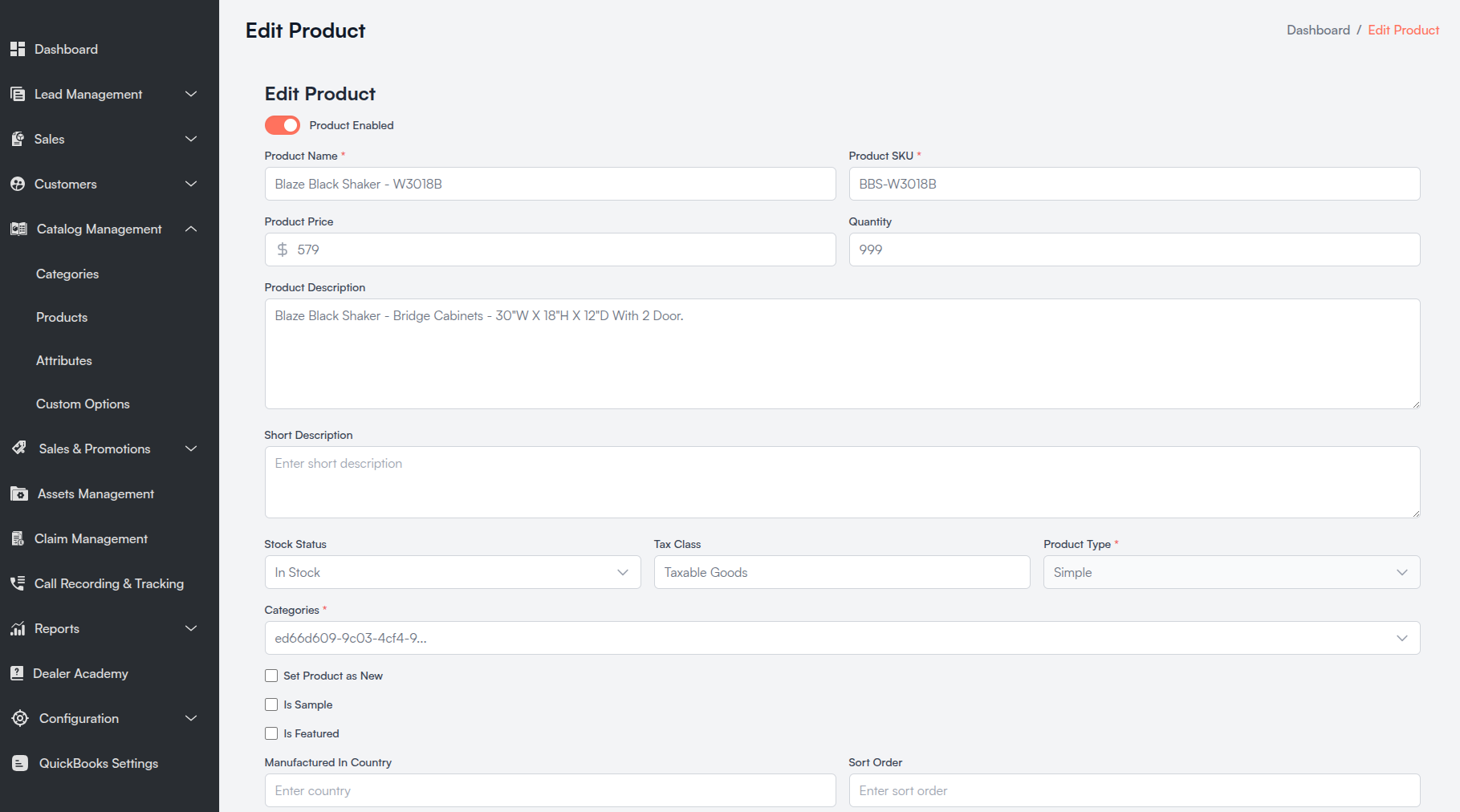
Click the Edit icon or SKU link. Same structured fields as Create Product, pre-filled. Imported products keep Product Type read-only.
Click Submit to save changes.
iv. Bulk Update by CSV (Tenant)
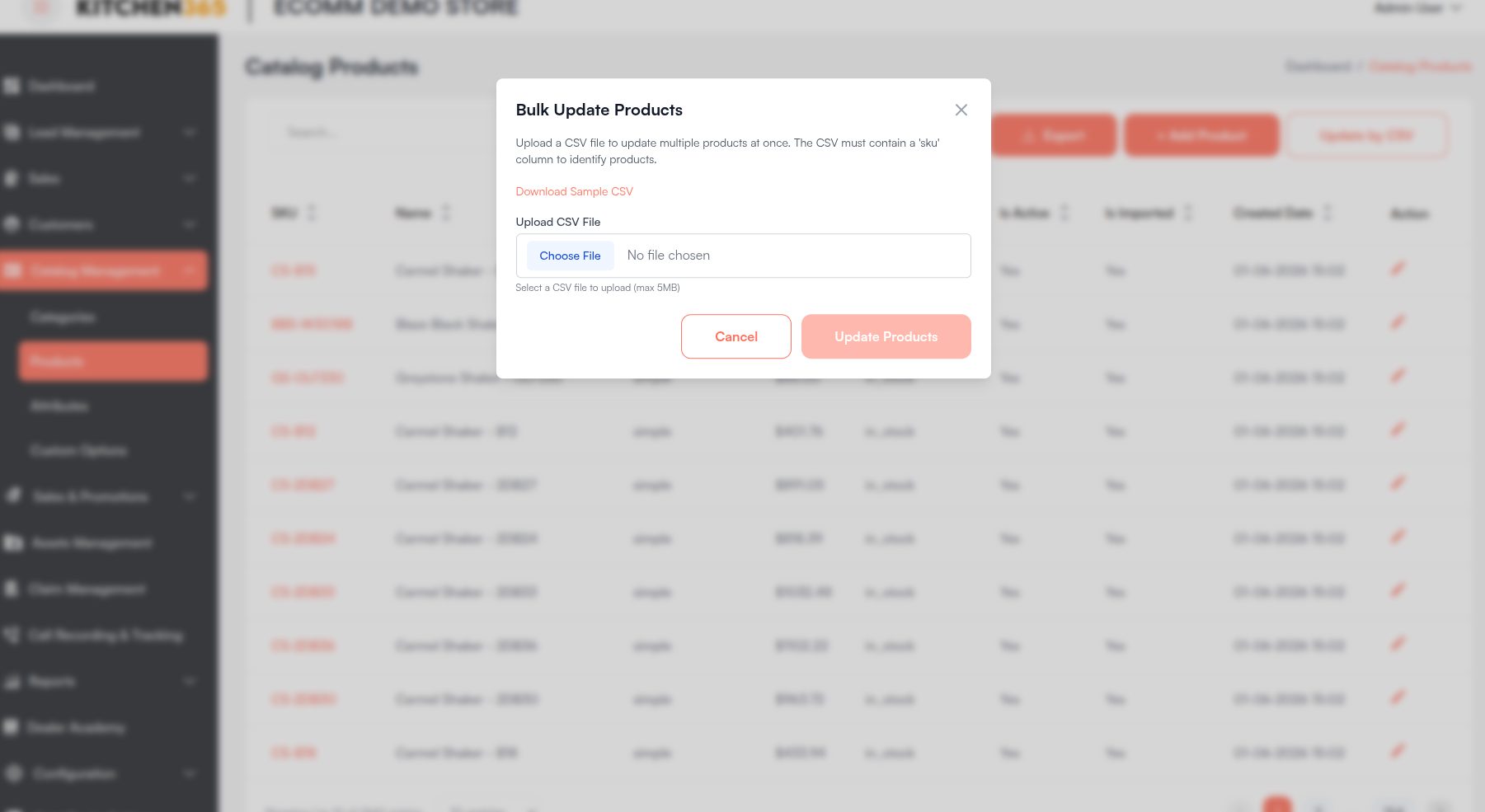
- Click Update by CSV.
- Download sample CSV.
- Upload CSV (max 5 MB).
- Click Update Products.
| Column | Required | Description |
|---|---|---|
| sku | Yes | Product identifier. |
| price | No | New price. Blank skips update. |
sku,price
PROD-001,99.99
PROD-002,149.99
c. Catalog Attributes
Catalog Attributes define custom data fields for catalog entities (products, categories). Attributes can be grouped and appear dynamically on edit forms.
Navigate to Catalog Management > Attributes (tenant catalog only).
i. Attribute List
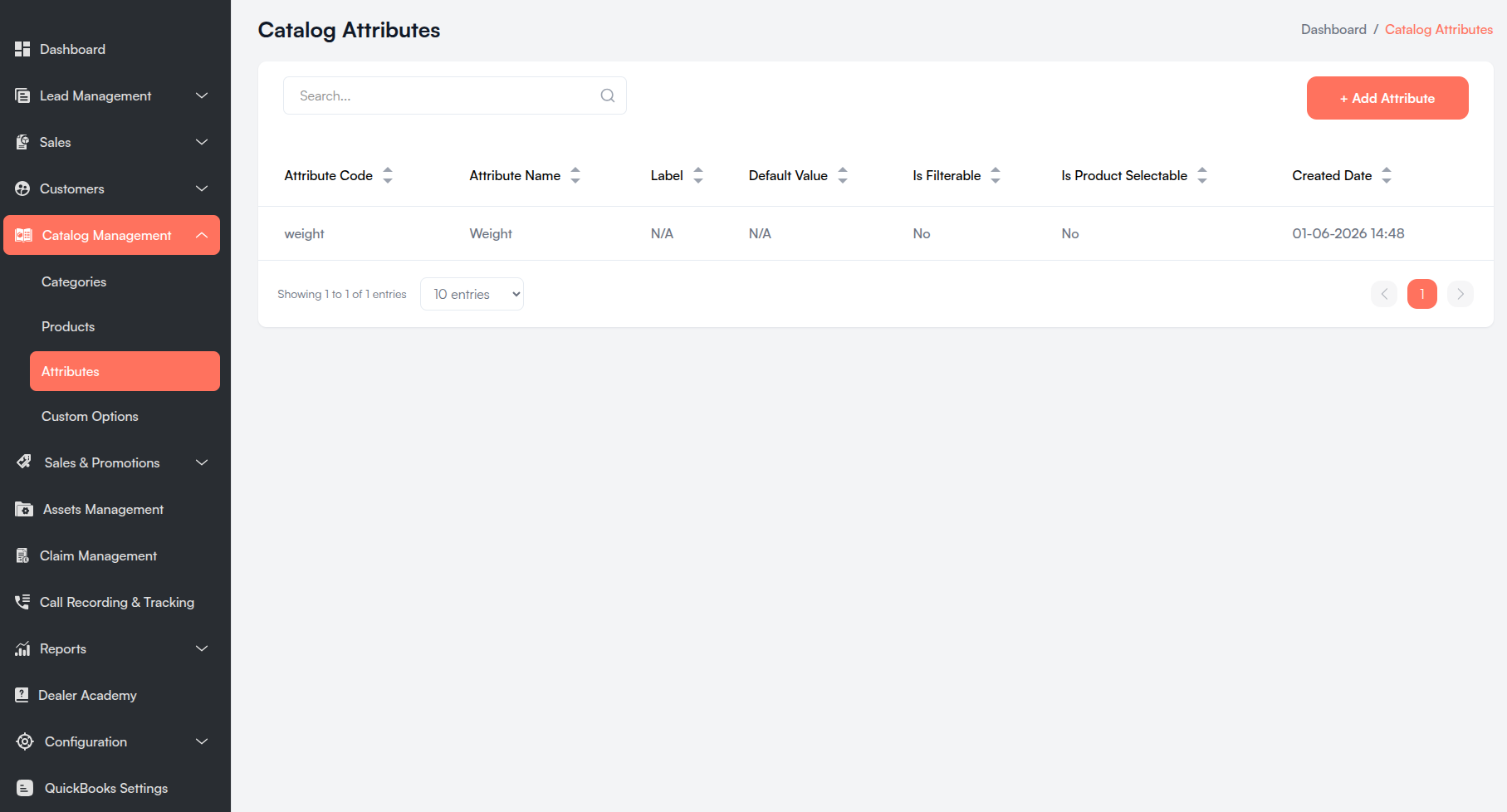
| Column | Description |
|---|---|
| Attribute Code | Unique code (e.g., color). |
| Attribute Name | Descriptive name. |
| Label | Form display label. |
| Default Value | Default attribute value. |
| Is Filterable | Storefront filter flag. |
| Is Product Selectable | Variant selector flag. |
| Created Date | EST timestamp. |
Click + Add Attribute to create.
ii. Create Attribute
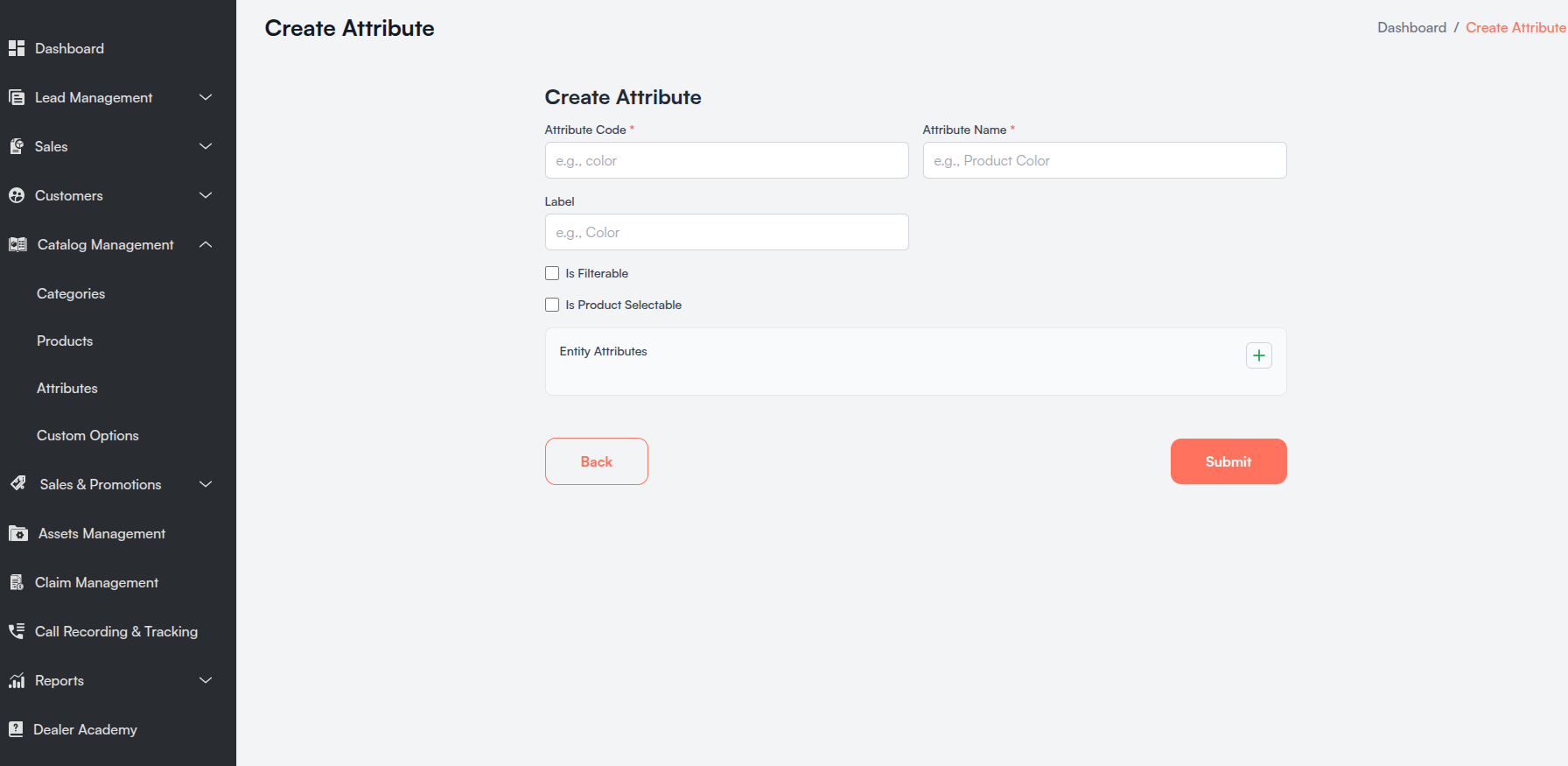
All fields marked with a red asterisk (*) are mandatory.
| Field Name | Description |
|---|---|
| Attribute Code * | Unique identifier (e.g., finish). |
| Attribute Name * | Human-readable name. |
| Label | Form label. |
| Is Filterable | Allow storefront filtering. |
| Is Product Selectable | Use for configurable product variants. |
Entity Attributes repeater:
| Field Name | Description |
|---|---|
| Entity Type * | e.g., catalogProducts, catalogCategories. |
| Attribute Group | Optional group for form organization. |
Click Add Entity Attribute for additional assignments. Click Submit to save.
iii. Attribute Groups
Groups organize attributes into sections on product and category forms.
| Column | Description |
|---|---|
| Group Code / Label / Description | Group identifiers. |
| Created Date | EST timestamp. |
| Action | Edit and Delete. |
Create / Edit Attribute Group
All fields marked with a red asterisk (*) are mandatory.
| Field Name | Description |
|---|---|
| Group Code * | Unique code. |
| Label | Section title on forms. |
| Description | Optional purpose text. |
| Entity Attributes | Multi-select of attributes to include. |
Once assigned, attribute fields appear on Product and Category edit forms based on schema and group.
d. Custom Options Templates
Custom Options Templates define reusable product customization options (finish upgrades, hardware, add-ons) assignable to multiple products.
Navigate to Catalog Management > Custom Options.
i. Template List
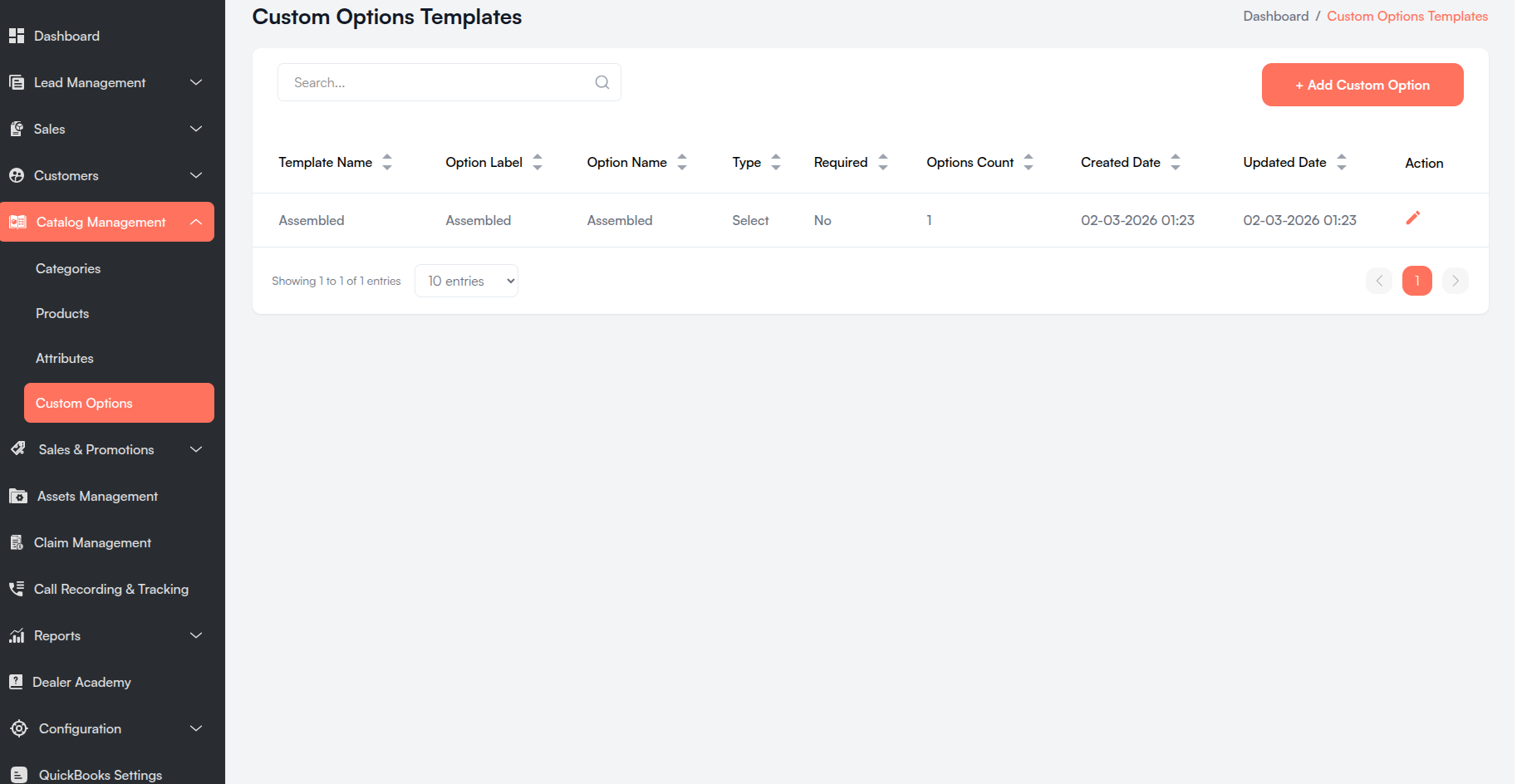
| Column | Description |
|---|---|
| Template Name | Internal name. |
| Option Label / Option Name | Customer label and internal field name. |
| Type | checkbox, select, or radio. |
| Required | Must customer select a value. |
| Options Count | Number of defined values. |
| Created / Updated Date | EST timestamps. |
| Action | Edit icon. |
Click + Add Custom Option to create.
ii. Create Custom Option Template
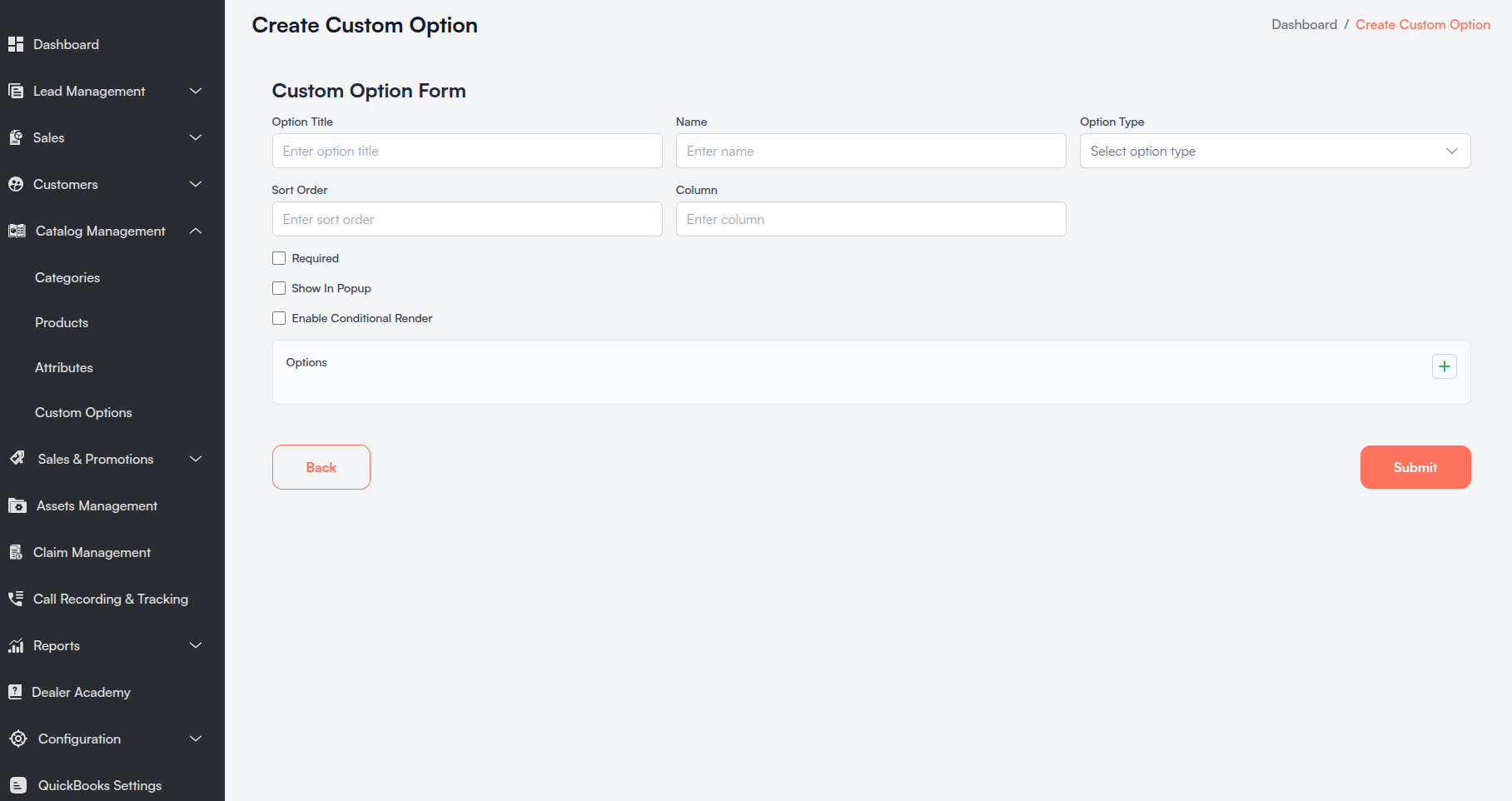
Option Settings
| Field Name | Description |
|---|---|
| Option Title / Name | Customer label and internal name. |
| Option Type | Checkbox, Select, or Radio. |
| Layout | For Radio only — Card layout. |
| Sort Order / Column | Display order and grid width. |
| Required / Show In Popup | Checkboxes. |
| Enable Conditional Render | Hide based on another option's value. |
Conditional Visibility (when enabled): Hide When Field, Operator (Equals / Not Equals), Value.
Option Values repeater:
| Field Name | Description |
|---|---|
| Option Title / Value | Display label and stored value. |
| Price / Price Type | Adjustment amount; Fixed, Percentage, or Multiplier. |
| SKU / Sort Order | Optional SKU and display order. |
| Image Src / Alt Text | Optional image for radio card layout. |
iii. Edit Custom Option Template
The edit page has three sections:
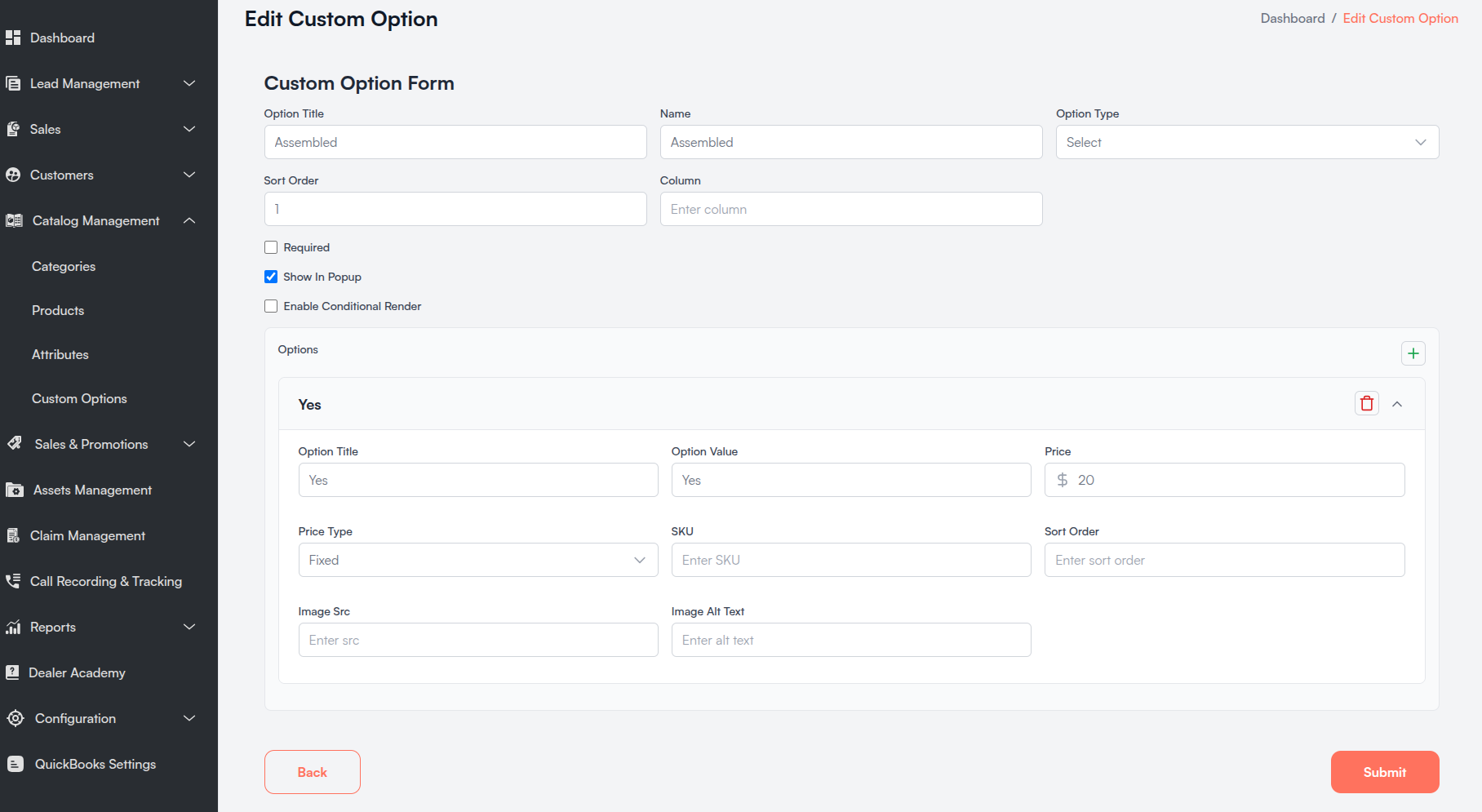
- Custom Option Form — same fields as create, pre-filled.
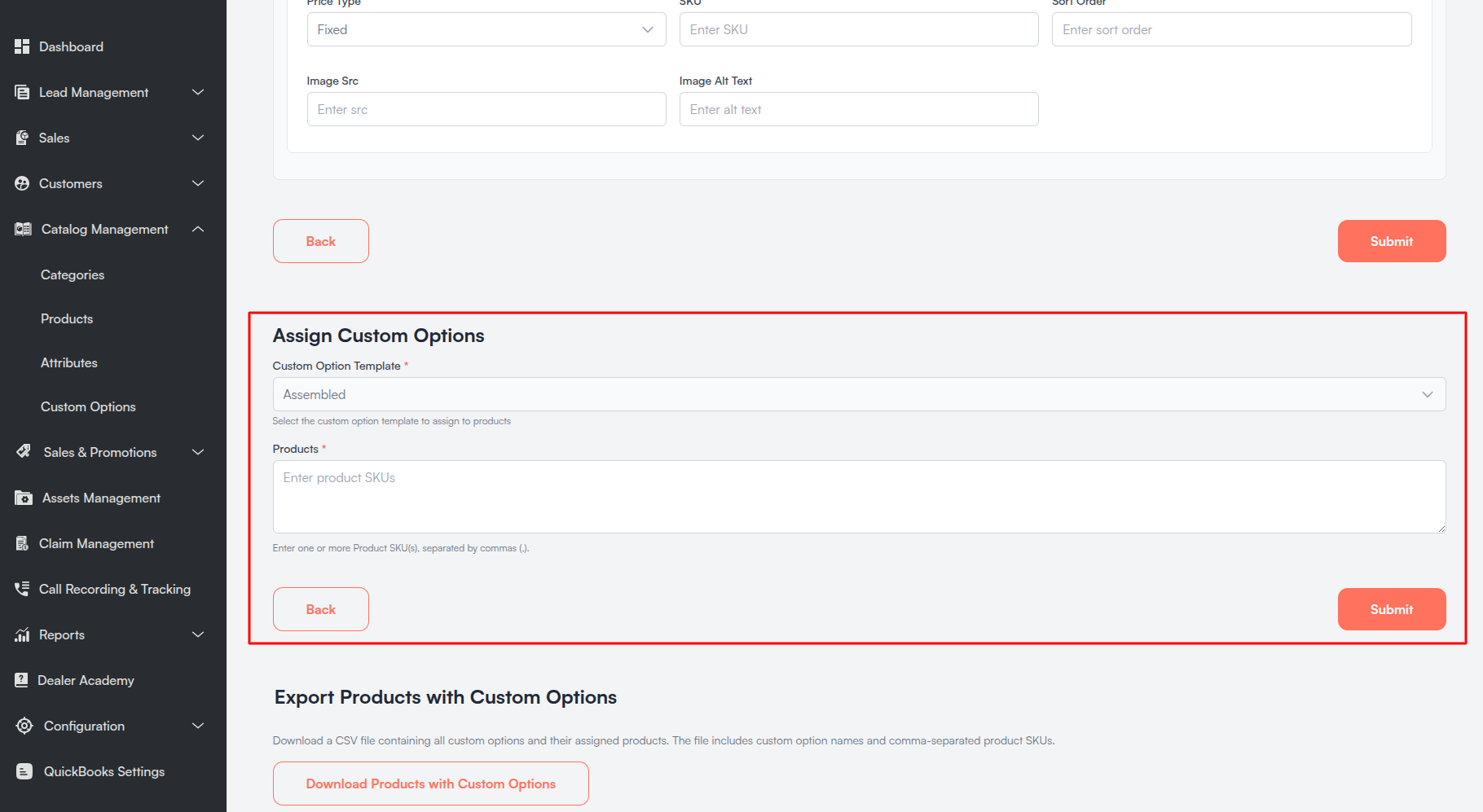
- Assign Custom Options — enter comma-separated product SKUs to assign this template.
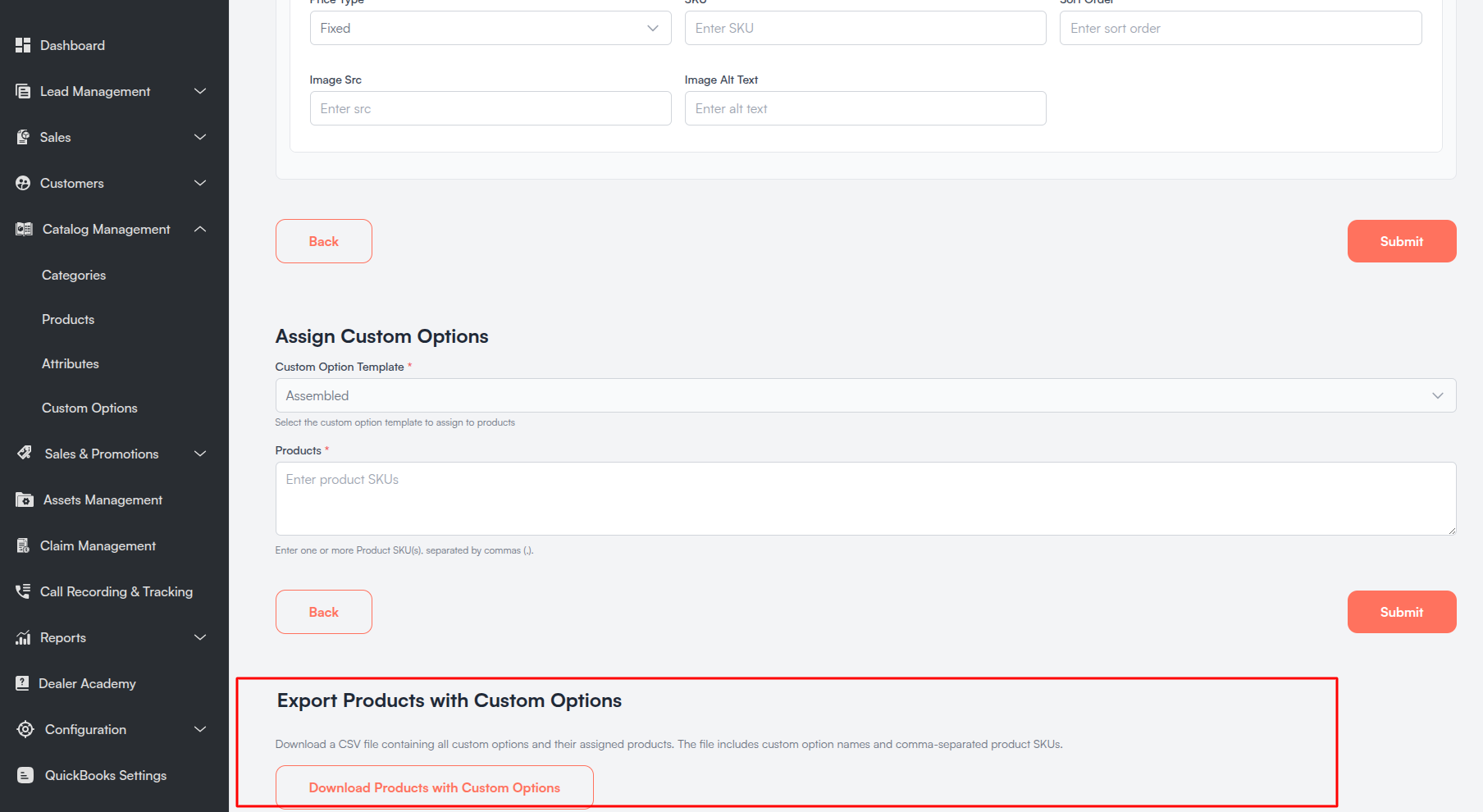
- Export Products with Custom Options — download CSV of templates and assigned SKUs.
Custom options can also be configured directly on individual products via the Custom Options accordion on the product edit form.
iv. Reference
Option Types
| Type | Behavior |
|---|---|
| Checkbox | On/off toggle. |
| Select | Dropdown selection. |
| Radio | Visible choice list with optional card layout. |
Price Types
| Price Type | Description |
|---|---|
| Fixed | Flat dollar amount added. |
| Percentage | Percentage of base price. |
| Multiplier | Multiplies base price. |
e. Master vs Tenant — Quick Reference
| Feature | Master Catalog | Tenant Catalog |
|---|---|---|
| Categories — create | Import only | Import/sync only |
| Categories — edit | Yes | Yes (with SEO, images, attributes) |
| Products — create | Import only | Yes (+ Add Product) |
| Products — edit | Yes (JSON fields) | Yes (structured forms) |
| Bulk CSV update | No | Yes |
| Attributes | No | Yes |
| Custom Options Templates | No | Yes |
f. Tips
- Import catalog data via Styles before editing categories and products on the tenant site.
- Create Attributes before Products so all custom fields appear on the product form.
- Use Custom Options Templates and Assign Custom Options to apply the same options to many products by SKU.
- Set category/product Status to Inactive to hide from storefront without deleting.
- Use Update by CSV for bulk price changes instead of editing products one by one.
- Fill in SEO fields on tenant categories and products for better search discoverability.