Sales & Promotions
The Sales & Promotions module in the Kitchen365 Console v2.0.0 lets admin users manage storefront promotional banners and cart-level discount rules for a tenant website.
Access
How to open Sales & Promotions
- Log in to the Kitchen365 Console.
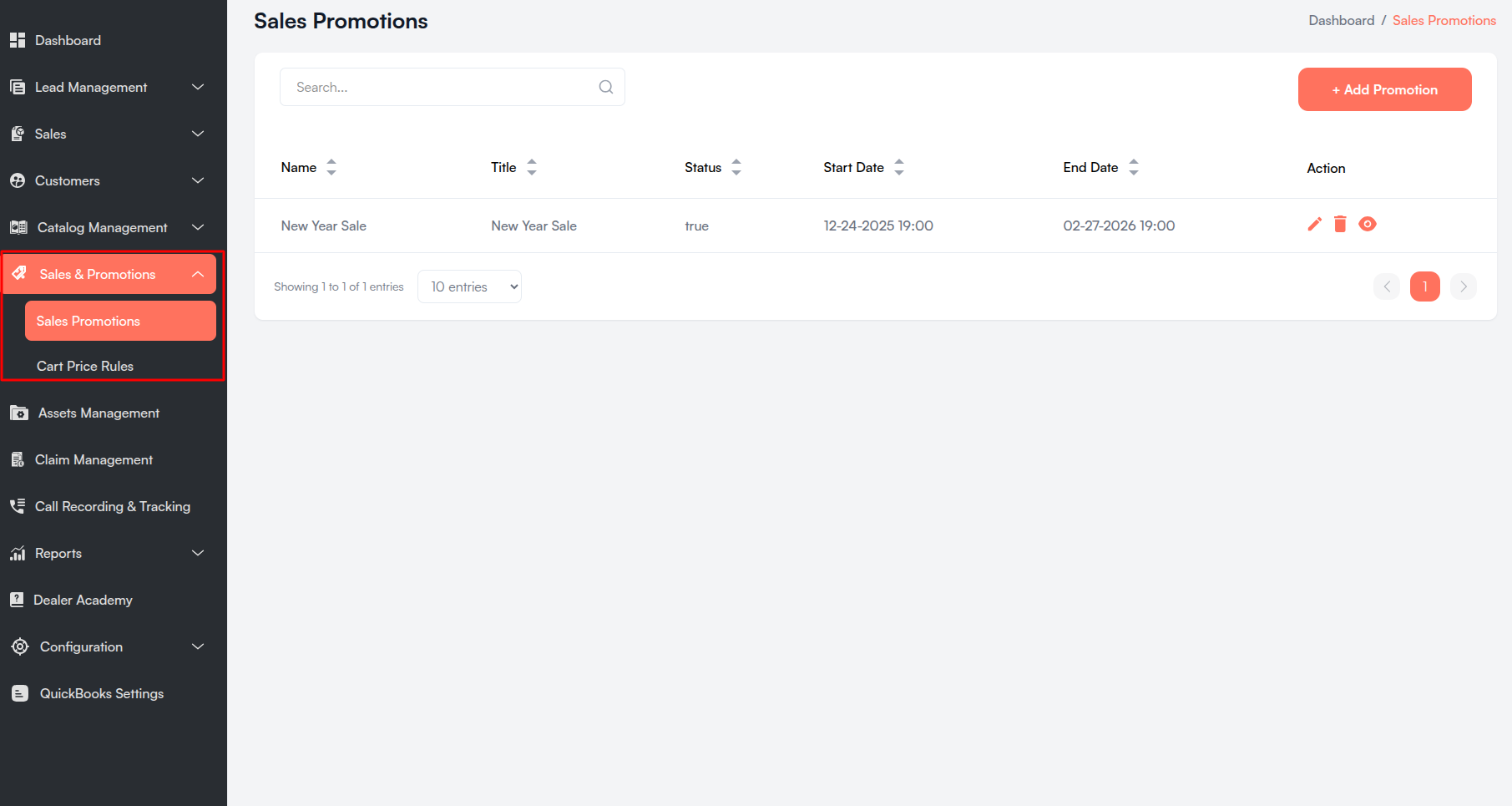
- In the left sidebar, expand Sales & Promotions.
- Choose one of the sub-menu items:
| Sub-menu | Navigation Path | Purpose |
|---|---|---|
| Sales Promotions | Sales & Promotions > Sales Promotions | Manage storefront promotion banners and coupon strips. |
| Cart Price Rules | Sales & Promotions > Cart Price Rules | Create and manage cart discount rules. |
Viewing sales promotions requires list/read permissions. Creating, updating, or deleting promotions requires the corresponding permission on the tenant website.
Viewing cart price rules requires list/read permissions. Creating, updating, or deleting rules requires the corresponding sales-rules permission.
a. Sales Promotions
Sales Promotions control the promotional content displayed on the storefront — such as sale banners, coupon strips, and countdown timers. These are visual promotions and are separate from the discount logic handled by Cart Price Rules.
i. Sales Promotions List
The main listing table displays all sales promotions with sortable columns.
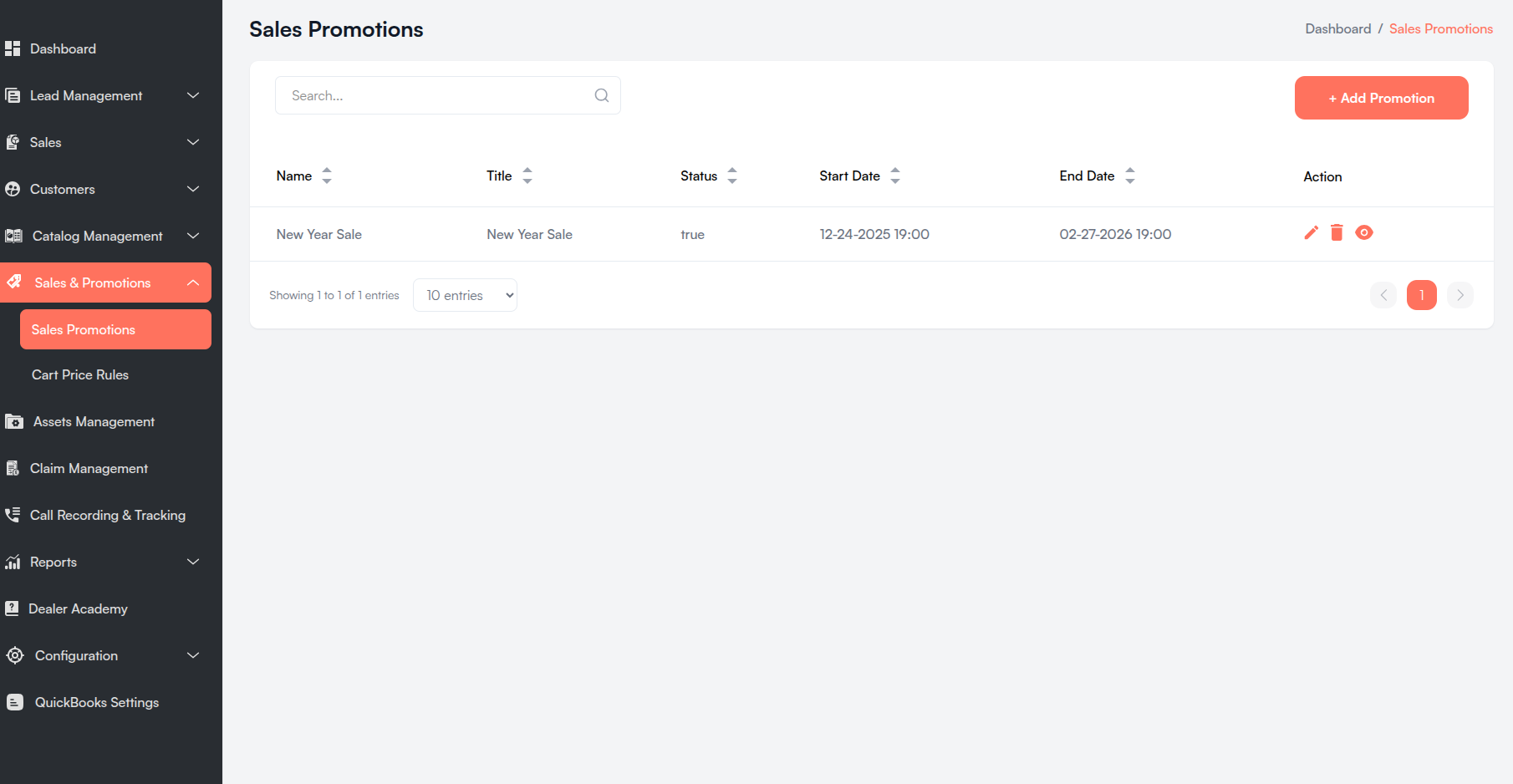
| Column | Description |
|---|---|
| Name | Internal promotion name used in the Console. |
| Title | Main sale title shown on the storefront. |
| Status | Whether the promotion is Enabled or Disabled. |
| Start Date | Date the promotion becomes active (displayed in EST). |
| End Date | Date the promotion expires (displayed in EST). |
| Action | Edit, Delete, and View icons for each promotion. |
All columns except Action are sortable. Click the column headers to sort ascending or descending.
Search Bar
- Located at the top-left of the table.
- Placeholder: "Search..."
- Filters promotions in real time.
Add Promotion Button
- + Add Promotion — Opens the Create Sales Promotion form. Requires create permission.
- Located at the top-right of the table.
Pagination
- Located at the bottom of the table.
- Shows "Showing X to Y of Z entries".
- Page size options: 10 / 25 / 50 / 75 / 100 entries.
- Navigate between pages using the pagination controls.
ii. Create Sales Promotion
Click + Add Promotion on the Sales Promotions list to open the create form.
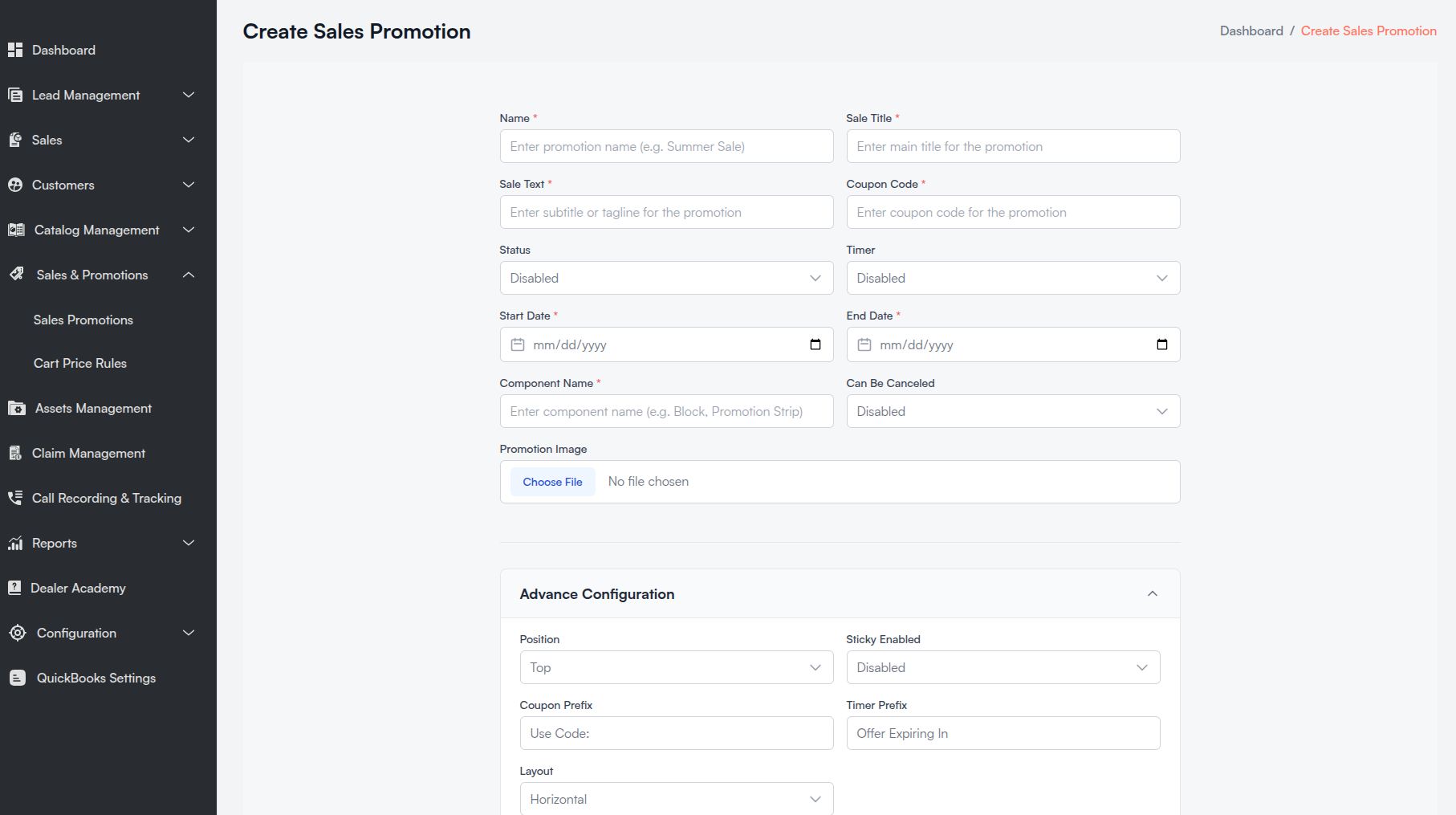
Accessing This Form
- Navigate to Sales & Promotions > Sales Promotions.
- Click + Add Promotion in the top-right corner.
Form Field Descriptions
All fields marked with a red asterisk (*) are mandatory.
| Field Name | Description |
|---|---|
| Name | Internal name for the promotion (e.g., Summer Sale). |
| Sale Title | Main headline displayed on the storefront promotion. |
| Sale Text | Subtitle or tagline shown below the title. |
| Coupon Code | Coupon code displayed to customers in the promotion strip. |
| Status | Enabled or Disabled. Controls whether the promotion is active. |
| Timer | Enabled or Disabled. Shows a countdown timer on the storefront when enabled. |
| Start Date | Date the promotion begins. |
| End Date | Date the promotion ends. |
| Component Name | Storefront component identifier (e.g., Block, Promotion Strip). |
| Can Be Canceled | Enabled or Disabled. Allows customers to dismiss the promotion strip. |
| Promotion Image | Upload a PNG or JPEG image for the promotion banner. |
Advance Configuration
Expand the Advance Configuration accordion for additional display settings:
| Field Name | Description |
|---|---|
| Position | Where the promotion appears on the page: Top or Bottom. |
| Sticky Enabled | Enabled or Disabled. Keeps the promotion strip fixed while scrolling. |
| Coupon Prefix | Text shown before the coupon code (default: Use Code:). |
| Timer Prefix | Text shown before the countdown timer (default: Offer Expiring In). |
| Layout | Display orientation: Vertical or Horizontal. |
Click Save Promotion to create the promotion. On success, you are redirected to the Sales Promotions list.
iii. Edit Sales Promotion
Click the Edit icon on a promotion row to open the Edit Sales Promotion form. The form matches the create form, pre-filled with existing promotion data.
Click Update Promotion to save changes.
iv. View Sales Promotion
Click the View icon on a promotion row to open the Promotion Details modal.
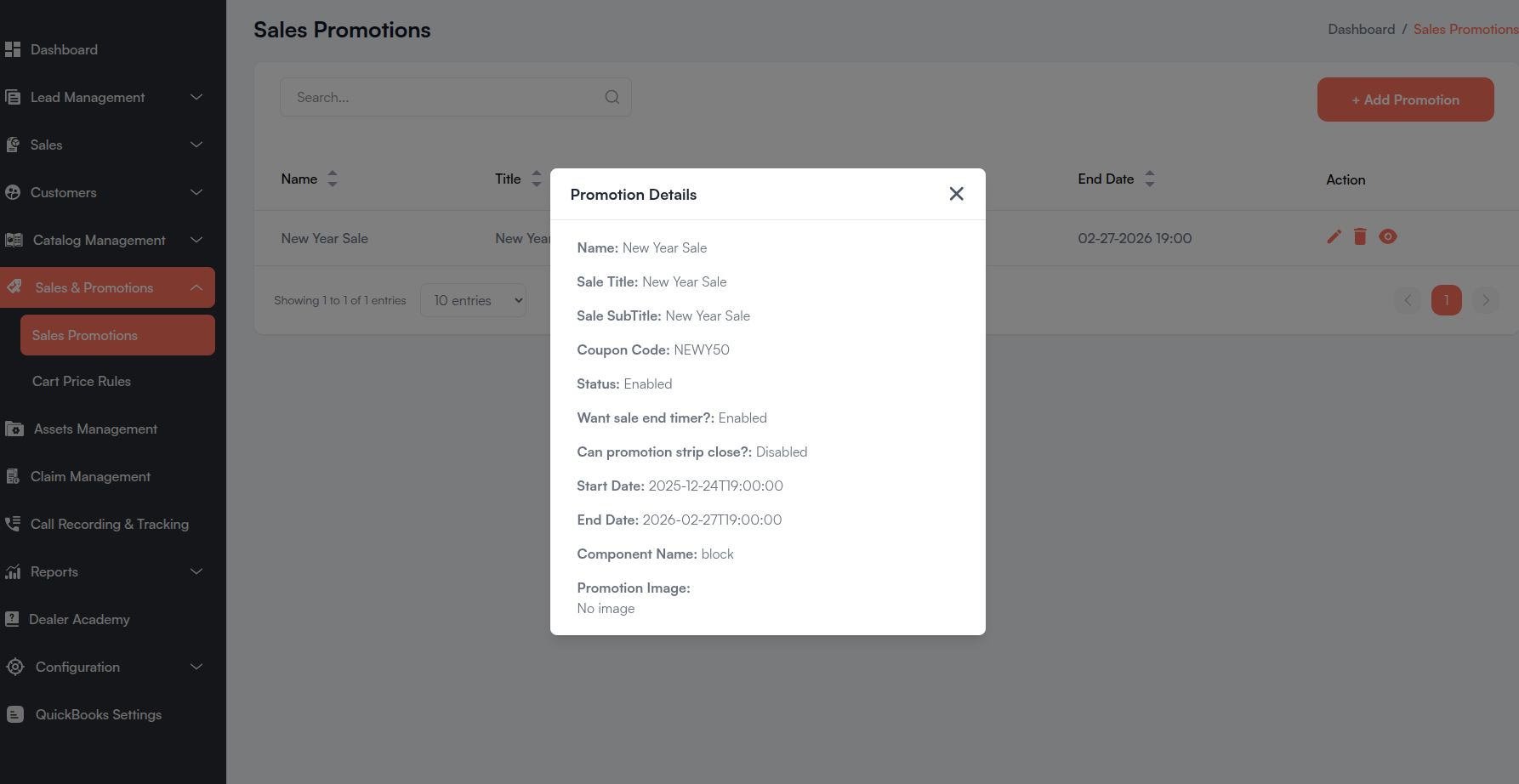
| Field | Description |
|---|---|
| Name | Internal promotion name. |
| Sale Title | Main headline shown on the storefront. |
| Sale SubTitle | Subtitle or tagline text. |
| Coupon Code | Coupon code linked to the promotion. |
| Status | Enabled or Disabled. |
| Want sale end timer? | Enabled or Disabled. |
| Can promotion strip close? | Enabled or Disabled. |
| Start Date / End Date | Active date range for the promotion. |
| Component Name | Storefront component identifier. |
| Promotion Image | Preview of the uploaded banner image. |
v. Delete Sales Promotion
Click the Delete icon on a promotion row. A confirmation modal appears showing the promotion name. Confirm to permanently delete the promotion.
b. Cart Price Rules
Cart Price Rules define the discount logic applied to customer carts. Rules can be scoped to customer groups, limited by date range, tied to coupon codes, and conditioned on cart or product attributes.
i. Cart Price Rules List
The main listing table displays all cart price rules with sortable columns.
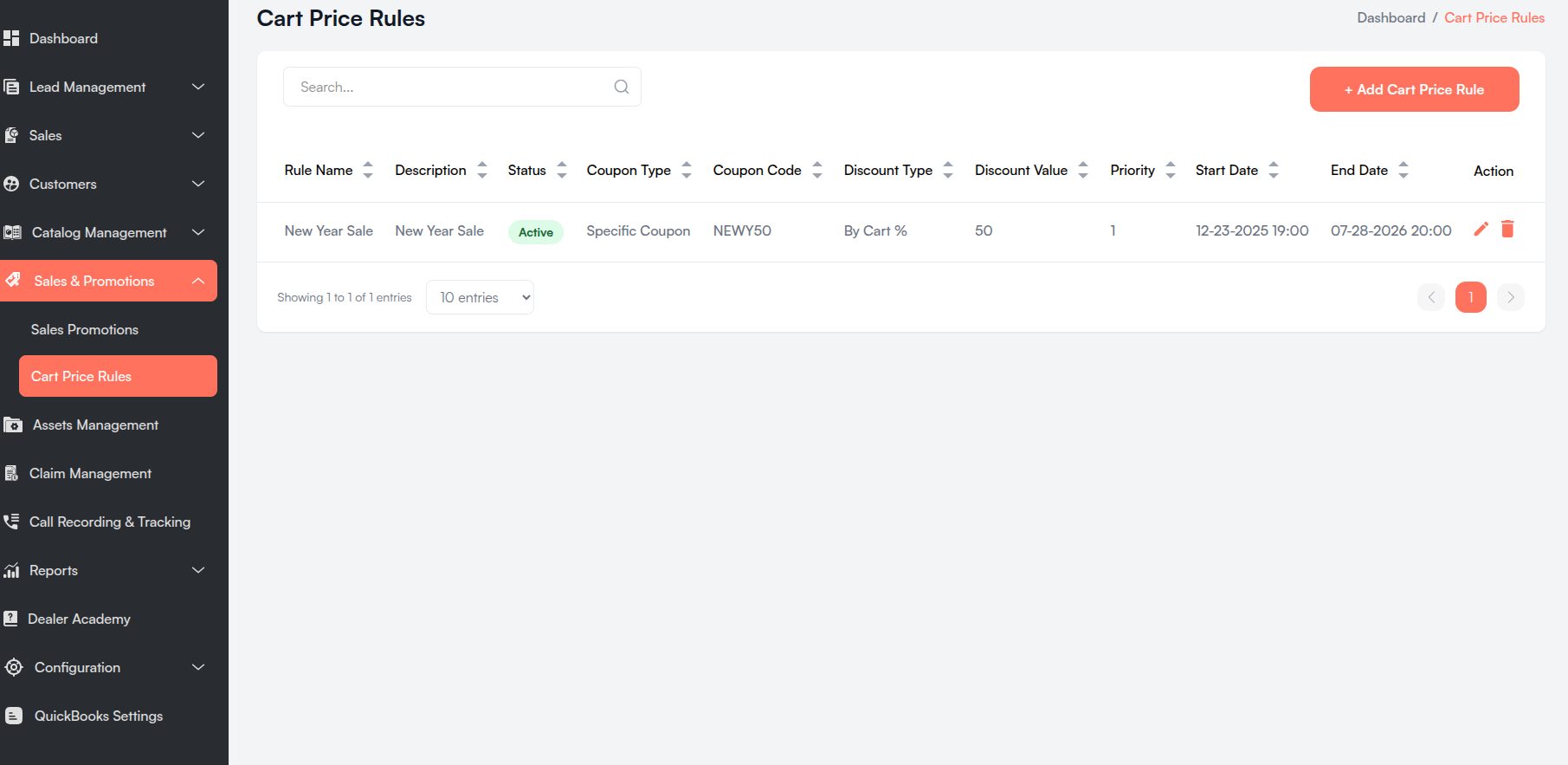
| Column | Description |
|---|---|
| Rule Name | Internal name for the discount rule. |
| Description | Optional description of the rule. |
| Status | Active (green) or Inactive (red) label chip. |
| Coupon Type | No Coupon or Specific Coupon. |
| Coupon Code | Coupon code when type is Specific Coupon; otherwise -. |
| Discount Type | How the discount is applied (e.g., By Cart %, By Product Fixed). |
| Discount Value | The discount amount or percentage. |
| Priority | Rule sort order; lower numbers are evaluated first. |
| Start Date | Rule active-from date (displayed in EST). |
| End Date | Rule active-to date (displayed in EST). |
| Action | Edit and Delete icons for each rule. |
All columns except Action are sortable. Click the column headers to sort ascending or descending.
Search Bar
- Located at the top-left of the table.
- Placeholder: "Search..."
- Filters rules in real time.
Add Cart Price Rule Button
- + Add Cart Price Rule — Opens the Create Cart Price Rule form. Requires create permission.
- Located at the top-right of the table.
Pagination
- Located at the bottom of the table.
- Shows "Showing X to Y of Z entries".
- Page size options: 10 / 25 / 50 / 75 / 100 entries.
- Navigate between pages using the pagination controls.
ii. Create / Edit Cart Price Rule
Click + Add Cart Price Rule or the Edit icon on an existing rule to open the form.
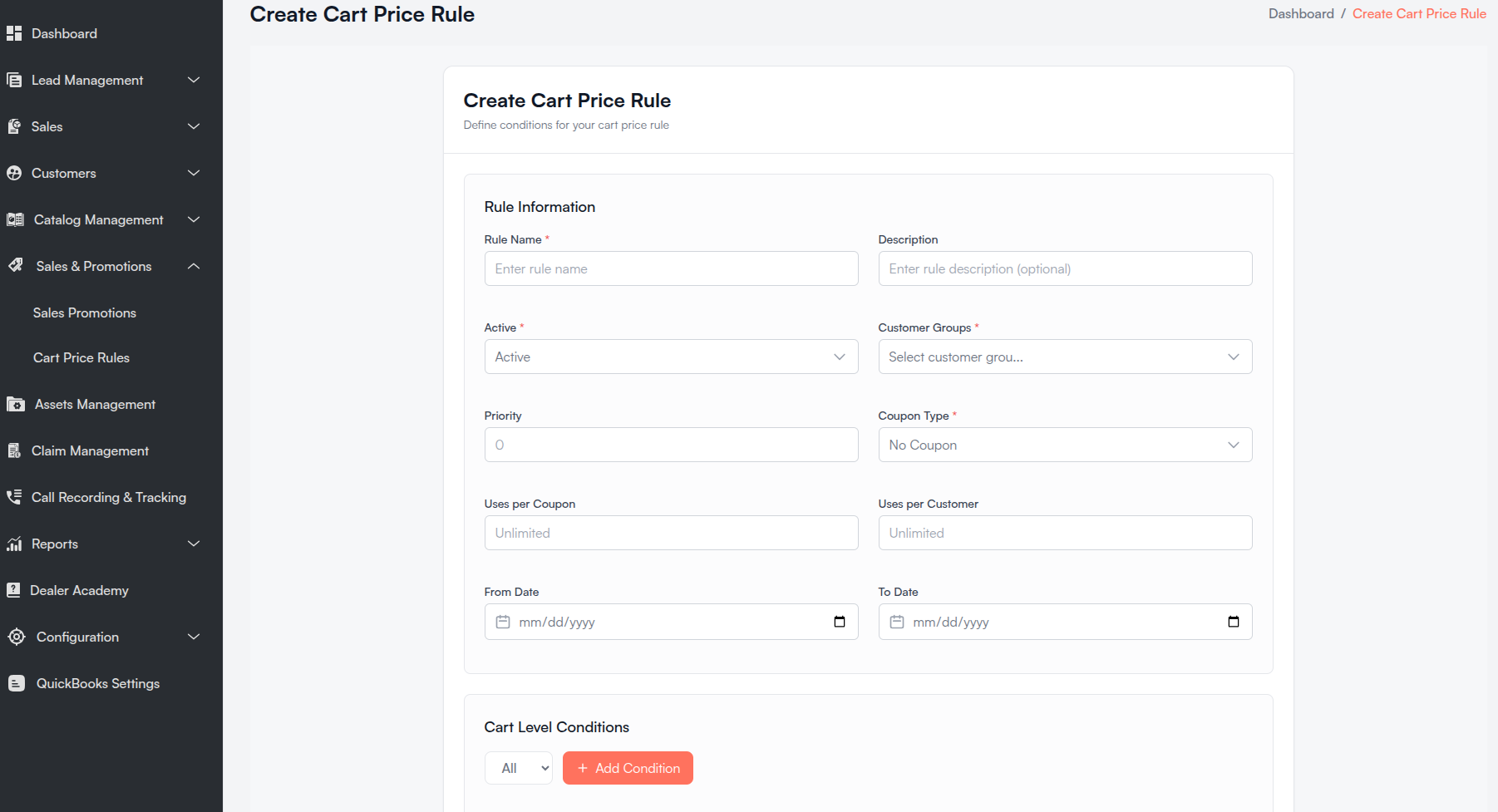
The form is organized into four sections:
Rule Information
| Field Name | Description |
|---|---|
| Rule Name * | Internal name for the rule. |
| Description | Optional description. |
| Active * | Active or Inactive. |
| Customer Groups * | One or more customer groups the rule applies to (multi-select). |
| Priority | Numeric sort order (0 or greater). Lower values are processed first. |
| Coupon Type * | No Coupon — auto-applied when conditions match; Specific Coupon — requires a coupon code. |
| Uses per Coupon | Maximum total uses across all customers. Leave blank for unlimited. |
| Coupon Code * | Required when Coupon Type is Specific Coupon. |
| Uses per Customer | Maximum uses per individual customer. Leave blank for unlimited. |
| From Date | Start date for the rule. |
| To Date | End date for the rule. Must be after the From Date. |
Cart Level Conditions
Define when the rule should apply based on cart-level attributes. Use Add Condition to build rules with ALL or ANY logic, or add Combination Conditions for nested groups.
| Attribute | Type | Operators |
|---|---|---|
| Subtotal with Tax | Number | Equals, Not Equals, Greater Than, Less Than, ≥, ≤ |
| Subtotal without Tax | Number | Equals, Not Equals, Greater Than, Less Than, ≥, ≤ |
| Total Item Quantity | Number | Equals, Not Equals, Greater Than, Less Than, ≥, ≤ |
| Weight | Number | Equals, Not Equals, Greater Than, Less Than, ≥, ≤ |
| Payment Method | Multi-select | Contains, Does Not Contain |
| Shipping Method | Multi-select | Contains, Does Not Contain |
| Country | Multi-select | Contains, Does Not Contain |
| State | Text | Equals, Not Equals |
| Zipcode | Text | Equals, Not Equals, Contains, Does Not Contain |
Product Level Conditions
Define which products the discount applies to. When product-level conditions are set, only By Product Percent and By Product Fixed discount types are available in the Actions section.
| Attribute | Type | Operators |
|---|---|---|
| Product Category | Multi-select | Contains, Does Not Contain |
| SKU | Text area | Contains, Does Not Contain |
| Price | Number | Equals, Not Equals, Greater Than, Less Than, ≥, ≤ |
| Quantity | Number | Equals, Not Equals, Greater Than, Less Than, ≥, ≤ |
Enter multiple SKUs as comma-separated values (e.g., SKU1, SKU2, SKU3).
Actions
| Field Name | Description |
|---|---|
| Apply * | Discount type: By Product Percent, By Product Fixed, By Cart Fixed, By Cart Percent, or Buy X Get Y. |
| Discount Amount * | The discount value (percentage or fixed amount depending on Apply type). |
| Apply To Shipping Amount | Yes or No. Whether the discount also applies to shipping. |
| Discard Subsequent Rule | Yes or No. When Yes, no further rules are processed after this one. |
| Discount Qty Step By X | Optional. Apply discount every X quantity (for Buy X Get Y style rules). |
| Maximum Quantity Discount is Applied To | Optional. Cap the number of items receiving the discount. |
Click Save Rule (or Update Rule when editing) to save. On success, you are redirected to the Cart Price Rules list.
iii. Delete Cart Price Rule
Click the Delete icon on a rule row. A confirmation modal appears showing the rule name. Confirm to permanently delete the rule.
c. Sales Promotions vs. Cart Price Rules
| Feature | Sales Promotions | Cart Price Rules |
|---|---|---|
| Purpose | Storefront promotional banners/strips | Cart discount logic |
| Where it shows | Website frontend (promotion component) | Applied at checkout/cart calculation |
| Coupon display | Shows coupon code visually to customers | Validates and applies coupon discounts |
| Conditions | Date range and enabled status | Cart/product conditions, customer groups |
| Discount logic | No — displays a coupon code only | Yes — defines discount type, amount, and rules |
Create a Cart Price Rule with a Specific Coupon to define the actual discount, then create a matching Sales Promotion with the same coupon code to display the offer on the storefront.