Dashboard
The Dashboard is the landing page of the Kitchen365 Console v2.0.0. It gives you a quick summary of quotes, orders, customers, and claims, along with a table of the most recent leads.
Use the Dashboard to:
- Monitor sales activity at a glance
- Jump quickly to quote creation
- Review the latest form submissions without opening Lead Management
Related modules
- Full lead lists and form tabs are in Lead Management.
- Create and manage quotes in Quote Management.
Access
How to open the Dashboard
- Log in to the Kitchen365 Console.
- After sign-in, the Console opens on the Dashboard by default.
- To return later, click Dashboard in the left sidebar.
a. Dashboard Metrics Cards
At the top of the Dashboard, four cards summarize key stats:
| Card | Description | Example |
|---|---|---|
| Total Quotes | Number of quotes created and their total estimated value. | 22 quotes totaling $84K |
| Total Orders | Number of completed orders and total order value. | 41 orders worth $99.8K |
| Total Customers | Number of unique customers in the system. | 16 customers |
| Total Claims | Number of submitted customer claims. | 3 claims |
b. Add Quote Button
Located in the top-right corner, the red + Add Quote button lets you create a new quote quickly.
For full quote creation steps, see Quote Management.
c. Recent Leads
This section displays a table of leads who submitted website forms such as Free Kitchen Design, Request Quote, Kitchen Design, and Contact Us.
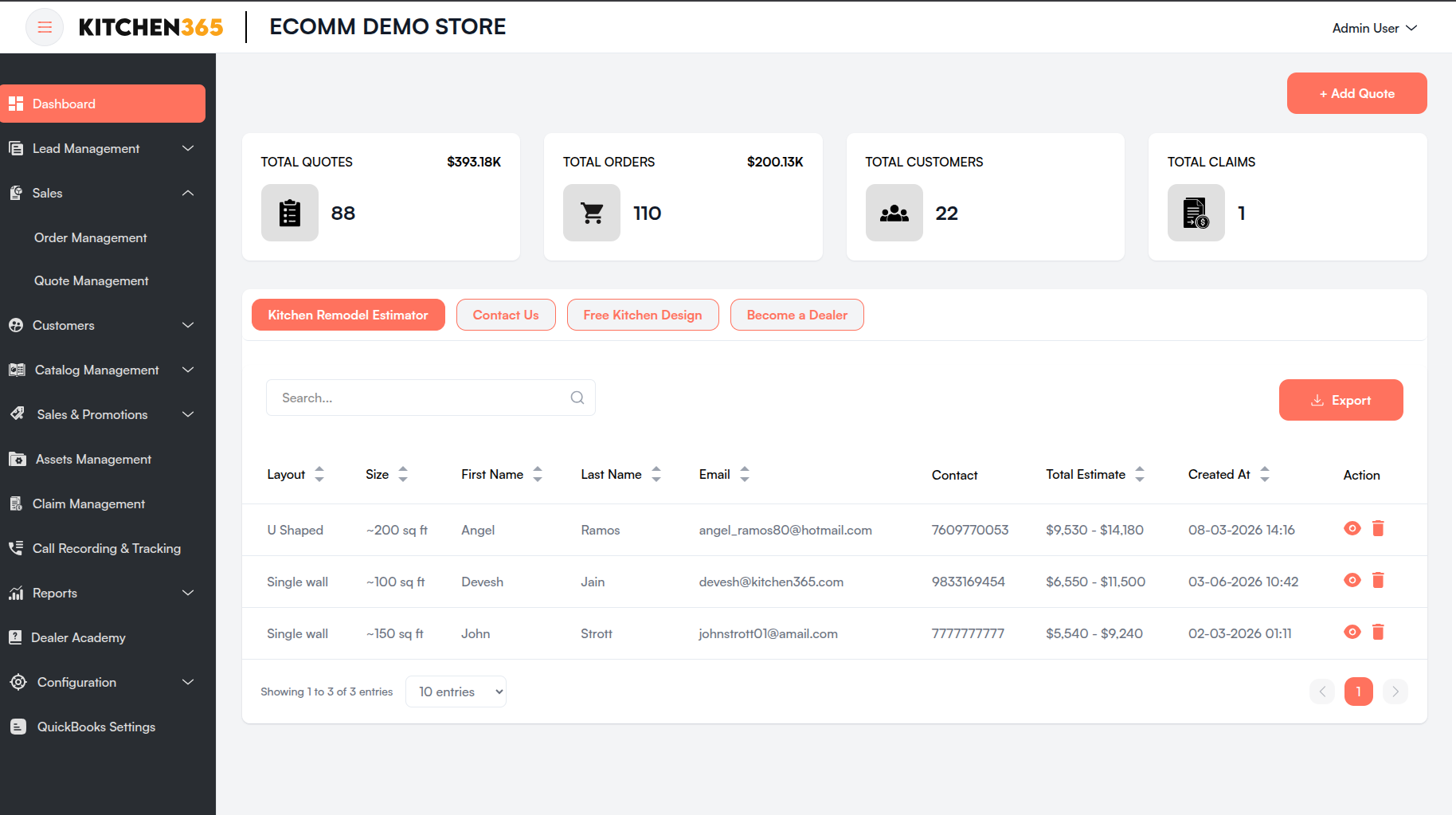
| Column | Description |
|---|---|
| Email address submitted by the lead. | |
| First Name | First name of the lead. |
| Last Name | Last name of the lead. |
| Phone No. | Contact number provided by the lead. |
| Type | How the lead interacted (e.g., "Free Kitchen Design" or "Contact Us"). |
| Created At | Date and time the lead was created or submitted. |
| Action | Eye icon 👁️ opens full lead details. |
i. Sort and Pagination
- Click column headers to sort ascending or descending.
- Use pagination at the bottom right to browse additional lead entries.
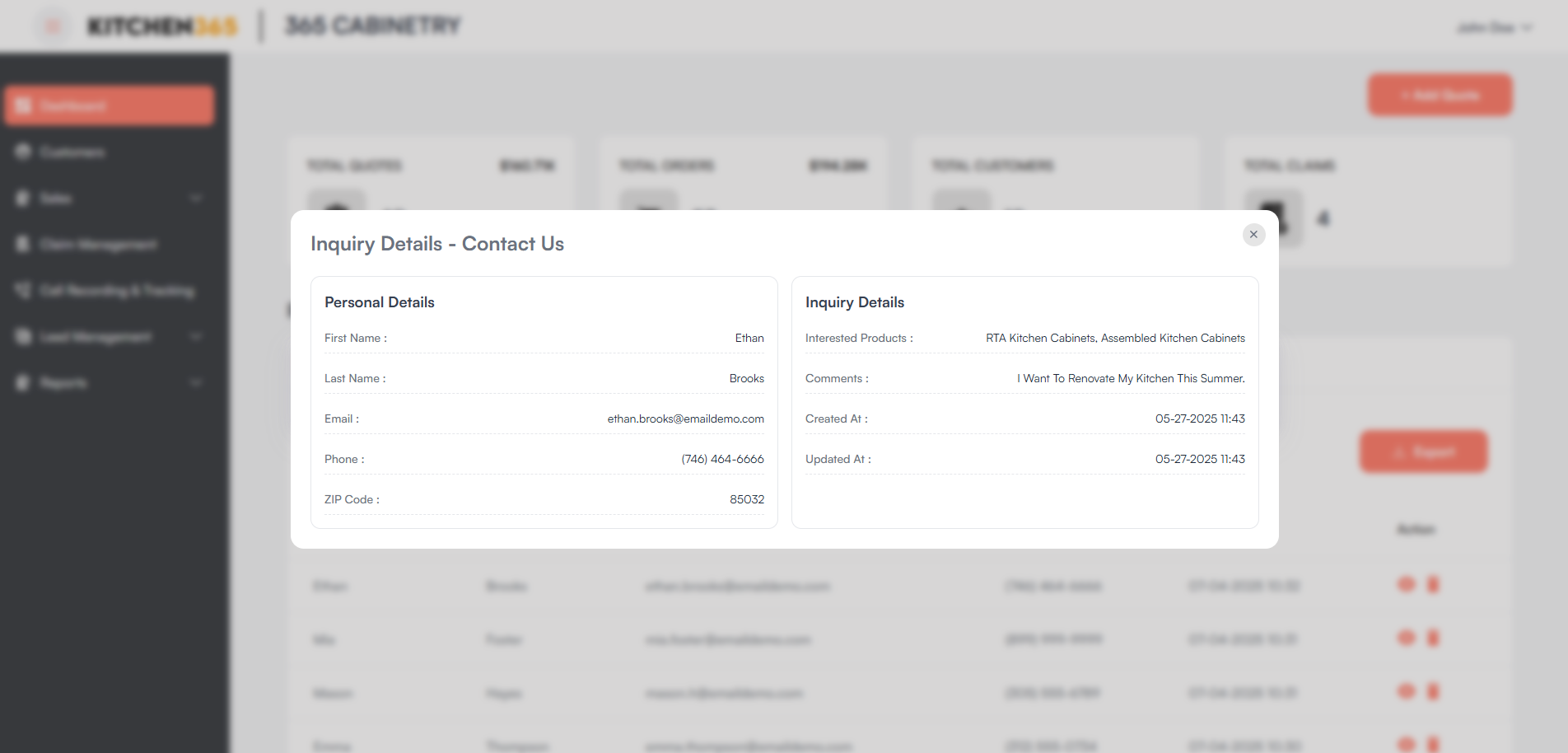
ii. View Lead Details
- Click the 👁️ Eye icon in the Action column.
- A popup displays the full submission details.