Supported Shipping
This page lists every shipping method Kitchen365 supports, what you need before you set each one up, and what every field on its Edit form means.
For how to open and use the Shipping Methods screen itself, see Configuration › Shipping Methods.
Where in the Console: Configuration > Shipping Methods, then the Edit icon on a method row.
The Shipping Methods list shows only the methods assigned to your website during setup. There is no "Add" button for shipping. To get a method from this page added to your website, contact your Kitchen365 administrator. Once it is in your list, you configure it yourself as described below.
Overview
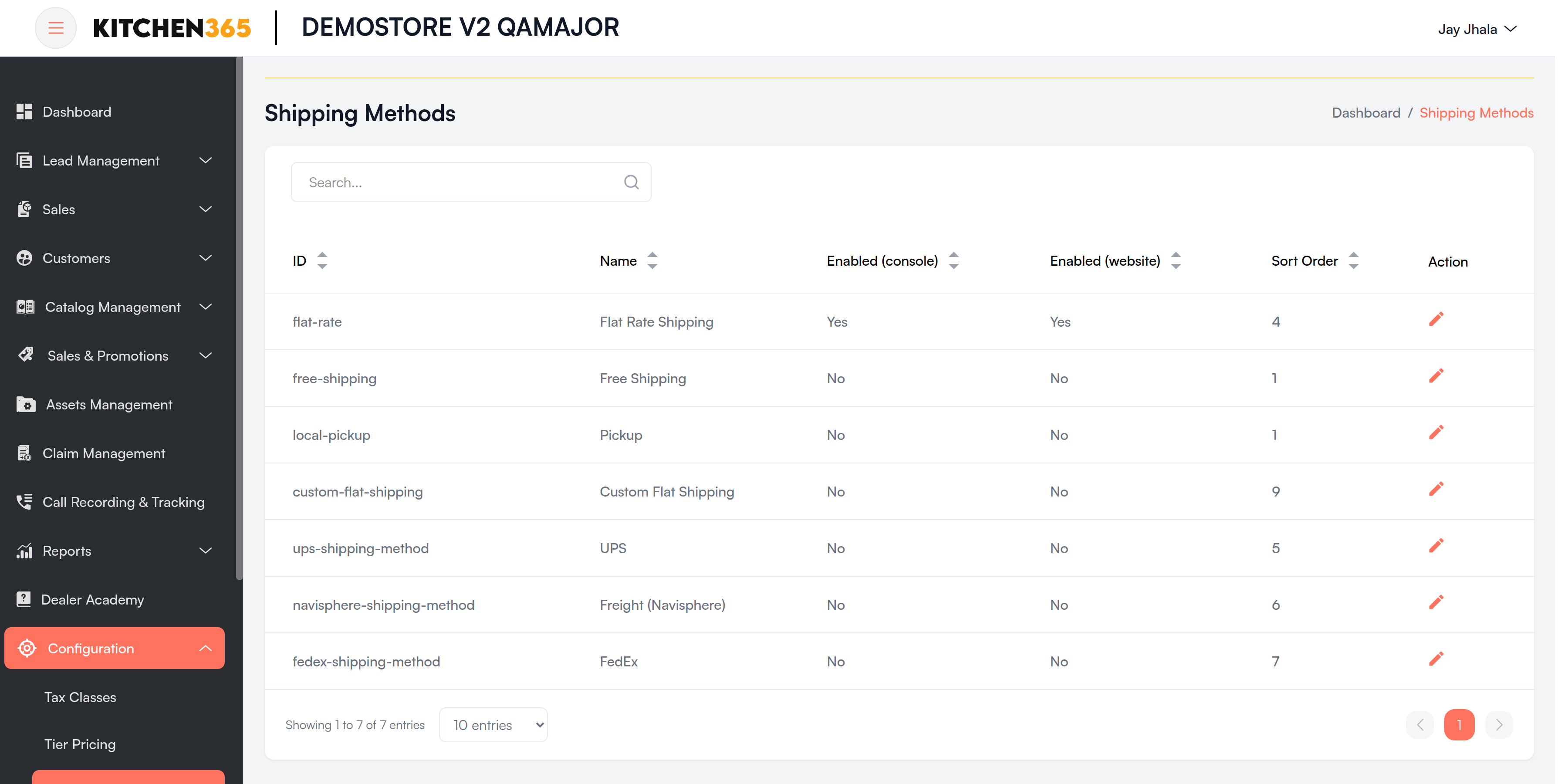
| Shipping Method | Type | How the rate is worked out | Needs a carrier account? |
|---|---|---|---|
| UPS | Carrier | Live rates from UPS | Yes: UPS Developer app + shipper number |
| FedEx | Carrier | Live rates from FedEx | Yes: FedEx Developer app + account number |
| Freight (Navisphere) | Carrier (freight) | Live LTL / TL quotes from C.H. Robinson Navisphere | Yes: Navisphere API client + customer code |
| Flat Rate Shipping | Rule-based | Fixed price per item or per order | No |
| Free Shipping | Rule-based | Free above a minimum order amount | No |
| Custom Flat Shipping | Rule-based | Rate table by order value, country, state and ZIP, plus door pricing | No |
| Local Pickup | Pickup | Fixed pickup price (often 0) | No |
Every method can be enabled separately for the Console (quotes and orders) and the Website (checkout).
Common Settings
These sections appear on most shipping methods. They are explained once here; each method below lists only its own fields.
General
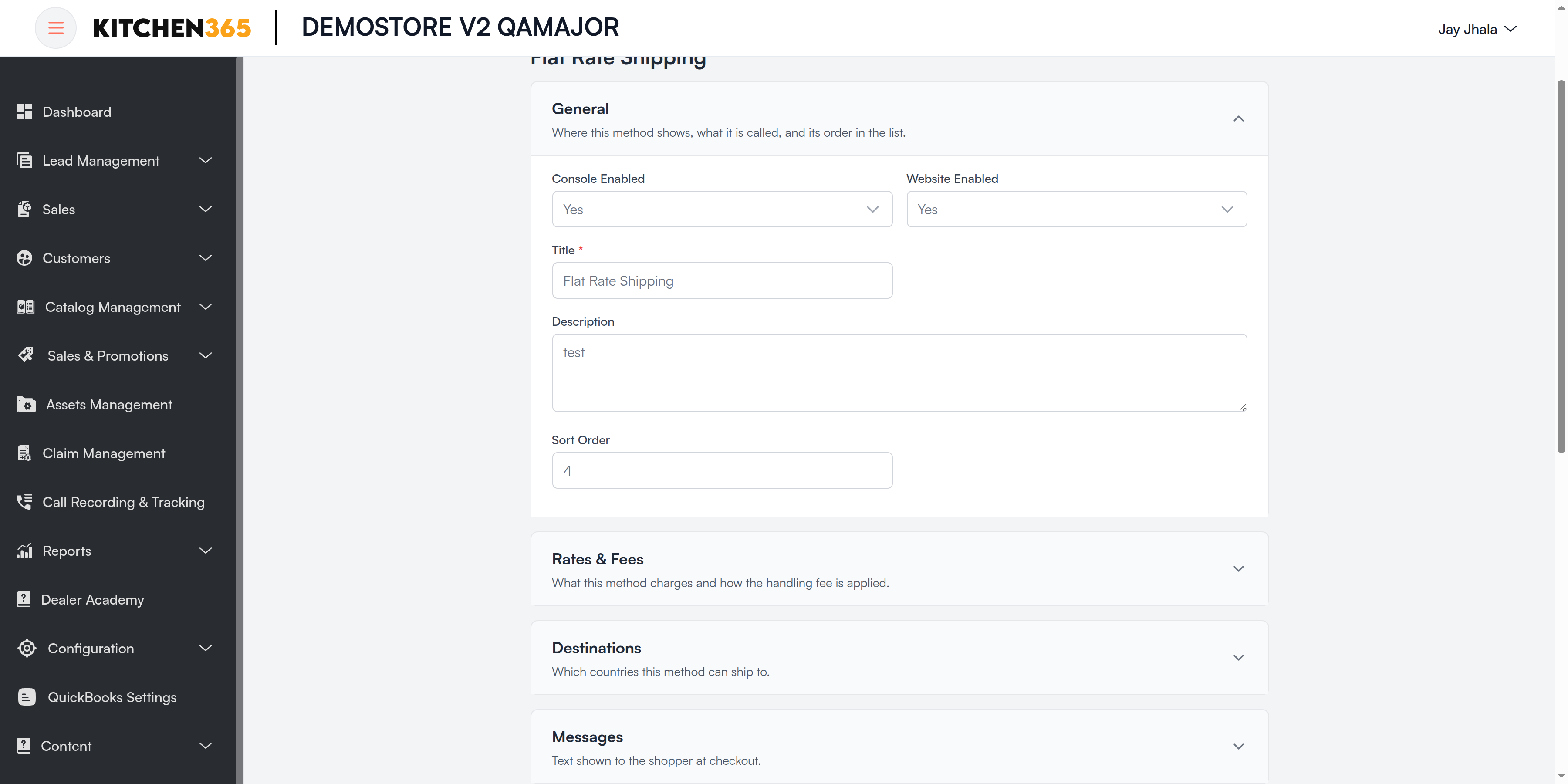
| Field | Required | What it means |
|---|---|---|
| Console Enabled | — | Yes: staff can pick this method on quotes and orders in the Console. |
| Website Enabled | — | Yes: shoppers can pick this method at website checkout. |
| Title | Yes (most methods) | Name shown when choosing shipping, e.g. Flat Rate. |
| Method Name / Display Name | Varies | Second label shown next to the title on some screens. |
| Sort Order | — | Position in the shipping list. Lower numbers appear first. |
Destinations
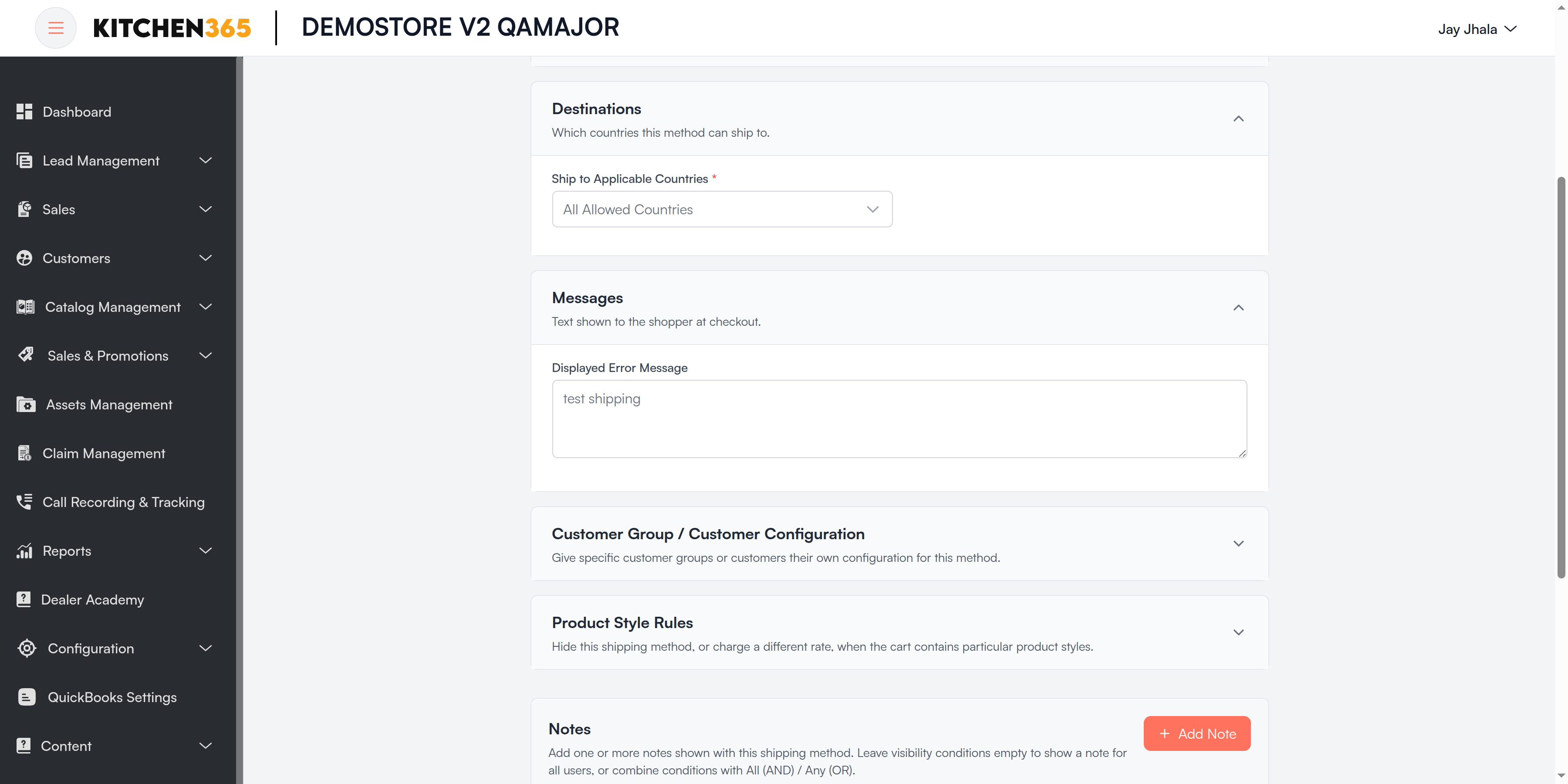
| Field | Required | What it means |
|---|---|---|
| Ship to Applicable Countries | Yes | All Allowed Countries, or Specific Countries to limit where this method can ship. |
| Ship to Specific Countries | When "Specific Countries" | The countries this method is offered for. |
Messages
| Field | What it means |
|---|---|
| Displayed Error Message | Shown to the shopper when this method is not available for their cart or address, e.g. "This shipping method is not available. To use this shipping method, please contact us." |
Customer Group / Customer Configuration
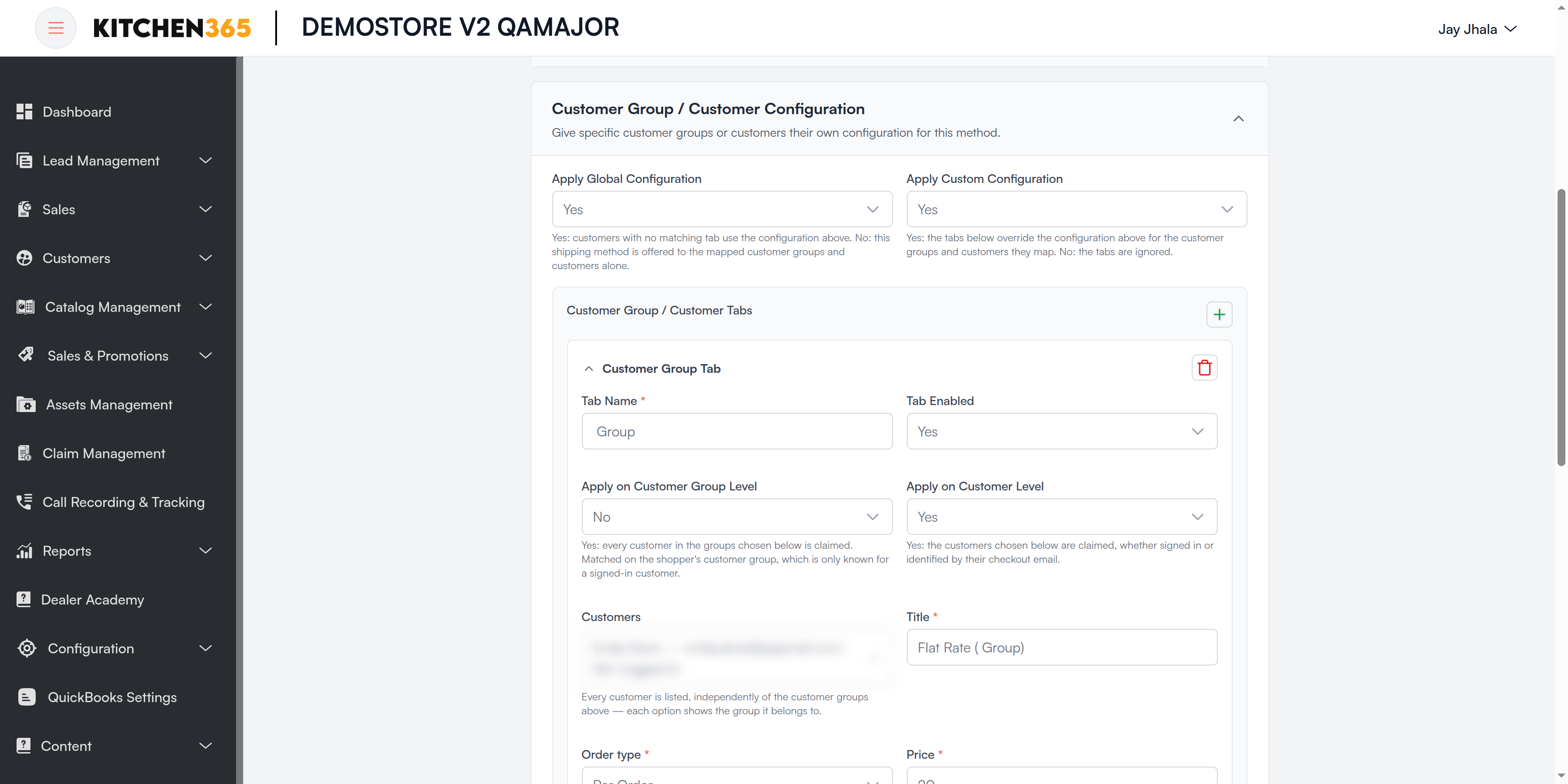
Use this section to give certain customer groups or customers their own settings for a method, or to offer the method only to them.
| Field | Default | What it means |
|---|---|---|
| Apply Global Configuration | Yes | Yes: customers who don't match any tab still get the method with the main settings. No: only the customers and groups mapped in the tabs are offered the method. |
| Apply Custom Configuration | No | Yes: the tabs below are used. No: the tabs are kept but ignored. |
| Customer Group / Customer Tabs | — | Click Add Tab to add one tab per audience. Shown when Apply Custom Configuration is Yes. |
Fields inside each tab:
| Field | Required | What it means |
|---|---|---|
| Tab Name | Yes | Your own label, e.g. Wholesale group. |
| Tab Enabled | — | Turns this tab on or off without deleting it. |
| Apply on Customer Group Level | — | Yes: every customer in the groups chosen below uses this tab. Works only for signed-in customers, because the group is known only after sign-in. |
| Customer Group | — | The customer groups this tab applies to. |
| Apply on Customer Level | — | Yes: the customers chosen below use this tab, whether signed in or recognised by their checkout email. |
| Customers | — | Individual customers. Each option shows the customer's group. |
| Rate fields | — | Rule-based methods repeat their rate fields (e.g. Price, Handling Fee) so this audience can have different rates. |
For UPS, FedEx and Freight (Navisphere), rates come from the carrier, so the tabs only decide who is offered the method. You cannot override the rate in a tab.
Product Style Rules
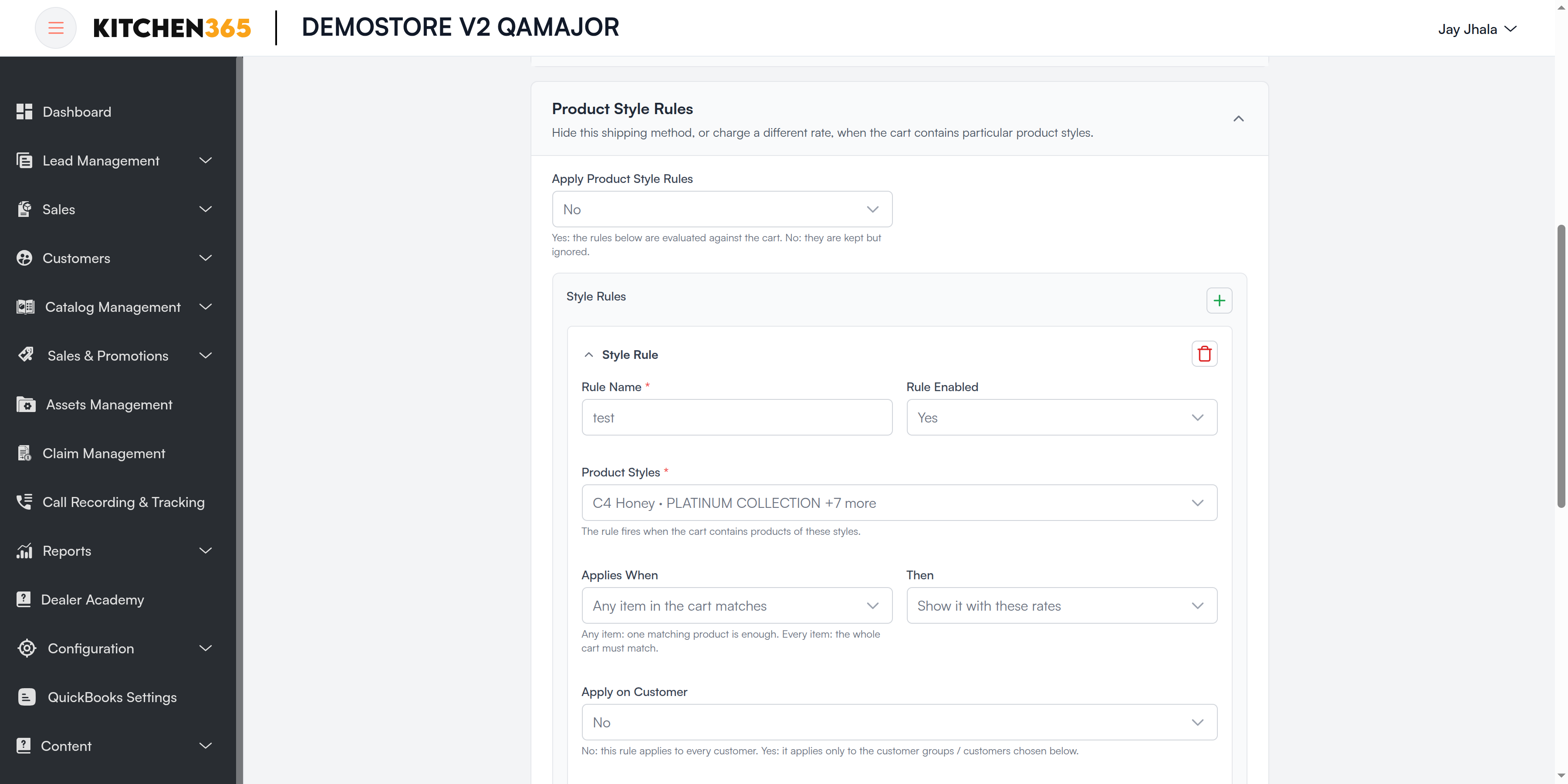
Hide a shipping method, or charge a different rate, when the cart contains certain product styles.
| Field | Default | What it means |
|---|---|---|
| Apply Product Style Rules | No | Yes: the rules below are checked against the cart. No: the rules are kept but ignored. |
| Style Rules | — | Click Add Rule to add a rule. |
Fields inside each rule:
| Field | Required | What it means |
|---|---|---|
| Rule Name | Yes | Your own label, e.g. Shaker Ivy — no flat rate. |
| Rule Enabled | — | Turns the rule on or off. |
| Product Styles | Yes | The rule fires when the cart contains products of these styles. |
| Applies When | — | Any item in the cart matches: one matching product is enough. Every item in the cart matches: the whole cart must match. |
| Then | — | Hide this shipping method, or Show it with these rates (rule-based methods only). |
| Apply on Customer | — | No: the rule applies to every customer. Yes: only to the groups and customers you choose (same fields as a customer tab). |
| Rate fields | — | Shown when Then is Show it with these rates. They replace the method's normal rate for matching carts. |
Carrier Methods
UPS
Live UPS rates, calculated from the cart weight, package size and the services you allow.
Before you start, get from UPS:
- A UPS Developer app: Client ID and Client Secret
- Your UPS Shipper Number (account number)
- The address registered on your UPS shipper account
Configuration steps
-
Ask Kitchen365 to assign UPS to your website if it is not in your list.
-
Open Configuration > Shipping Methods and click Edit on UPS.
-
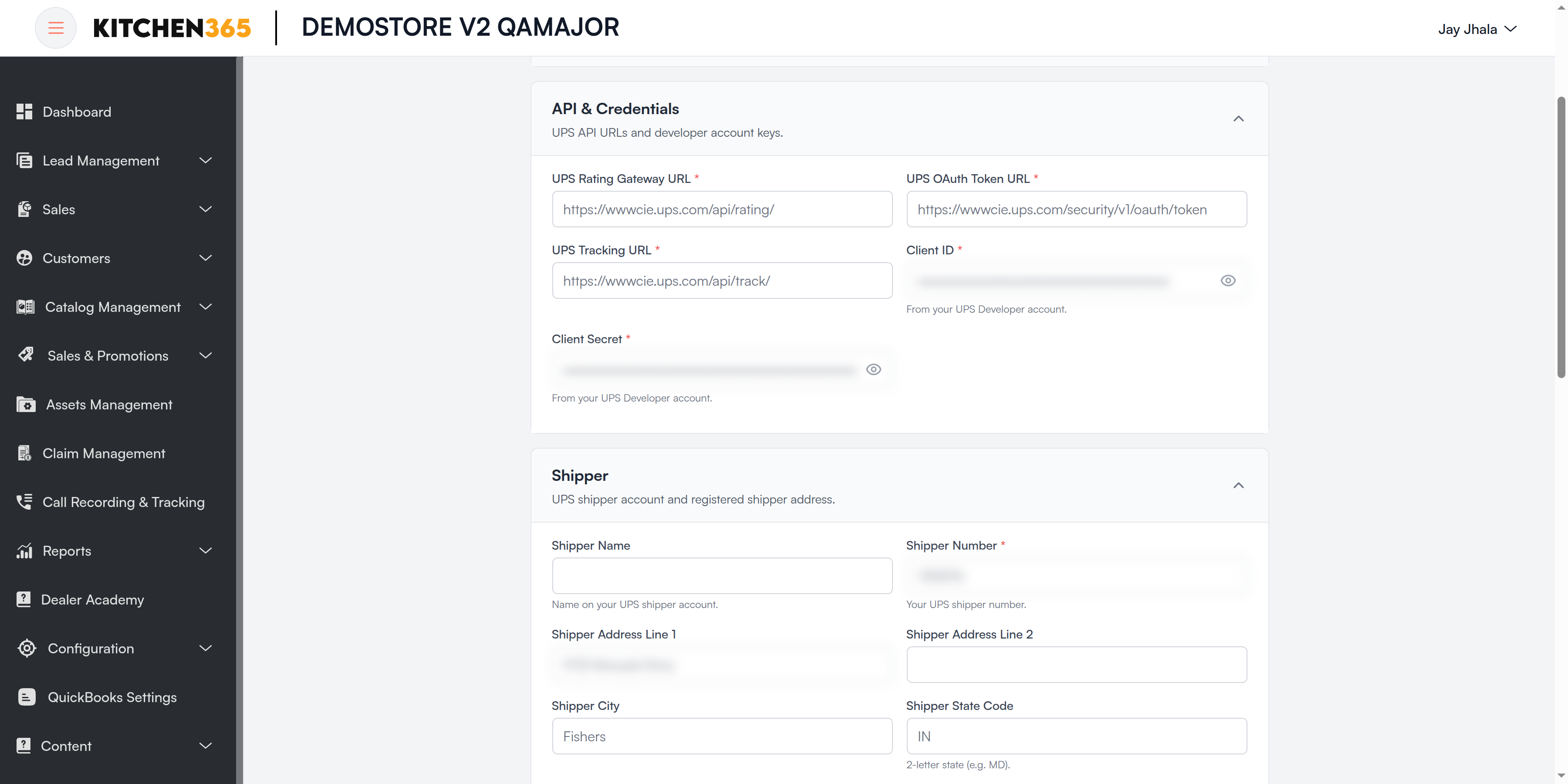
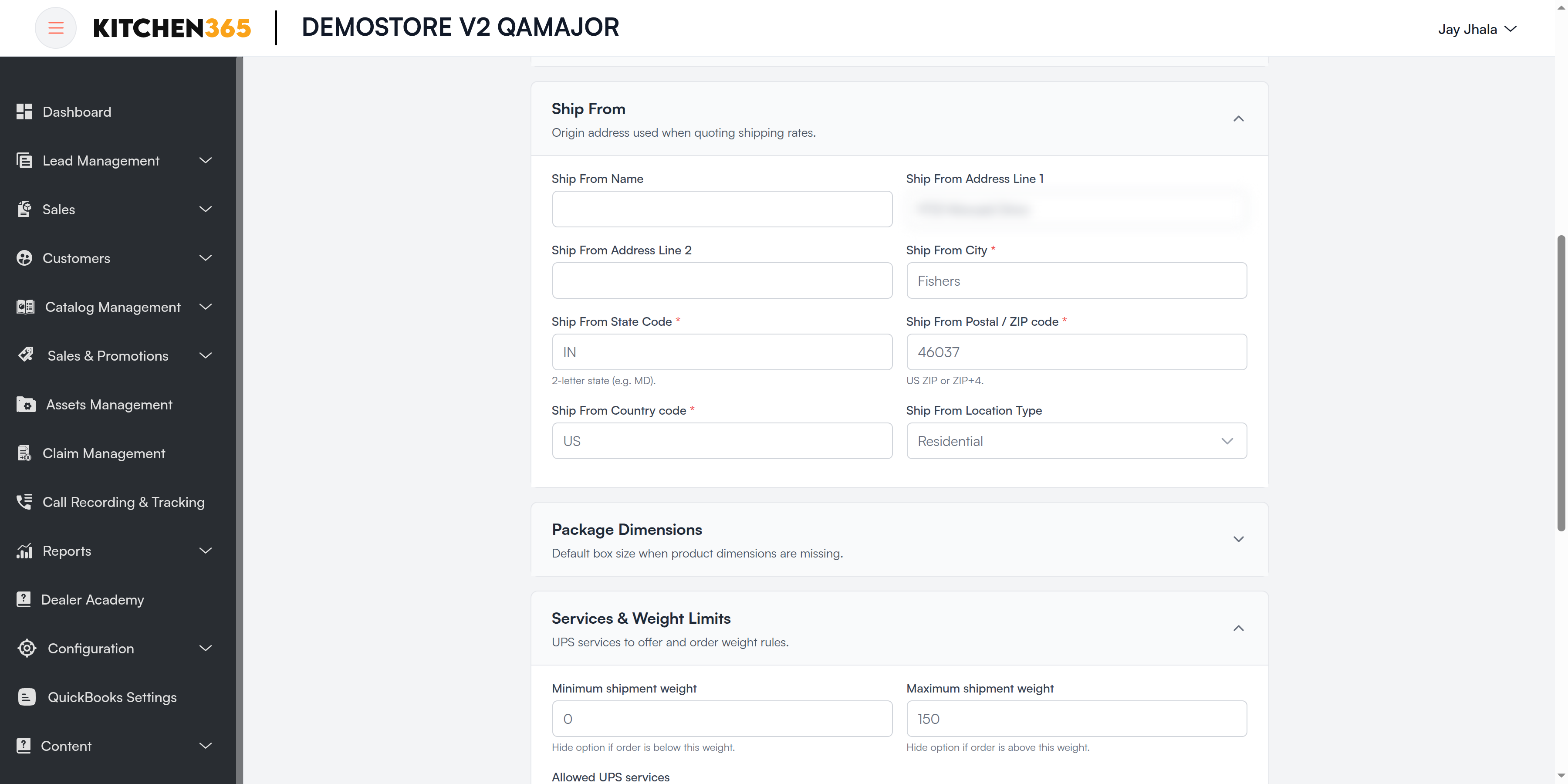
Fill in API & Credentials, Shipper and Ship From.
-
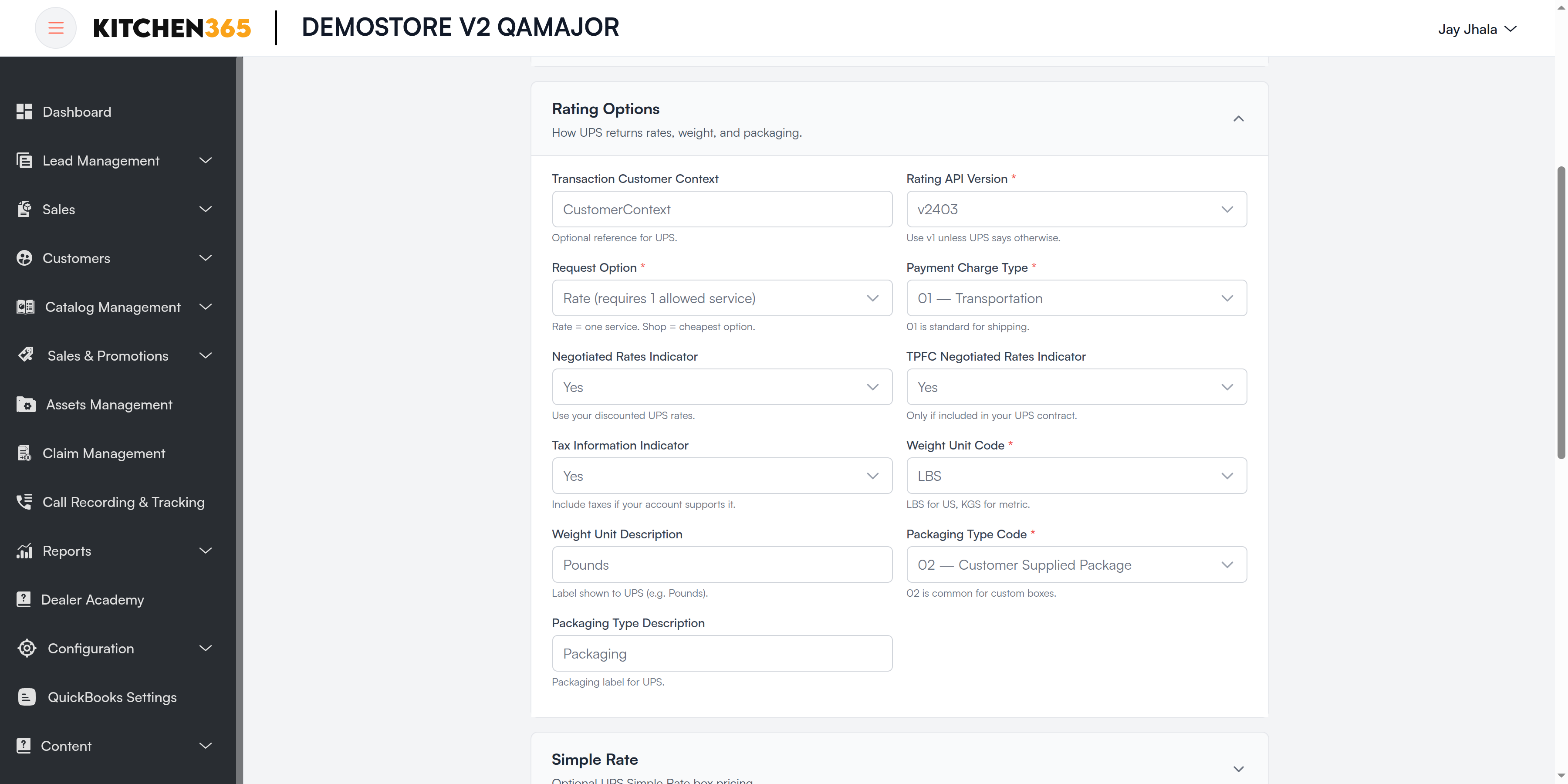
Choose Rating Options, and pick the Allowed UPS services.
-
Optionally set Package Dimensions, weight limits, customer tabs and style rules.
-
Set Console Enabled / Website Enabled to Yes and click Save.
-
Test by creating a quote with a real US address and checking UPS rates appear.
Field reference
| Section | Field | Required | Options | What it means |
|---|---|---|---|---|
| General | Title | Yes | — | Name shown when choosing shipping. |
| General | Display Name | — | — | Alternative customer-facing name. |
| API & Credentials | UPS Rating Gateway URL | Yes | — | UPS rating API address. The default wwwcie.ups.com address is UPS's test server; use onlinetools.ups.com for live rates. |
| API & Credentials | UPS OAuth Token URL | Yes | — | UPS sign-in address (same test/live rule). |
| API & Credentials | UPS Tracking URL | Yes | — | UPS tracking API address. |
| API & Credentials | Client ID | Yes | — | From your UPS Developer app. Stored masked. |
| API & Credentials | Client Secret | Yes | — | From your UPS Developer app. Stored masked. |
| Shipper | Shipper Name | — | — | Name on your UPS shipper account. |
| Shipper | Shipper Number | Yes | — | Your UPS shipper (account) number. Needed for negotiated rates. |
| Shipper | Shipper Address Line 1, Shipper Address Line 2, Shipper City | — | — | Address registered with UPS. |
| Shipper | Shipper State Code | — | — | 2-letter state, e.g. MD. |
| Shipper | Shipper Postal / ZIP Code | — | — | ZIP of the shipper account. |
| Shipper | Shipper Country Code | — | — | 2-letter country, e.g. US. |
| Rating Options | Transaction Customer Context | — | — | Optional reference text sent to UPS. |
| Rating Options | Rating API Version | Yes | v1 / v2403 | Use v1 unless UPS tells you otherwise. |
| Rating Options | Request Option | Yes | Rate / Shop | Rate: quote one service (exactly one allowed service). Shop: quote all allowed services and offer the cheapest. |
| Rating Options | Payment Charge Type | Yes | 01 Transportation / 02 Duties and Taxes / 03 Broker of Choice | 01 is standard for shipping. |
| Rating Options | Negotiated Rates Indicator | — | Yes / No | Yes to use your discounted UPS account rates. |
| Rating Options | TPFC Negotiated Rates Indicator | — | Yes / No | Only if third-party/freight-collect negotiated rates are in your UPS contract. |
| Rating Options | Tax Information Indicator | — | Yes / No | Ask UPS to include taxes, if your account supports it. |
| Rating Options | Weight Unit Code | Yes | LBS / Kilograms | LBS for the US. |
| Rating Options | Weight Unit Description | — | — | Label sent to UPS, e.g. Pounds. |
| Rating Options | Packaging Type Code | Yes | 02 Customer Supplied Package / 01 UPS Letter / 03 Tube / 04 Pak / 21 Express Box / 24 25KG Box / 25 10KG Box | 02 is right for your own boxes. |
| Rating Options | Packaging Type Description | — | — | Packaging label sent to UPS. |
| Simple Rate | Include Simple Rate | — | Yes / No | Only if your UPS account uses Simple Rate box pricing. |
| Simple Rate | Simple Rate Code | When Simple Rate = Yes | — | Box size: XS, S, M, L or XL. |
| Simple Rate | Simple Rate Description | — | — | Optional Simple Rate name. |
| Ship From | Ship From Name, Ship From Address Line 1, Ship From Address Line 2 | — | — | Where parcels leave from. |
| Ship From | Ship From City | Yes | — | Origin city. |
| Ship From | Ship From State Code | Yes | — | 2-letter state. |
| Ship From | Ship From Postal / ZIP code | Yes | — | US ZIP or ZIP+4, e.g. 90210-1234. |
| Ship From | Ship From Country code | Yes | — | e.g. US. |
| Ship From | Ship From Location Type | — | Residential / Commercial | Type of the origin address. |
| Package Dimensions | Include Package Dimensions | — | Yes / No | Send box size to UPS for more accurate rates. |
| Package Dimensions | Dimensions Source | — | Use product dimensions (fallback to defaults) / Always use default dimensions | Where the box size comes from. |
| Package Dimensions | Dimension Unit Code | — | IN / CM | IN for the US. |
| Package Dimensions | Dimension Unit Description | — | — | e.g. Inches. |
| Package Dimensions | Default Package Length, Default Package Width, Default Package Height | — | — | Used when a product has no dimensions. |
| Services & Weight Limits | Minimum shipment weight | — | — | UPS is hidden if the order weighs less than this. |
| Services & Weight Limits | Maximum shipment weight | — | — | UPS is hidden if the order weighs more than this (e.g. 150). |
| Services & Weight Limits | Allowed UPS services | — | Ground, Next Day Air, 2nd Day Air, 3 Day Select, Next Day Air Saver, Next Day Air Early, 2nd Day Air A.M., Worldwide Express, Worldwide Expedited, Standard (international), Worldwide Express Plus, UPS Saver, UPS Today services | Services offered to customers. Leave empty to offer the cheapest of all services. |
Plus Customer Group / Customer Configuration and Product Style Rules (hide only).
FedEx
Live FedEx rates for the services you allow.
Before you start, get from FedEx:
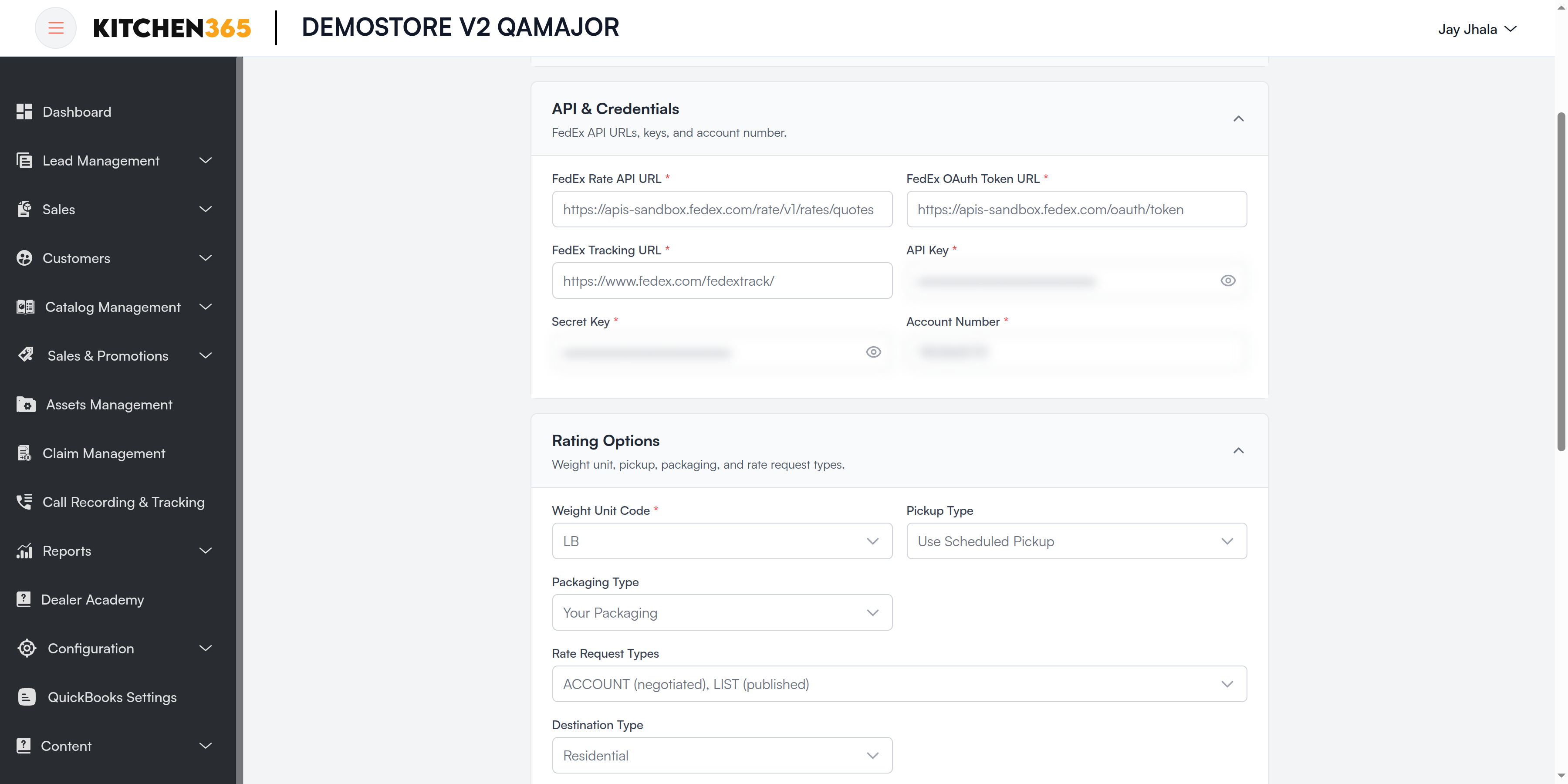
- A FedEx Developer project: API Key and Secret Key
- Your FedEx Account Number
Configuration steps
-
Ask Kitchen365 to assign FedEx to your website if it is not in your list.
-
Click Edit on FedEx.
-
Fill in API & Credentials and Ship From.
-
Choose Rating Options and the Allowed FedEx services.
-
Optionally set weight limits, customer tabs and style rules.
-
Enable for Console and/or Website and click Save.
Field reference
| Section | Field | Required | Options | What it means |
|---|---|---|---|---|
| General | Title | Yes | — | Name shown when choosing shipping. |
| General | Display Name | — | — | Alternative customer-facing name. |
| API & Credentials | FedEx Rate API URL | Yes | — | FedEx rate API address. apis-sandbox.fedex.com is the test server; use apis.fedex.com for live rates. |
| API & Credentials | FedEx OAuth Token URL | Yes | — | FedEx sign-in address (same test/live rule). |
| API & Credentials | FedEx Tracking URL | Yes | — | Link used for tracking numbers. |
| API & Credentials | API Key | Yes | — | From your FedEx Developer project. Stored masked. |
| API & Credentials | Secret Key | Yes | — | From your FedEx Developer project. Stored masked. |
| API & Credentials | Account Number | Yes | — | Your FedEx shipping account number. |
| Rating Options | Weight Unit Code | Yes | LB / Kilograms | LB for the US. |
| Rating Options | Pickup Type | — | Use Scheduled Pickup / Contact FedEx to Schedule / Dropoff at FedEx Location / On Call / Regular Stop | How parcels get to FedEx. Affects the rate. |
| Rating Options | Packaging Type | — | Your Packaging / FedEx Envelope / FedEx Box / Small, Medium, Large, Extra Large Box / 10kg Box / 25kg Box / FedEx Pak / FedEx Tube | Package type used for quoting. |
| Rating Options | Rate Request Types | — | ACCOUNT (negotiated) / LIST (published) / INCENTIVE / PREFERRED | Which price list FedEx returns. ACCOUNT gives your negotiated rates. |
| Rating Options | Destination Type | — | Residential / Commercial | Default delivery address type. |
| Ship From | Ship From City, Ship From State Code | Yes | — | Origin city and 2-letter state. |
| Ship From | Ship From Postal / ZIP code | Yes | — | US ZIP or ZIP+4. |
| Ship From | Country code | Yes | — | e.g. US. |
| Services & Weight Limits | Minimum / Maximum shipment weight | — | — | FedEx is hidden outside this weight range. |
| Services & Weight Limits | Allowed FedEx services | — | FedEx Ground, Ground Home Delivery, Express Saver, FedEx 2 Day, FedEx 2 Day A.M., Standard Overnight, Priority Overnight, First Overnight, International Economy, International Priority | Services offered to customers. |
Plus Customer Group / Customer Configuration and Product Style Rules (hide only).
Freight (Navisphere)
Live freight (LTL / truckload) quotes from C.H. Robinson Navisphere, for heavy or palletised orders.
Before you start, get from C.H. Robinson:
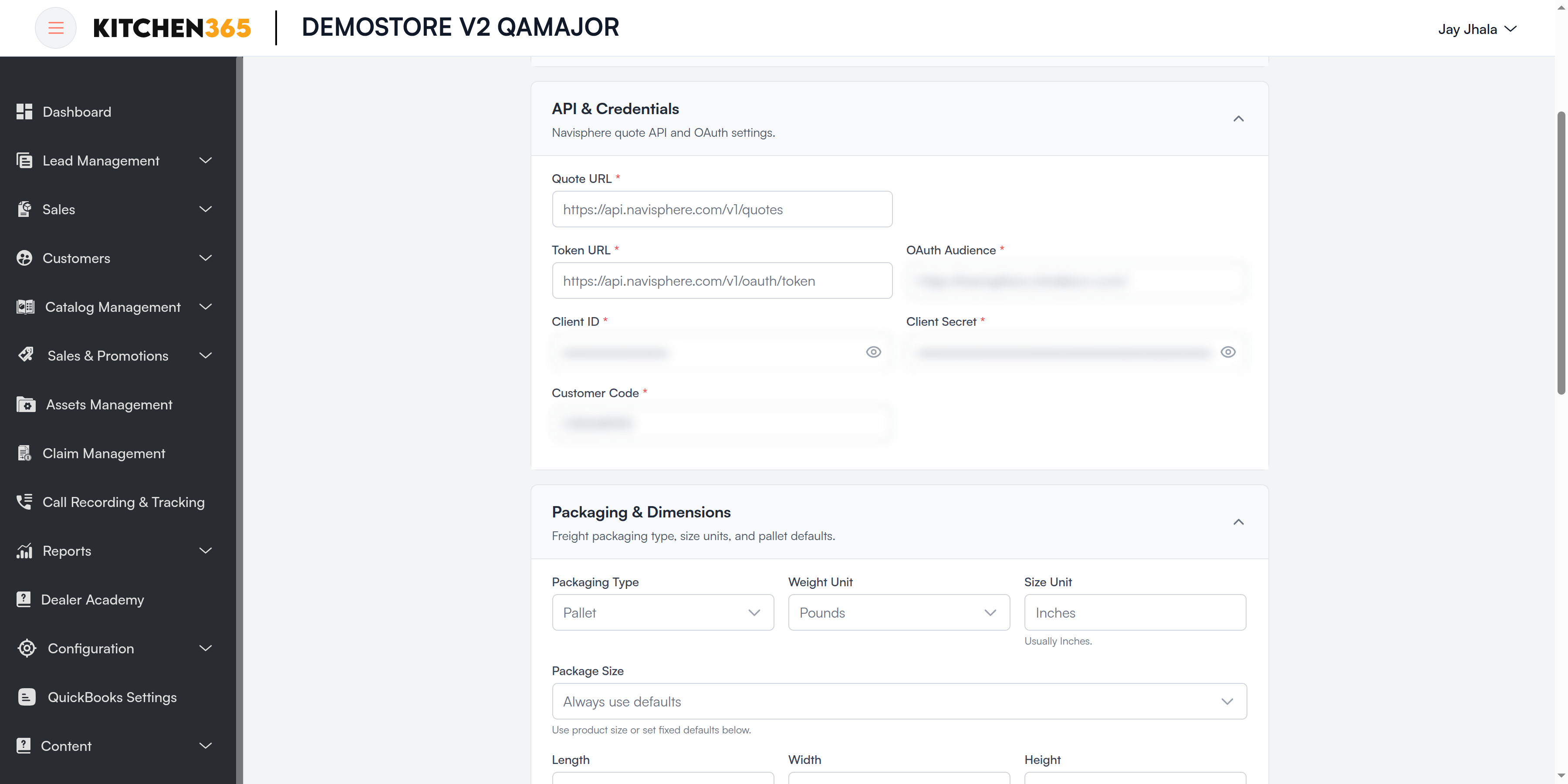
- Navisphere API Client ID, Client Secret and OAuth Audience
- Your Navisphere Customer Code
Configuration steps
-
Ask Kitchen365 to assign Freight (Navisphere) to your website if it is not in your list.
-
Click Edit on Freight (Navisphere).
-
Fill in API & Credentials, Ship From and Maximum weight per pallet.
-
Set Packaging & Dimensions, Transport Modes and Destination Options.
-
Set the weight range so freight only shows for heavy orders (e.g. 150 lb and up).
-
Enable for Console and/or Website and click Save.
Field reference
| Section | Field | Required | Options | What it means |
|---|---|---|---|---|
| General | Enable in Console / Enable on Website | — | Yes / No | Channels where freight is offered. |
| General | Method Title | Yes | — | Internal name of the method. |
| General | Customer-facing Name | Yes | — | Name shoppers and staff see. |
| General | Display Order | — | — | Position in the shipping list. |
| API & Credentials | Quote URL | Yes | — | Navisphere quote API address. |
| API & Credentials | Token URL | Yes | — | Navisphere sign-in address. |
| API & Credentials | OAuth Audience | Yes | — | Audience value given by C.H. Robinson. |
| API & Credentials | Client ID / Client Secret | Yes | — | Your Navisphere API client. Stored masked. |
| API & Credentials | Customer Code | Yes | — | Your C.H. Robinson customer code. |
| Packaging & Dimensions | Packaging Type | — | Pallet / Crate / Box | How goods are packed. |
| Packaging & Dimensions | Weight Unit | — | Pounds / Kilograms | Unit for weights. |
| Packaging & Dimensions | Size Unit | — | — | Usually Inches. |
| Packaging & Dimensions | Package Size | — | From product (use defaults if missing) / Always use defaults | Where pallet size comes from. |
| Packaging & Dimensions | Length / Width / Height | When "Always use defaults" | — | Fixed pallet size. |
| Packaging & Dimensions | Pallets, Pallet Spaces | — | — | Default pallet count and spaces used in the quote. |
| Packaging & Dimensions | Item Label | — | — | Description sent when a product has no name. |
| Weight Limits | Minimum shipment weight | — | — | Freight is hidden below this weight (e.g. 150). |
| Weight Limits | Maximum shipment weight | — | — | Freight is hidden above this weight (e.g. 20000). |
| Weight Limits | Maximum weight per pallet | Yes | — | Cart lines are grouped onto pallets up to this weight (e.g. 2000). |
| Ship From | Origin Name, Ship From Address | — | — | Origin name and optional street override. |
| Ship From | Ship From City, Ship From State Code, ZIP Code, Country code | Yes | — | Origin address for freight quotes. |
| Transport Modes | Transport Modes | — | LTL / TL / Parcel | Freight modes offered at checkout. |
| Destination Options | Residential Delivery | — | From checkout / Use default | Take the answer from checkout, or always use the default below. |
| Destination Options | Residential Default | — | Yes / No | Default used when not taken from checkout. |
| Destination Options | Lift Gate / Lift Gate Default | — | From checkout / Use default; Yes / No | Whether delivery needs a lift gate. |
| Destination Options | Limited Access / Limited Access Default | — | From checkout / Use default; Yes / No | Whether the destination has limited access (e.g. a school or construction site). |
Plus Customer Group / Customer Configuration and Product Style Rules (hide only).
Rule-Based Methods
Flat Rate Shipping
A fixed shipping price, charged per item or per order, plus an optional handling fee.
Configuration steps
-
Click Edit on Flat Rate Shipping.
-
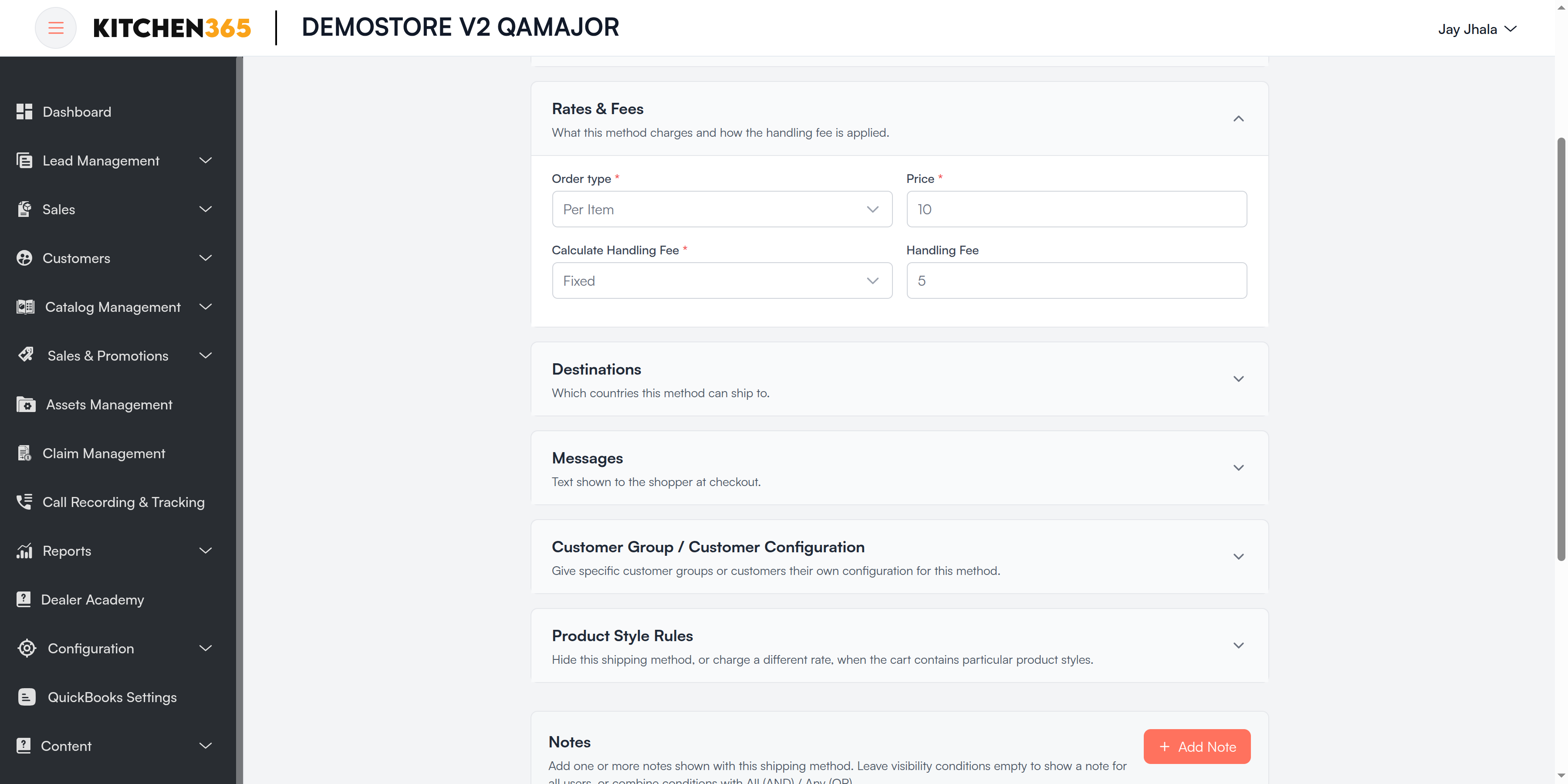
Set Title, Order type and Price.
-
Optionally add a Handling Fee, limit Destinations, add customer tabs or style rules.
-
Enable for Console and/or Website and click Save.
| Section | Field | Required | Options | What it means |
|---|---|---|---|---|
| General | Description | — | — | Short text about the method, e.g. Flat rate shipping charged per item. |
| Rates & Fees | Order type | Yes | Per Item / Per Order | Per Item: price × number of items. Per Order: one price for the whole order. |
| Rates & Fees | Price | Yes | — | The flat shipping price. |
| Rates & Fees | Calculate Handling Fee | Yes | Fixed / Percent | Whether the handling fee is an amount or a percentage. |
| Rates & Fees | Handling Fee | — | — | Extra charge added on top of the price. 0 = none. |
Plus General, Destinations, Messages, customer tabs and style rules (both can override the rate).
Free Shipping
Free shipping once the order reaches a minimum amount.
Configuration steps
-
Click Edit on Free Shipping.
-
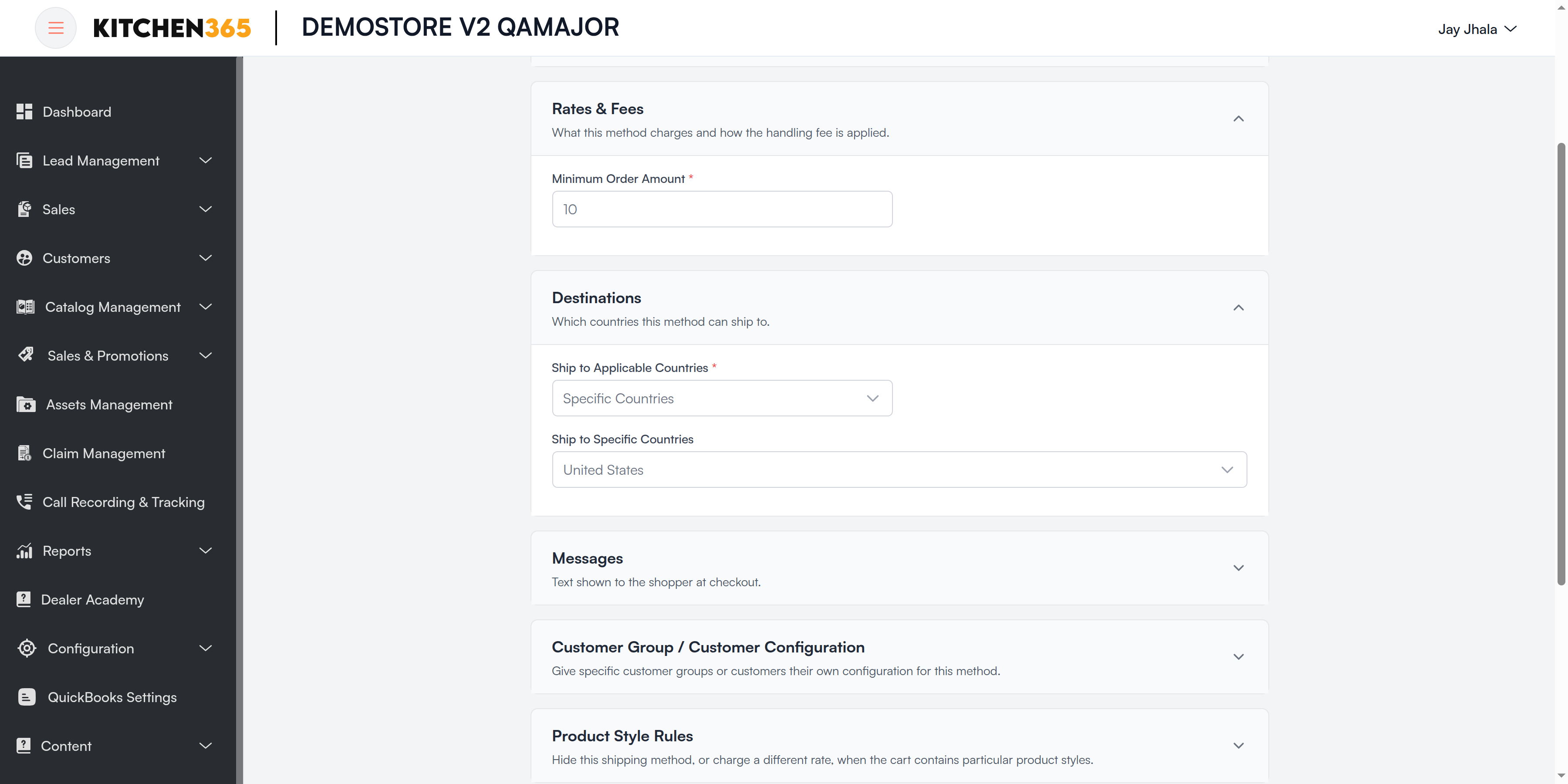
Set Title, Method Name and Minimum Order Amount.
-
Optionally limit Destinations and set the Displayed Error Message shown when the order is below the minimum.
-
Enable and click Save.
| Section | Field | Required | What it means |
|---|---|---|---|
| Rates & Fees | Minimum Order Amount | Yes | Orders at or above this amount get free shipping. |
Plus General, Destinations, Messages, customer tabs and style rules (both can set a different minimum).
Custom Flat Shipping
The most flexible rule-based method: a rate table by order value, with different prices per country, state and ZIP, plus per-door and percentage-of-cart pricing.
Configuration steps
-
Click Edit on Custom Flat Shipping.
-
Set Title, Method Name and Base Price (used when no row in the rate table matches).
-
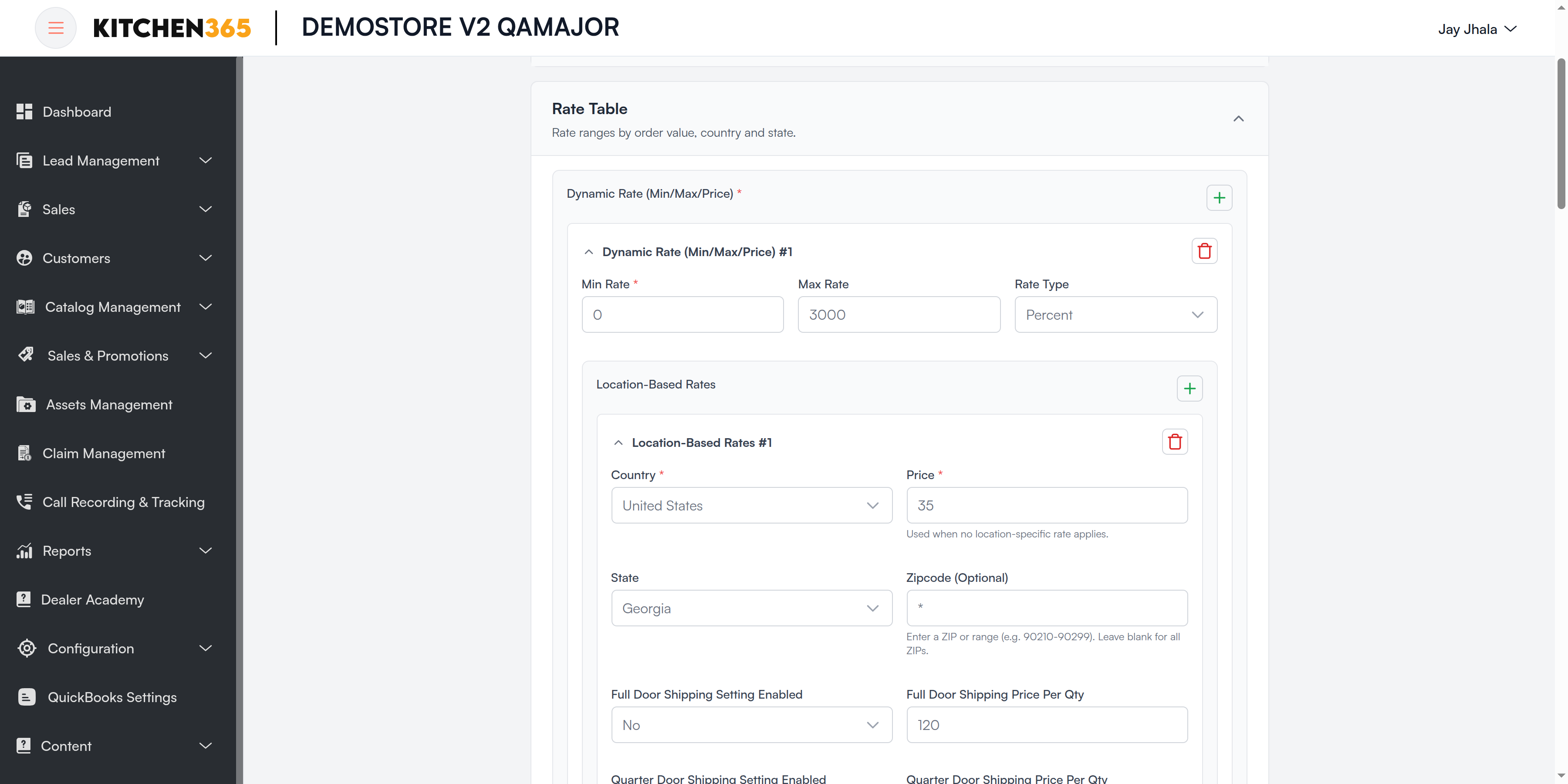
In Rate Table, add one row per order-value range (Min Rate to Max Rate). Inside each row, add Location-Based Rates for countries, states or ZIPs.
-
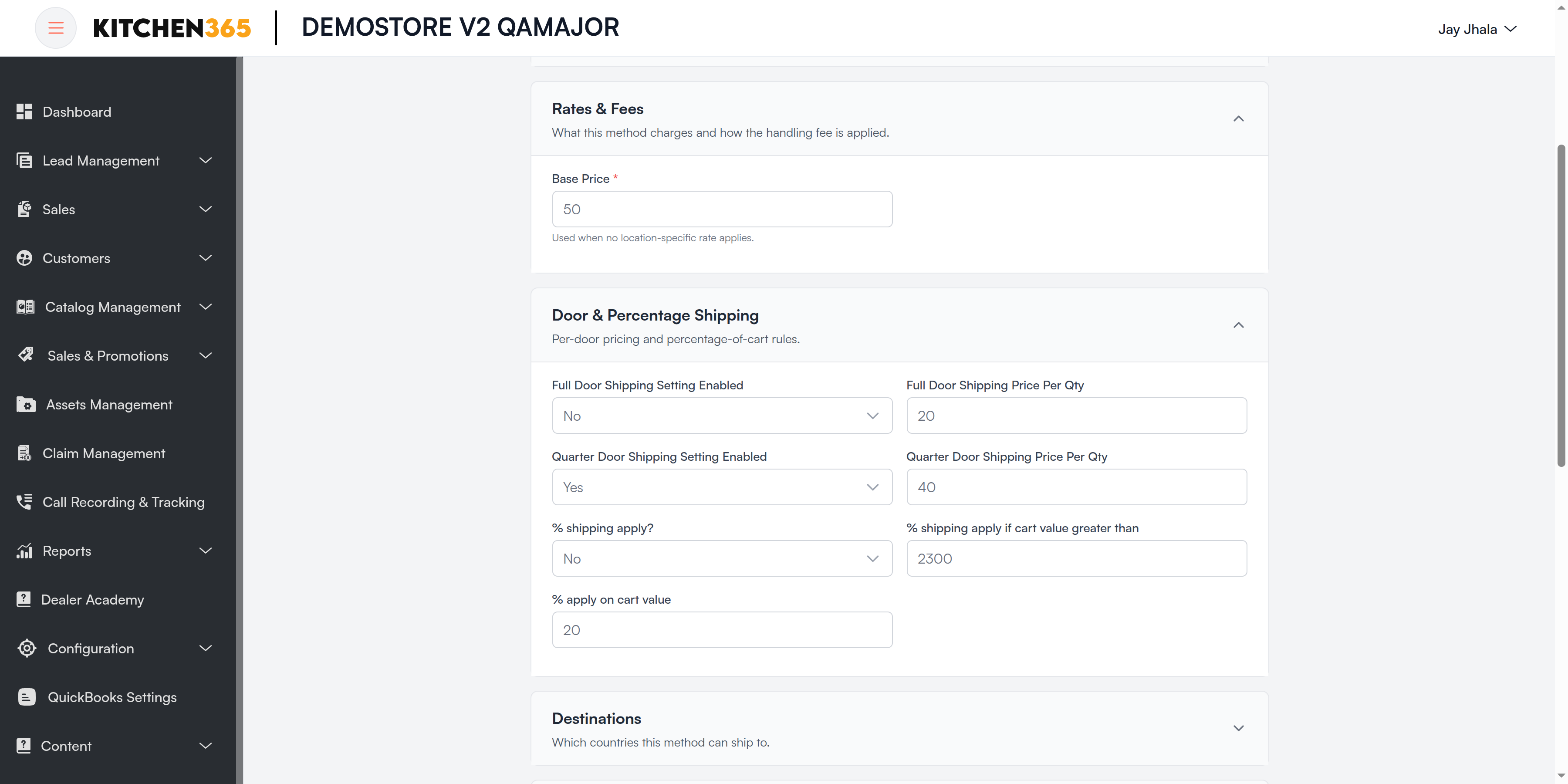
Optionally set door pricing and percentage shipping in Door & Percentage Shipping.
-
Enable and click Save.
| Section | Field | Required | Options | What it means |
|---|---|---|---|---|
| Rate Table | Dynamic Rate (Min/Max/Price) | Yes | — | List of order-value ranges. Click to add a range. |
| Rate Table › range | Min Rate | Yes | — | Start of the order-value range, e.g. 0. |
| Rate Table › range | Max Rate | — | — | End of the range, e.g. 500. Empty = no upper limit. |
| Rate Table › range | Rate Type | — | Fixed / Percent | Whether prices in this range are amounts or a percentage of the order. |
| Rate Table › range | Location-Based Rates | — | — | Prices for specific places within this range. |
| Location-Based Rates | Country | Yes | — | Country this price applies to. |
| Location-Based Rates | Price | Yes | — | Shipping price for this place. |
| Location-Based Rates | State | — | — | Optional: limit to certain states. |
| Location-Based Rates | Zipcode (Optional) | — | — | A ZIP or a range, e.g. 90210-90299. Blank = all ZIPs. |
| Location-Based Rates | Full Door / Quarter Door Shipping Setting Enabled and Price Per Qty | — | Yes / No | Door pricing for this place (see below). |
| Location-Based Rates | Enable Sample Door Shipping | — | Yes / No | Allow sample-door orders to ship to this place. |
| Rates & Fees | Base Price | Yes | — | Price used when no location-specific rate applies. |
| Door & Percentage Shipping | Full Door Shipping Setting Enabled | — | Yes / No | Charge per full-size door in the cart. |
| Door & Percentage Shipping | Full Door Shipping Price Per Qty | — | — | Price per full door. |
| Door & Percentage Shipping | Quarter Door Shipping Setting Enabled | — | Yes / No | Charge per quarter (sample-size) door. |
| Door & Percentage Shipping | Quarter Door Shipping Price Per Qty | — | — | Price per quarter door. |
| Door & Percentage Shipping | % shipping apply? | — | Yes / No | Charge shipping as a percentage of the cart value. |
| Door & Percentage Shipping | % shipping apply if cart value greater than | — | — | Percentage shipping starts above this cart value. |
| Door & Percentage Shipping | % apply on cart value | — | — | The percentage charged, e.g. 5 for 5%. |
Plus General, Destinations, Messages. Customer tabs get their own Rate Table (this customer group); style rules can override the base price, door and percentage settings.
Pickup
Local Pickup
The customer collects the order from your store or warehouse.
Configuration steps
-
Click Edit on Local Pickup.
-
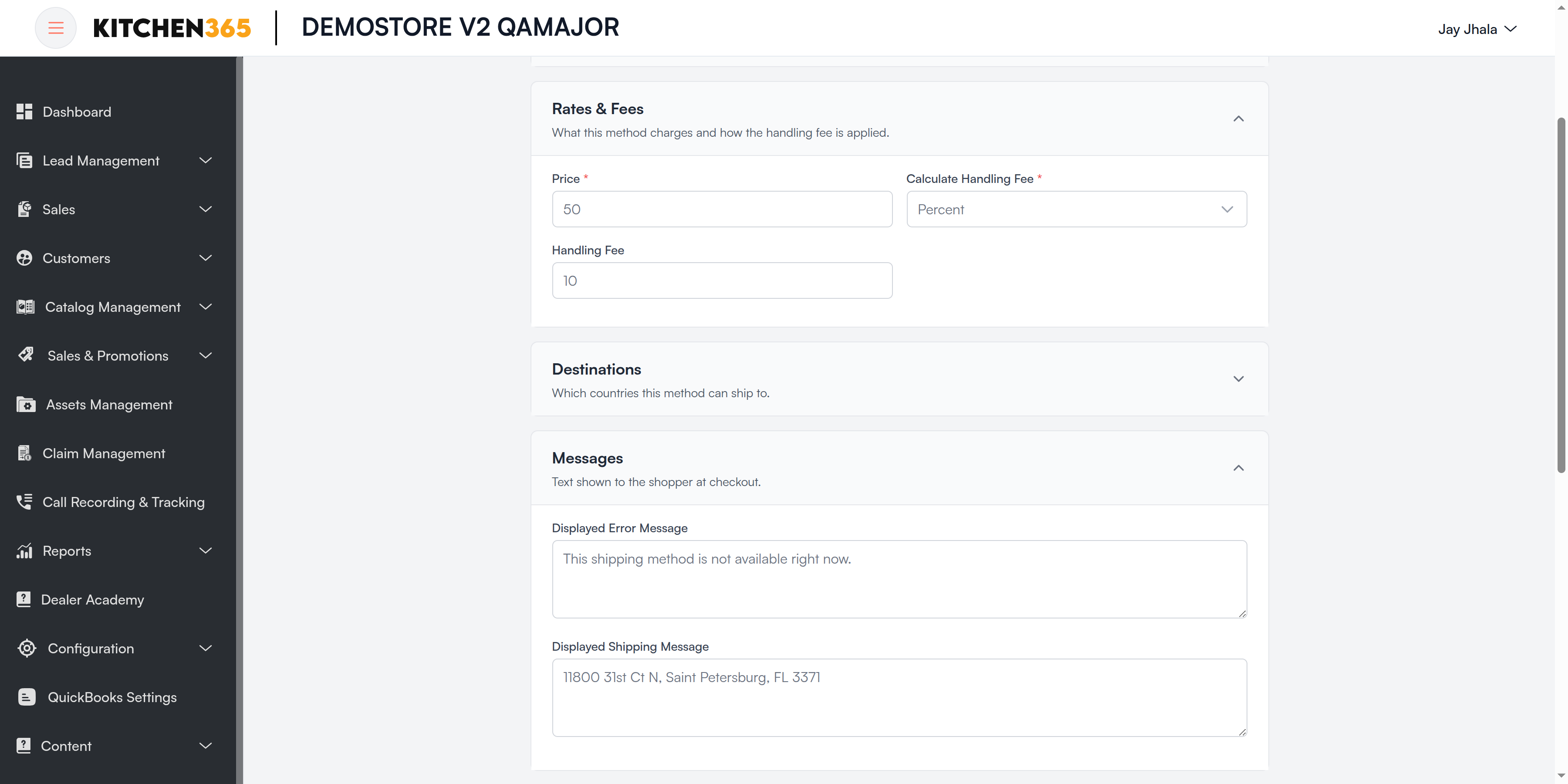
Set Title, Method Name and Price (use 0.00 for free pickup).
-
Put your pickup address and opening hours in Displayed Shipping Message.
-
Enable and click Save.
| Section | Field | Required | Options | What it means |
|---|---|---|---|---|
| Rates & Fees | Price | Yes | — | Pickup charge. Usually 0.00. |
| Rates & Fees | Calculate Handling Fee | Yes | Fixed / Percent | How the handling fee is worked out. |
| Rates & Fees | Handling Fee | — | — | Optional extra charge. |
| Messages | Displayed Shipping Message | — | — | Shown to the customer when they pick this method, typically the pickup address, e.g. 7351 Lockport PL, Suite G, Lorton, Virginia, 22079. |
Plus General, Destinations, Messages, customer tabs and style rules.
Troubleshooting
| Problem | Likely cause | What to do |
|---|---|---|
| A method on this page is not in my Shipping Methods list | It isn't assigned to your website. | Contact your Kitchen365 administrator. |
| UPS / FedEx shows no rates | Test URLs with live keys (or the reverse), wrong credentials, or the order is outside the weight range. | Check the API URLs match your keys, re-enter Client ID / Secret (or API Key / Secret Key), and check Minimum / Maximum shipment weight. |
| UPS Request Option = Rate returns nothing | Rate needs exactly one allowed service. | Pick one service, or switch to Shop. |
| Freight never appears | Order lighter than Minimum shipment weight, or products have no weight. | Lower the minimum or add product weights. |
| Method missing for one customer | A customer tab with Apply Global Configuration = No, or a style rule hides it. | Check Customer Group / Customer Configuration and Product Style Rules. |
| Group-based tab doesn't apply on the website | The shopper isn't signed in, so their group is unknown. | Use Apply on Customer Level for guest customers. |
| Method shown with an error message | Order is outside the method's amount range or destination. | Check Minimum Order Amount and Destinations. |