Quote Management
The Quote Management module in the Kitchen365 Console v2.0.0 provides a centralized interface to create, view, edit, and convert customer quotes into orders. Admins can build quotes with catalog products or imports, configure shipping and tax, apply promo codes, send quote emails, export PDFs, and place orders directly from the Console.
Access
How to open Quote Management
- Log in to the Kitchen365 Console.
- In the left sidebar, click Sales > Quote Management.
From this section you can manage customer quotes including creation, tracking, status updates, email delivery, and order conversion.
a. Quote List
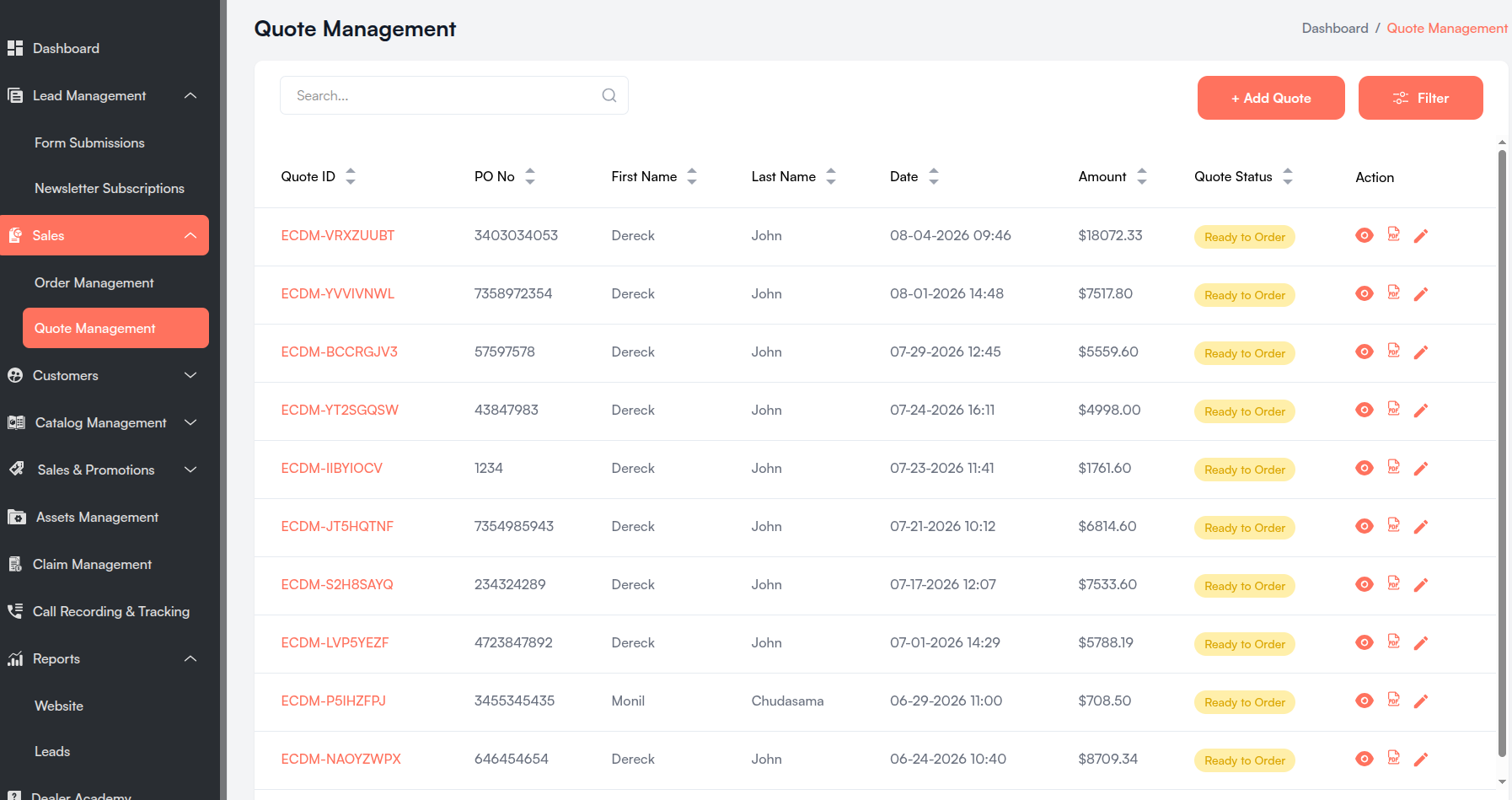
The main listing table displays all quotes with sortable columns. Each row represents a unique quote.
| Column | Description |
|---|---|
| Quote ID | Unique identifier for each quote. Click to open quote details. |
| PO No. | Customer's Purchase Order number. Shows N/A if not provided. |
| First Name | Customer's first name. |
| Last Name | Customer's last name. |
| Date | Timestamp when the quote was created (displayed in EST). |
| Amount | Total value of the quote. Shows N/A if not calculated. |
| Quote Status | Current status of the quote (colored pill tag). |
| Action | Icons to view, export PDF, or edit the quote. |
All columns except Action are sortable. Click the column headers to sort ascending or descending.
i. Search Bar
- Located at the top of the quote list.
- Placeholder: "Search..."
- Allows quick searching by Quote ID, PO No., or Customer Name.
- Search requires a minimum of 3 characters before results are filtered.
ii. Filter
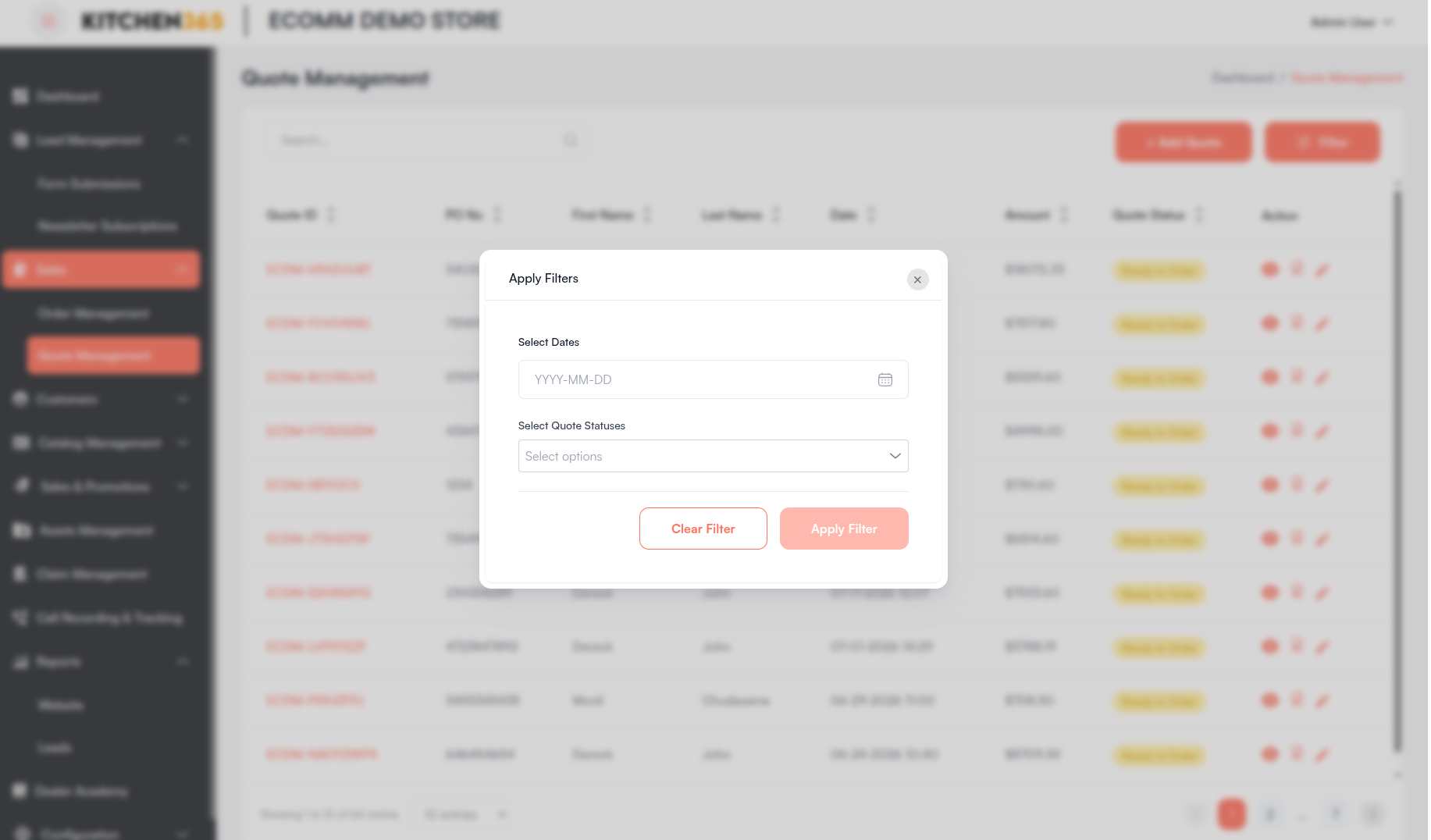
Click the "Filter" button at the top right to open the Apply Filters modal. A badge on the button shows how many filters are currently active.
Available filters:
| Filter | Label | Options |
|---|---|---|
| Date range | Date picker | Filter quotes by start and end date. |
| Quote status | Select Quote Statuses | Ordered, Ready to Order |
Filter actions:
- Clear Filter — Resets all selected filters.
- Apply Filter — Applies the selected filters and closes the modal. A success toast "Filters Applied Successfully!" is shown.
iii. Quote Status Tags
| Status | Label | Color | Description |
|---|---|---|---|
| Ready to Order | Ready to Order | Yellow | Quote is saved and eligible for editing or order placement. |
| Ordered | Ordered | Green | Quote has been converted into an order. |
| In Cart | In Cart | Blue | Quote originated from a B2C website cart. Shown in the list but excluded from filter options. |
iv. Pagination
- Located at the bottom of the table.
- Shows "Showing X to Y of Z entries".
- Page size options: 10 / 25 / 50 / 75 / 100 entries.
- Navigate between pages using the pagination controls.
v. Header Actions
| Action | Description |
|---|---|
| + Add Quote | Opens the create quote form. Requires quote creation permission. |
| Filter | Opens the filter modal (shows active filter count badge when filters are applied). |
vi. Row Actions
Under the "Action" column:
| Action | Icon / Label | When Available |
|---|---|---|
| View quote | 👁️ View Quote | Always available. |
| Export PDF | 📄 Export Quote PDF | Always available. Opens the PDF export modal. |
| Edit quote | ✏️ Edit Quote | Quote status is not Ordered. Hidden for converted quotes. |
Export Quote PDF
Click the PDF icon to open the Export Quote PDF modal. Select the sections to include:
| Option | Description |
|---|---|
| Order item only | Exports line items only. |
| Export item without price | Excludes pricing from exported items. |
| Full quote details | Selects all detail sections below. |
| Quote items with quote details | Includes quote ID, PO No., date, and status. |
| Quote items with customer details | Includes customer name, email, and phone. |
| Quote items with shipping and billing address | Includes both addresses. |
| Quote items with additional notes | Includes quote-level notes. |
| Quote items with quote summary | Includes subtotal, shipping, tax, discount, and grand total. |
Click Proceed to Export PDF to download. On success, the toast "Quote PDF exported successfully" is displayed. The file is saved as quote-[Quote ID].pdf.
b. Create New Quote
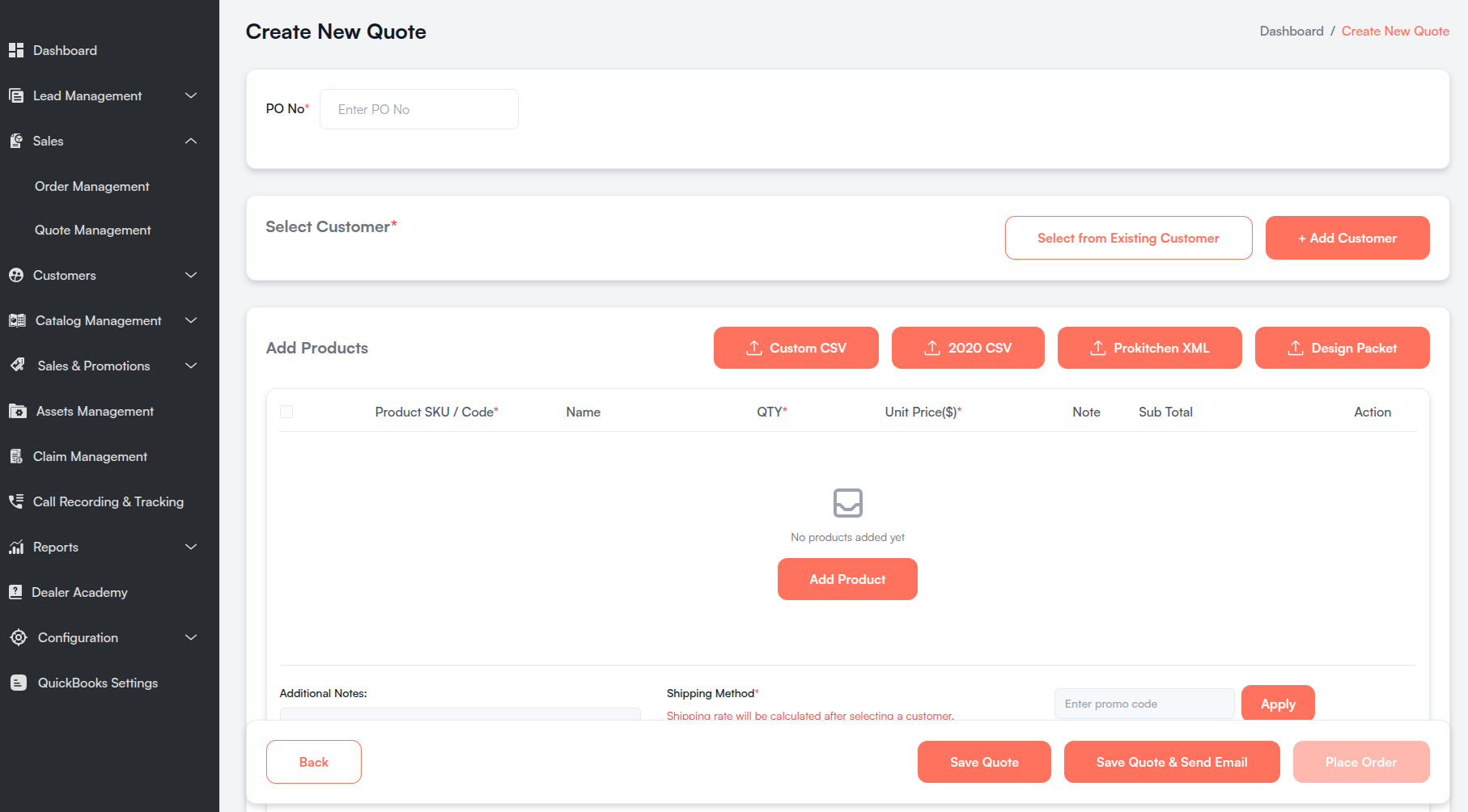
Click "+ Add Quote" from the Quote Management list to open the Create New Quote screen. The form uses the same v2 interface as Create New Order, adapted for quotes.
i. Overview
The Create New Quote screen allows admins to:
- Select or create a customer profile
- Add products manually, from the catalog, or via CSV/XML imports
- Configure shipping, taxes, and promo codes
- Add custom notes and attach a design packet
- Save the quote, email it to the customer, or place an order directly
ii. Required Fields
| Field | Description |
|---|---|
| PO No. | Unique purchase order number (maximum 10 characters). |
| Select Customer | A customer must be selected from existing records or added as new. |
| Product SKU / Code | Required when adding products manually. |
| Qty | Required for each product line (minimum 1). |
| Unit Price(s) | Required when adding products manually. |
| Shipping Method | One option must be selected. |
| Tax | Auto-calculated from the configured tax provider. |
iii. Optional Fields
| Field | Description |
|---|---|
| Product Name | Helps identify the product when adding items manually. |
| Additional Notes | Order-level remarks for internal reference. |
| Promo Code | Optional discount via cart price rules. |
| Payment Method | Not required to save a quote; required to place an order. |
| Design Packet | Optional PDF attachment shared in quote emails. |
iv. Add Products
The Add Products section appears below the customer selection. Use it to add line items before saving or placing the order.
When no products have been added yet, the section displays "No products added yet" with an "Add Product" button.
Once products are added, the following action buttons appear at the top right of the section:
| Button | Description |
|---|---|
| Add Product | Opens the product selection modal to search and add catalog items. |
| Custom CSV | Upload a custom CSV file with SKU, Description, Qty, and Unit Price. |
| 2020 CSV | Upload a CSV file exported from 2020 Design software. |
| Prokitchen XML | Upload an XML file exported from ProKitchen software. |
| Design Packet | Upload a PDF design document to attach to the quote. |
| Delete Selected | Removes selected products from the list (visible when one or more are checked). |
Product rows support drag-and-drop reordering. Each row includes columns for Product SKU / Code, Name, Qty, Unit Price, Note, and Sub Total.
Search by Style
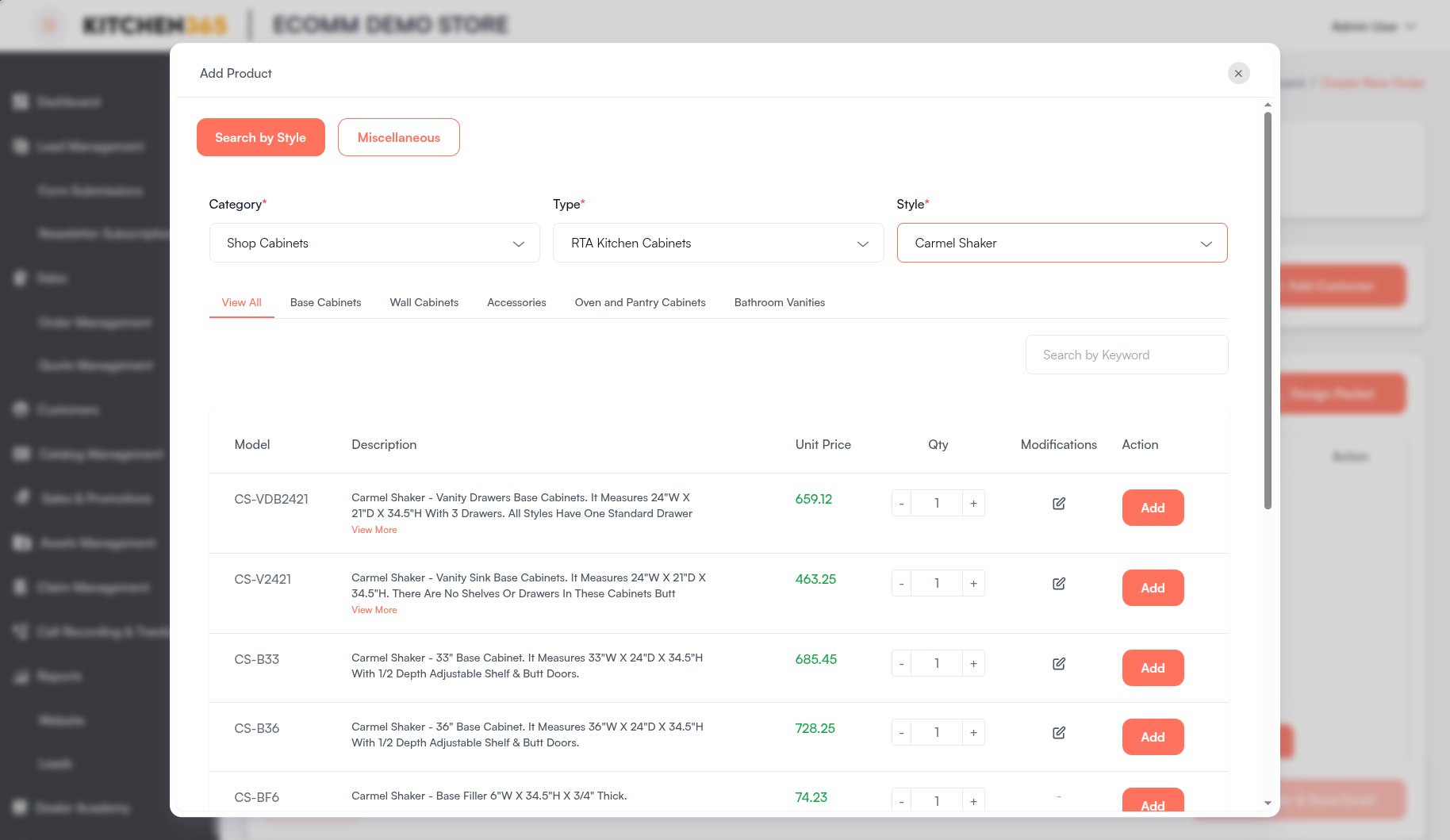
Click "Add Product" to open the Add Product modal. The Search by Style tab lets you browse and add products from the catalog.
- Select Category, Type, and Style from the dropdown filters (required fields).
- Use the sub-category links (e.g., View All, Base Cabinets, Wall Cabinets) to narrow results.
- Optionally search by keyword using the Search by Keyword field.
- Set the Qty for the desired product using the +/- controls.
- Use the Modifications icon to add product-level notes or customizations.
- Click Add on the product row to add it to the quote.
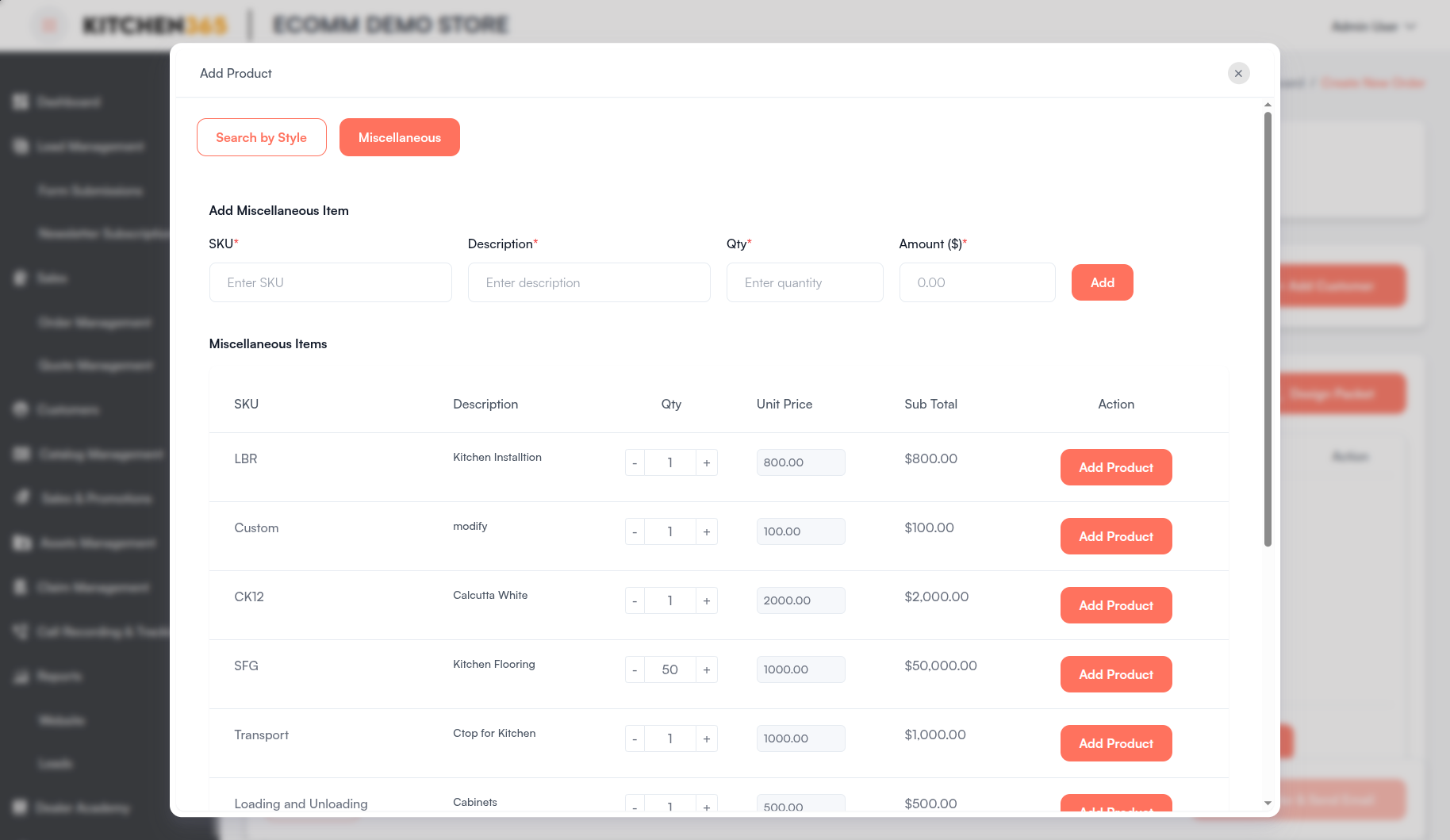
Miscellaneous Items
Switch to the Miscellaneous tab in the Add Product modal to add custom or non-catalog items.
Add a new miscellaneous item manually:
| Field | Description |
|---|---|
| SKU | Enter the item SKU. |
| Description | Enter a short description. |
| Qty | Enter the quantity. |
| Amount ($) | Enter the unit price. |
Click Add to save the item to the miscellaneous list.
Add from existing miscellaneous items:
The table lists previously saved miscellaneous items with columns for SKU, Description, Qty, Unit Price, Sub Total, and Action. Adjust the quantity or price if needed, then click Add Product on the row.
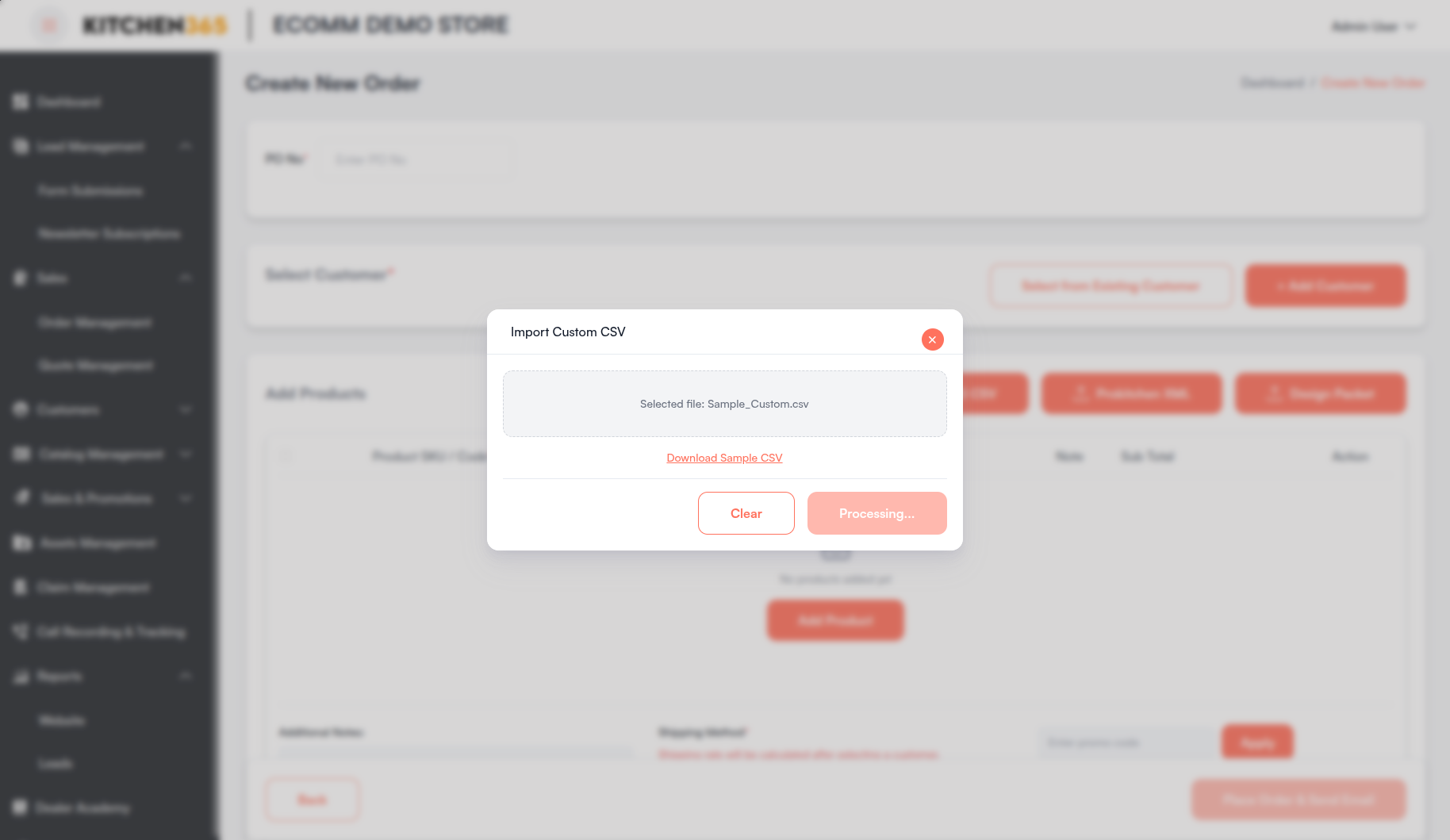
Import Custom CSV
Click Custom CSV to open the Import Custom CSV modal.
- Select a CSV file containing product details (SKU, Description, Qty, Unit Price).
- Click Download Sample CSV to view the expected file format.
- Click Proceed to import the products into the quote.
- Use Clear to remove the selected file and start over.
On success, the toast "Custom items imported successfully!" is displayed.
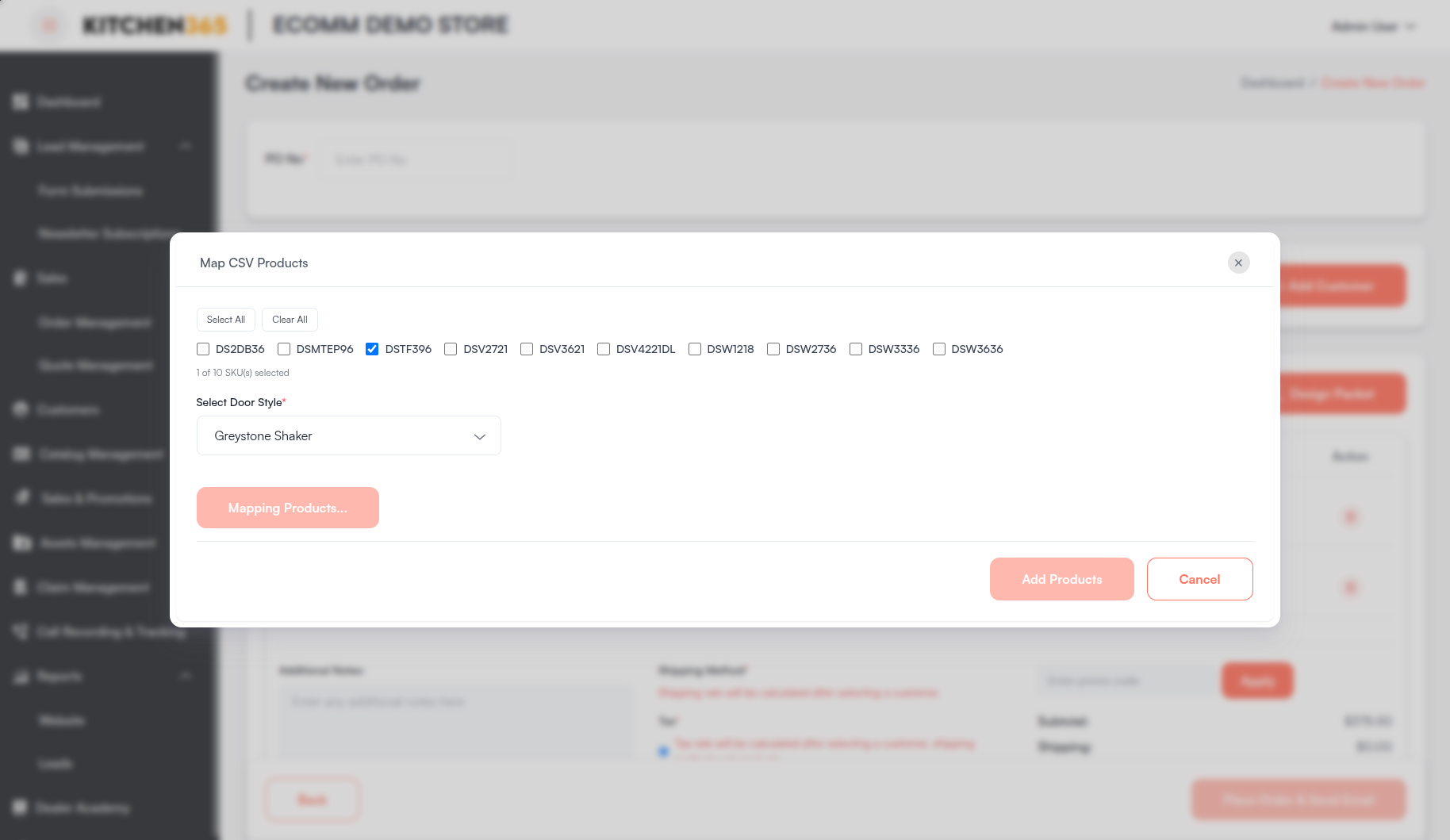
Import from 2020 CSV
Click 2020 CSV to upload a CSV file exported from the 2020 Design tool. The Map CSV Products modal opens:
- Select the SKUs to import using the checkboxes (use Select All or Clear All for bulk selection).
- Choose the Select Door Style from the dropdown.
- Click Map Product to match the SKUs to catalog products.
- Review the mapped products in the results table and adjust quantities if needed.
- Click Add Products to add them to the quote, or Cancel to close without adding.
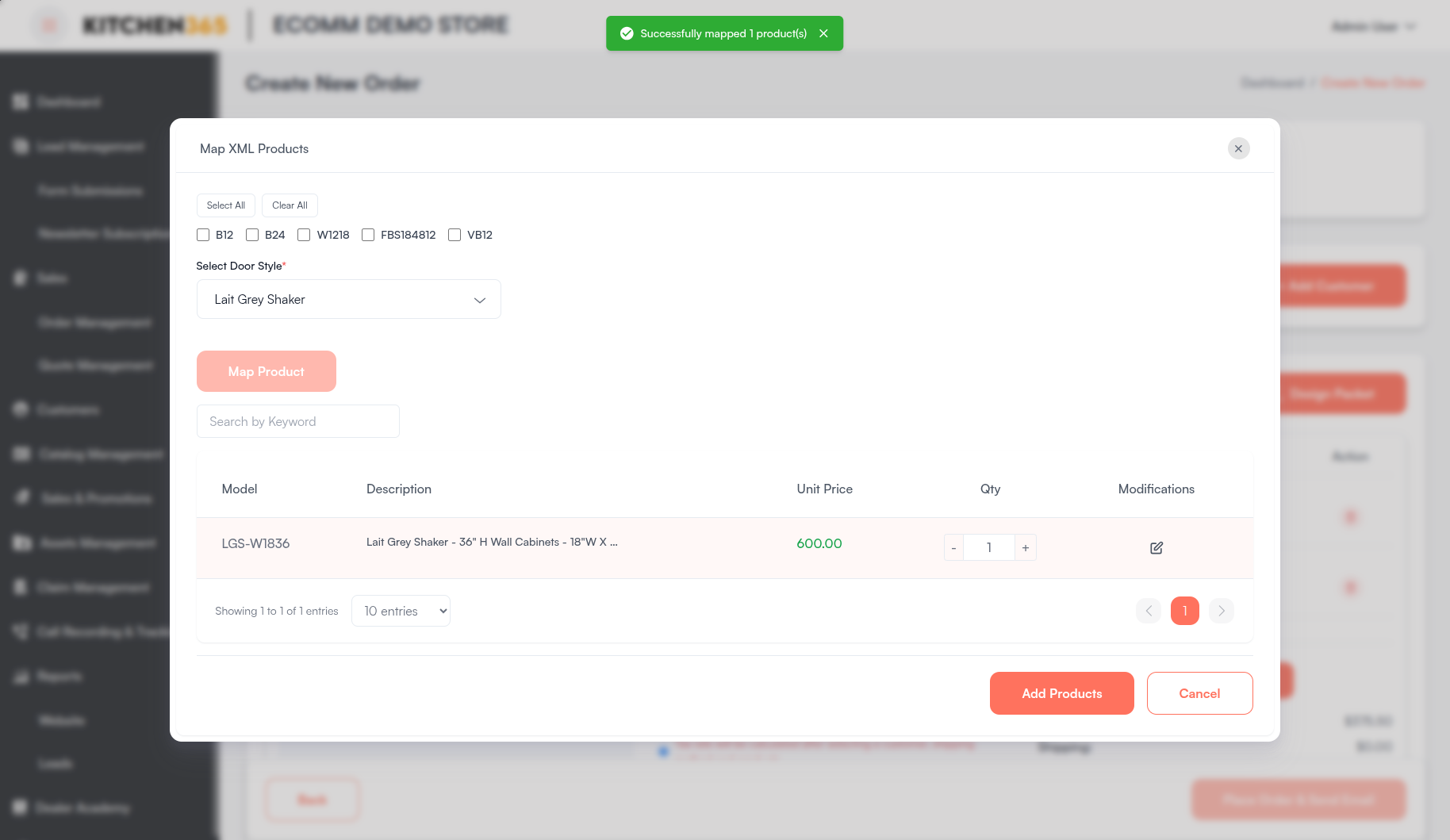
Import from ProKitchen XML
Click Prokitchen XML to upload an XML file exported from ProKitchen. The Map XML Products modal works similarly to the 2020 CSV flow:
- Select product codes using the checkboxes.
- Choose the Select Door Style from the dropdown.
- Click Map Product to match products to the catalog.
- Review mapped results, adjust quantities, and click Add Products to confirm.
Upload Design Packet
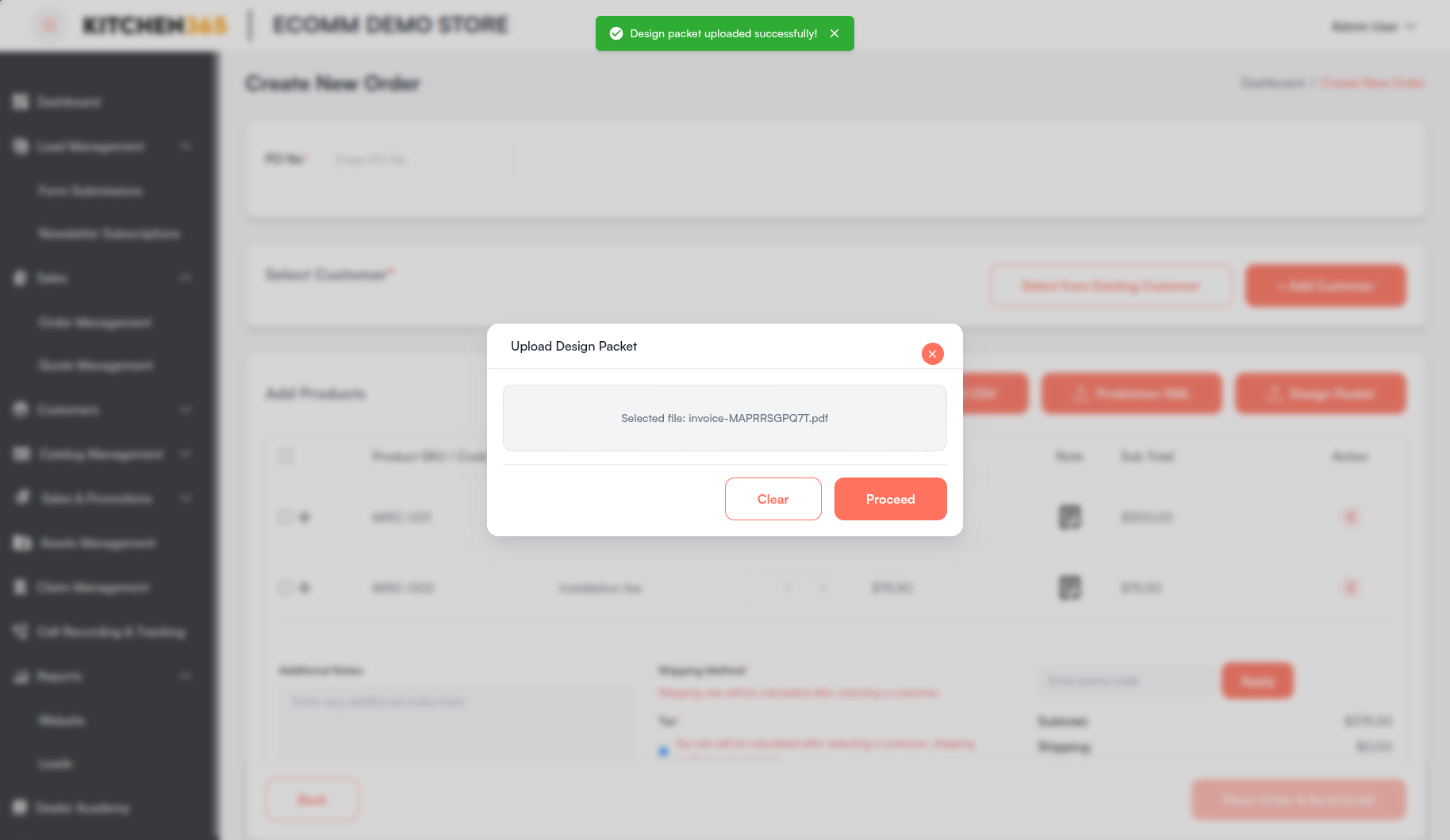
Click Design Packet to attach a PDF design document to the quote. The Upload Design Packet modal opens:
- Select a PDF file from your computer.
- Click Proceed to upload the file.
- Use Clear to remove the selected file before uploading.
Once uploaded, a success message "Design packet uploaded successfully!" is displayed. The design packet is included in quote emails and can be downloaded from the quote detail page.
Product Notes and Deletion
- Each product row includes a note icon to add product-level notes specific to that line item.
- To remove products, select the checkbox on one or more rows and click Delete Selected.
- Individual rows can also be removed using the delete action on each line.
v. Select Existing Customer or Add New Customer
You can either:
-
Click "Select from Existing Customer" to choose an existing customer from a searchable popup.
Feature Description Search Bar Search by name or email. Customer List Columns: Select, Name, Email, Phone. Select Customer Confirms selection and fills the main form. Cancel Closes the popup without selecting. 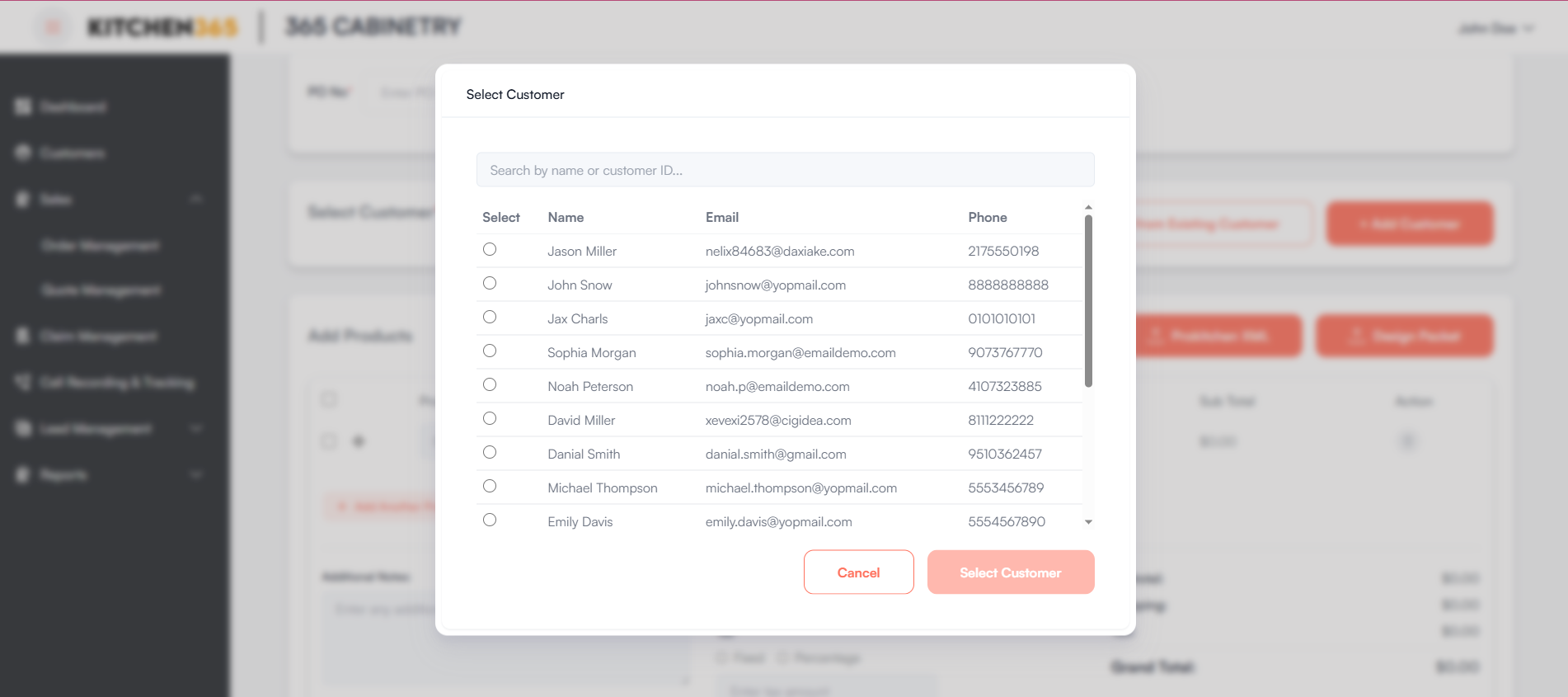
-
Click "+ Add Customer" to create a new customer inline.
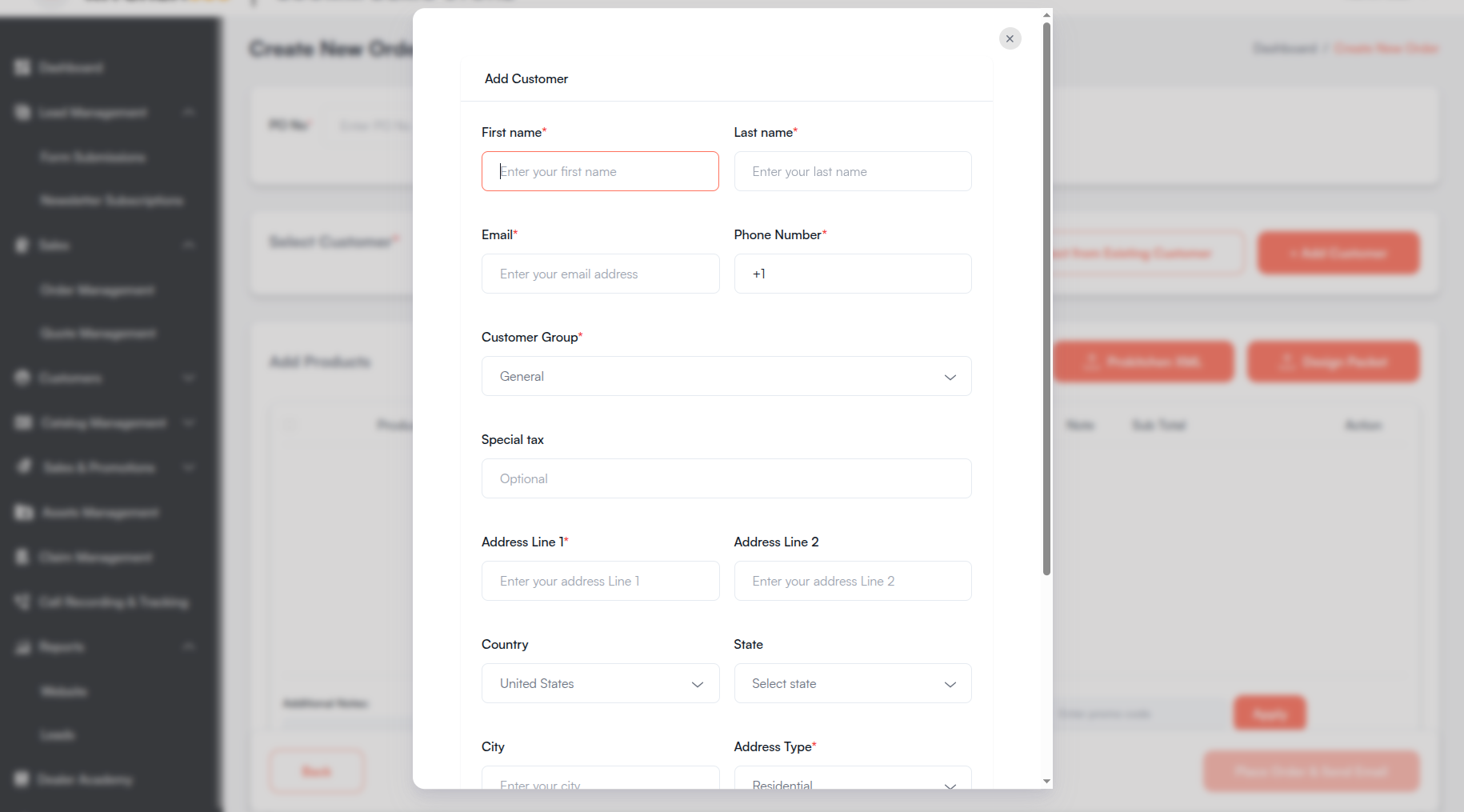
vi. Shipping Address
Once a customer is selected, choose from their existing shipping addresses or add a new one using the edit icon in the Shipping Address section.
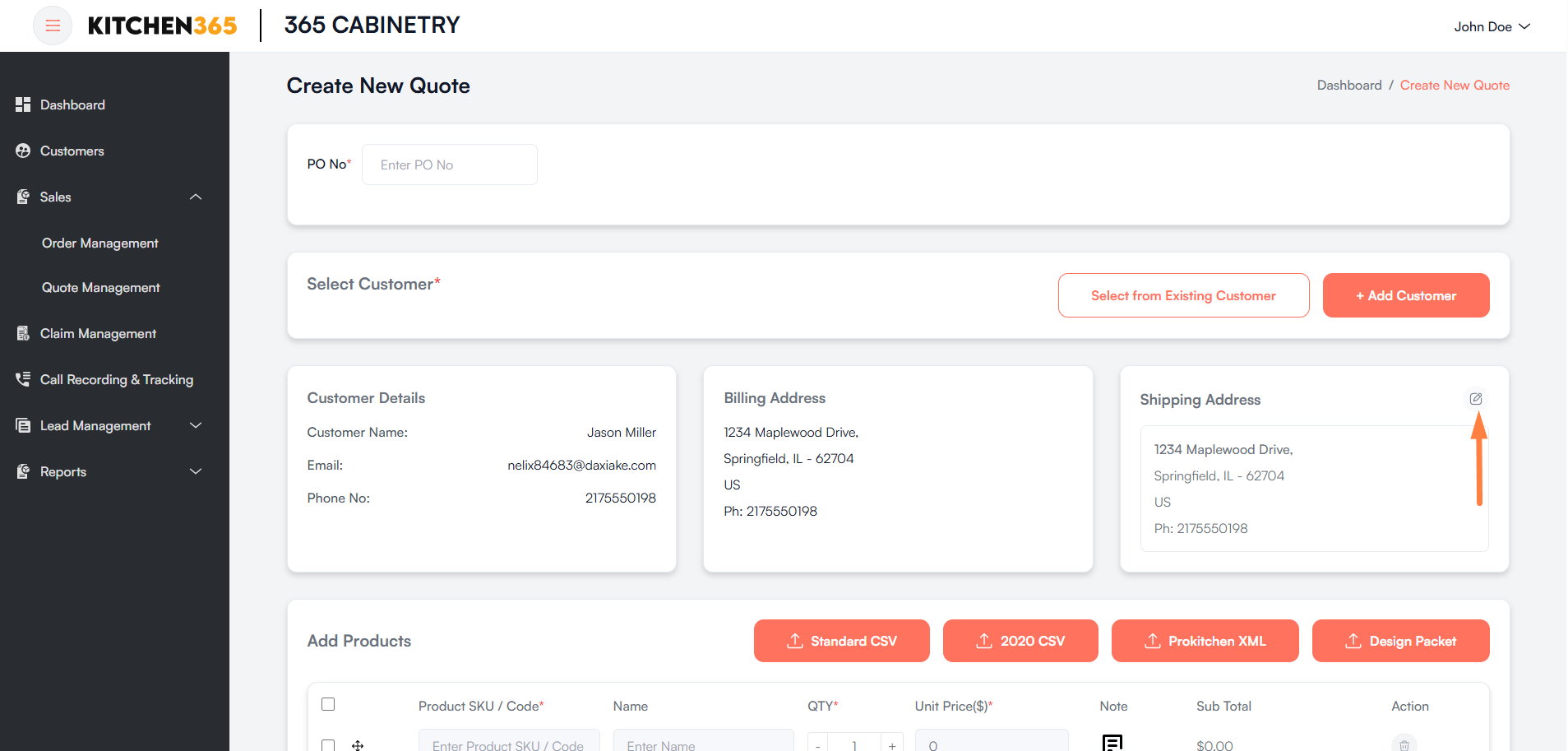
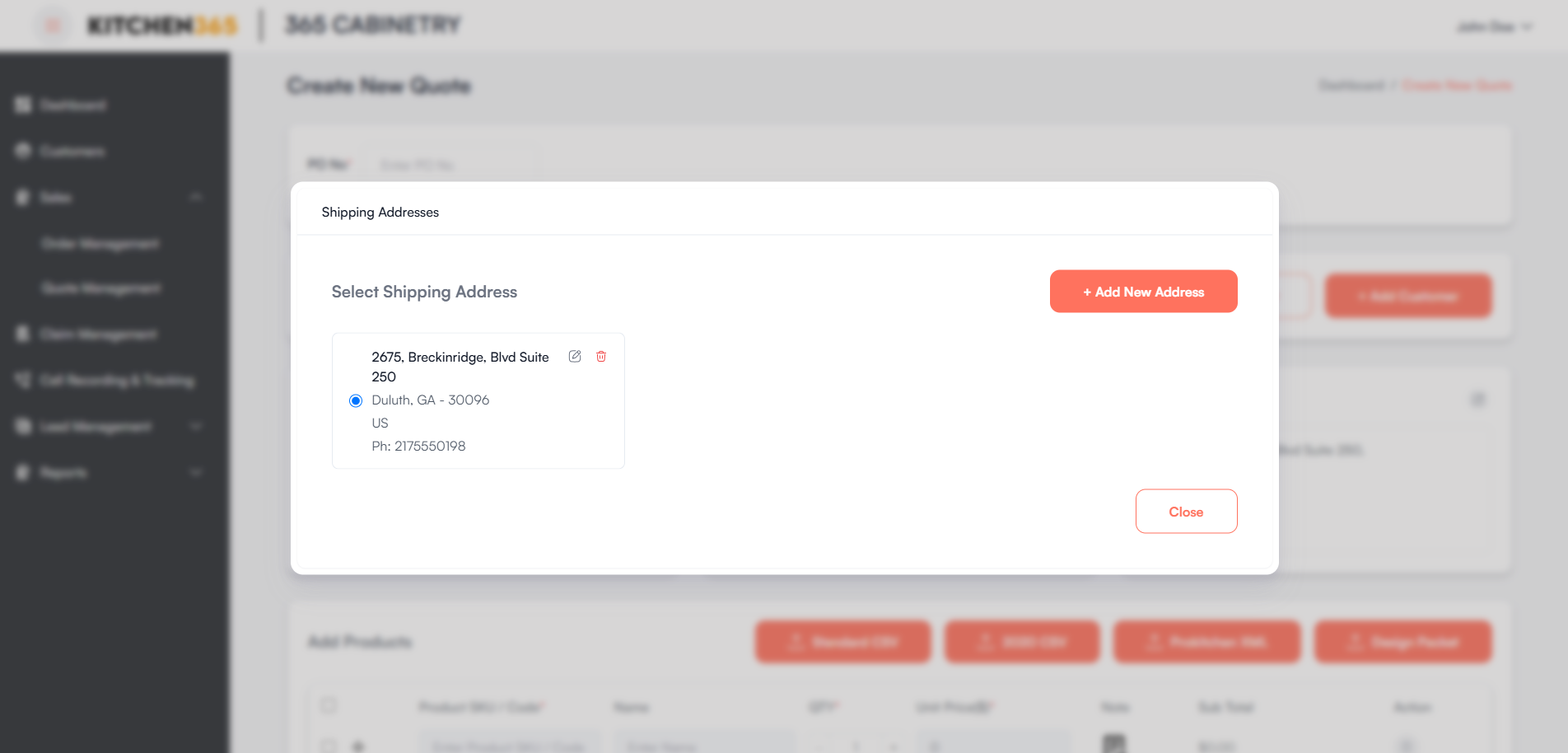
Select Existing Shipping Address:
- Displays all addresses associated with the selected customer.
- Each address card shows street address, city/state/ZIP, country, and phone number.
- Use the radio button to select the address for this quote.
- Edit — Opens the address in an editable form.
- Delete — Removes the address after confirmation.
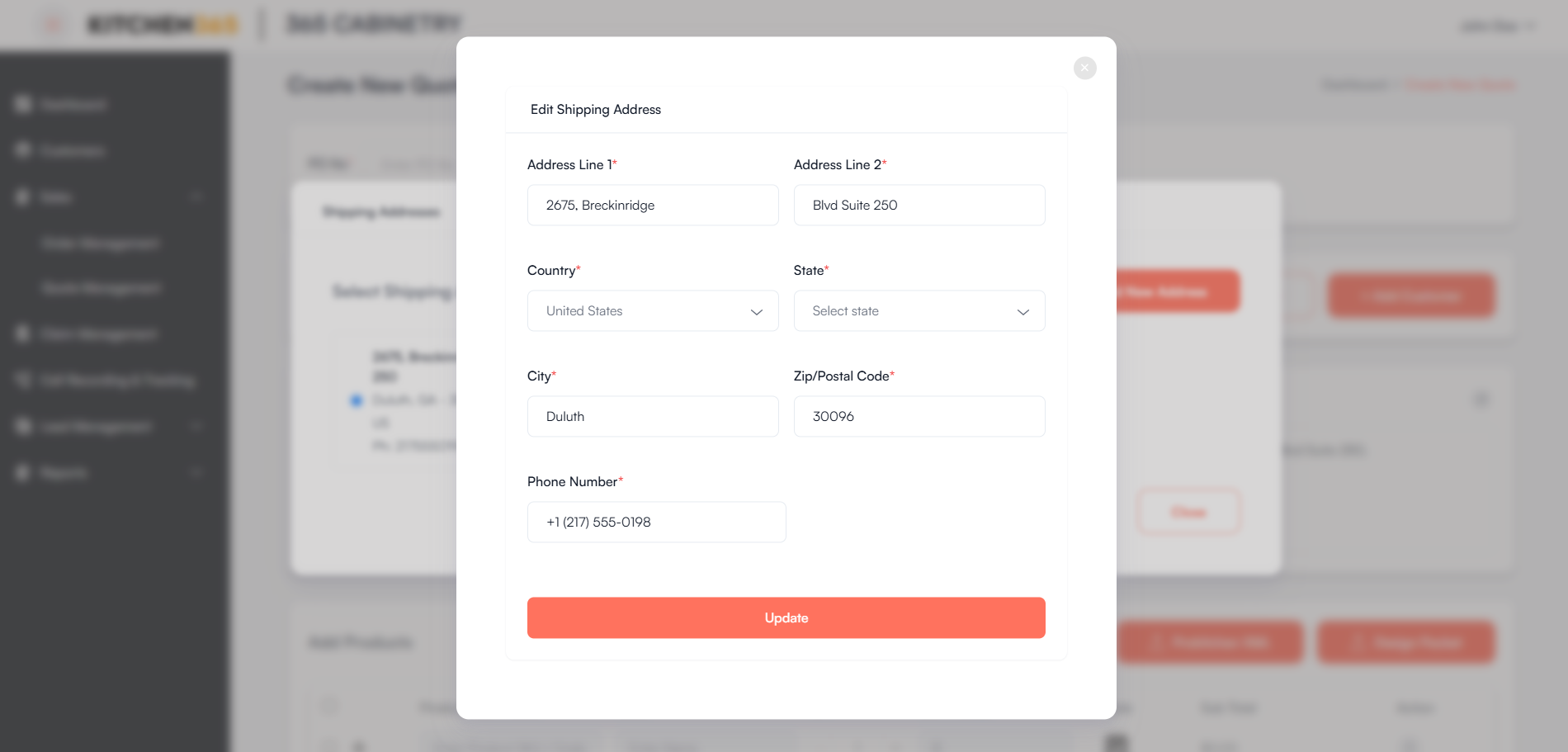
+ Add New Address:
- Opens a form to input a new shipping address.
- The new address is saved and associated with the selected customer.
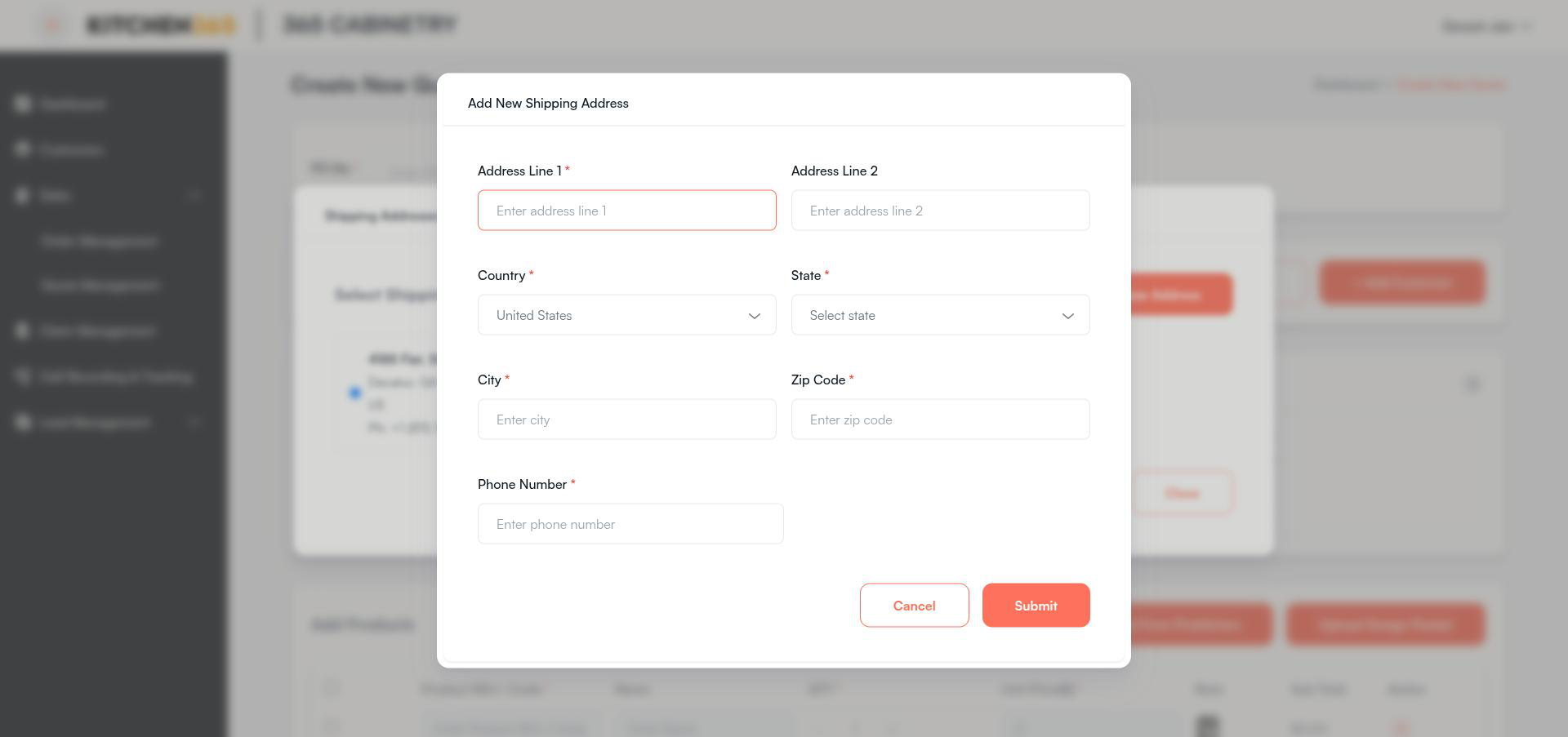
You must select or add at least one complete shipping address before saving or placing the order.
vii. Additional Notes, Shipping, Tax & Promo Code
After adding products, complete the pricing and quote details section below the product list.
Additional Notes
| Property | Value |
|---|---|
| Label | Additional Notes: |
| Placeholder | Enter any additional notes here |
| Required | No (optional) |
Shipping Method
Shipping Method is a required field. Available options are loaded based on the selected customer's shipping address and the products in the quote.
| Option | Description |
|---|---|
| Configured shipping methods (e.g., Pickup, Flat Rate Shipping) | Predefined methods configured for the store. Each option displays the method name and calculated rate, e.g., Pickup ($55.00). |
| Custom Shipping Rate | Allows manually entering a custom shipping charge (shown when enabled in tenant configuration). |
Notes:
- Shipping rates are calculated after a customer is selected. Until then: "Shipping rate will be calculated after selecting a customer."
- While rates are being recalculated: "Recalculating shipping rates..."
- One shipping method must be selected before saving or placing the order.
Tax
Tax is a required field. In version 2.0, tax is automatically calculated based on the customer, shipping method, and products added to the quote.
- The calculated tax amount is displayed once all prerequisites are met (e.g., $125.50).
- Until a customer, shipping method, and products are selected, the message "Tax rate will be calculated after selecting a customer, shipping method and products." is shown.
- There is no manual Custom tax option in version 2.0 — tax is always auto-calculated from the configured tax provider.
Promo Code / Discount
Version 2.0 uses promo codes instead of manual fixed/percentage discounts. Apply a promo code in the order summary panel:
- Enter the promo code in the Enter promo code field.
- Click Apply to validate and apply the discount.
- If successful, the Discount line appears in the quote summary showing the applied amount and coupon code.
- Click Remove to clear an applied promo code and recalculate totals.
Requirements to apply a promo code:
- A customer must be selected.
- At least one product must be added.
- Tax must be calculated (customer, shipping method, and products selected).
- A shipping method must be selected.
Validation messages:
- "Please enter a promo code"
- "Please select a customer to apply a promo code"
- "Please add at least one product"
- "Please select a shipping method"
Quote Summary
The quote summary panel displays the calculated totals:
| Line Item | Description |
|---|---|
| Subtotal | Total of all product line items. |
| Shipping | Selected shipping charge. |
| Tax | Auto-calculated tax amount. |
| Discount | Applied promo code discount (when active). |
| Payment fee | Additional fee based on the selected payment method (when placing an order). |
| Grand Total | Final quote total. |
viii. Payment Method
Scroll down to the Payment Method section to optionally select a payment method before placing an order. Payment is not required to save a quote.
- Check the Payment Method checkbox to enable payment selection.
- Select one payment method from the available options configured for the store.
Payment methods may include:
| Type | Examples |
|---|---|
| Online payments | Credit Card, Pay Online (Stripe), PayPal, Square, Authorize.Net, Clover, NMI, ACH, QuickBooks |
| Offline payments | Cash on Delivery (COD), Cheque, Money Order, Bank Transfer |
Behavior by payment type:
| Payment Type | Behavior |
|---|---|
| Credit card / online | Displays the payment form. The place-order button changes to Pay Now. |
| Offline payment | No card details required. Order is placed with pending payment status. |
| ACH payment | May require bank account connection before placing the order. |
| Split Payment | If enabled for the tenant, regular payment methods are disabled. Partial payments follow configured split terms. |
ix. Save Quote Actions
Use the sticky footer buttons at the bottom of the screen:
| Button | Description |
|---|---|
| Back | Returns to the previous page without saving. |
| Save Quote | Saves the quote without sending an email. |
| Save Quote & Send Email | Saves the quote and sends a quote confirmation email to the customer. |
| Place Order | Converts the quote directly into an order (requires payment method). |
| Proceed To Checkout | Shown when two-step checkout is enabled for the tenant. |
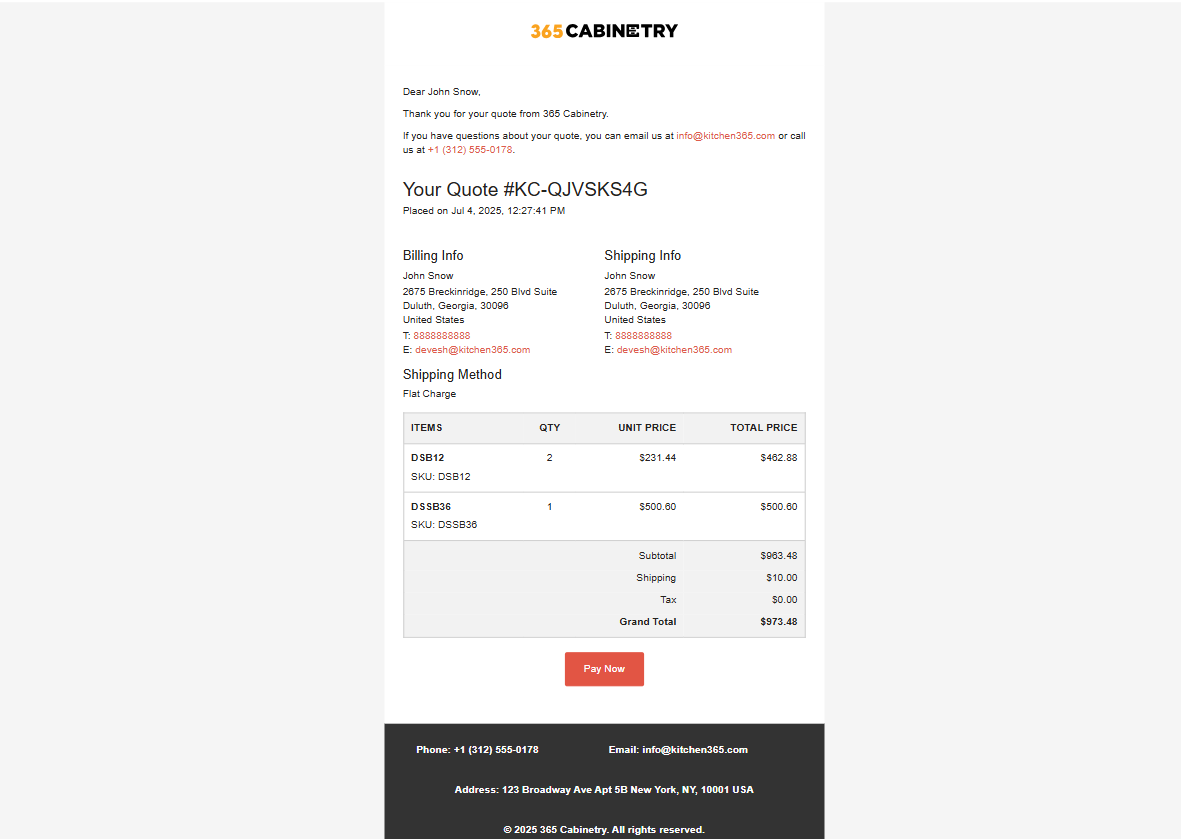
When Save Quote & Send Email is used, the customer receives a quote email with a Pay Now link to complete payment on the website.
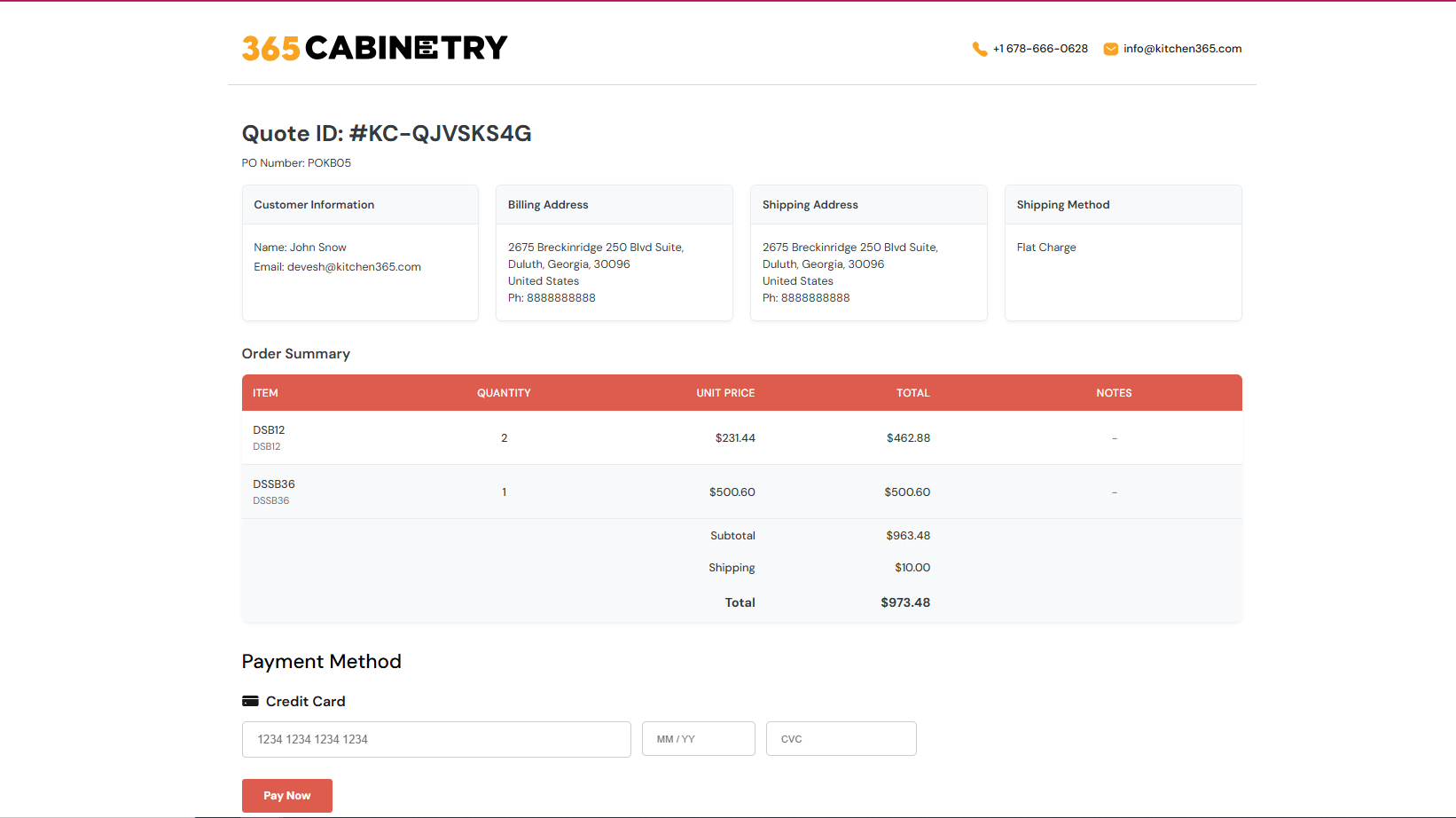
c. Edit Quote
The Edit Quote page allows admins to update an existing quote, modify products, adjust shipping and tax, apply promo codes, and place an order.
i. How to Access
- Navigate to Sales > Quote Management.
- Click the ✏️ Edit icon in the Action column of an eligible quote row.
- The Edit Quote form opens with the quote data pre-filled.
The edit icon is shown only when the quote status is not Ordered. Converted quotes cannot be edited from the list.
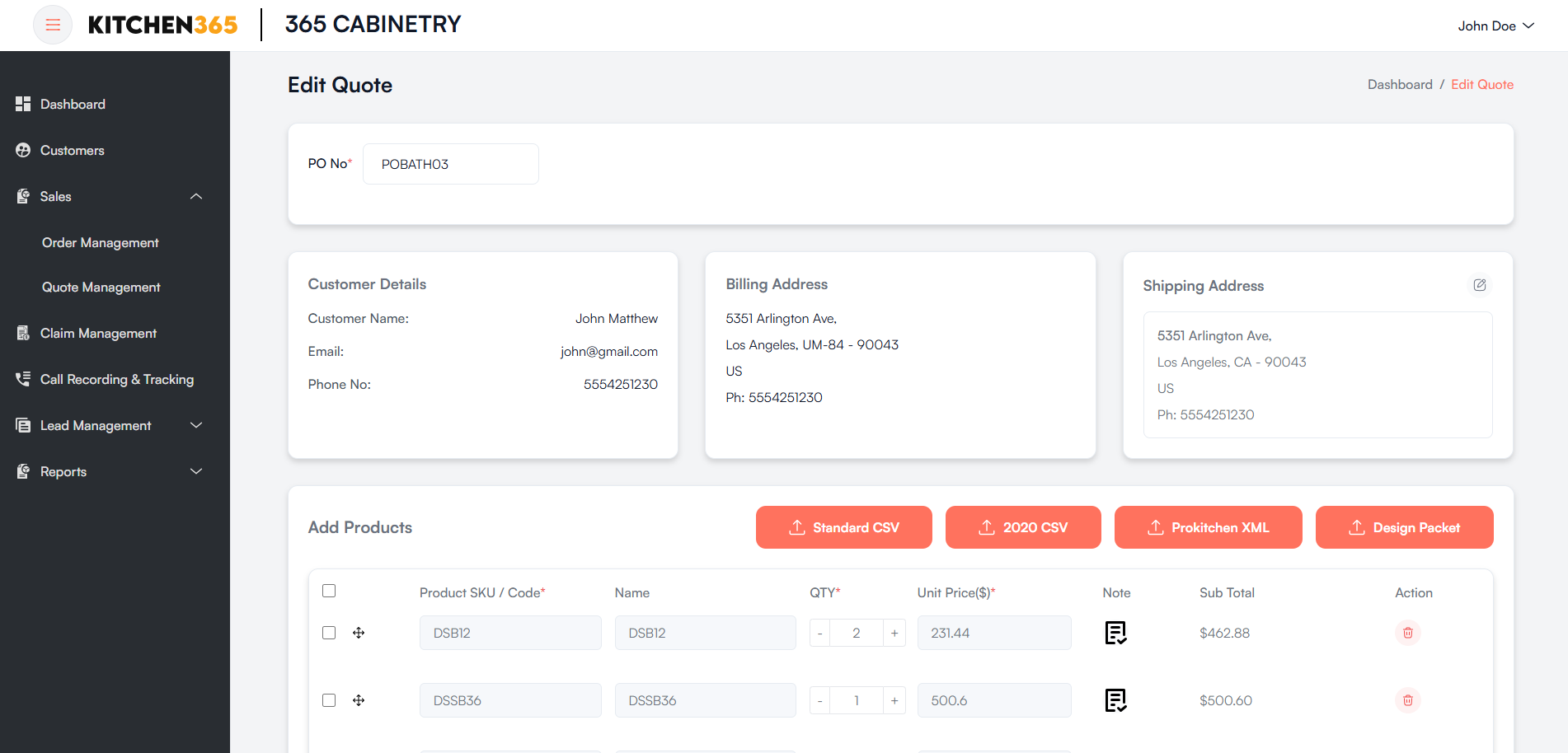
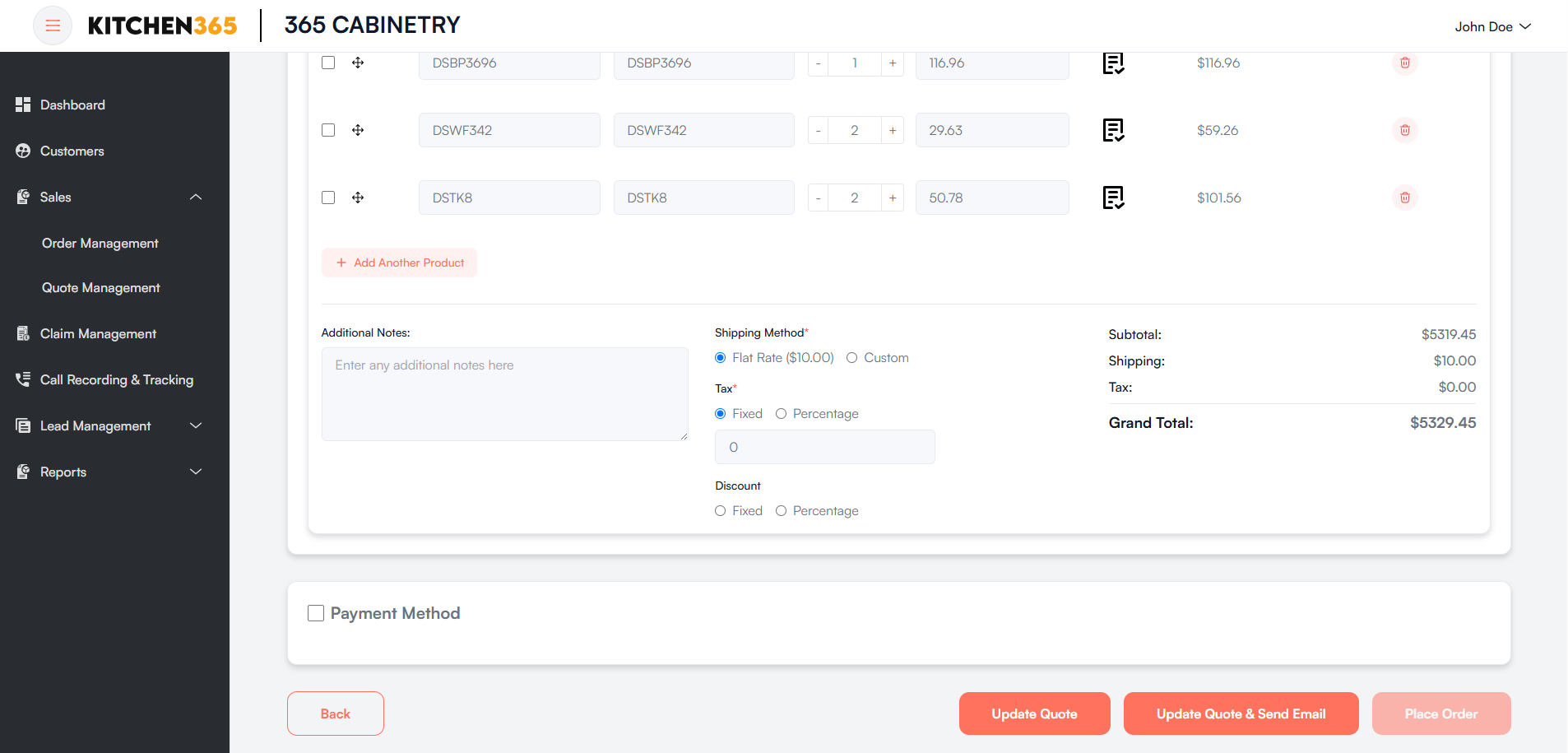
ii. Edit Form
The edit form uses the same layout as Create New Quote (and the shared product, shipping, tax, and promo code sections documented in Order Management — Create New Order), with these differences:
- The Select Customer section is hidden; the customer is loaded from the saved quote.
- Breadcrumb shows Edit Quote.
- Footer buttons are Update Quote and Update Quote & Send Email instead of Save variants.
- Place Order is available when a payment method is selected (or split payment is enabled).
iii. Edit Actions
| Button | Description |
|---|---|
| Back | Returns without saving changes. |
| Update Quote | Saves changes without sending an email. |
| Update Quote & Send Email | Saves changes and emails the revised quote to the customer. |
| Place Order | Updates the quote, processes payment, and converts to an order. |
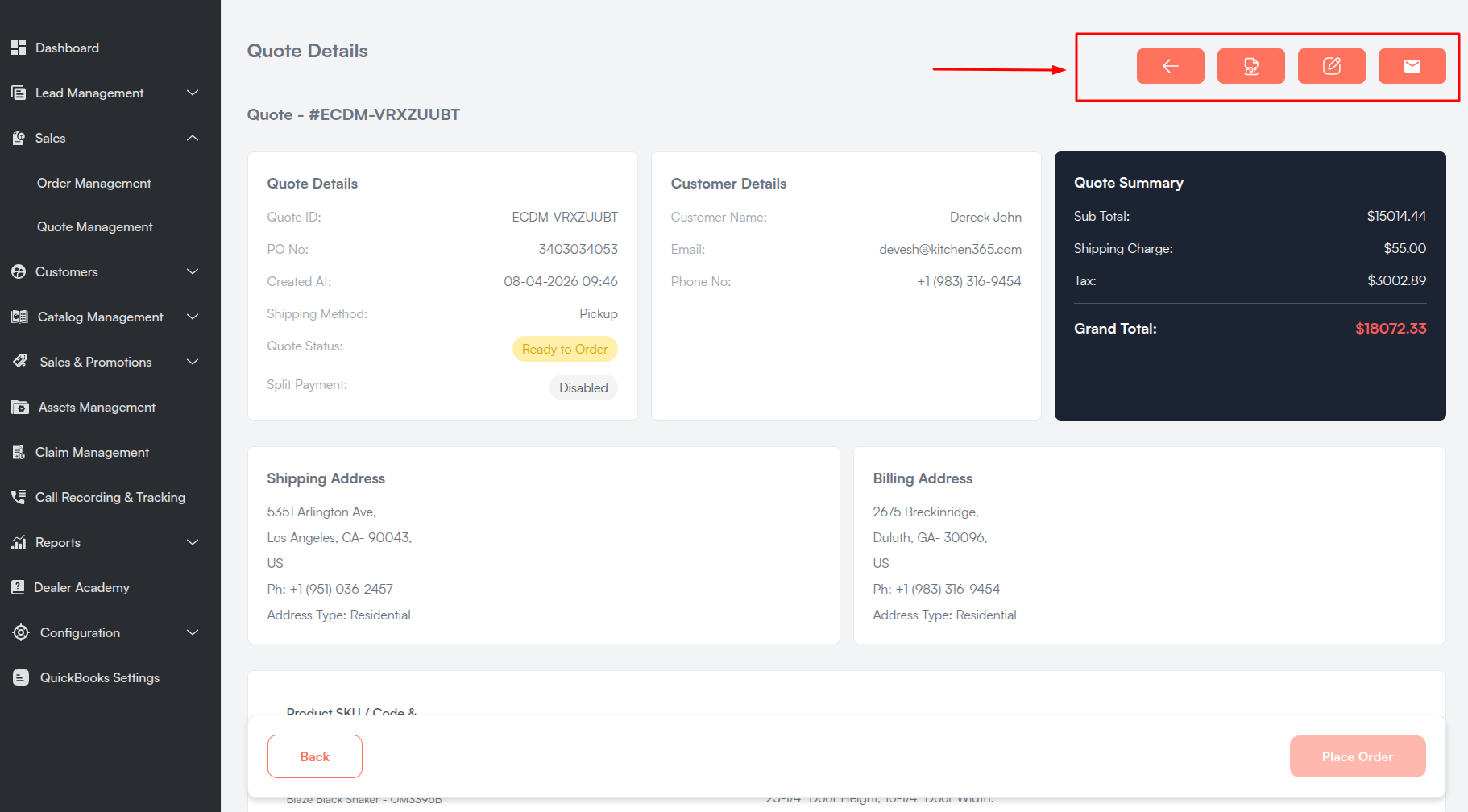
d. View Quote Details
Click 👁️ View Quote under the Action column, or click the Quote ID link in the list, to open the Quote Details page.
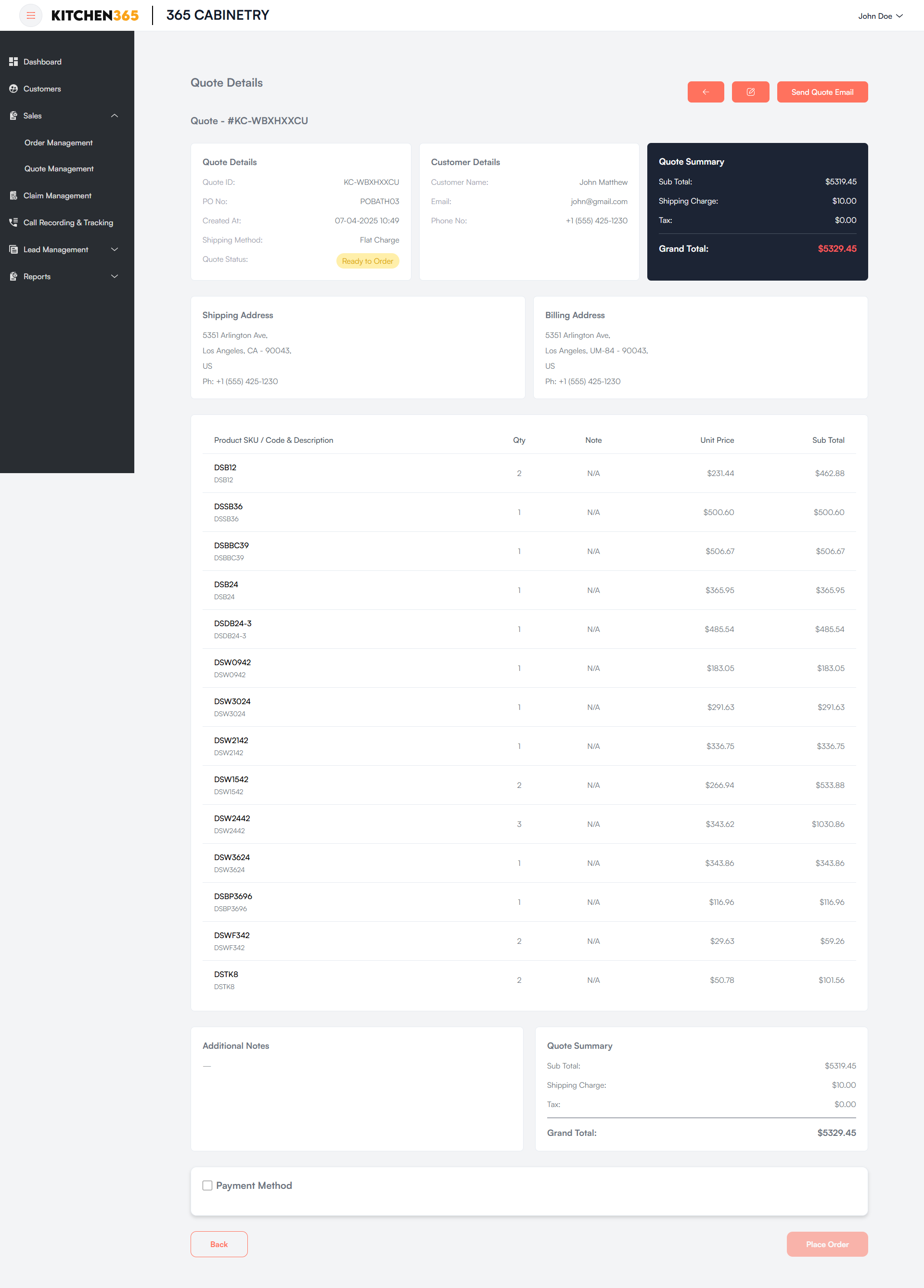
This page displays a comprehensive breakdown of the quote including customer information, addresses, line items, pricing summary, and order placement options.
i. Header Actions
The top-right toolbar provides quick actions (displayed as icon buttons with tooltips):
| Action | Tooltip Label | When Available |
|---|---|---|
| Back | Back to Quote List | Always. |
| Export PDF | Export Quote PDF | Always. Opens the same PDF export modal as the list. |
| Download design packet | Download Design Packet | Design packet was uploaded during quote creation or editing. |
| Edit quote | Edit Quote | Status is Ready to Order and PO No., shipping method, and addresses are complete. |
| Send quote email | Send Quote Email | Same conditions as Edit Quote. |
ii. Information Sections
Quote Details
- Quote ID
- PO No.
- Created At
- Shipping Method
- Quote Status
- Split Payment — Enabled / Disabled (with minimum split amount tooltip when enabled)
Customer Details
- Customer Name
- Phone No.
Quote Summary
- Sub Total
- Shipping Charge
- Tax (with percentage if applicable)
- Discount (with coupon code when applied)
- Payment fee (when payment method is selected)
- Grand Total
Addresses
- Shipping Address
- Billing Address
iii. Quote Items
The Quote Items table displays all line items with columns:
| Column | Description |
|---|---|
| Product SKU / Code & Description | Product name, SKU, description, and bundle items. |
| Qty | Ordered quantity. |
| Note | Product-level note from quote creation. |
| Unit Price | Price per unit. |
| Sub Total | Line item total. |
iv. Additional Notes
Quote-level notes entered during creation or editing are displayed below the items table.
v. Payment & Place Order
For quotes with status Ready to Order (when PO No., shipping method, and addresses are complete):
- Check the Payment Method checkbox and select a payment method.
- Complete payment details if required (credit card, ACH, etc.).
- Click Place Order (offline methods) or Pay Now (online/credit card methods).
Split Payment: When split payment is enabled, the payment section shows a Split Payment Enabled notice with the minimum split amount. Payment processing is handled outside the standard flow — contact support for payment arrangements.
Once converted, the quote status changes to Ordered and the new order appears in Order Management.
e. Placing an Order from a Quote
Quotes can be converted to orders through three paths:
i. From the Console (Create / Edit Quote)
- Complete all required fields — customer, products, shipping method, and tax.
- Select a payment method.
- Click Place Order (offline) or Pay Now (online/credit card).
The system saves the quote, processes payment (if applicable), and converts it to an order.
ii. From Quote Details
- Open a quote with status Ready to Order.
- Select a payment method in the payment section at the bottom of the page.
- Click Place Order or Pay Now.
iii. From the Customer Email
- Admin sends the quote using Save Quote & Send Email or Send Quote Email.
- Customer receives the quote email with a Pay Now link.
- Customer enters payment details on the website and completes the order.
Place Order Requirements
| Requirement | Description |
|---|---|
| Customer | Selected with complete billing address. |
| Shipping address | Complete shipping address assigned. |
| Products | At least one product line item added. |
| Shipping method | One method selected. |
| Tax | Auto-calculated from the configured tax provider. |
| Payment method | Selected (unless split payment is enabled). |
| Bundle products | All bundle child items must be present (no broken bundles). |
Post-Conversion
- Quote status updates to Ordered.
- The new order appears under Sales > Order Management.
- For offline payment methods, an order confirmation email may be sent automatically.
For full order workflow details after conversion, see Order Management.