Lead Management
The Lead Management module in the Kitchen365 Console v2.0.0 lets admin users view, track, and manage leads generated through website forms — Kitchen Remodel Estimator, Contact Us, Free Kitchen Design, and Become a Dealer — as well as Newsletter Subscriptions.
Leads are submitted on the frontend website and appear in the Console for review. They cannot be created manually from the Dashboard.
Access
How to open Lead Management
- Log in to the Kitchen365 Console.
- In the left sidebar, expand Lead Management.
- Choose one of the sub-menu items:
| Menu Item | What It Shows |
|---|---|
| Form Submissions | Website form leads grouped by form type. |
| Newsletter Subscriptions | Customers who subscribed to the company newsletter. |
Users with Form Submissions access may also see recent submissions on the Dashboard.
a. Form Submissions
Open Lead Management > Form Submissions to view website form leads.
Form submissions are grouped into tabs at the top of the page — one tab per form type:
- Kitchen Remodel Estimator
- Contact Us
- Free Kitchen Design
- Become a Dealer
i. Common Features
Each form tab shares the same table tools:
| Feature | Description |
|---|---|
| Search Bar | Filter records by email and other searchable fields. Enter at least 3 characters to search. |
| Sortable Columns | Click column headers to sort ascending or descending (where sorting is enabled). |
| Pagination | Navigate between pages using the controls at the bottom right. Adjust entries per page (10, 25, 50, 75, or 100). |
| Export | Download the current form's submissions as an Excel (.xlsx) file. |
Available row actions depend on the form type and your user permissions:
| Action | Icon | Description |
|---|---|---|
| View | 👁️ | Opens a read-only detail popup for the selected submission. |
| Edit | ✏️ | Opens a popup to update status and add a comment (available only on forms that support status editing, such as Free Kitchen Design). |
| Delete | 🗑️ | Removes the submission after confirmation. Submissions with Approved status cannot be deleted. |
ii. Kitchen Remodel Estimator
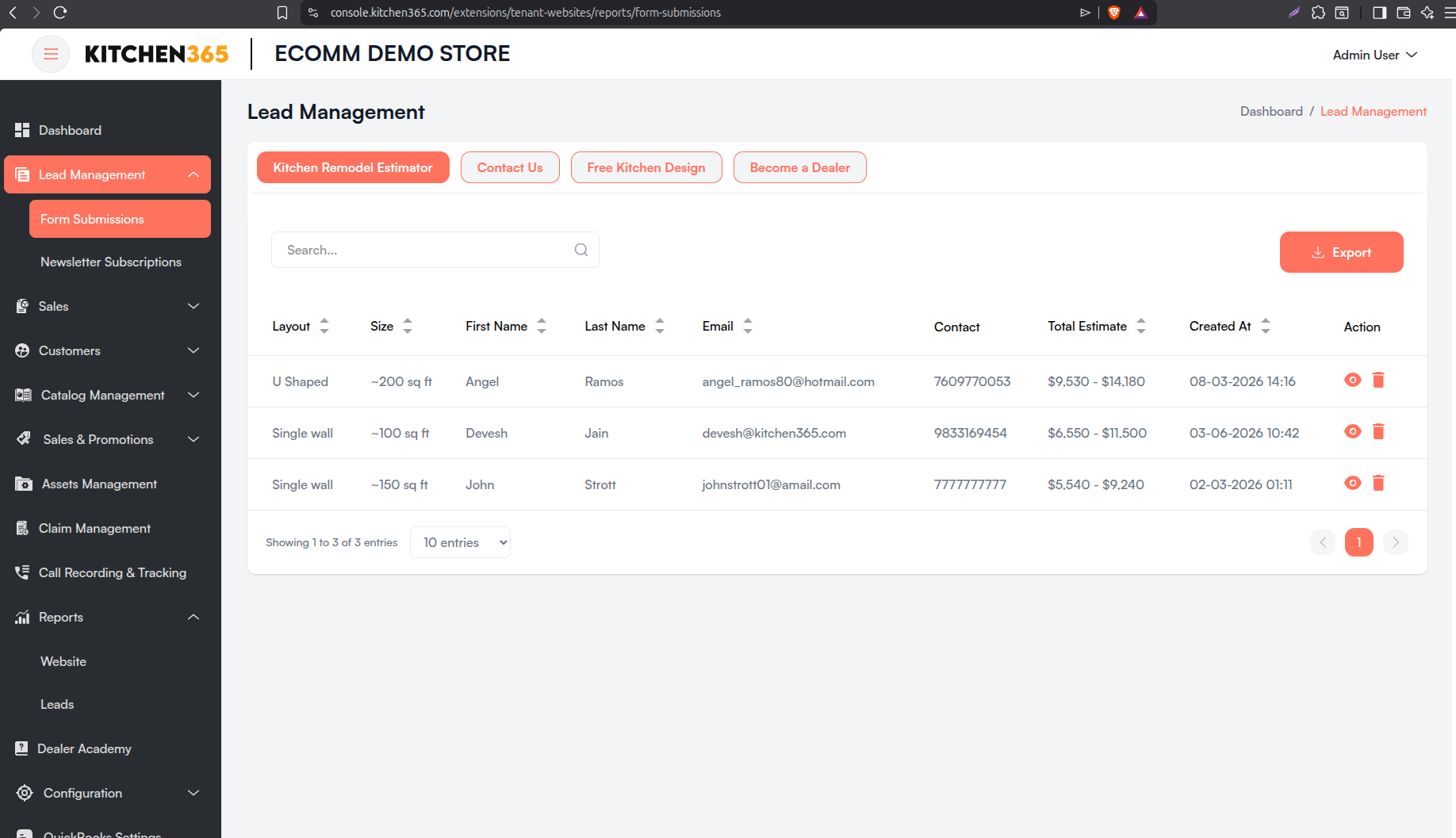
View all records submitted through the Kitchen Remodel Estimator form on the frontend website. Customers use this multi-step form to configure remodel options and receive a preliminary cost estimate.
| Column | Description |
|---|---|
| Layout | Selected kitchen layout (e.g., Single wall, L Shaped). |
| Size | Selected kitchen size (e.g., ~100 sq ft). |
| First Name | Customer's first name. |
| Last Name | Customer's last name. |
| Customer's email address. | |
| Contact | Customer's phone number. |
| Total Estimate | Preliminary remodel estimate total. |
| Created At | Timestamp of form submission (EST). |
| Action | View 👁️ and Delete 🗑️ icons. |
View Lead Details
- Click the 👁️ Eye icon under the Action column.
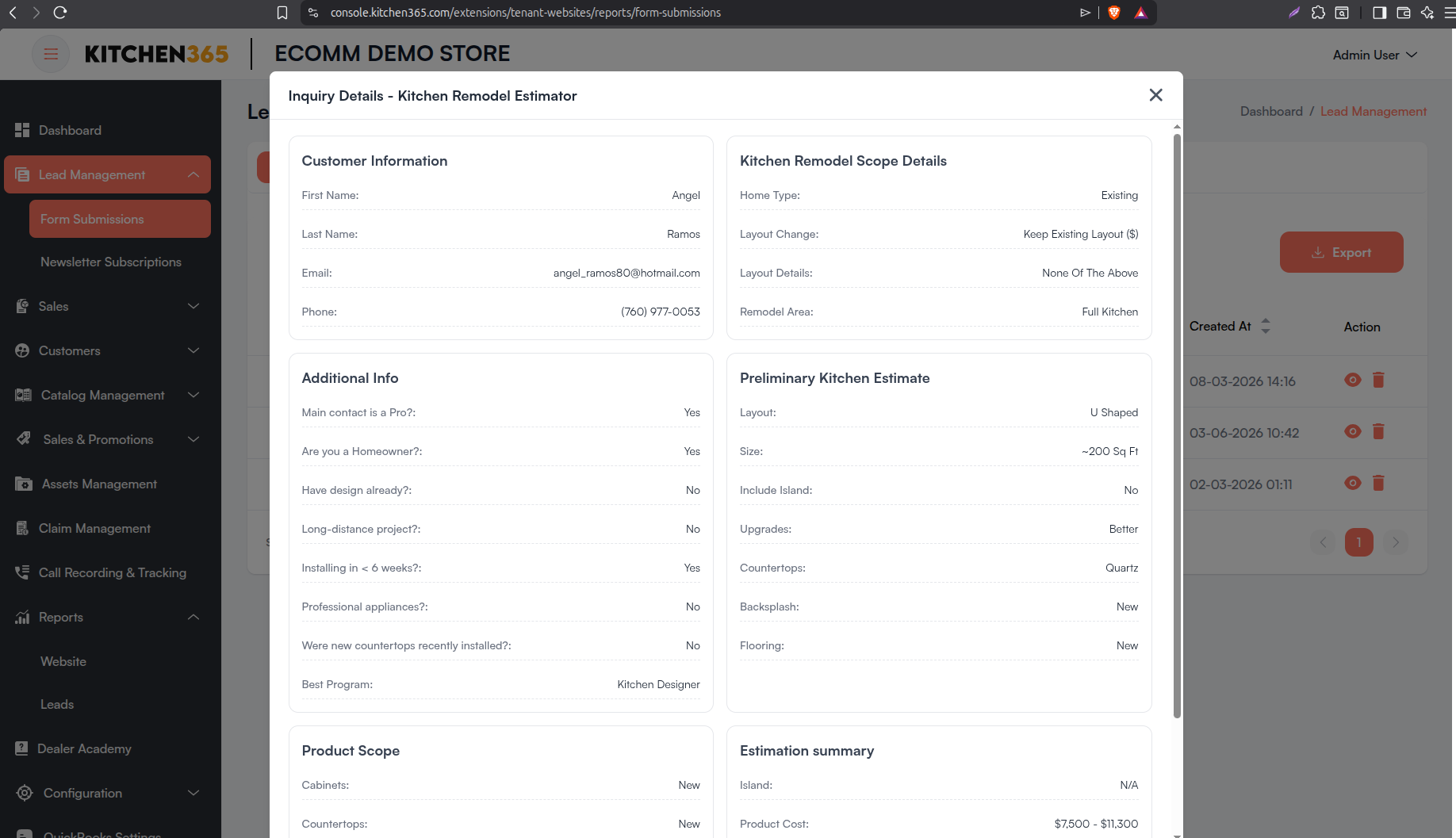
- A popup displays the full submission across these sections:
- Customer Information — first name, last name, email, phone
- Kitchen Remodel Scope Details — home type, layout change, layout details, remodel area
- Additional Info — pro contact, homeowner status, design status, project timeline, appliances, best program, and related flags
- Preliminary Kitchen Estimate — layout, size, island, upgrades, countertops, backsplash, flooring
- Product Scope — cabinets and countertops scope
- Estimation Summary — island cost, product cost, product total, labor total, and total estimate
Delete Lead
- Click the 🗑️ Delete icon under the Action column.
- Confirm the deletion in the popup. The lead's email is shown for identification.
Kitchen Remodel Estimator submissions do not support status editing. Only View and Delete actions are available.
iii. Contact Us
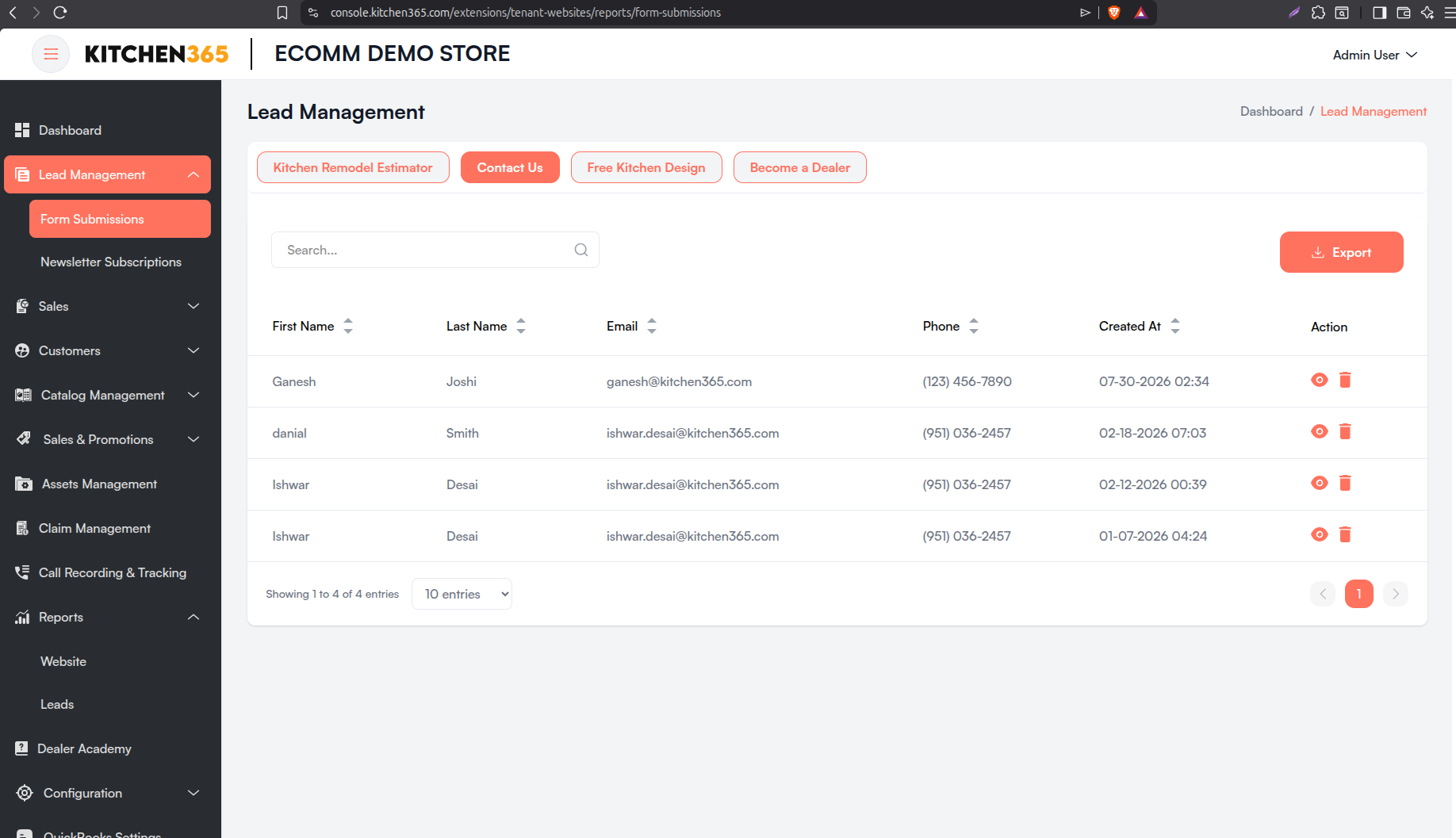
View all records submitted through the Contact Us form on the frontend website.
| Column | Description |
|---|---|
| First Name | Lead's first name. |
| Last Name | Lead's last name. |
| Lead's email address. | |
| Phone | Contact number submitted. |
| Created At | Timestamp of lead submission (EST). |
| Action | View 👁️ and Delete 🗑️ icons. |
View Lead Details
- Click the 👁️ Eye icon under the Action column.
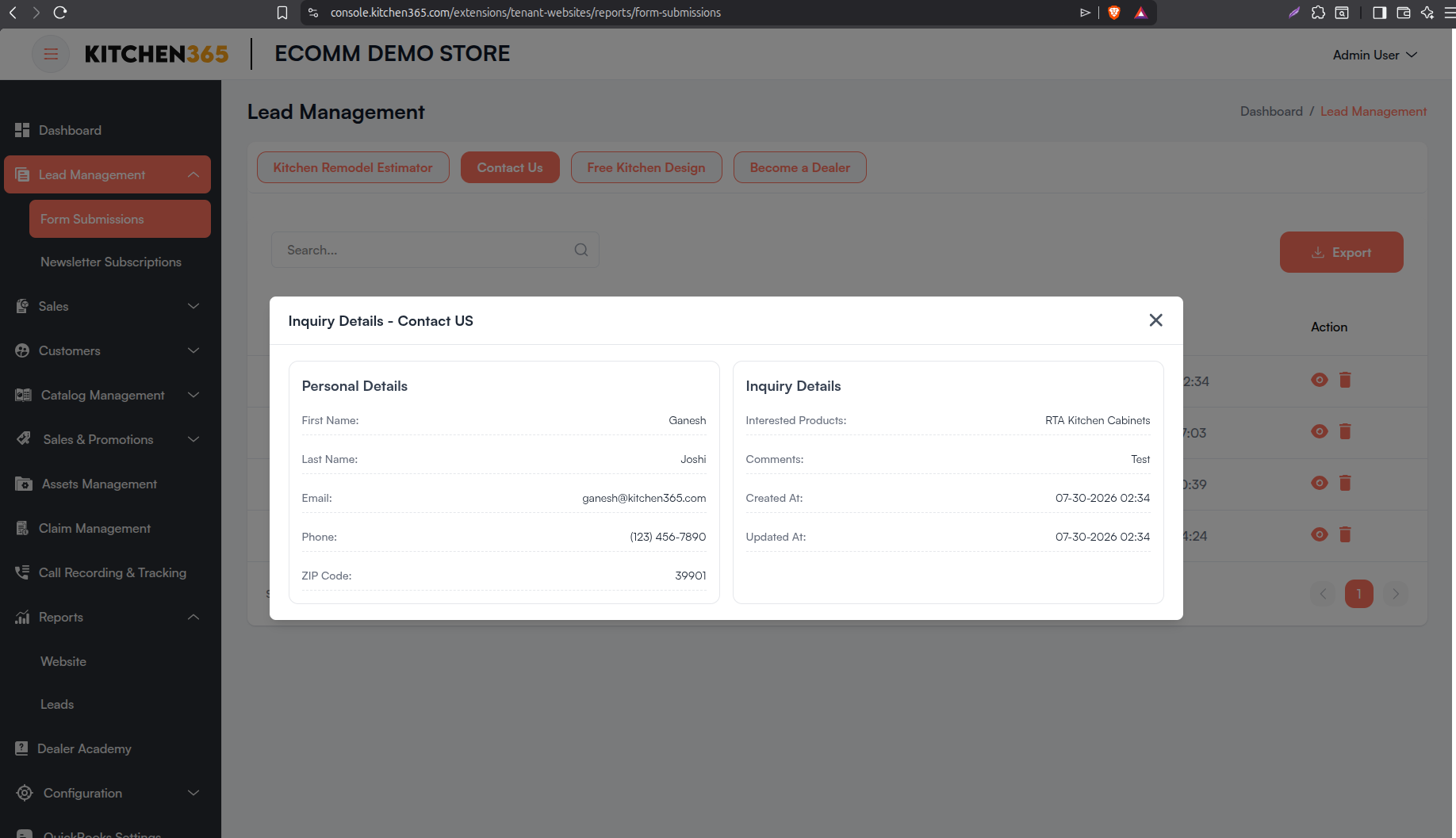
- A popup displays the submission details in two sections:
- Personal Details — first name, last name, email, phone, ZIP code
- Inquiry Details — interested products, comments, created/updated timestamps
Delete Lead
- Click the 🗑️ Delete icon under the Action column.
- Confirm the deletion in the popup. The lead's email is shown for identification.
Contact Us submissions do not support status editing. Only View and Delete actions are available.
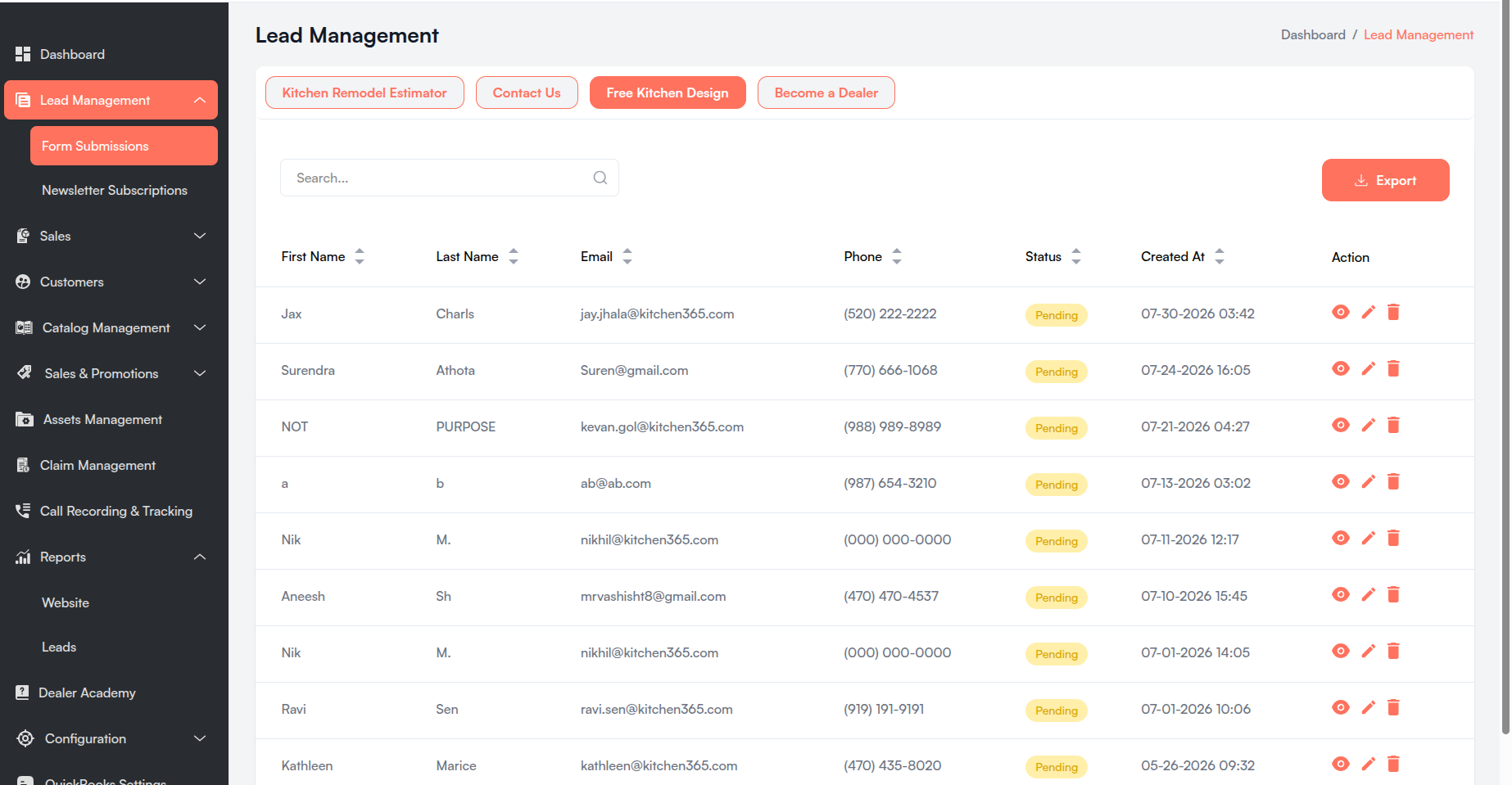
iv. Free Kitchen Design
View all records submitted through the Free Kitchen Design form on the frontend website.
| Column | Description |
|---|---|
| First Name | First name of the lead. |
| Last Name | Last name of the lead. |
| Submitted email ID. | |
| Phone | Submitted contact number. |
| Status | Current lead status: Pending, Approved, or Rejected. |
| Created At | Timestamp of form submission (EST). |
| Action | View 👁️, Edit ✏️, and Delete 🗑️ icons. |
Status Values
| Status | Badge Color | Description |
|---|---|---|
| Pending | Yellow | Default status for new submissions. |
| Approved | Green | Submission has been approved. |
| Rejected | Red | Submission has been rejected. |
View Lead Details
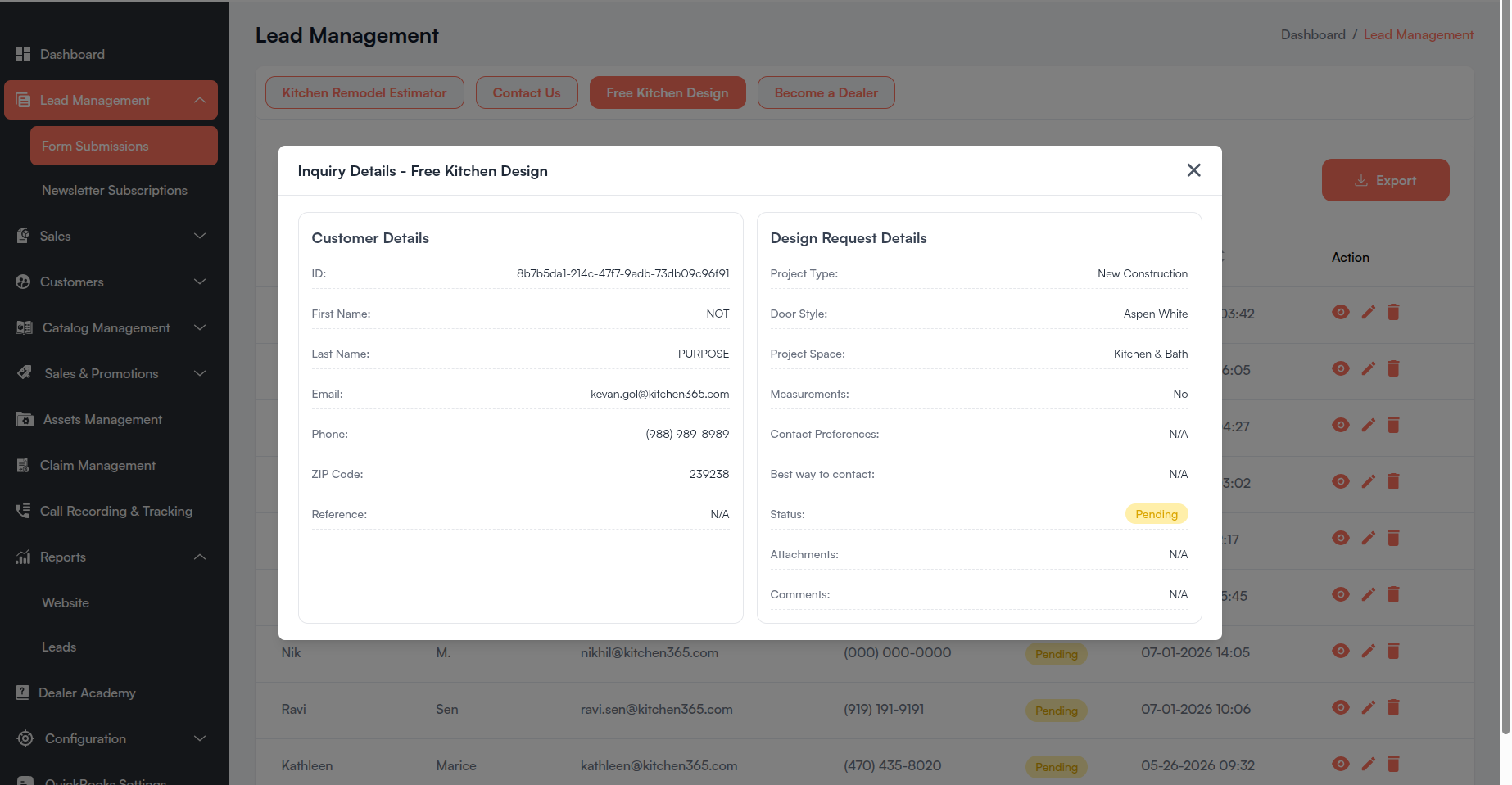
- Click the 👁️ Eye icon under the Action column.
- A popup displays the submission details in two sections:
- Customer Details — ID, name, email, phone, ZIP code, reference
- Design Request Details — project type, door style, measurements, contact preferences, status, and attachments
Attachments uploaded by the customer can be downloaded individually from the detail view.
Edit Lead Status
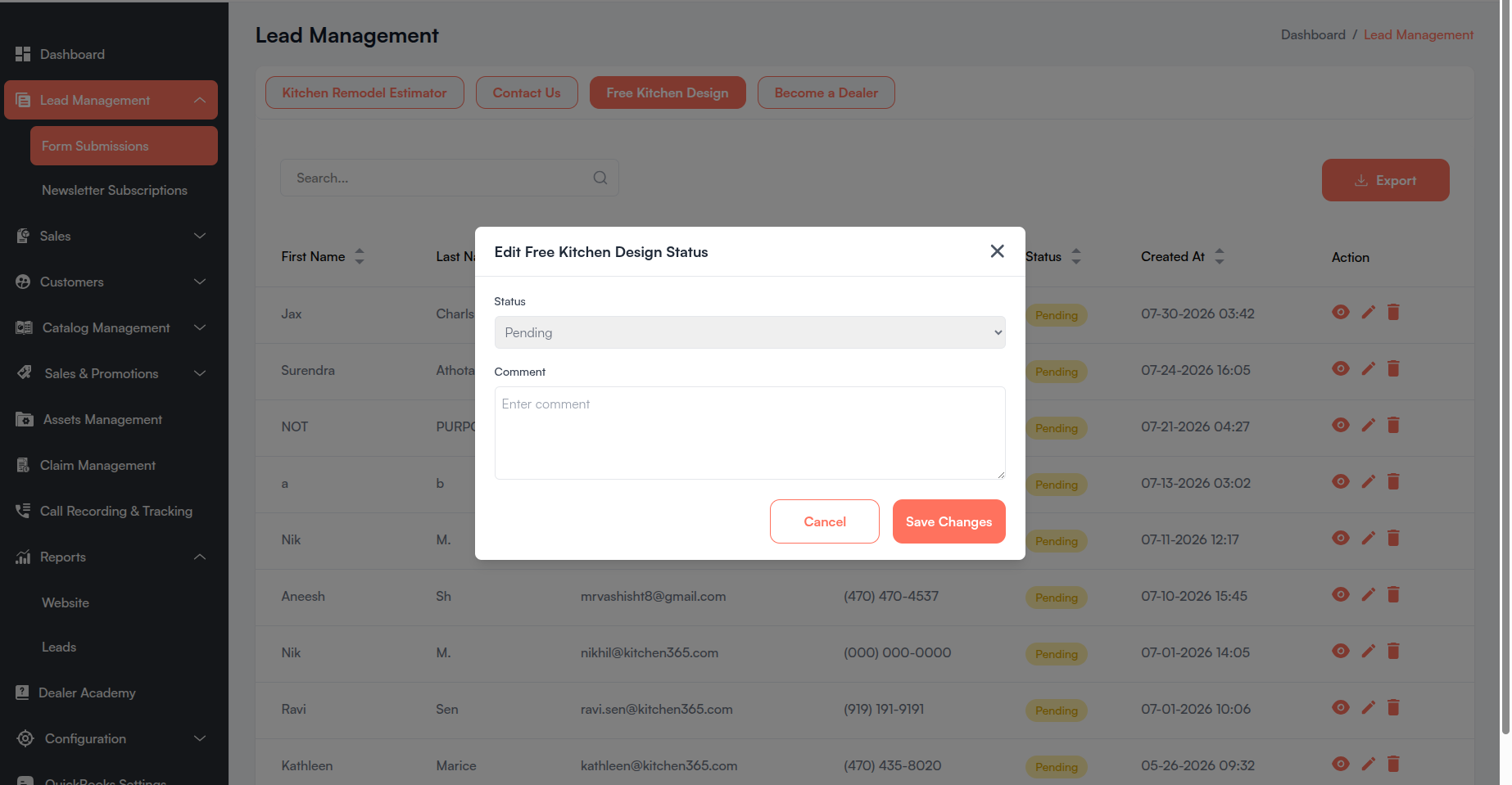
- Click the ✏️ Edit icon under the Action column.
- Update Status — select Pending, Approved, or Rejected.
- Add an optional Comment about the status change.
- Click Cancel to discard changes, or Save Changes to apply the update.
Delete Lead
- Click the 🗑️ Delete icon under the Action column.
- Confirm the deletion in the popup.
- Submissions with Approved status cannot be deleted.
v. Become a Dealer
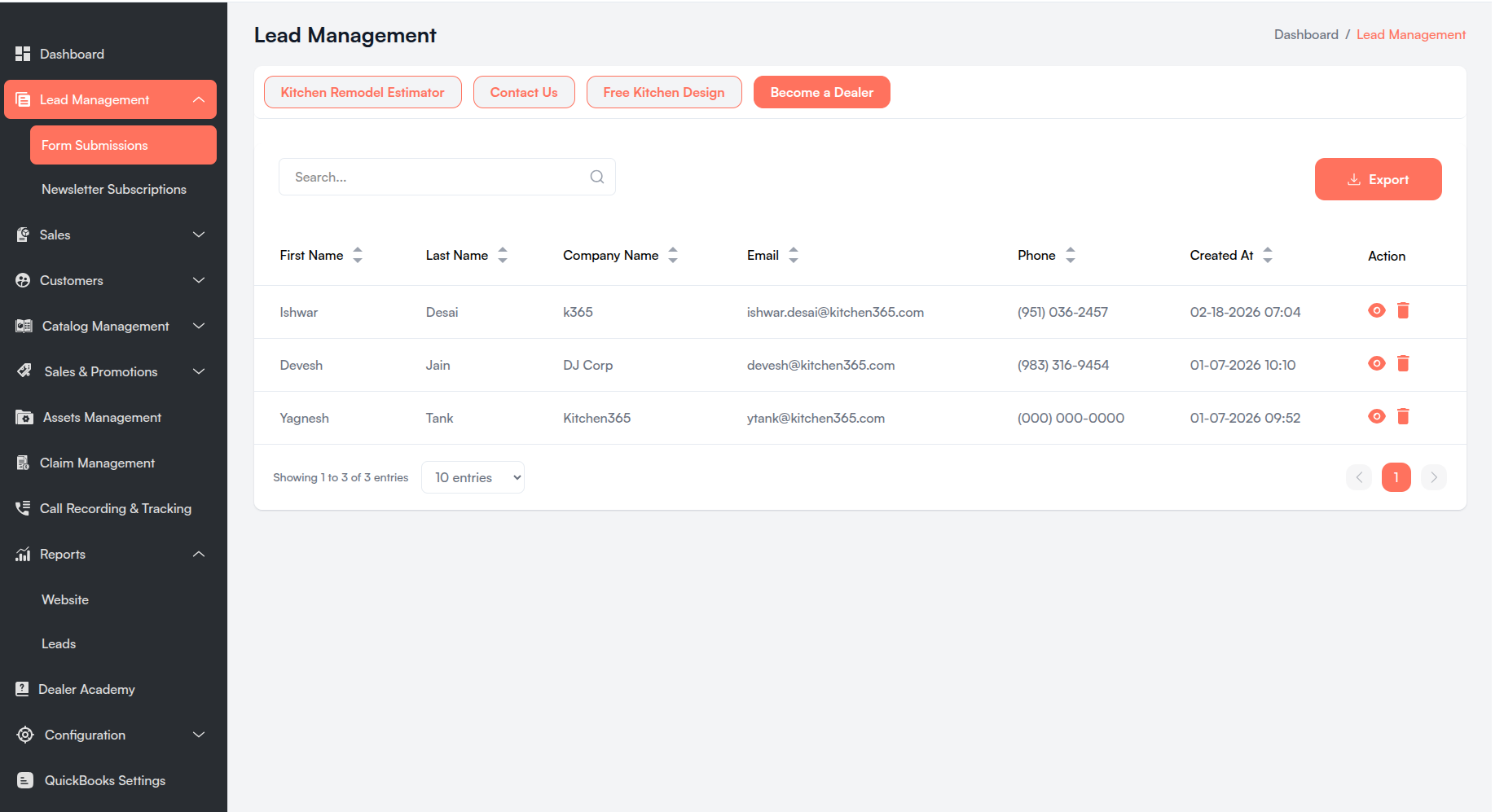
View all records submitted through the Become a Dealer form on the frontend website.
| Column | Description |
|---|---|
| First Name | Applicant's first name. |
| Last Name | Applicant's last name. |
| Company Name | Applicant's company name. |
| Applicant's email address. | |
| Phone | Applicant's contact number. |
| Created At | Timestamp of form submission (EST). |
| Action | View 👁️ and Delete 🗑️ icons. |
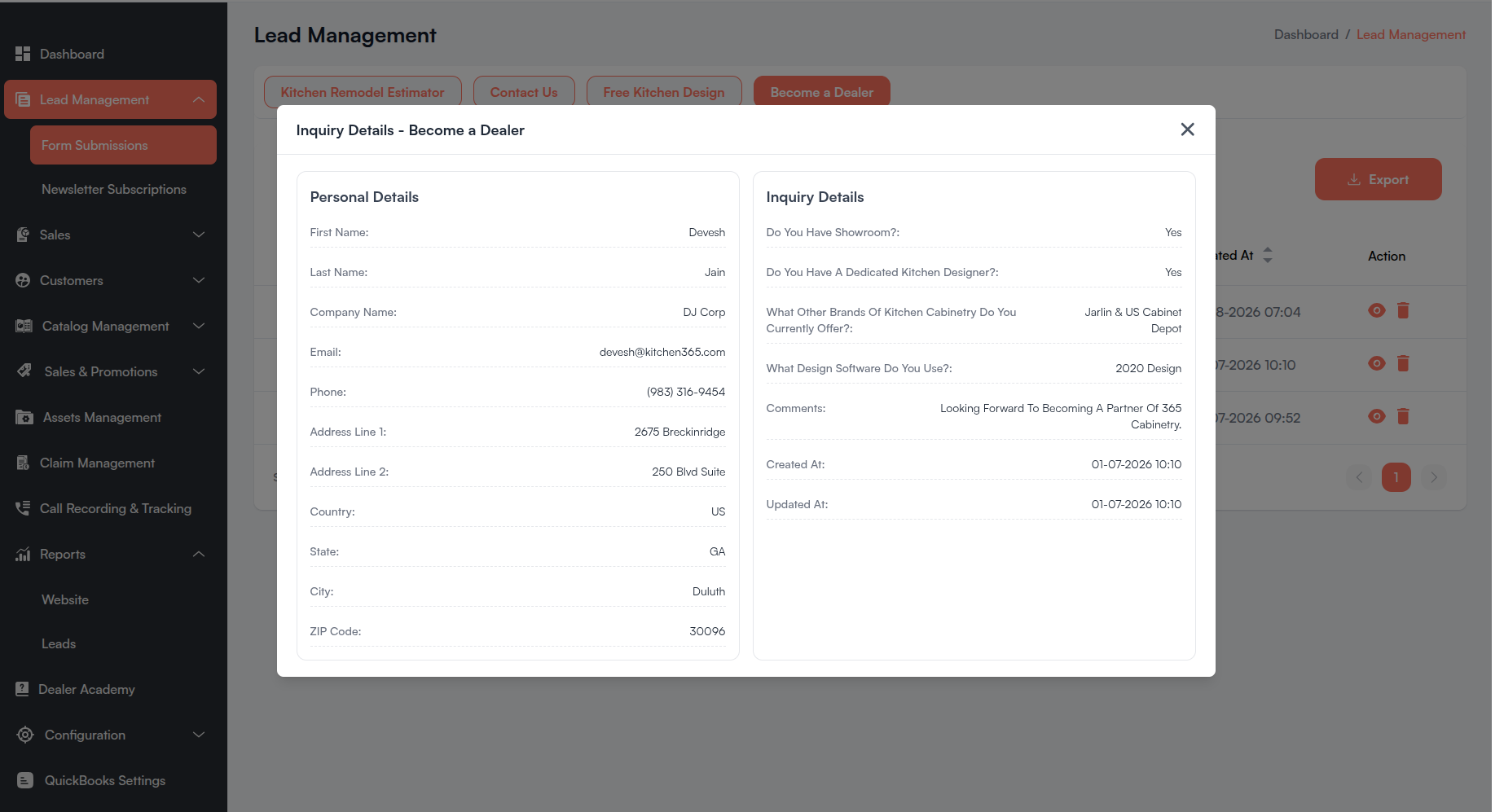
View Lead Details
- Click the 👁️ Eye icon under the Action column.
- A popup displays the submission details in two sections:
- Personal Details — first name, last name, company name, email, phone, and full address (address lines, country, state, city, ZIP code)
- Inquiry Details — showroom availability, dedicated kitchen designer, other brands offered, design software used, comments, and created/updated timestamps
Delete Lead
- Click the 🗑️ Delete icon under the Action column.
- Confirm the deletion in the popup. The lead's email is shown for identification.
Become a Dealer submissions do not support status editing. Only View and Delete actions are available.
b. Newsletter Subscriptions
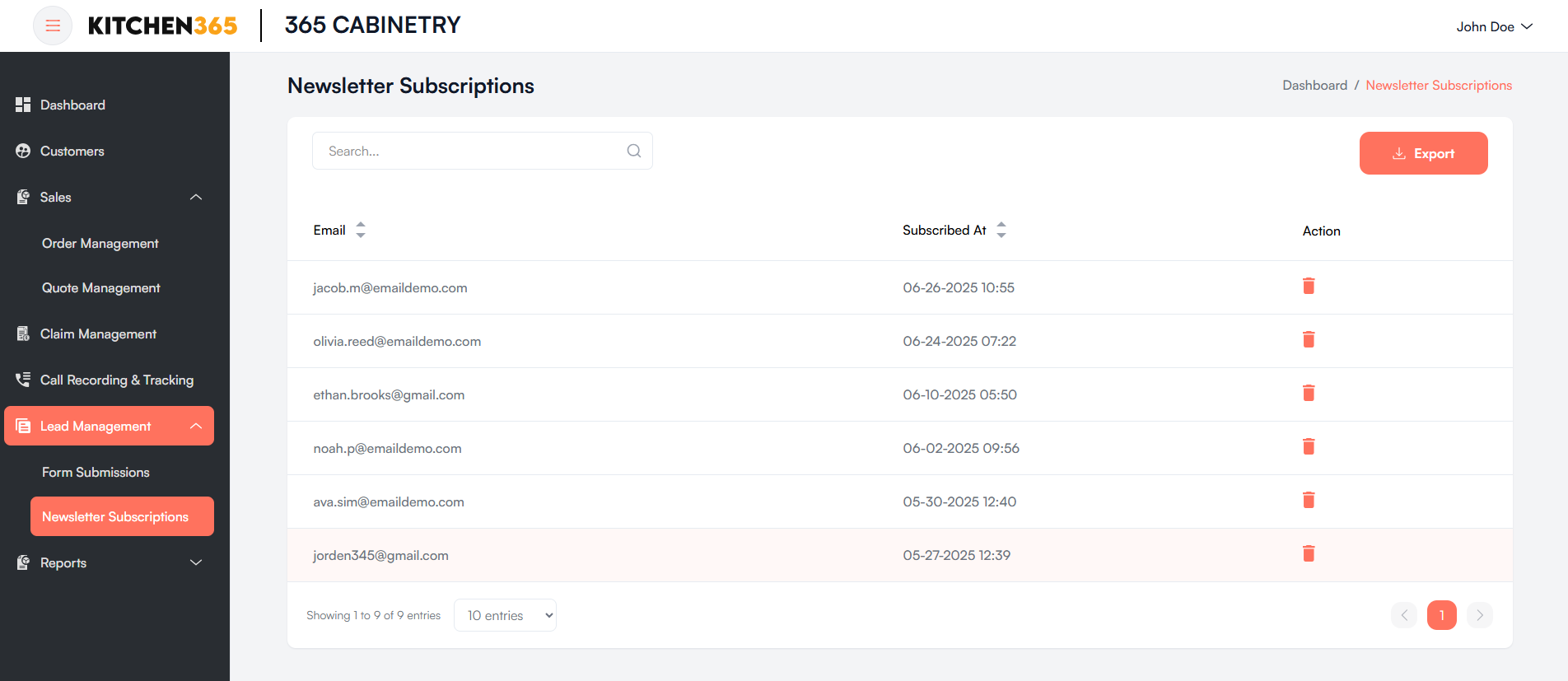
The Newsletter Subscriptions page lists customers who subscribed to the company newsletter through the website.
How to open Newsletter Subscriptions
- In the left sidebar, click Lead Management > Newsletter Subscriptions.
i. Subscriber List
| Column | Description |
|---|---|
| Subscriber's email address. | |
| Subscribed At | Timestamp of subscription (EST). |
| Action | Delete 🗑️ icon. |
ii. Common Features
| Feature | Description |
|---|---|
| Search Bar | Filter subscribers by email address. |
| Sortable Columns | Sort by email or subscription date. |
| Pagination | Navigate through pages of subscriber records. |
| Export | Download the subscriber list as an Excel (.xlsx) file. |
iii. Delete Subscriber
- Click the 🗑️ Delete icon next to the subscriber.
- Confirm the deletion in the popup.