Supported Tax
This page lists every tax method Kitchen365 supports, what you need before you set each one up, and what every field on the Edit Tax Method form means.
For how to use the Tax Methods screen itself (list, toggles, remove), see Configuration › Tax Methods.
Where in the Console: Configuration > Tax Methods. This menu appears only for websites on Console v2.0.0.
Overview
| Tax Method | Provider | How tax is calculated | Needs an external account? |
|---|---|---|---|
| Stripe Tax | external | Live rates from Stripe Tax, based on the customer's address. | Yes: Stripe account with Stripe Tax turned on |
| TaxJar | external | Live rates from TaxJar, with optional nexus locations. | Yes: TaxJar account and API token |
| US Rules (Internal) | internal | Rates by country, state and ZIP from a table you keep in the Console. | No |
| Custom (Manual) | internal | Managed by Kitchen365. Not shown in the Tax Methods list on v2. | — |
Only one tax method can be enabled at a time. Turning one on turns all the others off, including their Console and website channels. Finish the provider details before you turn a method on, so tax is not interrupted.
Configuration Steps (all methods)
-
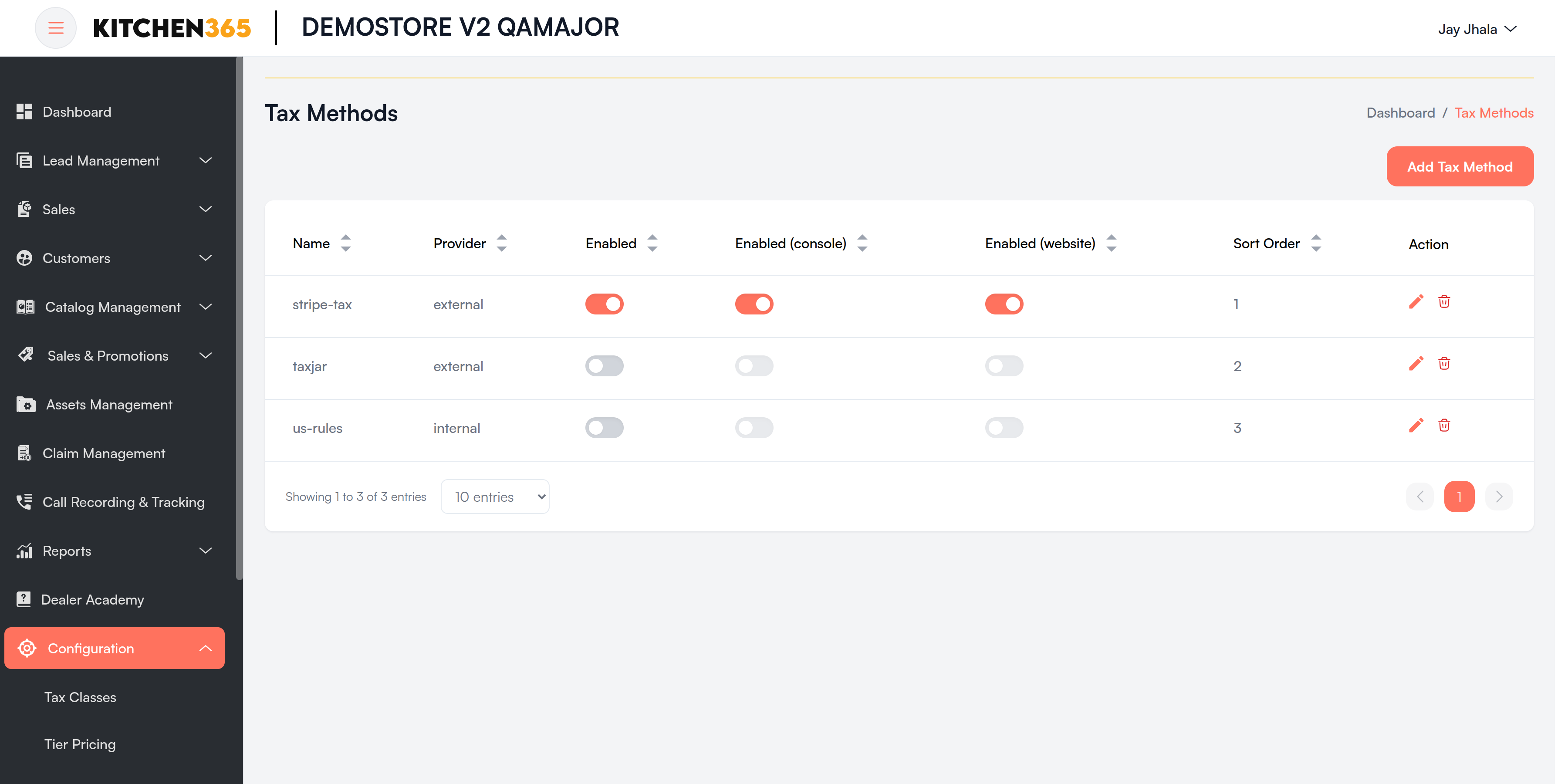
Go to Configuration > Tax Methods and click Add Tax Method.
-
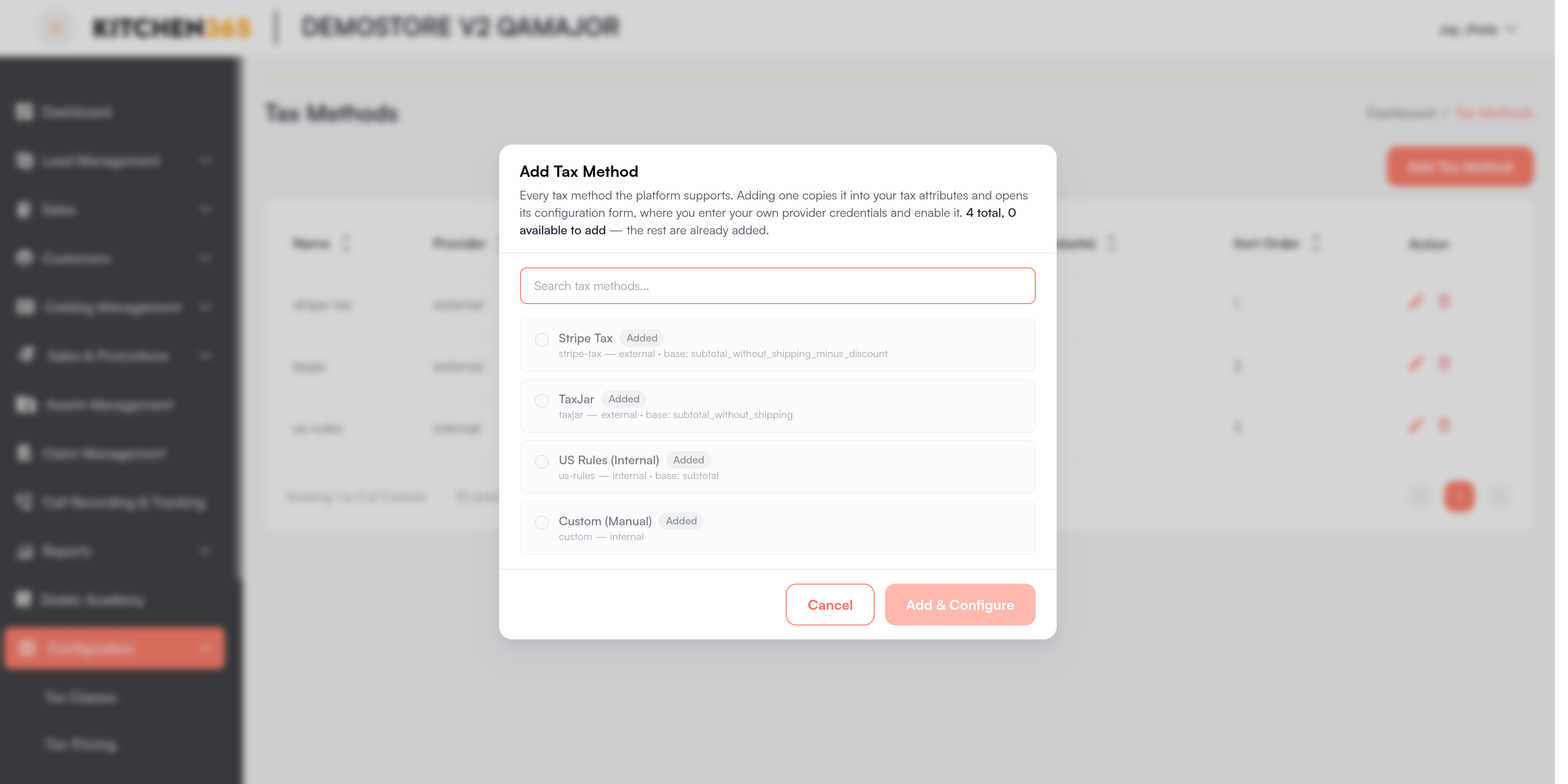
Select the method and click Add & Configure.
-
The Edit Tax Method form opens. Complete General, then the provider's sections below.
-
Click Submit, review the Confirm Changes dialog, and click Yes, save changes.
-
Back on the list, switch Enabled on for the method. The edit form has no main Enabled switch. See Turn On a Tax Method.
-
Check Enabled (console) and Enabled (website).
-
Test by creating a quote with a shipping address in a taxable state and checking the tax amount.
Common Settings
General
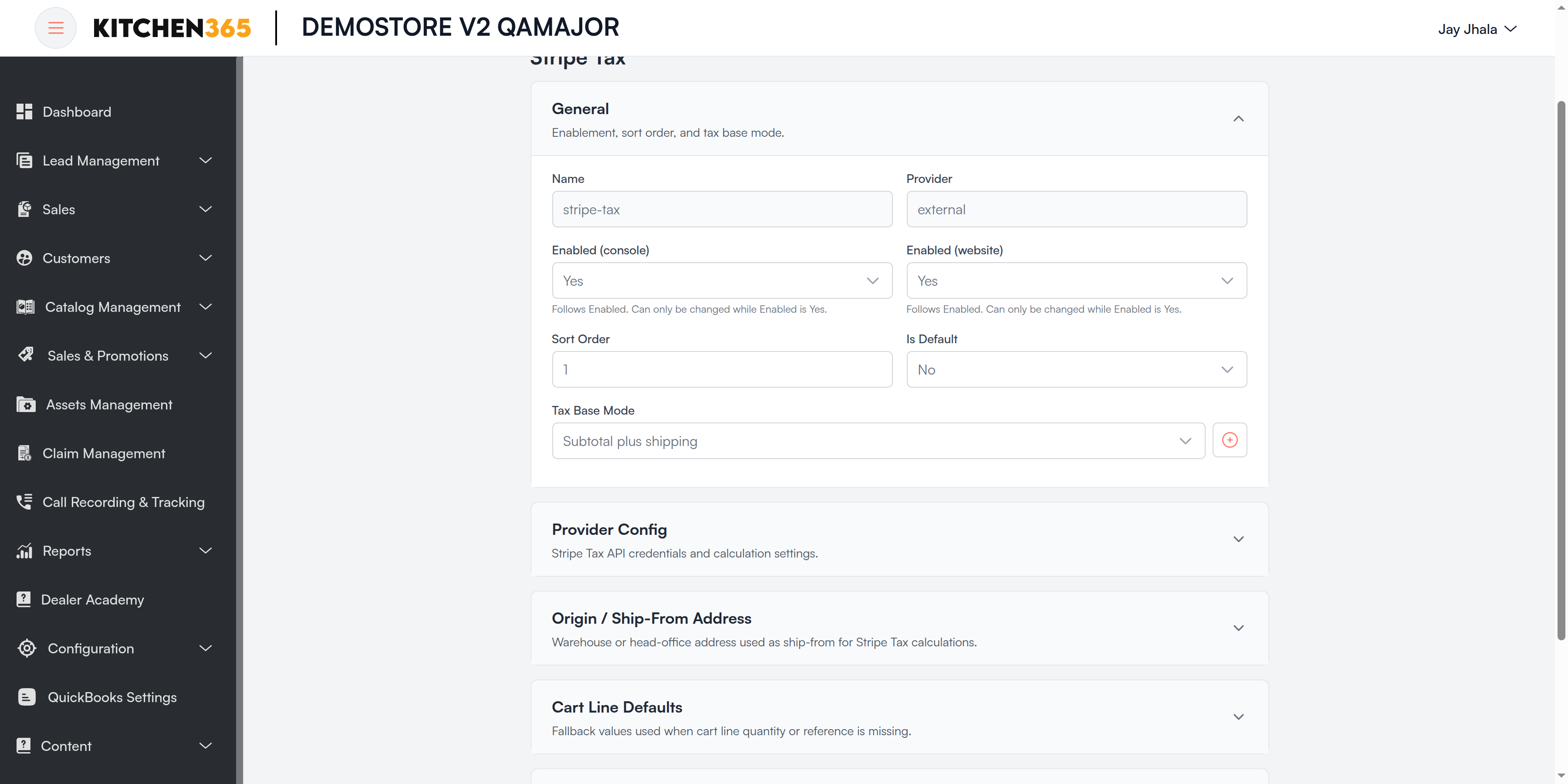
Every tax method has this section.
| Field | Options | What it means |
|---|---|---|
| Name | — | Method identifier, e.g. stripe-tax. Read-only. |
| Provider | — | external (a tax service) or internal (rules in the Console). Read-only. |
| Enabled (console) | Yes / No | Use this method for quotes and orders in the Console. |
| Enabled (website) | Yes / No | Use this method at website checkout. |
| Sort Order | — | Position in the list. |
| Is Default | Yes / No | Marks the default tax method for your website. |
| Tax Base Mode | Subtotal / Subtotal without shipping / Subtotal without shipping minus discount / Subtotal plus shipping / any mode you add | Which amount tax is calculated on. See Tax Base Modes. The + button next to it opens the Tax Base Modes page. |
Custom Mappings (Stripe Tax and TaxJar)
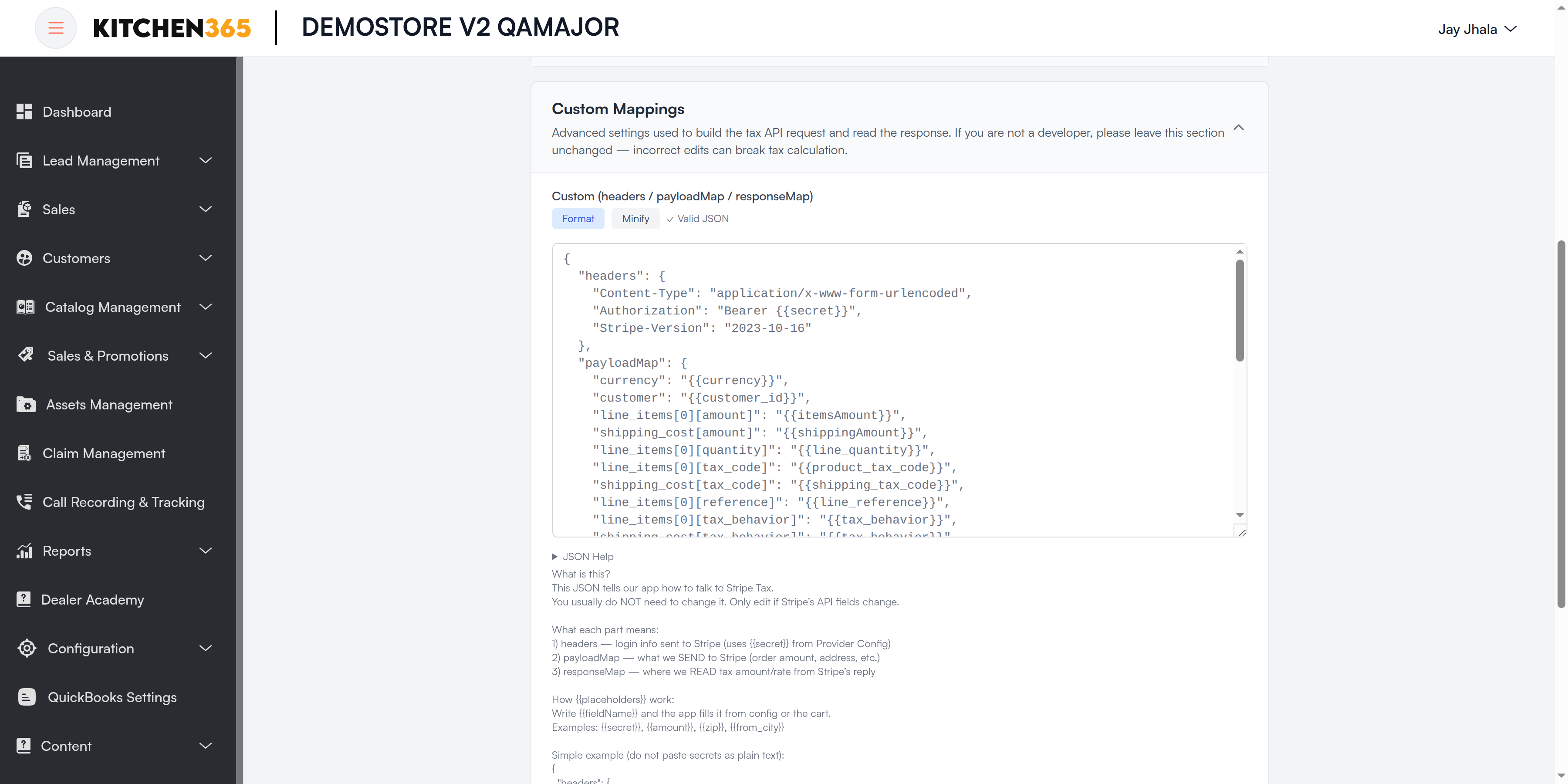
Custom (headers / payloadMap / responseMap) is an advanced setting that tells Kitchen365 how to talk to the provider's API. If you are not a developer, leave it unchanged. A wrong edit stops tax being calculated. Change it only if the provider changes its API, and then change only the value you need, keeping the rest of the default.
Stripe Tax
Live tax rates from Stripe Tax, based on the customer's shipping or billing address.
Before you start, from the Stripe Dashboard:
- Stripe Tax turned on, with your tax registrations added
- Developers > API keys: Secret key and Publishable key
- Your warehouse or head-office address (the ship-from address)
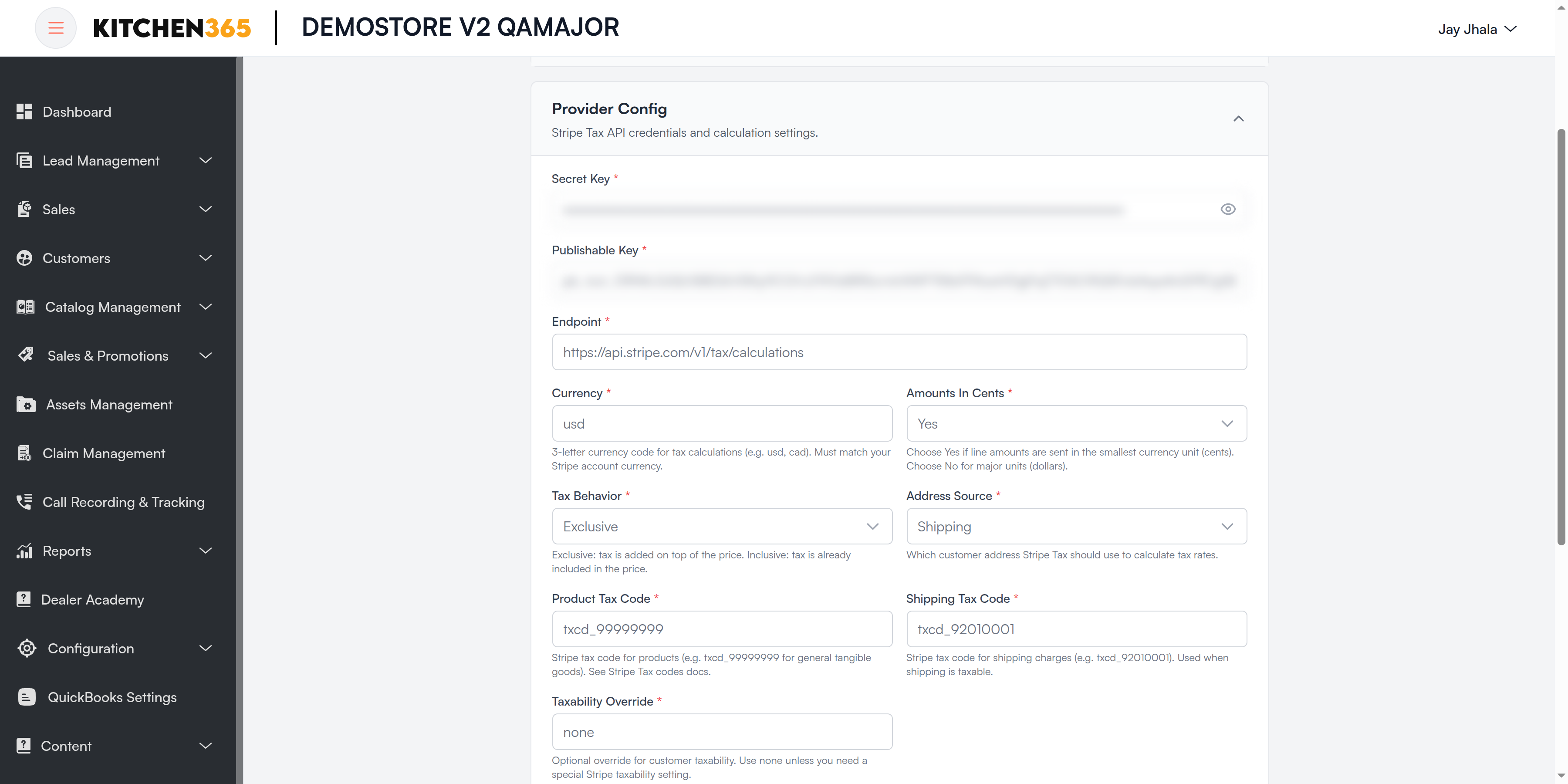
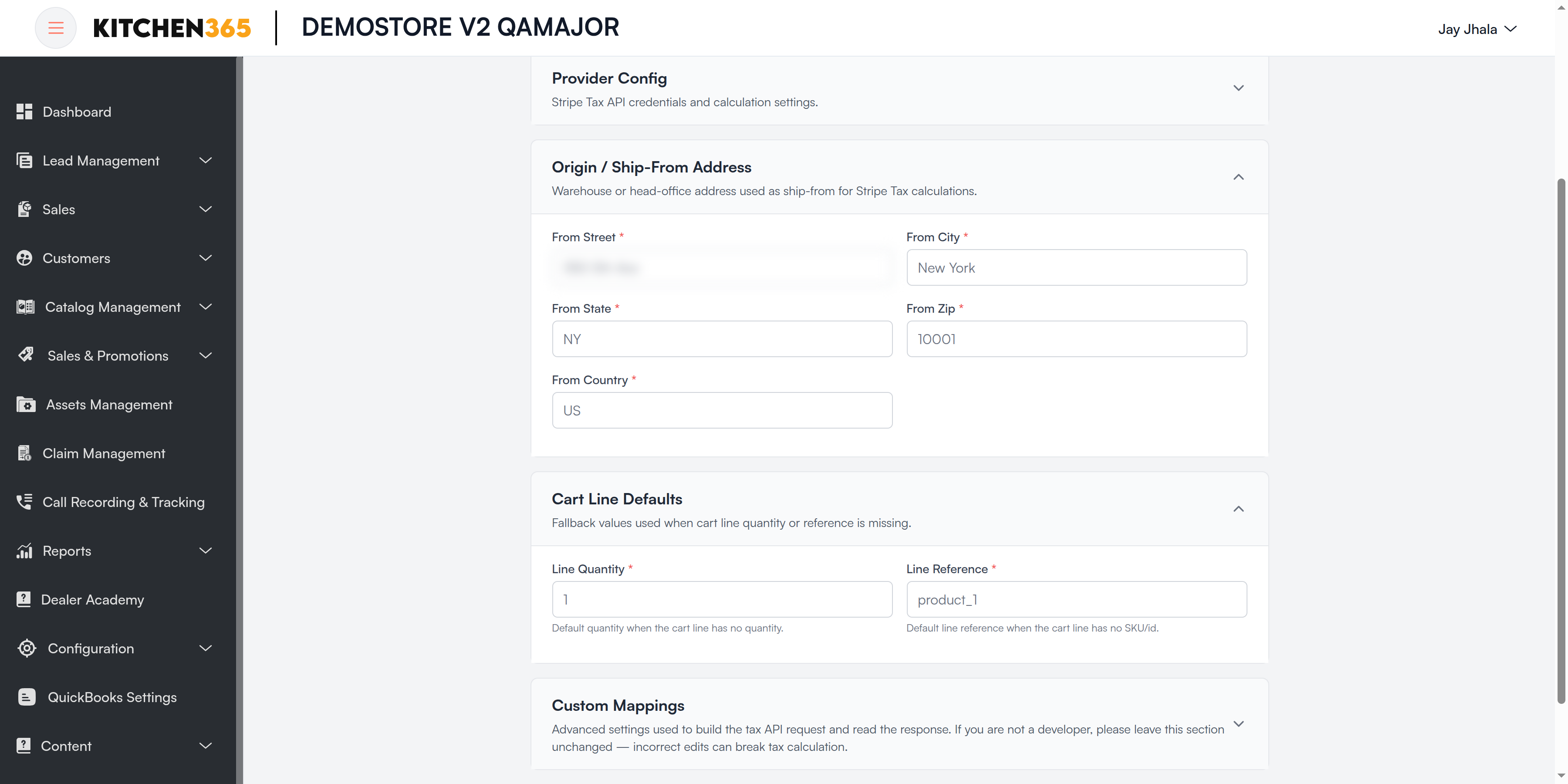
Field reference
| Section | Field | Required | Options | What it means |
|---|---|---|---|---|
| Provider Config | Secret Key | Yes | — | Stripe secret key (sk_test_… / sk_live_…). Stored masked. |
| Provider Config | Publishable Key | Yes | — | Stripe publishable key (pk_test_… / pk_live_…), same mode as the secret key. |
| Provider Config | Endpoint | Yes | — | Stripe Tax API, normally https://api.stripe.com/v1/tax/calculations. |
| Provider Config | Currency | Yes | — | 3-letter currency, e.g. usd. Must match your Stripe account. |
| Provider Config | Amounts In Cents | Yes | Yes / No | Yes if amounts are sent in cents, No for dollars. Keep the default. |
| Provider Config | Tax Behavior | Yes | Exclusive / Inclusive | Exclusive: tax is added on top of the price. Inclusive: prices already include tax. |
| Provider Config | Address Source | Yes | Shipping / Billing | Which customer address decides the tax rate. Usually Shipping. |
| Provider Config | Product Tax Code | Yes | — | Stripe tax code for your products. txcd_99999999 = general tangible goods. |
| Provider Config | Shipping Tax Code | Yes | — | Stripe tax code for shipping charges, e.g. txcd_92010001. |
| Provider Config | Taxability Override | Yes | — | Special Stripe customer taxability. Use none unless you need it. |
| Origin / Ship-From Address | From Street, From City, From State, From Zip, From Country | Yes | — | The warehouse or head-office address goods ship from. |
| Cart Line Defaults | Line Quantity | Yes | — | Quantity used when a cart line has none. Default 1. |
| Cart Line Defaults | Line Reference | Yes | — | Reference used when a cart line has no SKU. Default product_1. |
| Custom Mappings | Custom (headers / payloadMap / responseMap) | — | — | Advanced. See Custom Mappings. |
TaxJar
Live tax rates from TaxJar, including your nexus (where you must collect tax).
Before you start, from your TaxJar account (Account > TaxJar API):
- A live or sandbox API token
- Your nexus states/locations
- Your ship-from address
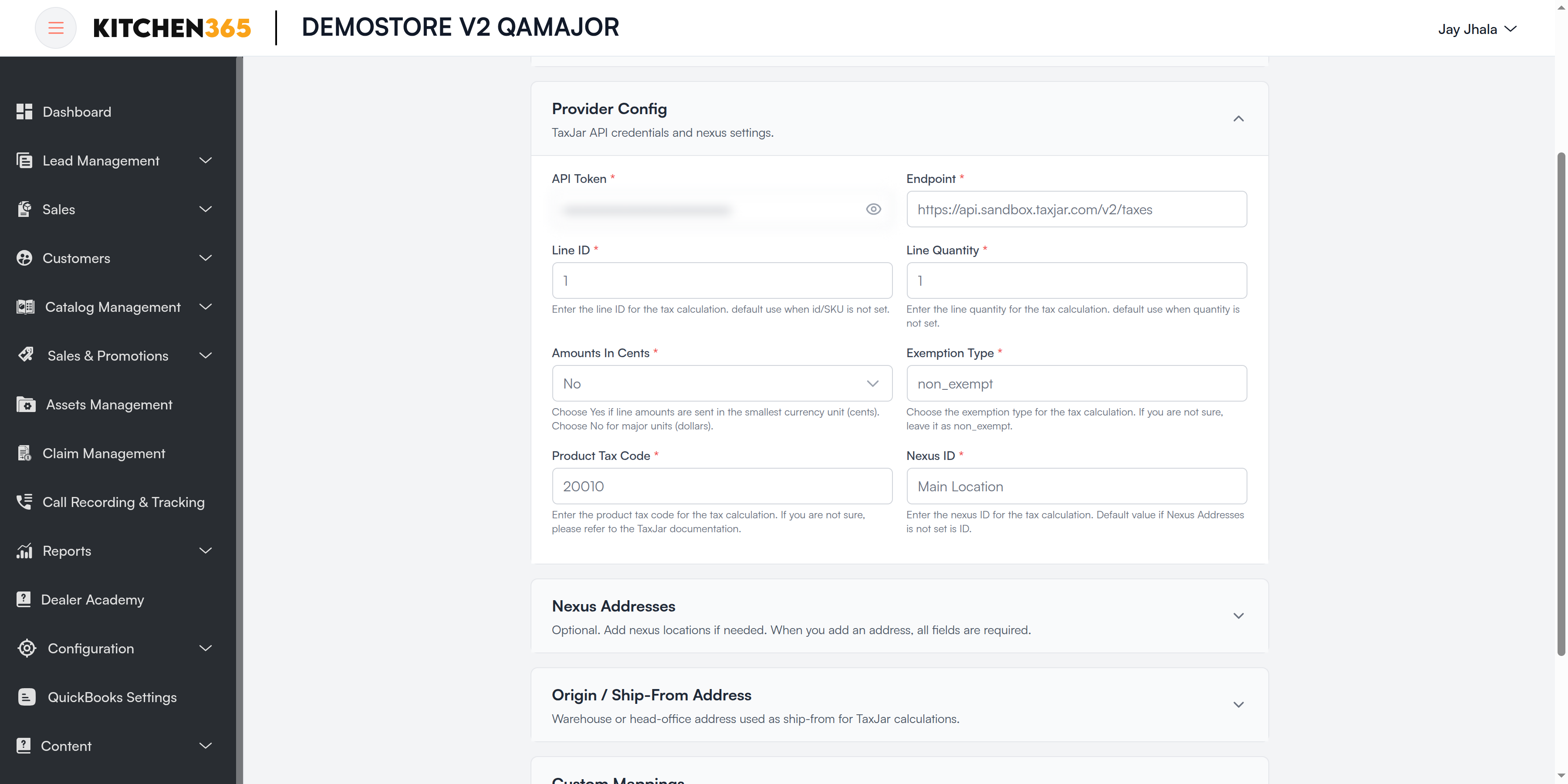
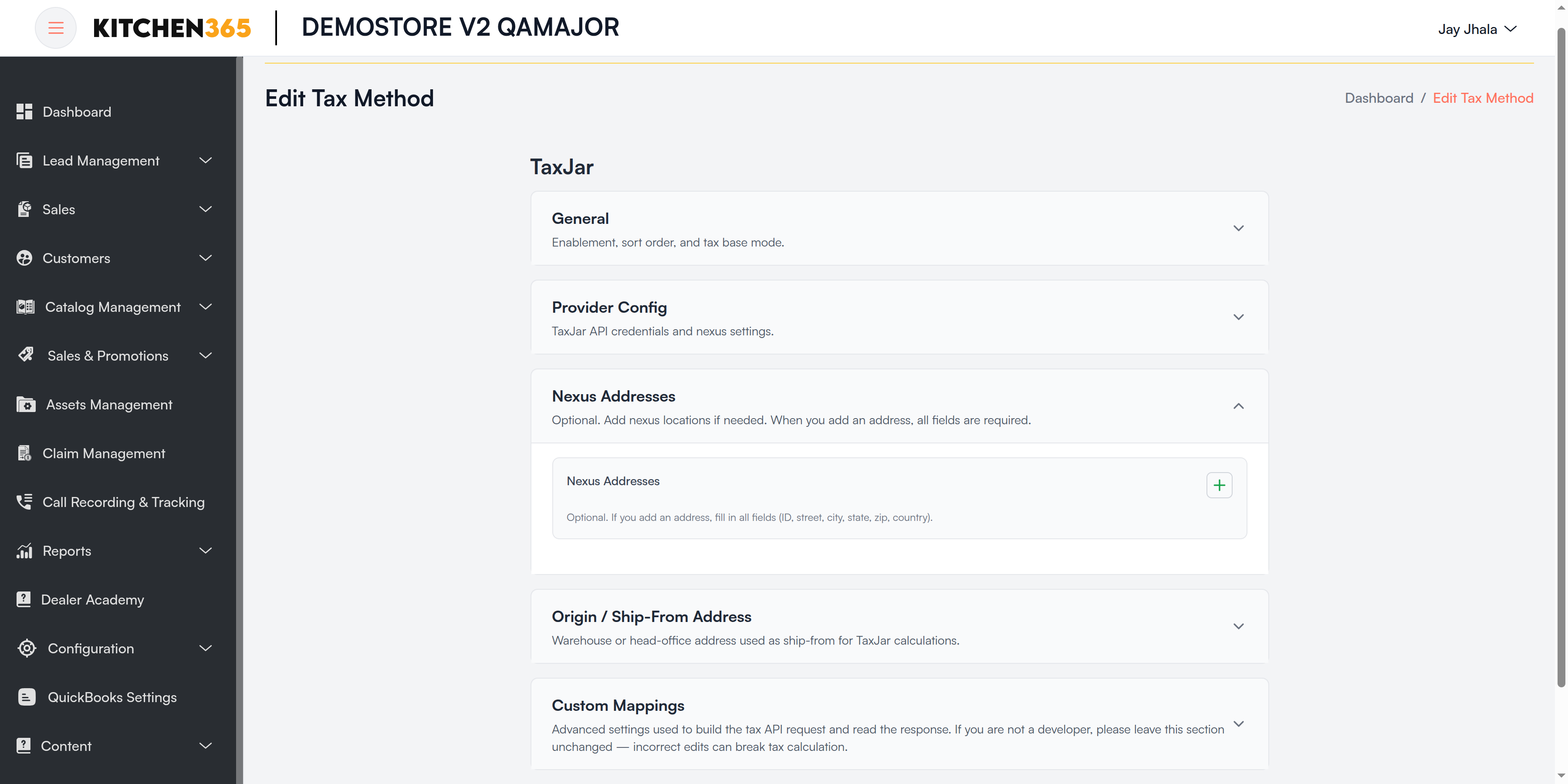
Field reference
| Section | Field | Required | What it means |
|---|---|---|---|
| Provider Config | API Token | Yes | Your TaxJar API token. Stored masked. |
| Provider Config | Endpoint | Yes | TaxJar API. Test: https://api.sandbox.taxjar.com/v2/taxes. Live: https://api.taxjar.com/v2/taxes. Must match the token. |
| Provider Config | Line ID | Yes | ID used when a cart line has no SKU. Default 1. |
| Provider Config | Line Quantity | Yes | Quantity used when a cart line has none. Default 1. |
| Provider Config | Amounts In Cents | Yes | Yes if amounts are sent in cents, No for dollars. Keep the default. |
| Provider Config | Exemption Type | Yes | Customer exemption type. Use non_exempt unless you know otherwise. |
| Provider Config | Product Tax Code | Yes | TaxJar product tax code for your products. The default 20010 is TaxJar's clothing code; check the TaxJar documentation for the right code for your products. |
| Provider Config | Nexus ID | Yes | Default nexus location ID used when no Nexus Addresses are set, e.g. Main Location. |
| Nexus Addresses | Nexus Addresses | — | Optional list of your nexus locations. If you add one, every field is required: Nexus ID, Street, City, State, Zip, Country. |
| Origin / Ship-From Address | From Street, From City, From State, From Zip, From Country | Yes | Address goods ship from. |
| Custom Mappings | Custom (headers / payloadMap / responseMap) | — | Advanced. See Custom Mappings. |
US Rules (Internal)
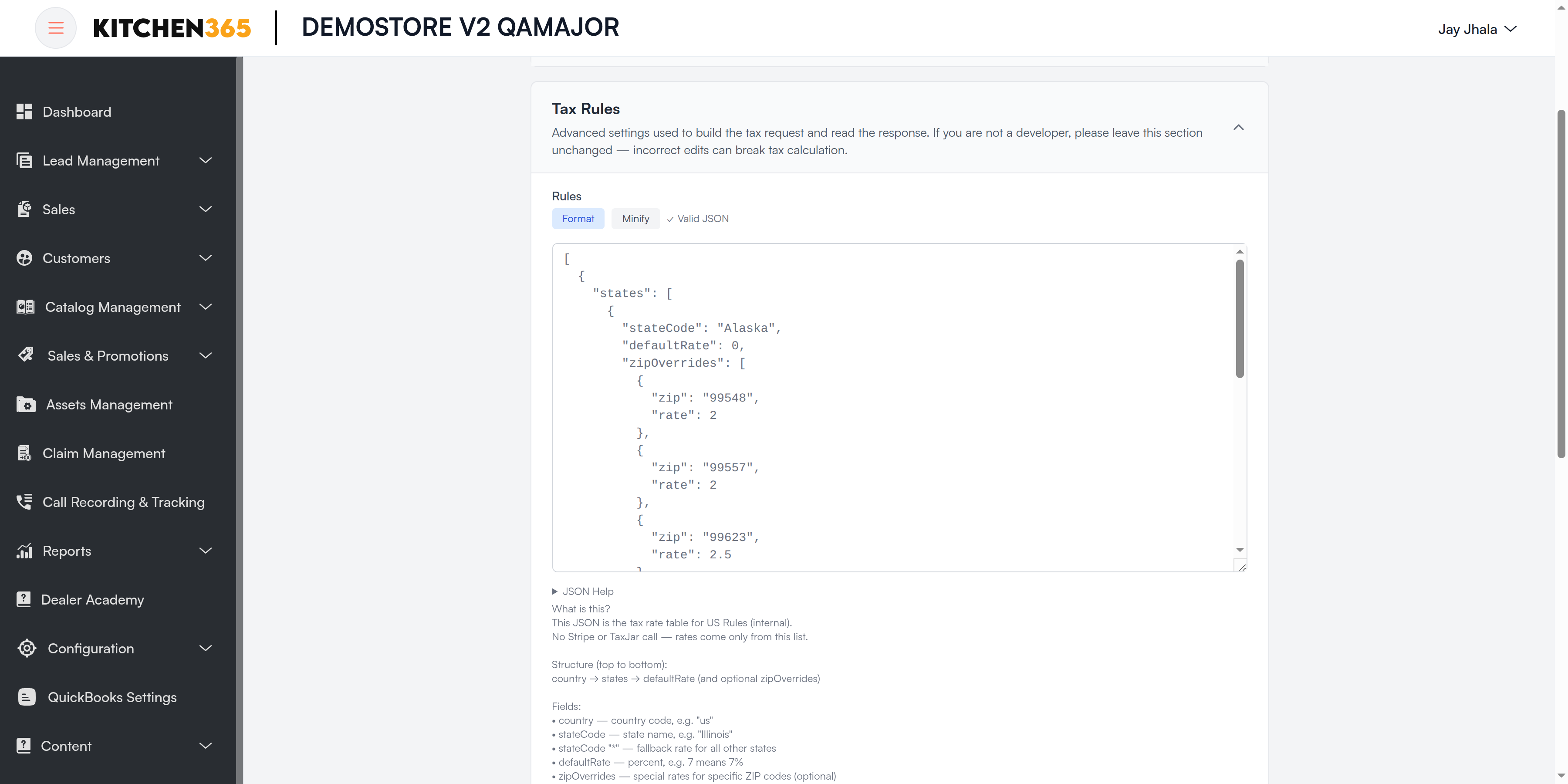
Tax rates you maintain yourself, by country, state and ZIP. No external service is called, so there is no account or key to set up.
Before you start: a list of the states (and any special ZIP codes) where you charge tax, and their rates.
Field reference
| Section | Field | What it means |
|---|---|---|
| Tax Rules | Rules | The rate table, in JSON. Use Format to tidy it, Minify to compact it; the form shows Valid JSON when it can be saved. |
The rate table is built like this:
| Part | What it means |
|---|---|
country | Country code, e.g. us. |
states | One entry per state. |
stateCode | State name, e.g. Illinois. Use * for "every other state". |
defaultRate | Rate in percent for the state, e.g. 7 means 7%. |
zipOverrides | Optional: different rates for particular ZIP codes. |
Example: Illinois at 10%, two Alaska ZIPs at 2%, every other state at 7%:
[
  {
    "country": "us",
    "states": [
      { "stateCode": "Illinois", "defaultRate": 10, "zipOverrides": [] },
      {
        "stateCode": "Alaska",
        "defaultRate": 0,
        "zipOverrides": [{ "zip": ["99548", "99557"], "rate": 2 }]
      },
      { "stateCode": "*", "defaultRate": 7, "zipOverrides": [] }
    ]
  }
]
To change a rate: find the state (or add it under states), set defaultRate, and add zipOverrides only for ZIPs that need a different rate.
Tax Base Modes
A Tax Base Mode decides which amount tax is charged on: the taxable amount of the order. For example, products only, or products plus shipping minus discounts. The tax method then applies its rate to that amount.
Where it is used
- Every tax method (Stripe Tax, TaxJar, US Rules) has a Tax Base Mode dropdown in General.
- The dropdown lists every active mode by its Label.
- The + (Add new mode) button next to the dropdown opens the Tax Base Modes page.
Default mode for each tax method when it is first added:
| Tax Method | Default Tax Base Mode | Formula |
|---|---|---|
| Stripe Tax | Subtotal without shipping minus discount | s - d |
| TaxJar | Subtotal without shipping | s |
| US Rules (Internal) | Subtotal | s |
- Your state does not tax shipping: a mode without
sh, e.g. Subtotal without shipping minus discount. - Your state taxes shipping: a mode with
+ sh, e.g. Subtotal plus shipping minus discount. - Discounts lower the tax: include
- d(all discounts),- id(item discounts only) or- sd(shipping discount only). - Assembly is not taxable: include
- a.
If you are unsure, ask your accountant which amounts are taxable in your state.
Tax Base Modes page
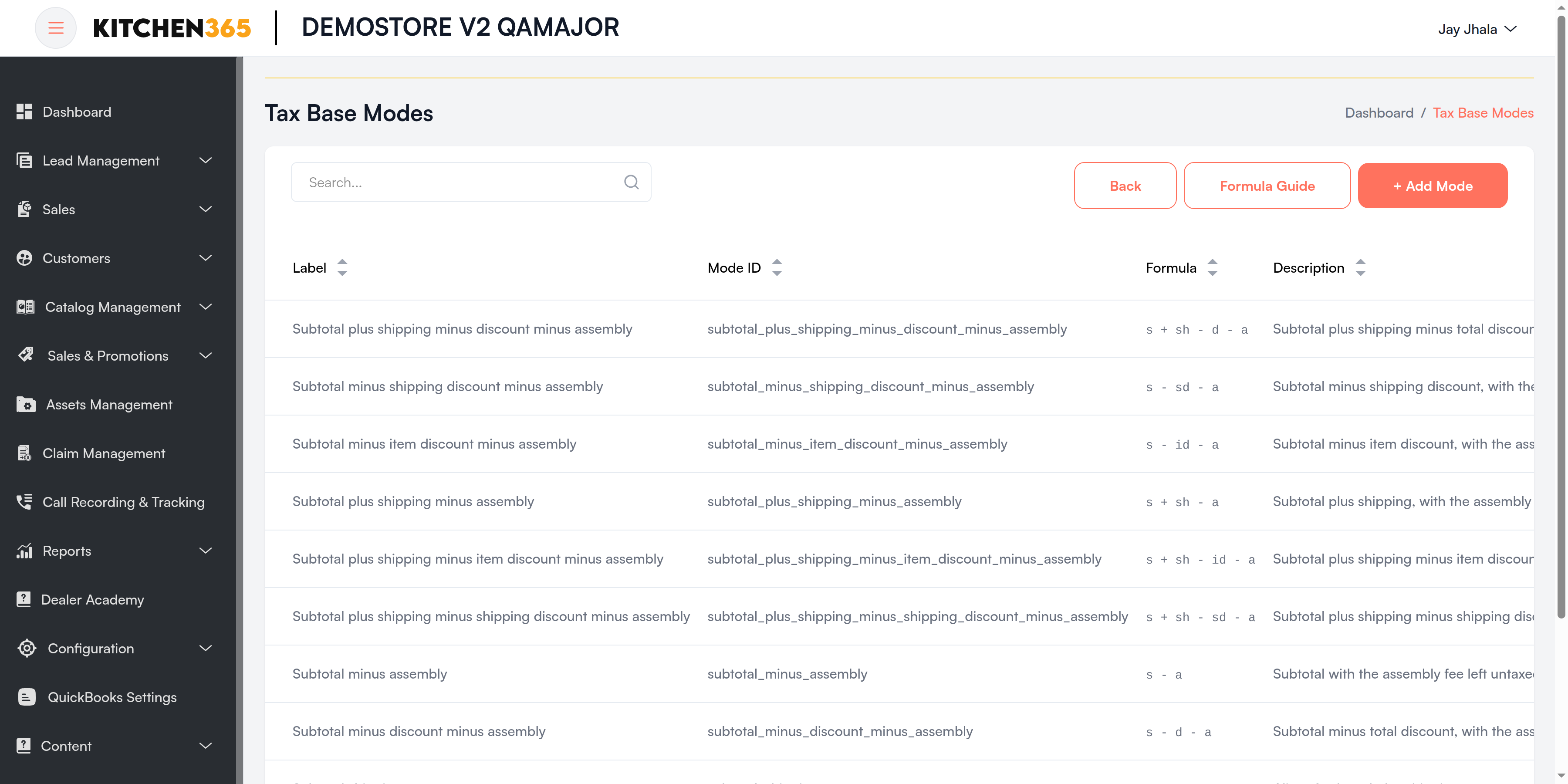
How to open: on Edit Tax Method, click + next to Tax Base Mode. Click Back to return to the edit form.
| Column | What it shows |
|---|---|
| Label | Name shown in the Tax Base Mode dropdown. |
| Mode ID | Unique identifier, e.g. subtotal_plus_shipping. |
| Formula | The taxable-amount formula, e.g. s + sh - d. |
| Description | Notes about the mode, or - if none. |
| Active | Yes: can be chosen on a tax method. No: hidden from the dropdown. |
Buttons on the page:
- Back: returns to the Edit Tax Method form.
- Formula Guide: opens the Formula Combination Guide (below).
- + Add Mode: creates a new mode. You need permission to create tax base modes.
- Search...: filters by label, mode ID or formula.
Formula Guide
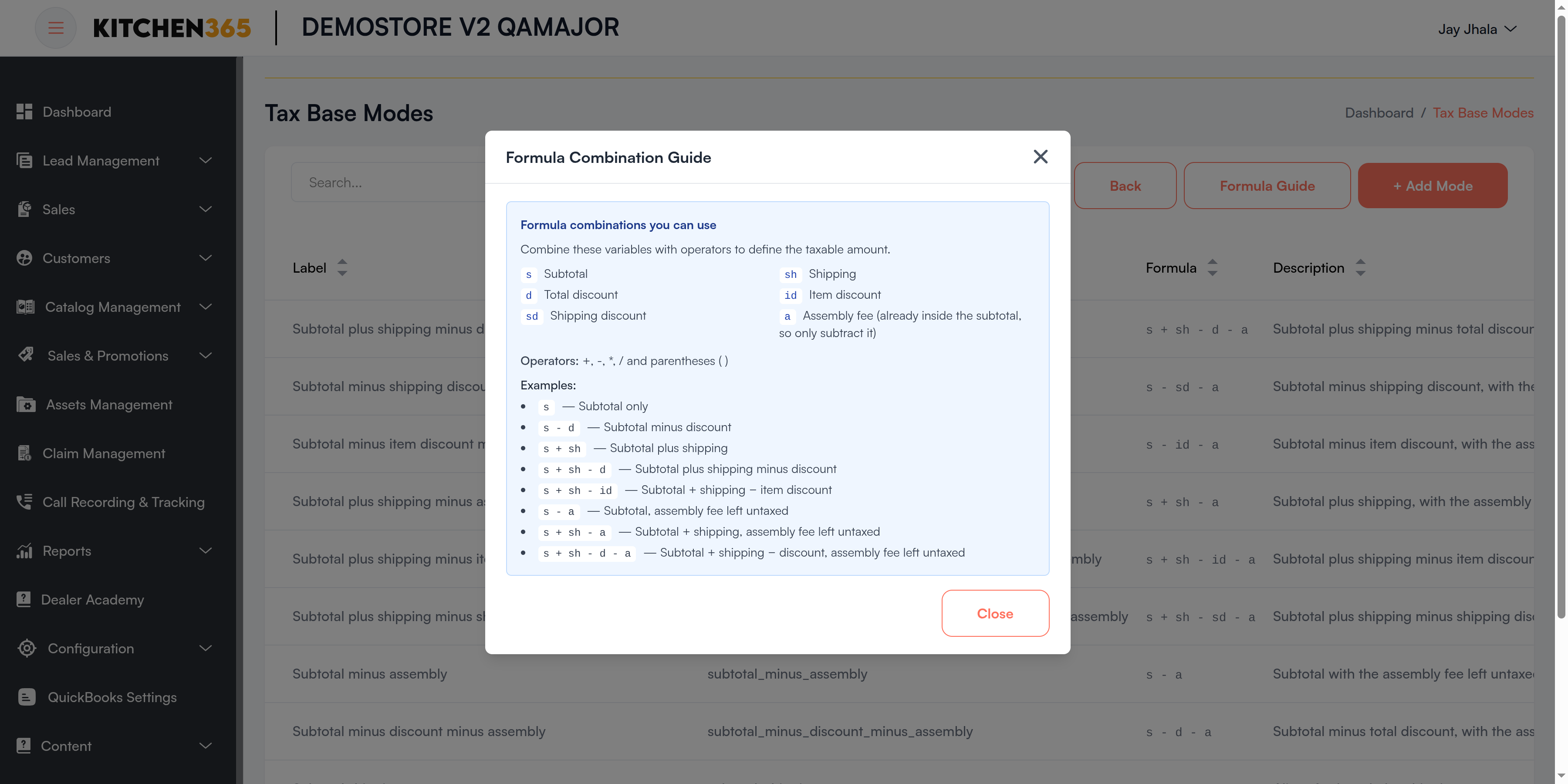
A formula is built from these variables:
| Variable | Means | Notes |
|---|---|---|
s | Subtotal | Total of the products in the order. |
sh | Shipping | Shipping charge. Add it only if shipping is taxable. |
d | Total discount | All discounts on the order. |
id | Item discount | Discounts on products only. |
sd | Shipping discount | Discount on shipping only. |
a | Assembly fee | Already inside the subtotal, so only ever subtract it (- a). |
Operators: + (add), - (subtract), * (multiply), / (divide) and parentheses ( ). Plain numbers are also allowed, e.g. s * 0.5. Upper or lower case and spaces don't matter.
All built-in modes
Kitchen365 provides these modes. Some have the same formula under a different name (marked alias); they give exactly the same result.
Subtotal only (shipping not taxed)
| Label | Mode ID | Formula | What is taxed |
|---|---|---|---|
| Subtotal | subtotal | s | Order subtotal only. |
| Subtotal without shipping | subtotal_without_shipping | s | Subtotal only, shipping excluded. |
| Subtotal minus discount | subtotal_minus_discount | s - d | Subtotal minus all discounts. |
| Subtotal without shipping minus discount | subtotal_without_shipping_minus_discount | s - d | Subtotal minus all discounts, shipping excluded. |
| Subtotal minus item discount | subtotal_minus_item_discount | s - id | Subtotal minus item discounts only. |
| Subtotal without shipping minus item discount | subtotal_without_shipping_minus_item_discount | s - id | Subtotal minus item discounts, shipping excluded. |
| Subtotal minus shipping discount | subtotal_minus_shipping_discount | s - sd | Subtotal minus shipping discount only. |
| Subtotal without shipping minus shipping discount | subtotal_without_shipping_minus_shipping_discount | s - sd | Subtotal minus shipping discount, shipping excluded. |
Subtotal plus shipping (shipping taxed)
| Label | Mode ID | Formula | What is taxed |
|---|---|---|---|
| Subtotal plus shipping | subtotal_plus_shipping | s + sh | Subtotal plus shipping. |
| Subtotal and shipping | subtotal_and_shipping | s + sh | Alias of Subtotal plus shipping. |
| Subtotal shipping | subtotal_shipping | s + sh | Alias of Subtotal plus shipping. |
| Subtotal plus shipping minus discount | subtotal_plus_shipping_minus_discount | s + sh - d | Subtotal plus shipping, minus all discounts. |
| Subtotal shipping minus discount | subtotal_shipping_minus_discount | s + sh - d | Alias of Subtotal plus shipping minus discount. |
| Subtotal plus shipping minus item discount | subtotal_plus_shipping_minus_item_discount | s + sh - id | Subtotal plus shipping, minus item discounts. |
| Subtotal shipping minus item discount | subtotal_shipping_minus_item_discount | s + sh - id | Alias of Subtotal plus shipping minus item discount. |
| Subtotal plus shipping minus shipping discount | subtotal_plus_shipping_minus_shipping_discount | s + sh - sd | Subtotal plus shipping, minus shipping discount. |
| Subtotal shipping minus shipping discount | subtotal_shipping_minus_shipping_discount | s + sh - sd | Alias of Subtotal plus shipping minus shipping discount. |
Assembly fee not taxed
| Label | Mode ID | Formula | What is taxed |
|---|---|---|---|
| Subtotal minus assembly | subtotal_minus_assembly | s - a | Subtotal, assembly fee left untaxed. |
| Subtotal minus discount minus assembly | subtotal_minus_discount_minus_assembly | s - d - a | Subtotal minus all discounts, assembly untaxed. |
| Subtotal minus item discount minus assembly | subtotal_minus_item_discount_minus_assembly | s - id - a | Subtotal minus item discounts, assembly untaxed. |
| Subtotal minus shipping discount minus assembly | subtotal_minus_shipping_discount_minus_assembly | s - sd - a | Subtotal minus shipping discount, assembly untaxed. |
| Subtotal plus shipping minus assembly | subtotal_plus_shipping_minus_assembly | s + sh - a | Subtotal plus shipping, assembly untaxed. |
| Subtotal plus shipping minus discount minus assembly | subtotal_plus_shipping_minus_discount_minus_assembly | s + sh - d - a | Subtotal plus shipping minus all discounts, assembly untaxed. |
| Subtotal plus shipping minus item discount minus assembly | subtotal_plus_shipping_minus_item_discount_minus_assembly | s + sh - id - a | Subtotal plus shipping minus item discounts, assembly untaxed. |
| Subtotal plus shipping minus shipping discount minus assembly | subtotal_plus_shipping_minus_shipping_discount_minus_assembly | s + sh - sd - a | Subtotal plus shipping minus shipping discount, assembly untaxed. |
Worked example. Subtotal $1,000 (including a $100 assembly fee), shipping $50, item discount $80:
| Mode | Formula | Taxable amount | Tax at 7% |
|---|---|---|---|
| Subtotal | s | $1,000 | $70.00 |
| Subtotal minus item discount | s - id | $920 | $64.40 |
| Subtotal plus shipping minus item discount | s + sh - id | $970 | $67.90 |
| Subtotal plus shipping minus item discount minus assembly | s + sh - id - a | $870 | $60.90 |
Create a Tax Base Mode
Create your own mode only if none of the built-in modes fits.
-
Open the Tax Base Modes page (the + next to Tax Base Mode).
-
Click Formula Guide and check the variables.
-
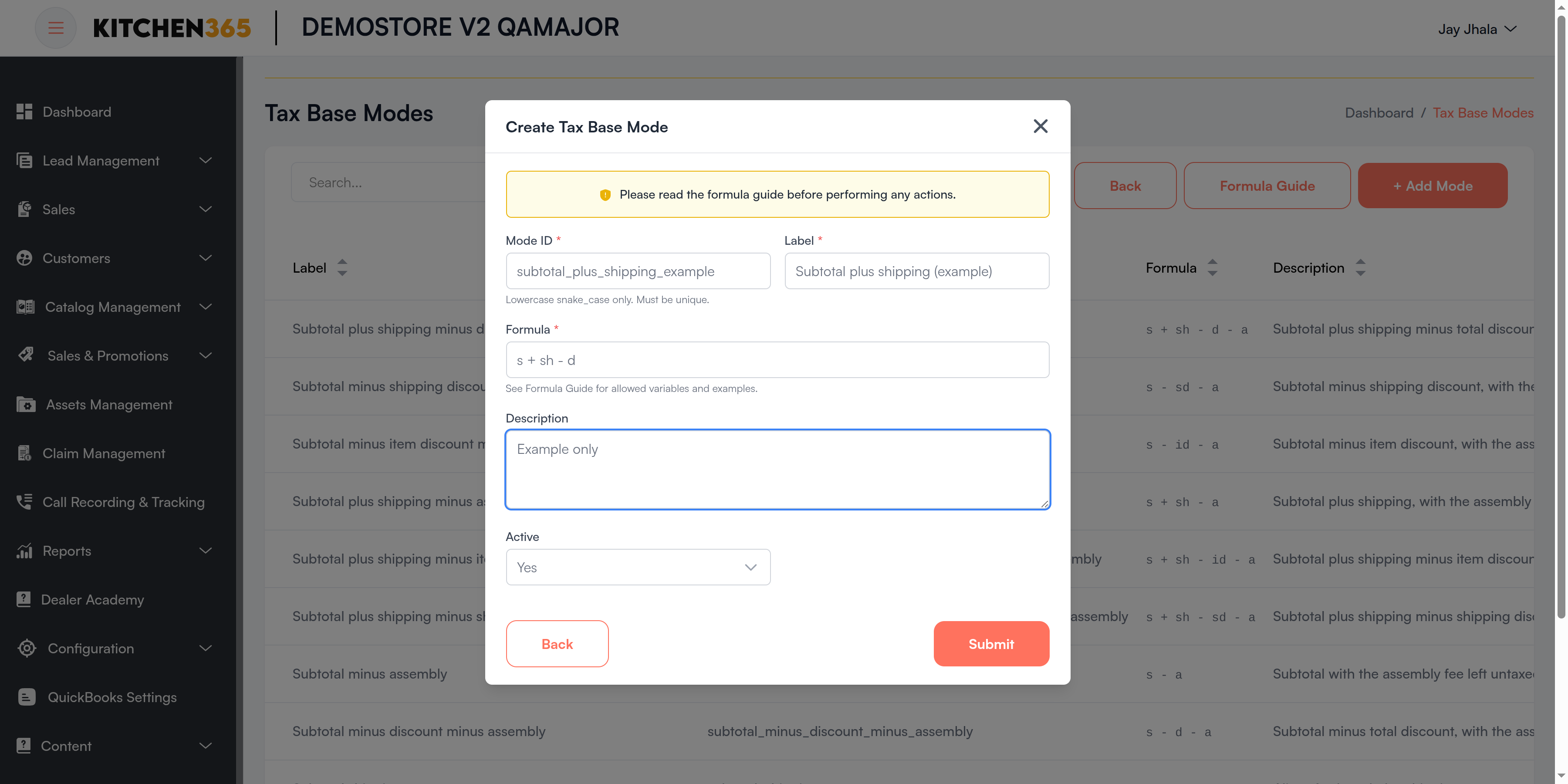
Click + Add Mode. The Create Tax Base Mode dialog shows the warning "Please read the formula guide before performing any actions."
-
Fill in the fields below and click Submit.
-
Click Back, choose the new mode in Tax Base Mode, and save the tax method.
| Field | Required | What it means | Rules |
|---|---|---|---|
| Mode ID | Yes | Unique identifier. | Lowercase letters, numbers and _, starting with a letter, e.g. subtotal_plus_shipping. Cannot be changed later. |
| Label | Yes | Name shown in the dropdown. | e.g. Subtotal plus shipping. |
| Formula | Yes | How the taxable amount is calculated. | Only s, sh, d, id, sd, a, numbers, + - * / and ( ). |
| Description | — | Your notes, shown in the list. | — |
| Active | — | Yes (default): can be chosen. No: hidden from the dropdown. | — |
On success, the message "Tax base mode created successfully" appears.
Formula error messages
| Message | Meaning | Fix |
|---|---|---|
| Formula is required | The formula is empty. | Enter a formula, e.g. s. |
| Unknown variable in formula: … | A letter or word that isn't a variable, e.g. tax or t. | Use only s, sh, d, id, sd, a. |
| Invalid operator in formula: … | A symbol such as %, = or ,. | Use only + - * /. |
| Unbalanced parentheses in formula | A ( without a matching ), or the reverse. | Count and match the parentheses. |
| Mode ID must be lowercase snake_case | Capitals, spaces or dashes in the Mode ID. | e.g. subtotal_minus_freight. |
Tax base modes cannot be edited or deleted after they are created. Check the Mode ID and Formula before clicking Submit. If you make a mistake, create a new mode with the correct formula, and ask Kitchen365 to deactivate the wrong one.
Troubleshooting
| Problem | Likely cause | What to do |
|---|---|---|
| Tax Methods menu missing | Website not on Console v2.0.0, or you haven't signed in again since the upgrade. | Log out and back in; if still missing, contact Kitchen365. |
| Tax shows 0 | No method enabled, or the method is off for that channel. | Turn the method on in the list and check Enabled (console) / Enabled (website). |
| Turning on one method turned another off | Only one tax method can be on at a time. | Expected. Keep the one you want enabled. |
| Stripe Tax / TaxJar returns no tax | Wrong key or token, test key with live endpoint (or reverse), or no registration/nexus for that state. | Re-enter the key, check the Endpoint, and check your registrations in Stripe or nexus in TaxJar. |
| Shipping not taxed when it should be | Tax Base Mode excludes shipping. | Choose a mode with + sh, e.g. Subtotal plus shipping. See Tax Base Modes. |
| New tax base mode not in the dropdown | Active is No, or the page was not reloaded. | Check Active on the Tax Base Modes page, then reopen the tax method. |
| Formula rejected | Unknown variable, symbol or unbalanced parentheses. | See Formula error messages. |
| US Rules can't be saved | The JSON is invalid. | Click Format to find the error; the form must show Valid JSON. |
| Tax calculation stopped after an edit | Custom Mappings was changed. | Restore the default mapping, or contact Kitchen365. |