Change Password
The Change Password page in the Kitchen365 Console v2.0.0 lets signed-in users update their account password without using the forgot-password email flow.
Access
How to open Change Password
- Log in to the Kitchen365 Console.
- In the top-right corner, click your name to open the user menu.
- Click Change Password.
| Menu Option | Description |
|---|---|
| User Profile | View and edit your personal information. See User Profile. |
| Change Password | Update your account password. |
| Log out | Sign out of the Console. See Log out. |
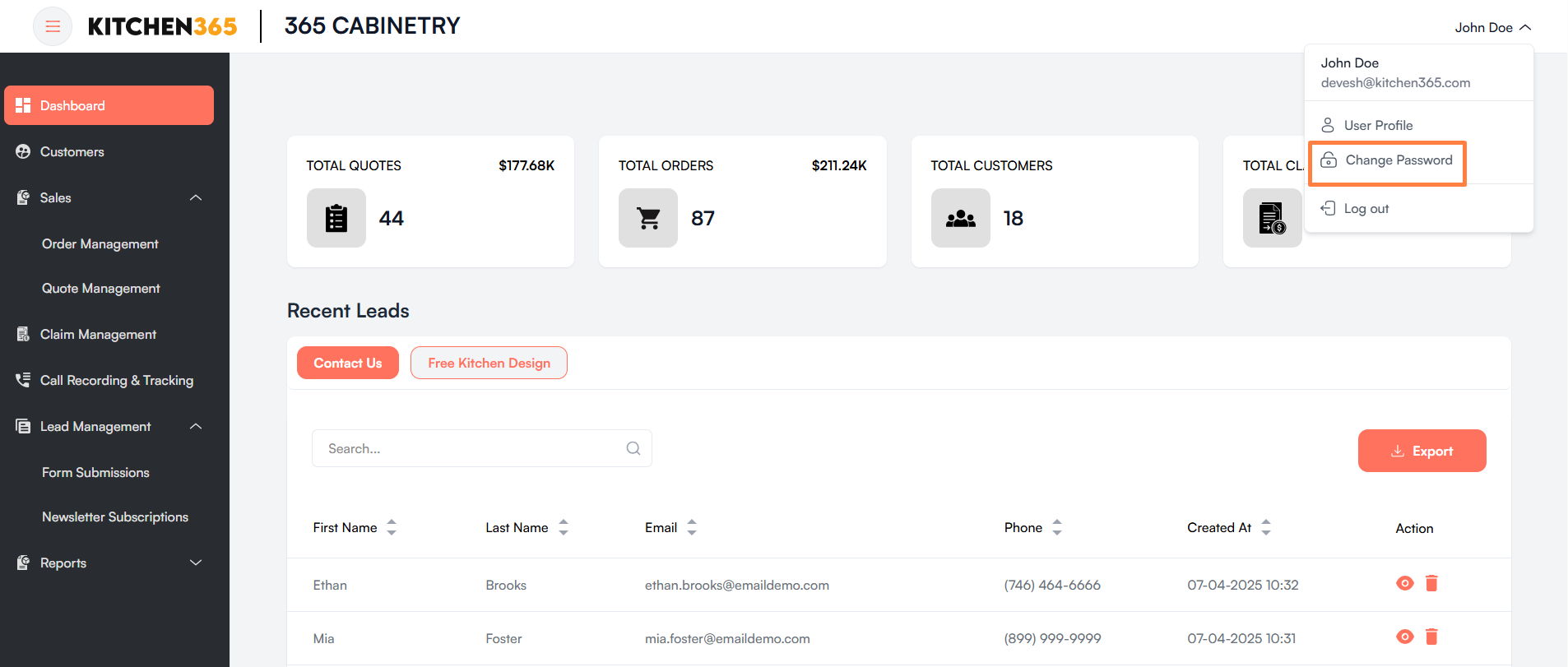
a. Update Password
On the Change Password page:
- Enter your Current Password.
- Enter your New Password.
- Confirm the new password in Confirm Password.
- Review the password strength criteria on the right side of the page.
- Click Change Password once all requirements are met.
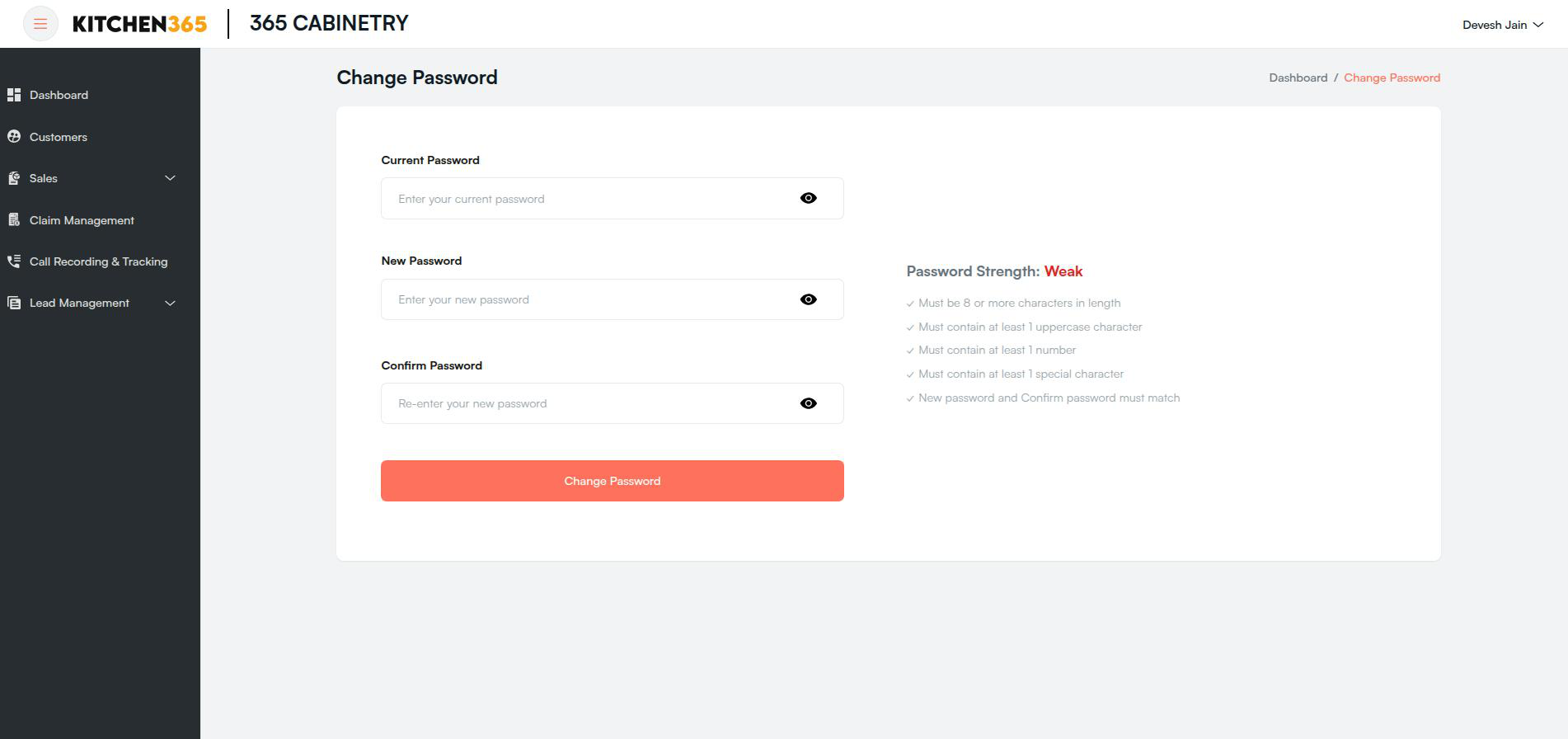
| Field | Description |
|---|---|
| Current Password | Your existing Console password. |
| New Password | Must meet all listed strength requirements. |
| Confirm Password | Must match the new password. |
Locked out?
If you cannot sign in, use Forgot Password instead of this page.